Connect QuickBooks Online and map your accounts
Connect your QuickBooks Online company to Stageworks and choose where your sales, fees, deposits and patron credit go.
In this guide you'll connect your QuickBooks Online company to Stageworks, then choose which QuickBooks accounts your sales, fees, deposits and patron credit go to. Nothing is sent to QuickBooks yet; that happens when you sync. If you'd like the big picture first, read QuickBooks Online and Stageworks.
Before You Start
You'll sign in to QuickBooks during setup, so have your QuickBooks login handy.
Set up a few things in QuickBooks first. If you have a bookkeeper, this is a good part to do together.
- A new account with the type Bank, just for Stageworks card payments (for example, "Stageworks Clearing"). This will be your clearing account.
- A product or service for each kind of sale, such as one for tickets and one for donations, each with an income account.
- The other accounts you want to use, such as an expense account for platform fees and a liability account for patron credit.
Owners and admins can connect QuickBooks and map accounts. There's no built-in bookkeeper role, so if your bookkeeper is setting this up, give them a custom role with both Manage integrations and Manage QuickBooks integration.
Connect QuickBooks
- Step 1:
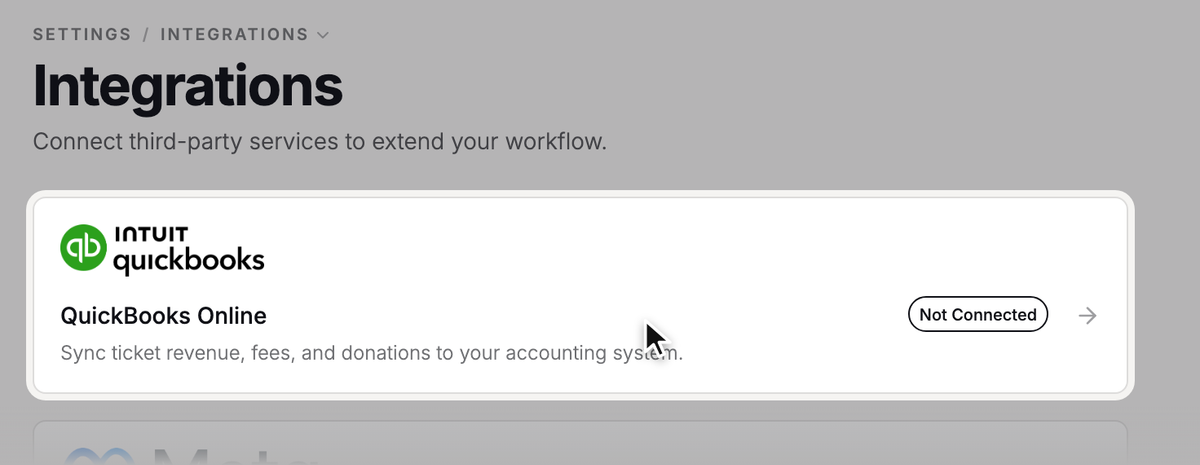
Go to Settings → Integrations.
- Step 2:
Click QuickBooks Online.
- Step 3:
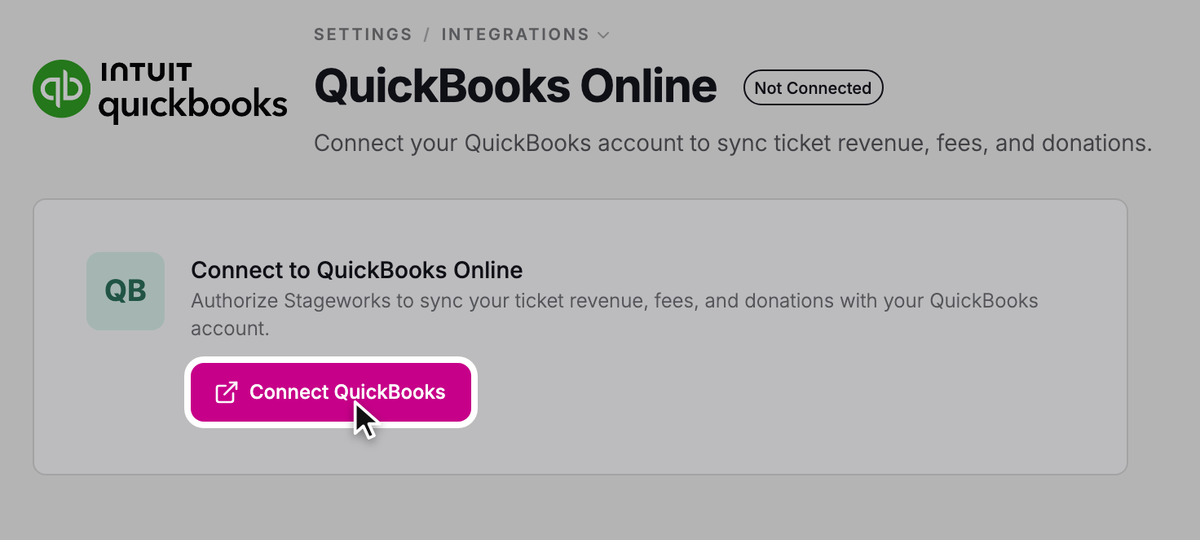
Click Connect QuickBooks.
- Step 4:
You're taken to QuickBooks. Sign in and approve access.
- Step 5:
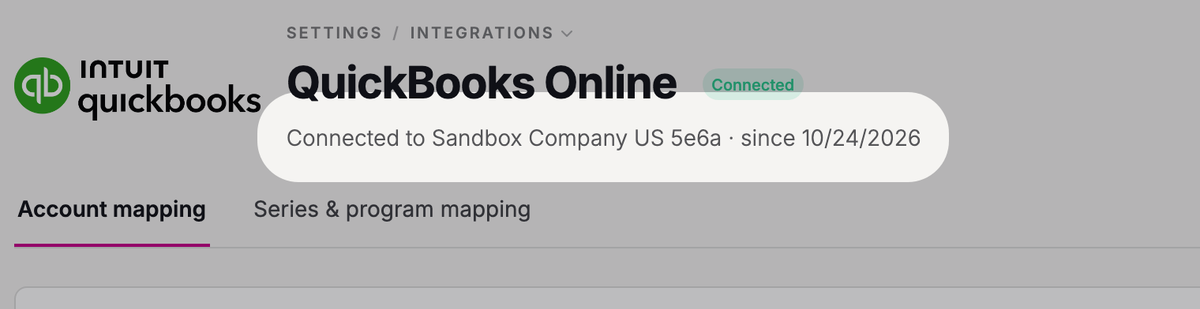
You're brought back to Stageworks with a "QuickBooks connected" message. Check that the company name under the QuickBooks Online heading is the right one.
Map your accounts
Mapping tells Stageworks which QuickBooks account or product each kind of money goes to. You'll land on the Account mapping tab right after connecting.
You'll only see the fields that apply to you. Flex Pass Revenue, for example, shows up once you've sold a flex pass.
| Field | What to choose |
|---|---|
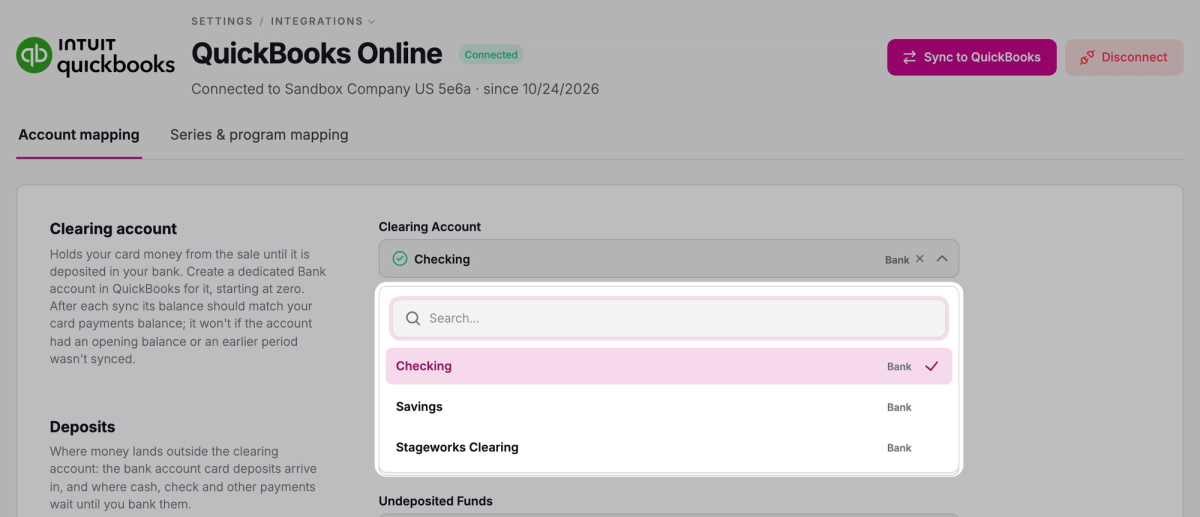
| Clearing Account | The new Bank account you created. Card payments sit here until they're deposited in your bank. |
| Bank Account | The bank account your card deposits arrive in, not the clearing account. |
| Undeposited Funds | Your Undeposited Funds account (some QuickBooks companies call it Payments to deposit), where cash, check and other payments wait until you deposit them. |
| Ticket Revenue, Donations and the other revenue fields | A product or service. Its income account decides where that revenue lands. |
| Discounts Given and Goodwill Credit | An expense or income account, as your bookkeeper prefers. |
| Platform Fees | An Expense or Cost of Goods Sold account for Stageworks' fees. |
| Patron Credits | A liability account, since you owe the credit until it's spent. |
| Paid to Connected Organizations and Received from Hosts | These appear only if you work with a connected organization as a host or producer. Revenue share you pay usually goes to Cost of Goods Sold, so your gross ticket revenue stays intact. |
- Step 1:
Choose an account or product for each field. Start typing to search the list.
- Step 2:
Click Save mappings.
You'll see "Account mappings saved".
You can change your mappings whenever QuickBooks is connected. Changes don't touch anything already in QuickBooks; they apply to what you send from then on.
Map series and programs to projects and classes (optional)
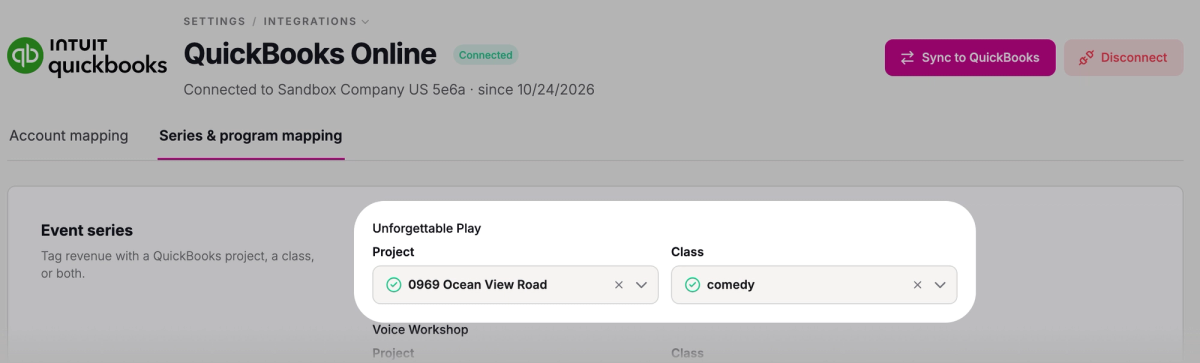
If you use projects or classes in QuickBooks, you can tag revenue by event series and program.
Turn them on first. In QuickBooks, go to Settings → Account and Settings → Advanced, then turn on Organize all job-related activity in one place for projects, or Track classes under Categories for classes. Then create the projects or classes you want to use.
- Step 1:
Click the Series & program mapping tab.
- Step 2:
On each row you want to tag, choose a Project, a Class, or both. You'll see only what you've turned on in QuickBooks. Leave a row empty to skip it.
- Step 3:
Click Save mappings.
Reconnect when authorization expires
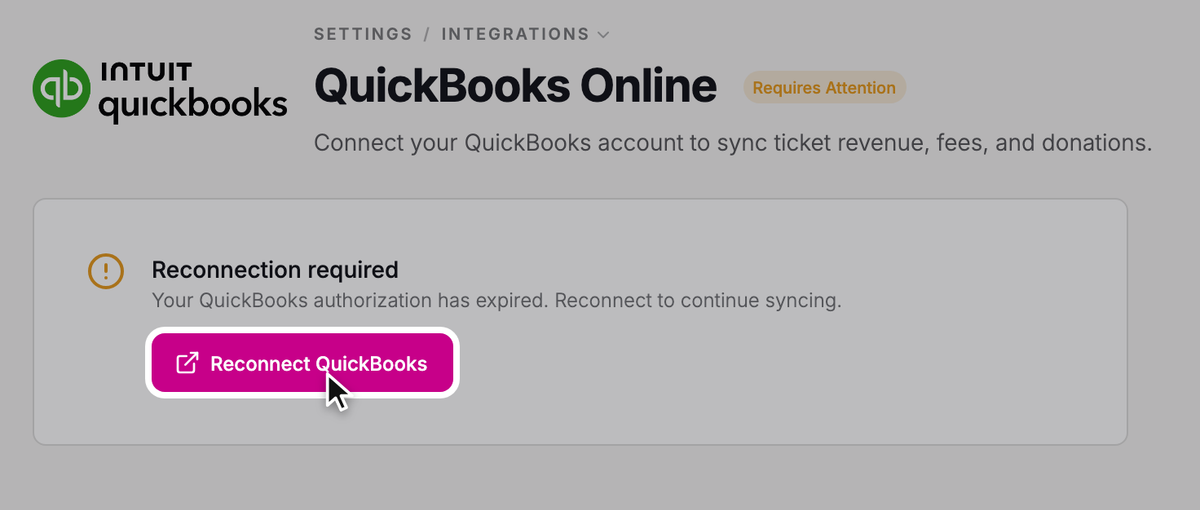
If your QuickBooks authorization expires, QuickBooks Online on the Integrations page shows Requires Attention, and you can't sync until you reconnect.
- Step 1:
Go to Settings → Integrations and click QuickBooks Online.
- Step 2:
Click Reconnect QuickBooks.
- Step 3:
Sign in to QuickBooks and approve access again.
Reconnecting to the same company keeps all your mappings.
What's Next
When you're ready, click Sync to QuickBooks at the top of the QuickBooks Online page and follow Sync your sales to QuickBooks Online.
Troubleshooting
"The authorization link expired. Please try again."
The connection link only works for 10 minutes after the page loads. Reload the page and try again.
"QuickBooks authorization was cancelled."
Access wasn't approved on the QuickBooks screen. Try again and approve access.
"Projects and classes are both off in QuickBooks"
Neither projects nor classes are turned on in your QuickBooks company. Turn one on (see above), then reload the Series & program mapping tab.
"Couldn't load projects and classes"
Reload the page. If QuickBooks Online shows Requires Attention on the Integrations page, reconnect. If it keeps happening, email us at support@stageworks.com.
Was this article helpful?
QuickBooks Online and Stageworks
How Stageworks sends your sales, refunds, fees and card deposits to QuickBooks Online, and what to know before your first sync.
Sync your sales to QuickBooks Online
Send your Stageworks sales, refunds, fees and card deposits to QuickBooks Online, then check, retry or undo a sync.