
Sync your sales to QuickBooks Online
Send your Stageworks sales, refunds, fees and card deposits to QuickBooks Online, then check, retry or undo a sync.
In this guide you'll send your Stageworks sales to QuickBooks Online. You'll pick the dates, check a preview of everything that's going over, and confirm. We'll also cover what to do if something goes wrong. Let's get started!
Before You Start
- Connect QuickBooks and map your accounts. If you haven't yet, start with Connect QuickBooks Online and map your accounts.
- Check your access. To start, retry or delete a sync, you need to be an Owner or Admin, or have a custom role with Manage QuickBooks integration.
- Find your last manual entry. If you've been entering Stageworks sales into QuickBooks by hand, note the last day of sales your entries cover, not the day you typed them in. You'll need it for your first sync.
Want to know what gets sent and how the accounts fit together? See QuickBooks Online and Stageworks.
Start a new sync
Stageworks never syncs on its own. Nothing goes to QuickBooks until someone starts a sync.
- Step 1:
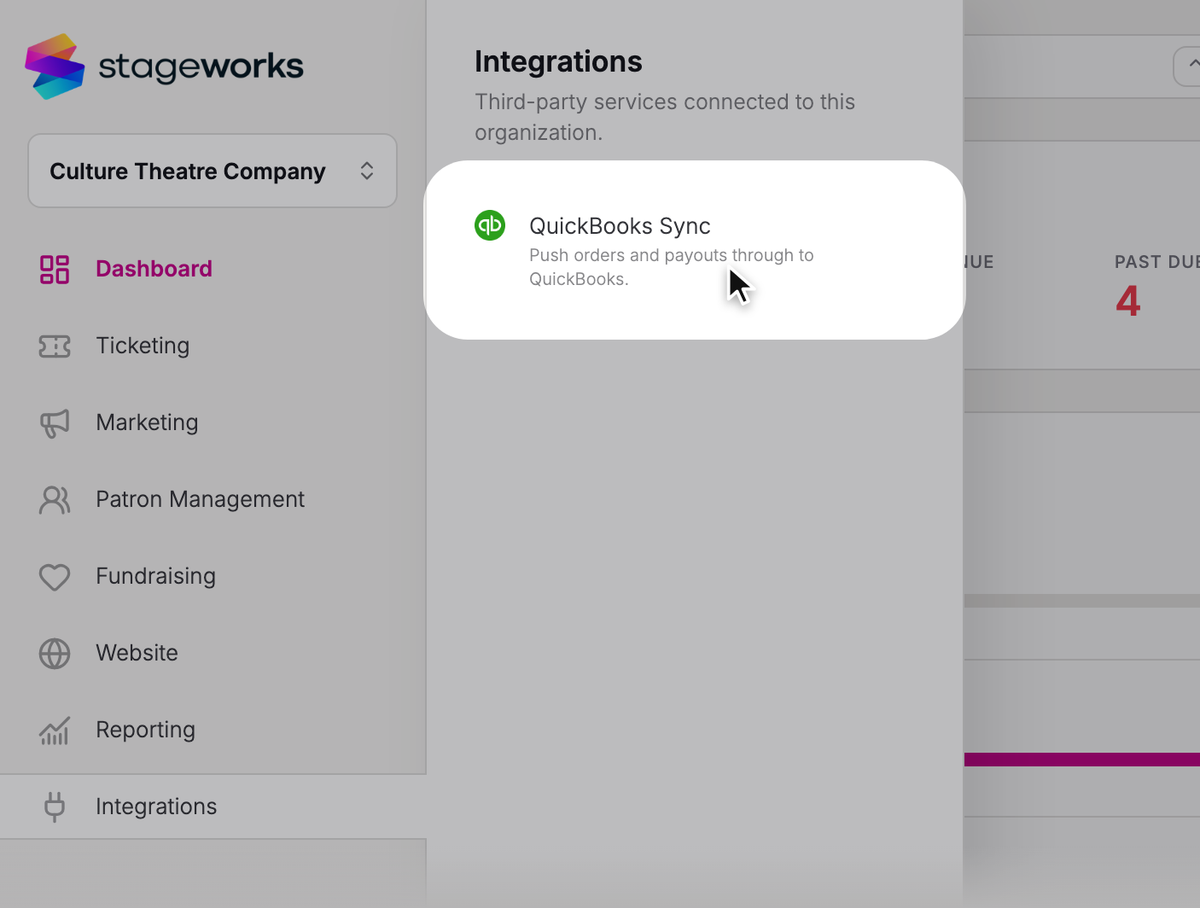
In the sidebar, open Integrations and click QuickBooks Sync.
- Step 2:
Click New Sync.

- Step 3:
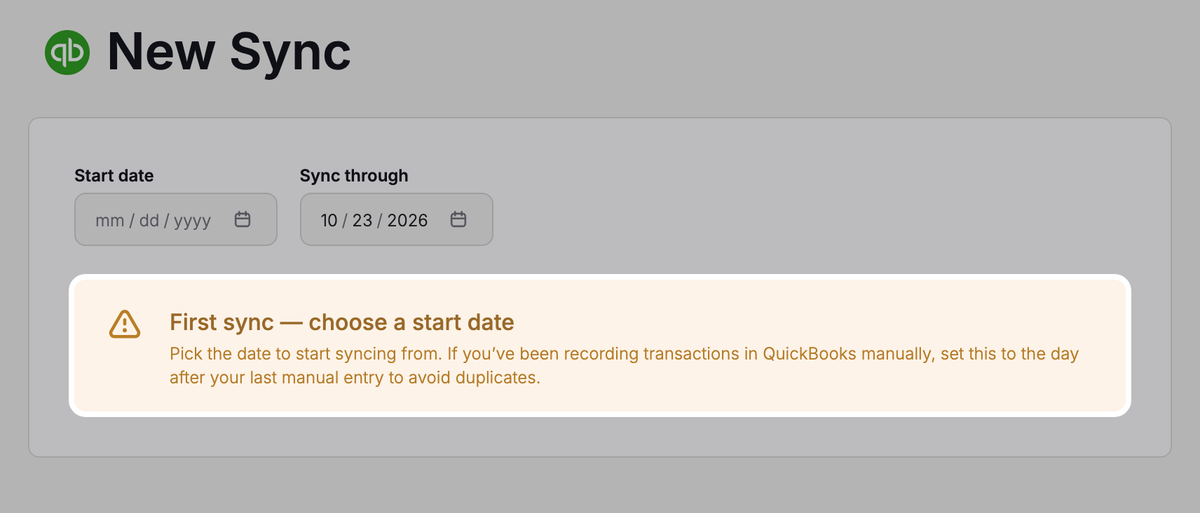
Check Sync through. It's set to yesterday, the latest you can choose. To stop sooner, pick an earlier date, but not before the day the sync starts.
- Step 4:
On your first sync, choose a Start date: the first day to sync. It has to be earlier than Sync through.
- Step 1:
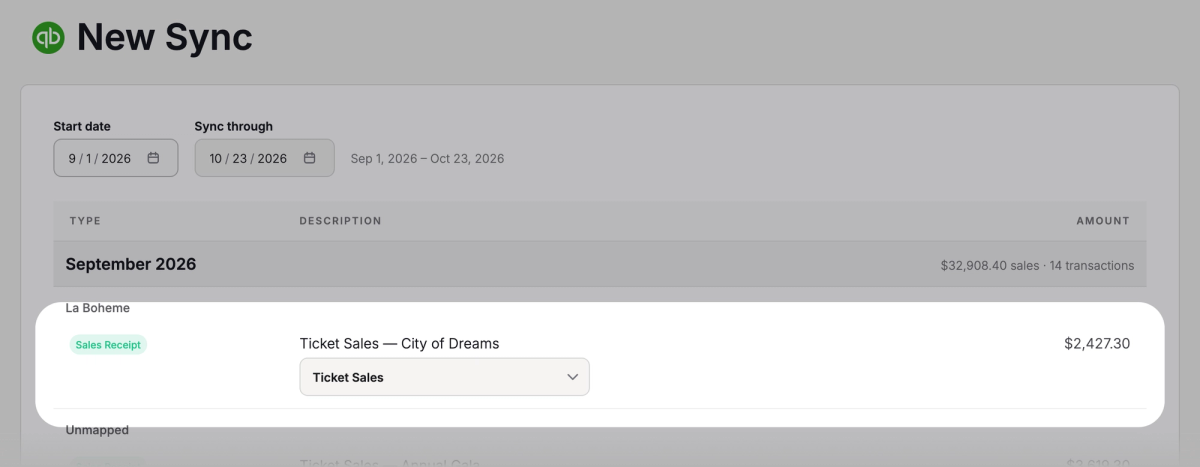
Review the preview. It lists every transaction the sync will send, month by month: sales for each event series and program, refunds, Stageworks' fees, discounts and patron credit, plus a Transfer for each card deposit. Ticket sales use your Ticket Revenue product. To use a different product for a series, pick it on that series' row. Your choice is saved when you confirm.
- Step 2:
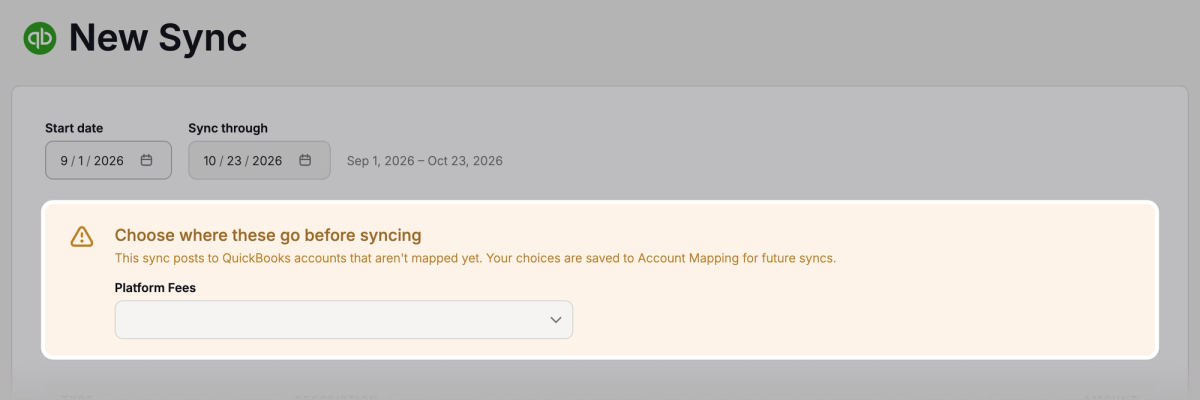
You'll be asked to choose an account for any unmapped accounts before creating a sync. Your choices are saved for future syncs.
- Step 3:
If there's a clearing account check below the preview, look for They match. A Difference usually means an earlier period wasn't synced, or the clearing account didn't start at zero. You can still confirm.
- Step 4:
Click Confirm & Sync. If there's nothing to sync, it reads Confirm Empty Sync. Click it anyway so your next sync starts after these dates.
You'll land back on your sync history. Open the sync to watch its progress.
What lands in QuickBooks
Stageworks sends monthly totals of your sales, refunds and fees, plus each card deposit. Each month's totals are dated the month's last day, or your Sync through date for the final month. Card deposits are dated the day they arrived.
Every transaction carries the note "Synced from Stageworks", so they're easy to find in QuickBooks.
Check your sync history
Your syncs are listed on the QuickBooks Sync page, newest first. Click any sync to see each transaction it sent.
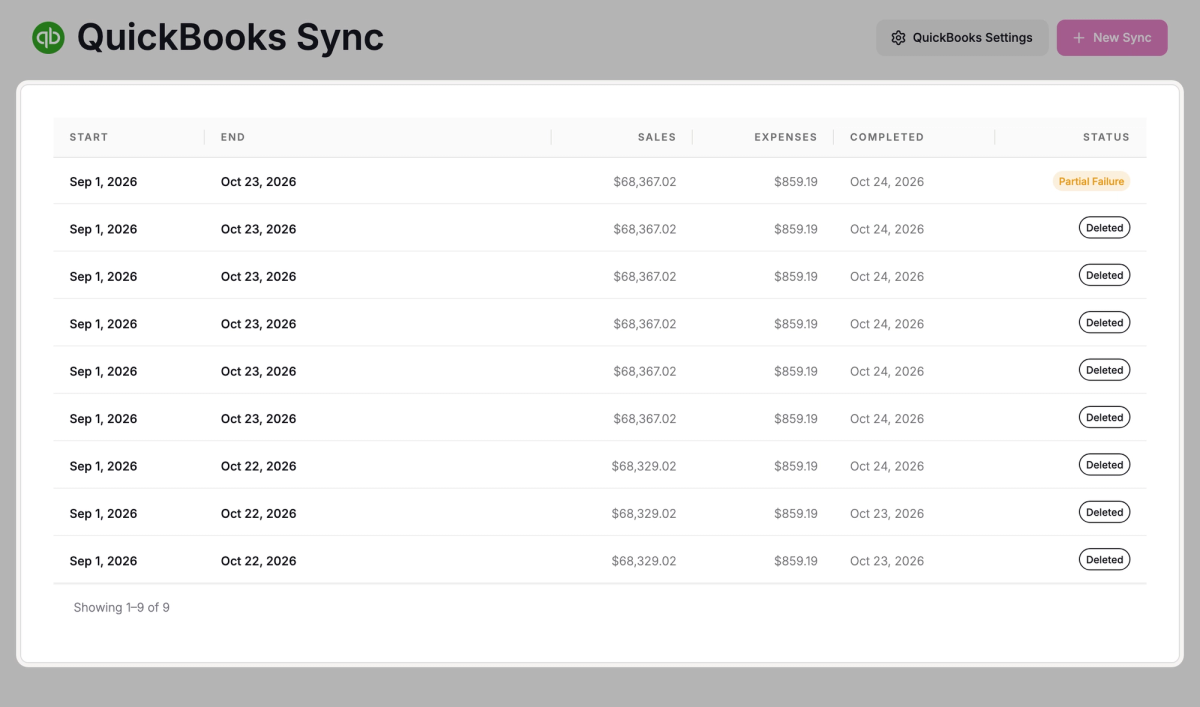
| Status | What it means |
|---|---|
| Complete | Everything made it into QuickBooks. |
| In Progress | Still running. Only one sync can run at a time. |
| Partial Failure | One or more transactions didn't make it. You can retry them. |
| Failed | The sync couldn't run. Fix the problem shown on the sync, then start a new sync for the same dates. |
| Deleted | Its transactions were removed from QuickBooks. |
New Sync is greyed out while a sync is running, when you've already synced through yesterday, or when QuickBooks isn't connected.
Retry failed transactions
When a sync shows Partial Failure, you can fix what went wrong and send just the missing transactions.
- Step 1:
On the QuickBooks Sync page, click the sync.
- Step 2:
Read the reason under each failed transaction.
- Step 3:
Fix the cause. For example, map the missing account or reconnect QuickBooks, as in Connect QuickBooks Online and map your accounts.
- Step 4:
Click Retry failed.

Retry sends only the transactions that failed, using your mappings as they are now.
Delete a sync
Deleting undoes a sync by removing its transactions from QuickBooks. It's handy when a sync went to the wrong accounts: delete it, fix your mappings, then sync those dates again.
- Step 1:
On the QuickBooks Sync page, click your most recent sync.
- Step 2:
Click Delete.
- Step 3:
Click Delete sync to confirm. This can't be undone.
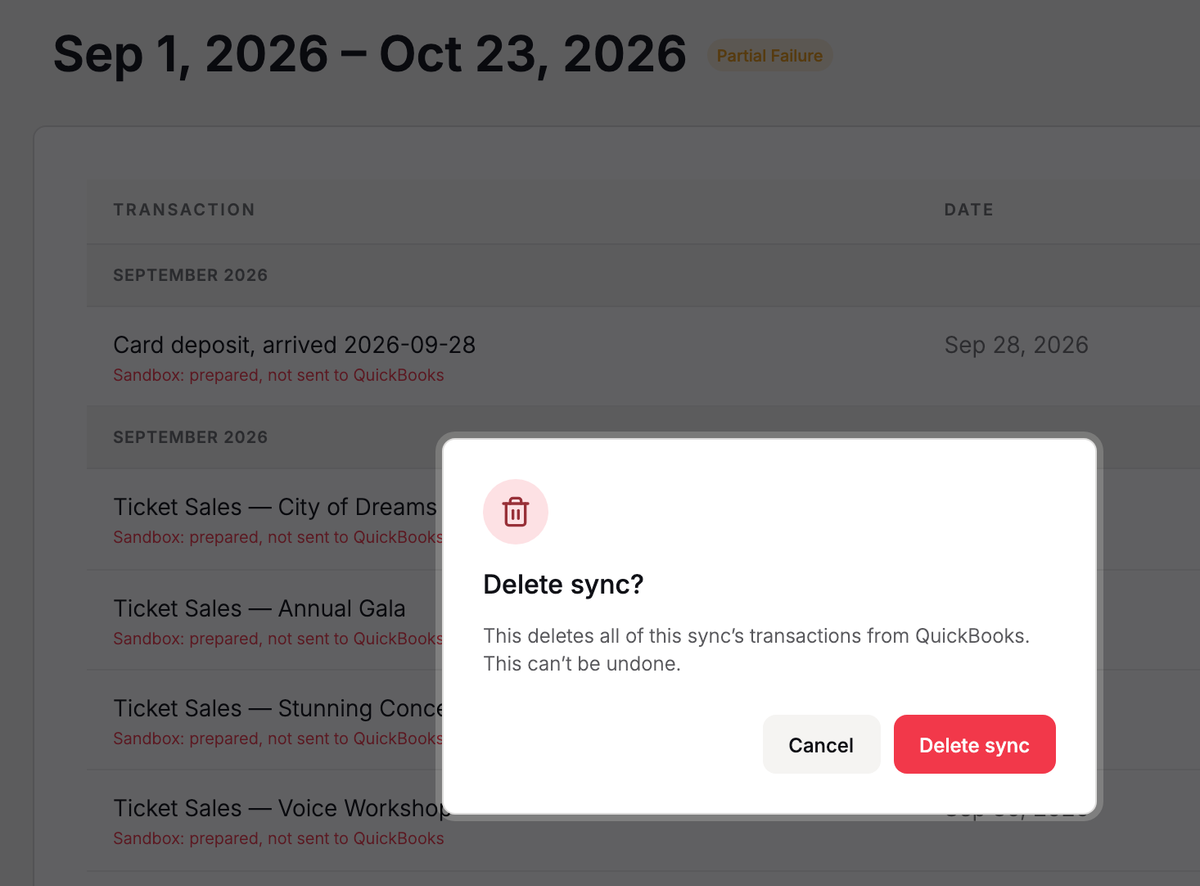
When it's done, the sync shows Deleted and you can start a new sync for the same dates. If it shows Partial Failure instead, some transactions couldn't be removed. Email support@stageworks.com rather than clicking Retry failed.
Troubleshooting
"QuickBooks isn’t connected"
QuickBooks' authorization has expired, or it was disconnected. An Owner or Admin can go to Settings → Integrations → QuickBooks Online and reconnect it. Your past syncs stay listed.
"QuickBooks token refresh failed — reconnection required"
QuickBooks stopped accepting Stageworks' connection during the sync. Reconnect QuickBooks, then open the sync and click Retry failed. If the sync shows Failed, start a new sync instead; it covers the same dates.
"Payment records are still updating"
Stageworks is still updating your card payment records up to your Sync through date. Wait a minute, then click Try again.
"A deposit is still on its way"
A card deposit due by your Sync through date hasn't reached your bank yet. Try again in a day or two, or pick an earlier Sync through date to sync now.
"QuickBooks API error"
QuickBooks turned down one of the transactions. If retrying doesn't fix it, email support@stageworks.com with the sync's dates.
Was this article helpful?
QuickBooks Online and Stageworks
How Stageworks sends your sales, refunds, fees and card deposits to QuickBooks Online, and what to know before your first sync.
Connect QuickBooks Online and map your accounts
Connect your QuickBooks Online company to Stageworks and choose where your sales, fees, deposits and patron credit go.