
Promo Codes & Discounts
You can create promo codes and automatic discounts to apply checkout.
Create your first promo code
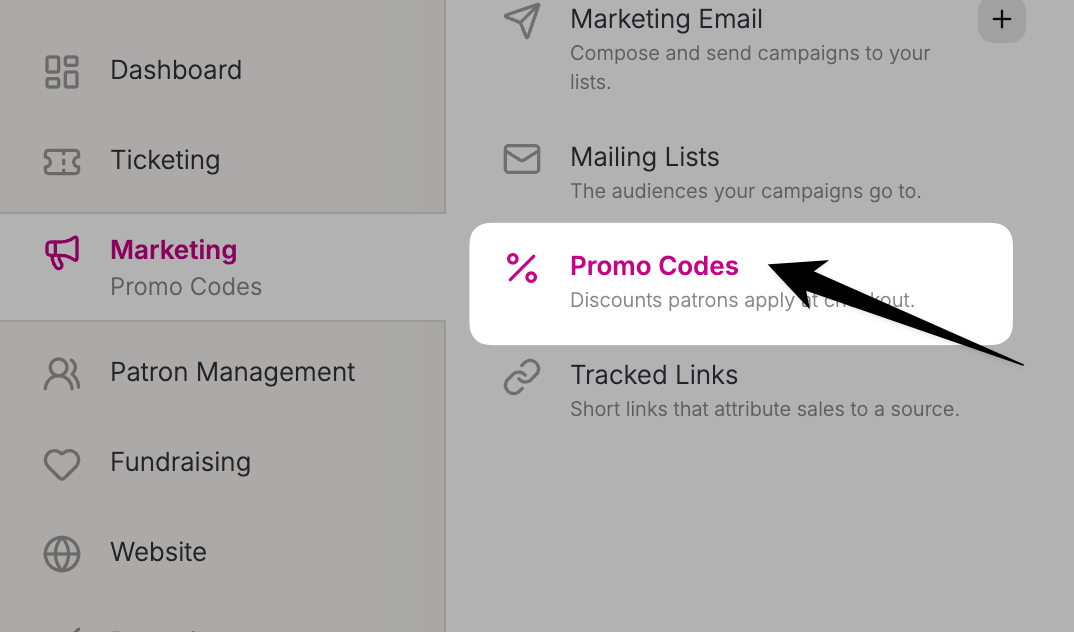
To get started go to Marketing -> Promo Codes and click the "Create Promo Code" button.
The first thing you need to decide is if this discount should apply automatically or if it requires a code. Automatic discounts apply to orders whenever a patron's cart is eligible for the discount. Only one discount can apply at once, so if multiple discounts are eligible, the best discount will be applied.
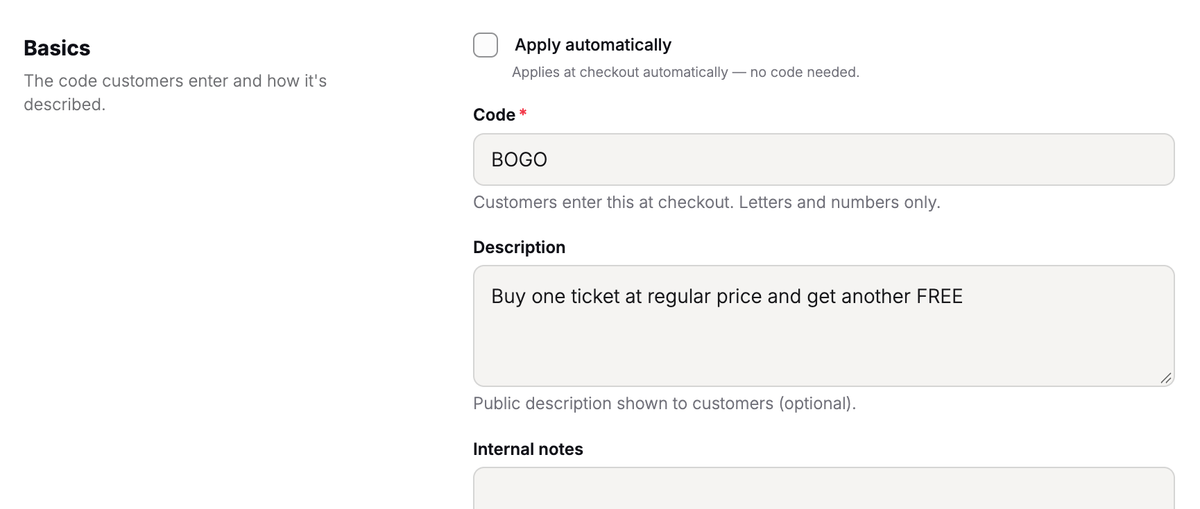
For this promo code I'm leaving Apply automatically unchecked and creating a code called BOGO. This means patrons will need to enter it at checkout to receive the discount.
Next, provide a description of the discount. You can also add an internal note that is not shown to patrons.
Discount Options
Next, you can configure the discount itself.
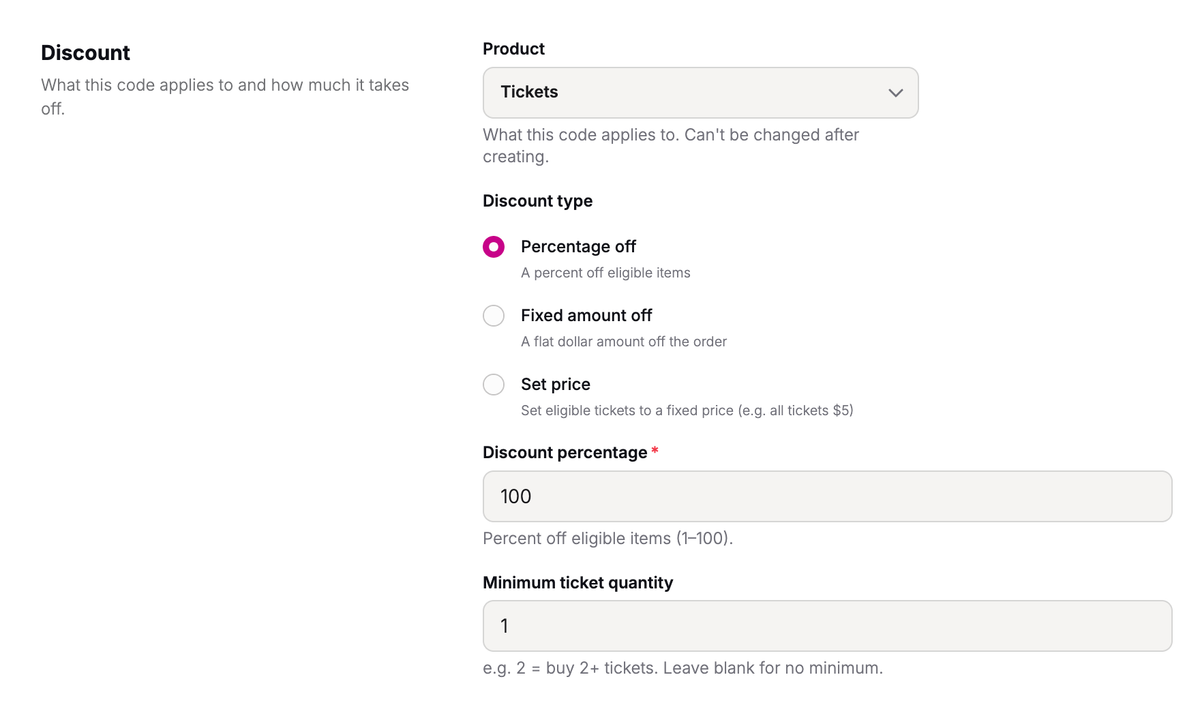
You can select which products this discount applies to like tickets, programs, or memberships.
Then select the discount type. For this promo code I'm making it 100% off. But you can also choose a fixed amount discount or set tickets to a specific price.
Validity
Select the dates that the promo code is valid for. If you leave them blank the code is valid immediately and does not expire.
Order Requirements
Here you can set the conditions that the order must meet for the discount to apply.
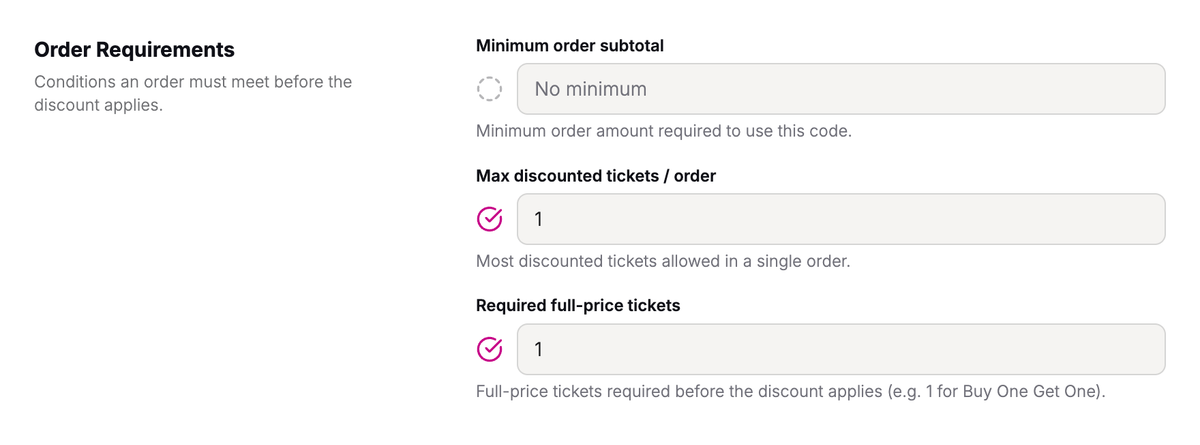
For my BOGO promo code I'm setting the Max discounted tickets to 1 because I only want a single ticket to be free.
I'm also setting Required full-price tickets to 1 because I only want to offer the discount if the patron is paying for at least 1 ticket. That's how Buy-One-Get-One works!
Global Limits
This section allows you configure limits that apply globally. This is best used for automatic discounts. For example you could have an Early Bird Discount that only applies to the first 20 tickets.
Per-Customer Limits
Here you can sit limits on how many times a patron can use a promo code and how many tickets the code can apply to. For example, you can set Max uses / customer to 1 and the code can only be used once per patron.
Sales Channels
This allows you to set where the code can be used. There are two options: Online & Box Office. Check Online to allow this discount to be used on your portal website or through the embedded widgets. Check Box Office to allow it to be used for phone and orders at the door.
Was this article helpful?