
Creating Your First Event
Learn the basics of managing events and start selling tickets

Welcome to Stageworks! In this article you're going to learn everything you need to create your first event and start selling tickets. Let's get started!
Create Your Event Series
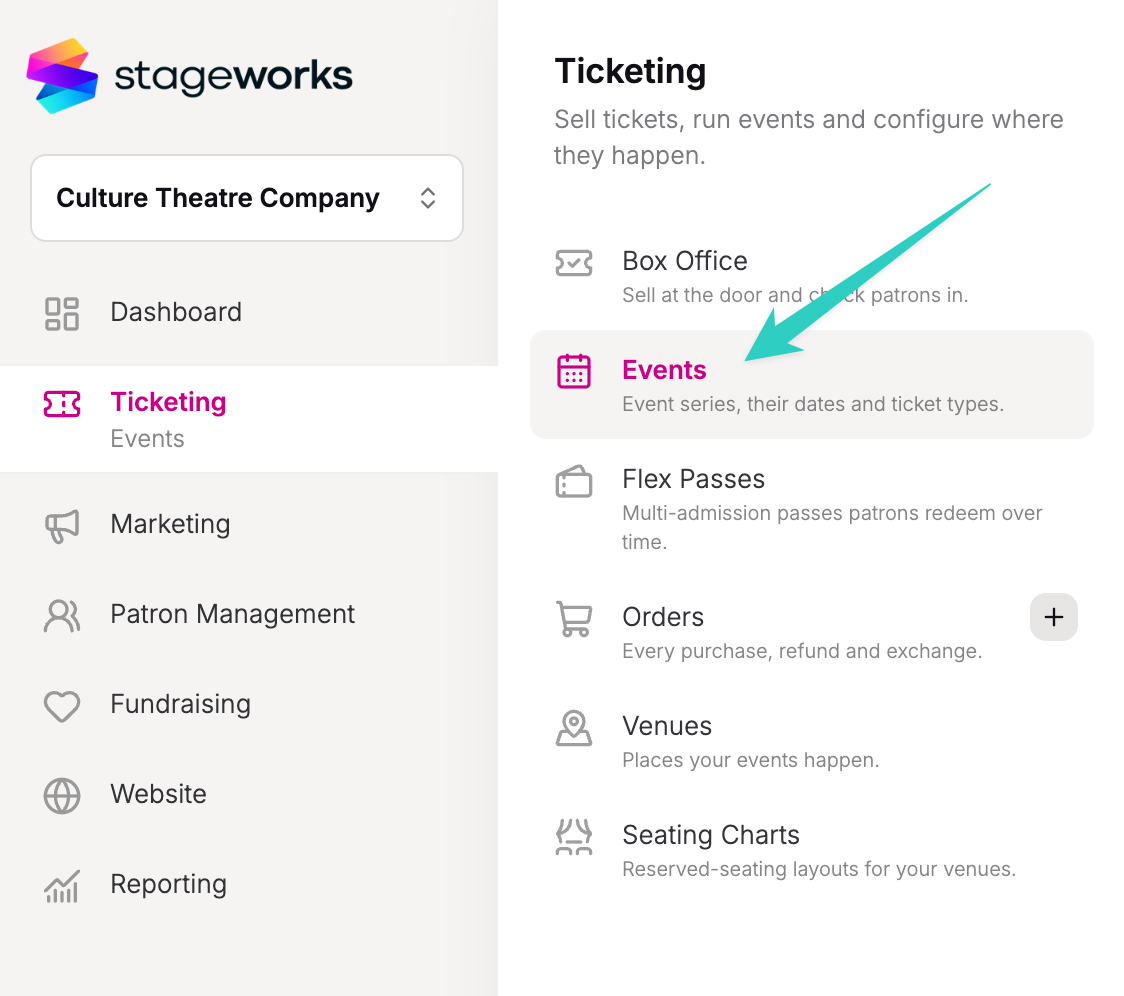
First, make sure you're on the Ticketing -> Events page. This is where you will manage all of your events.
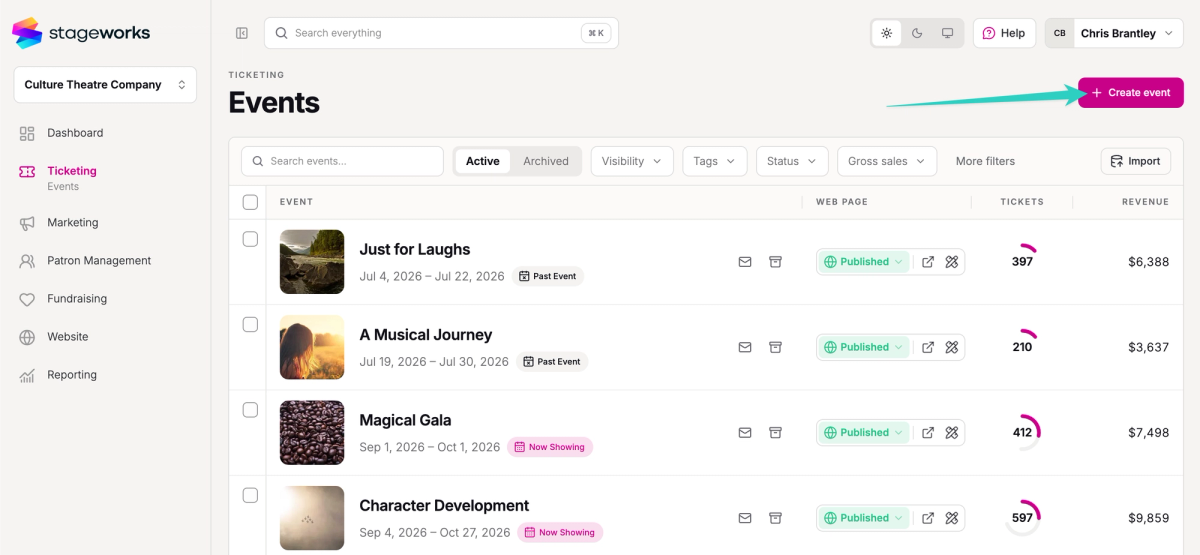
Click the + Create Event button in the top-right.
Give your event a name and an optional short description. You don't need to include date, time, or venue details in the description. That will all come later.
You can also add an image thumbnail for your event from your image library. If you don't have an image yet, that's no problem, you can add it later.
If you know the date that tickets will go on sale you set it in the Ticket Availability field. Tickets won't be on sale until that date.
If you want to override how service fees are applied to this event you can set them here or accept the defaults. You can change these at any time.
When you're ready click the Create Event button at the bottom.
The Overview Tab
When you create your new event you'll land on the Overview tab. From here you can see a checklist of what else you need to do make your event page live. You can see a preview of what the event page will look like.
Your event page will be in draft mode until you are ready to publish it any make it publicly available.
As you start selling tickets for your event series the Overview tab will show you key metrics about how your events are selling.
Add Event Dates
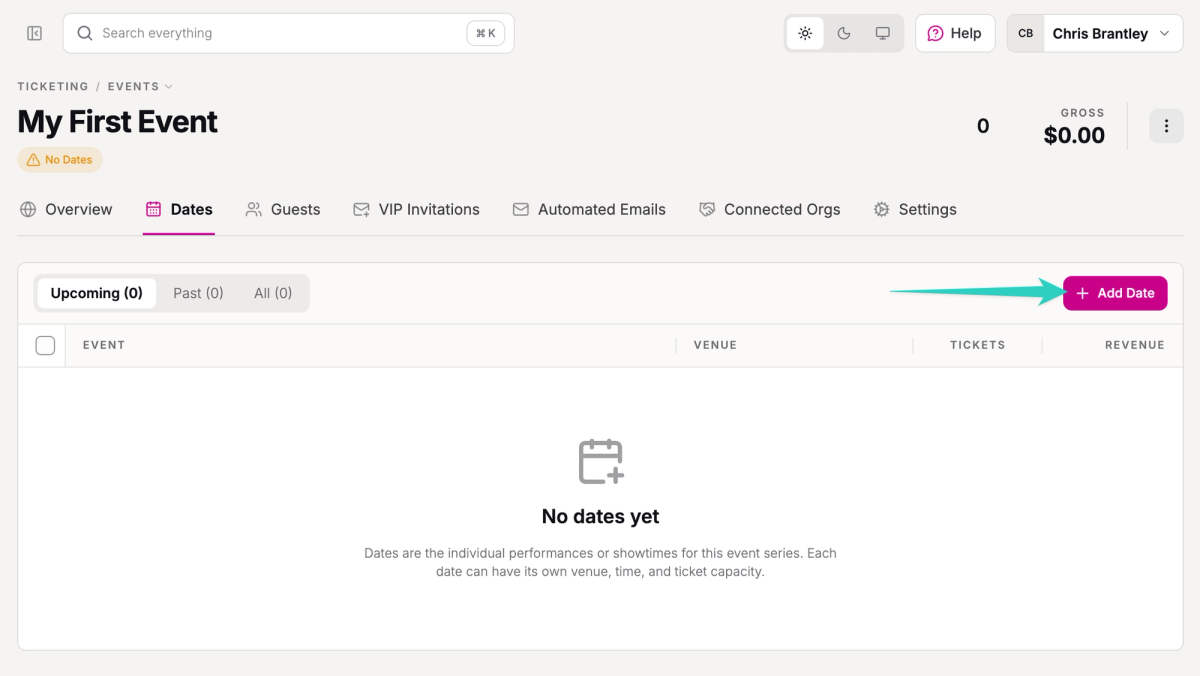
Click on the Dates tab. This is where you will create the individual dates for your event series. Some events, like a fundraiser, only have 1 date. Others, like a play, will have many dates representing each performance.
On the New Date page you first select the date and time. You can optionally set the time that the event ends and when the doors open.
If there is something special about this particular date (preview, industry night, talk-back after the show) you can let your audience know by clicking on Is this a Special Event? and giving it a name and an optional description.
Select the Venue
You can select from your organization's list of venues or you can add a venue. Each date in your event series can be held at a different venue.
Configure Ticketing
Stageworks supports both Open Seating and Reserved Seating.
Reserved Seating first requires a seating chart. If you have not yet created a seating chart just choose Open Seating for now.
For open seating you can set a single capacity, or you can add sections each with their own capacity and prices.
Next, you can create your ticket types. We automatically create a "General Admission" ticket type for you. You can change the name and add additional ticket types. The only required option for each ticket type is the price. You can also set max quantities for the entire date or per order.
Pay-What-You-Will Pricing
You can allow your patrons to choose their own price by checking the Pay What You Will box. Set a minimum, suggested, and optional maximum price. We also recommend setting preset quick-select prices to make it easier for patrons to choose from a range of prices that you define.
When you're ready, click the Create date button.
Clone Additional Dates
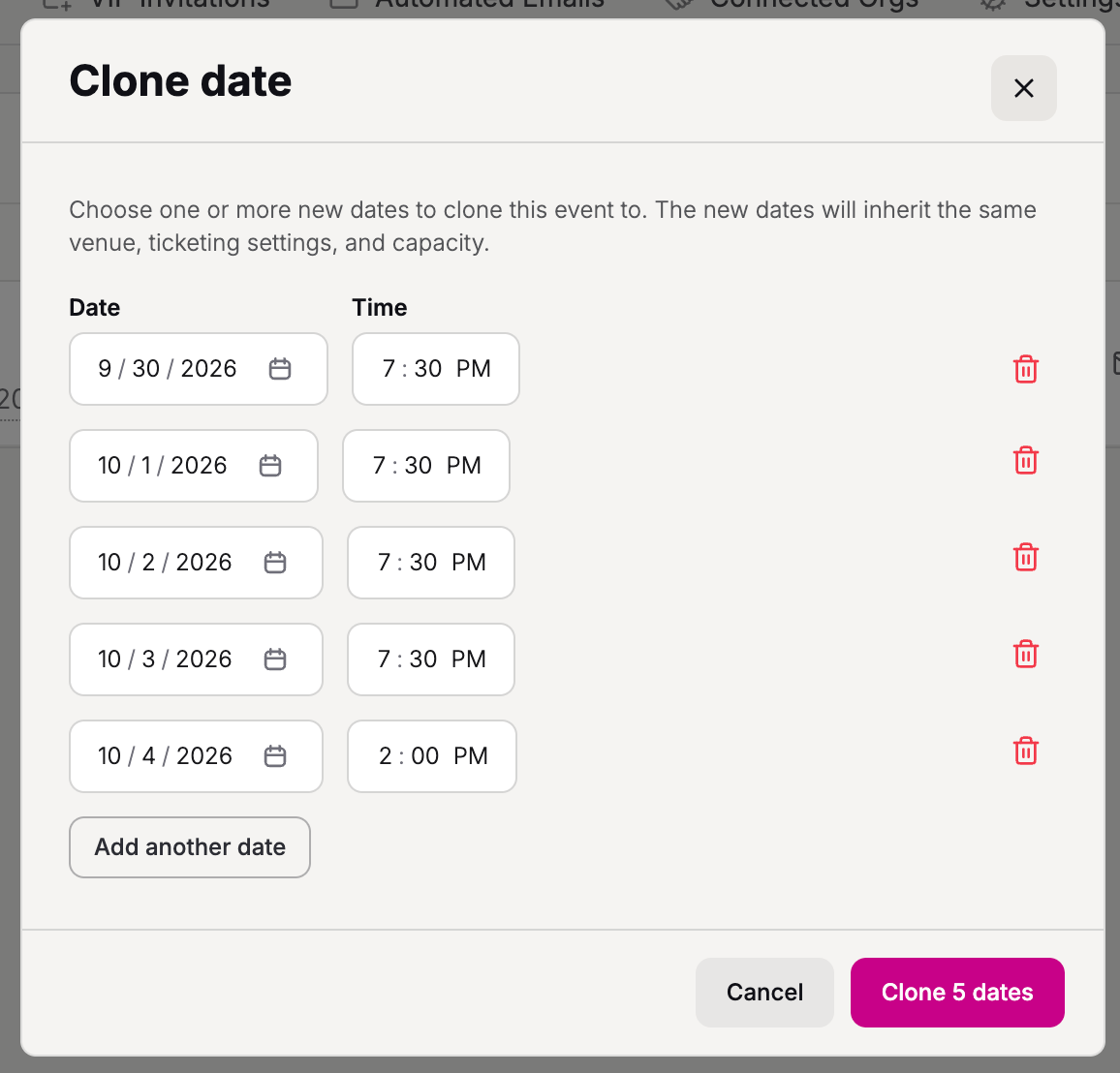
If you have more dates to add you don't have to create them all from scratch! Click the Clone button for any date and duplicate it for as many dates and times as you wish.

Customize your Event Page
Switch back to the Overview Tab.
If you haven't already, click the Select Image button and upload or select an image for your event. High resolution photographs or graphics work best. Avoid posters with too much text as it limits how the image can be used. Once you select an image Stageworks will analyze the image to determine the best layout options for the event page. Once the analysis is complete you can click the Suggested Looks button to see some recommended layouts for the event page.
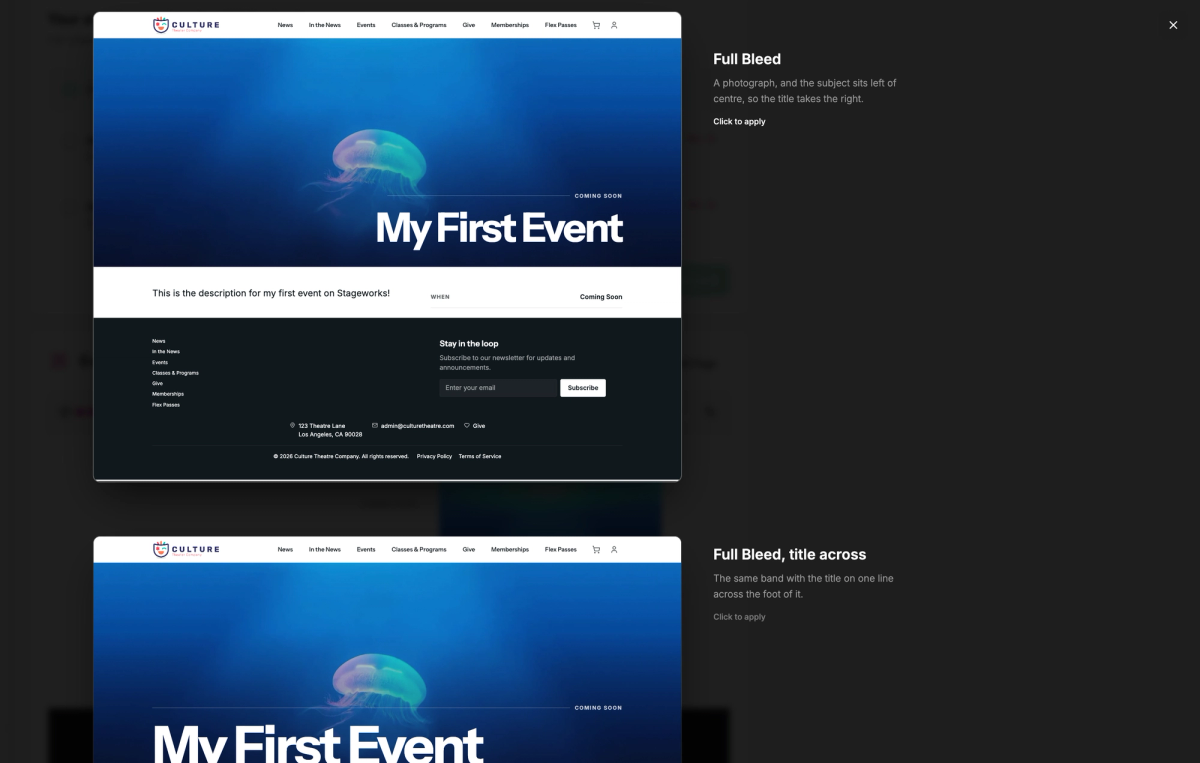
Edit the event page to add more content
Every event series you create gets it's own event page in your Stageworks Portal site. You can further customize that page by clicking on the Edit Page button.
You can use the powerful page editor to add text, images, video, and buttons to your event page.
Publish Your Event
Once your happy with your event and you're ready to sell tickets you will need to Publish your event so your patrons can find it and buy tickets.
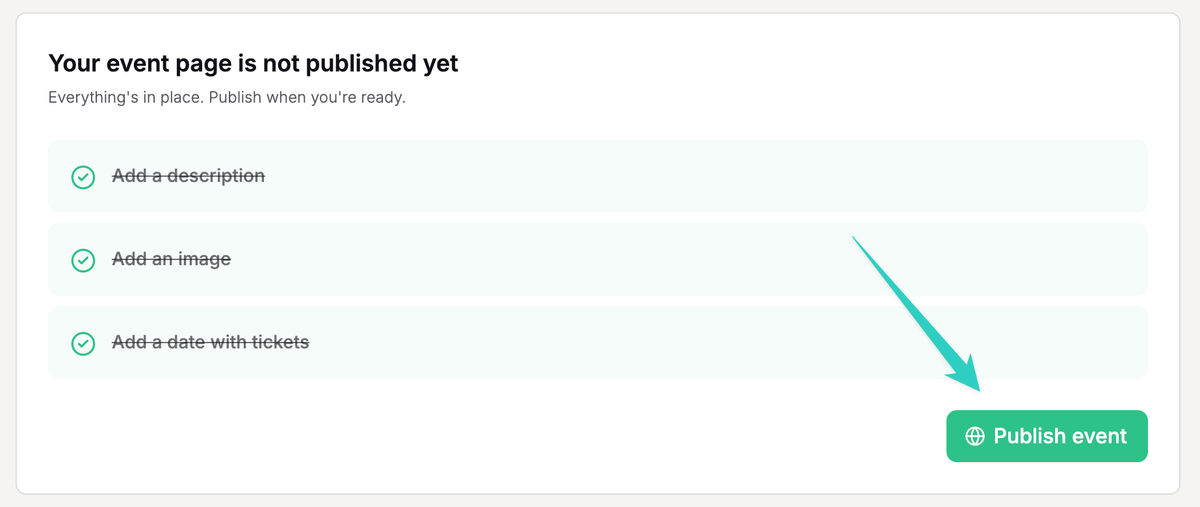
Once your event page is public patrons will be able to learn about your event and purchase tickets. You can also track page views and visitors and see where your visitors are coming from!
Was this article helpful?