
One-time and monthly gifts
Let donors give once or every month from your website, then see, start, cancel and refund gifts in Stageworks.
Your donors can give once or every month by card, right from your website. Every gift lands in Stageworks, so you can see who gives monthly, set up a gift for a donor over the phone, and refund one when you need to. For how this fits with campaigns and the rest of your fundraising, see Fundraising tools for nonprofits.
Add your receipt details
If your organization is tax-exempt, add your EIN and legal name before you take gifts: they're printed on the year-end tax receipts you send donors. This needs the Manage organization settings permission.
- Step 1:
Go to Settings › Organization.
- Step 2:
Under Tax-exempt status, enter your EIN and Legal organization name, then save.
How donors give
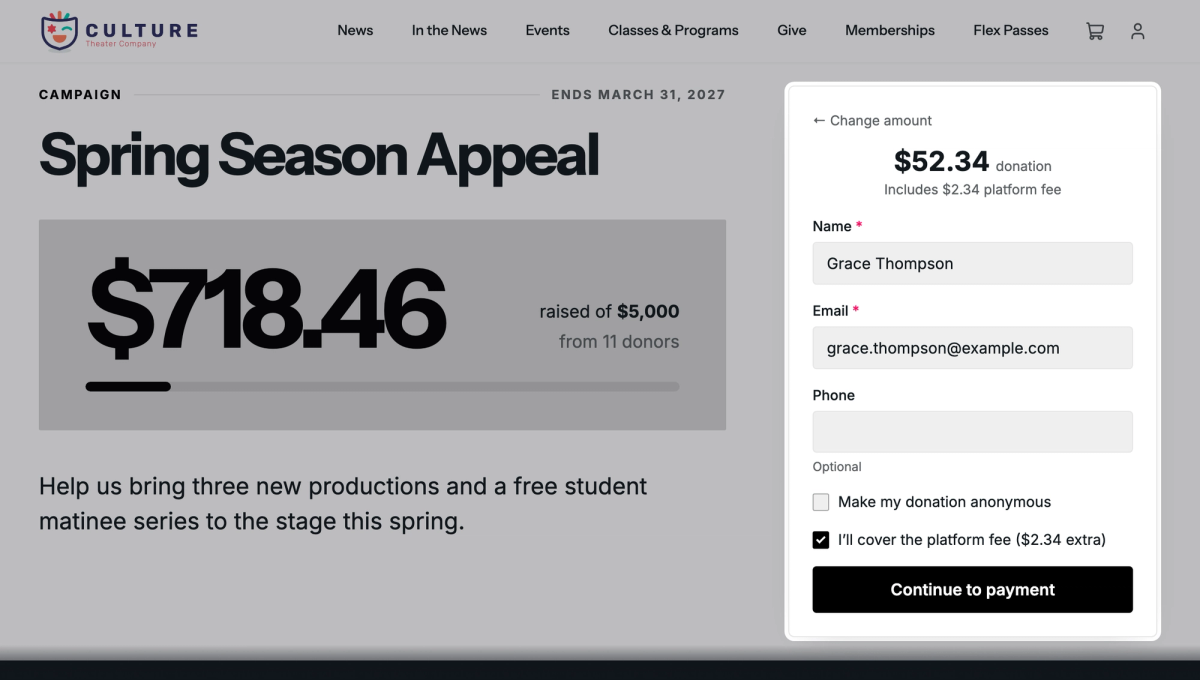
Each published campaign has its own page on your website. Donors choose One-time or Monthly, tap one of the amounts you set for the campaign or type their own in Other amount, and click the donate button, like Donate $50. Then they enter their name and email and pay by card. They don't need to sign in to your site, and if they already have, their details are filled in.
Covering the service fee
You decide whether donors can cover Stageworks' service fee. If they don't, it comes out of the gift. To give donors the choice, turn on Allow patrons to cover the platform fee (that's the service fee) in the campaign's Settings (it needs Manage fundraising campaigns), as Run a fundraising campaign shows. Donors then see a checkbox like "I’ll cover the platform fee ($2.34 extra)".
For a tax-exempt organization, here's how a $50 gift works out:
- If the donor doesn't cover the fee, they pay $50, the $2.25 service fee comes out, and you get $47.75.
- If they cover it, they pay $52.34 and you get the full $50. The fee is $2.34 here because it's figured on the whole $52.34.
For the rates, see How service fees work.
What donors get
After paying, donors see a thank-you right on the page, and a one-time donor gets a thank-you email. A monthly donor gets a welcome email with a link to manage their gift, then a thank-you email after each monthly payment.
Monthly gifts
Go to Fundraising › Monthly Gifts to see every monthly gift across your campaigns. Each row shows the donor, the campaign, the monthly amount, its status, and the date of the next payment.
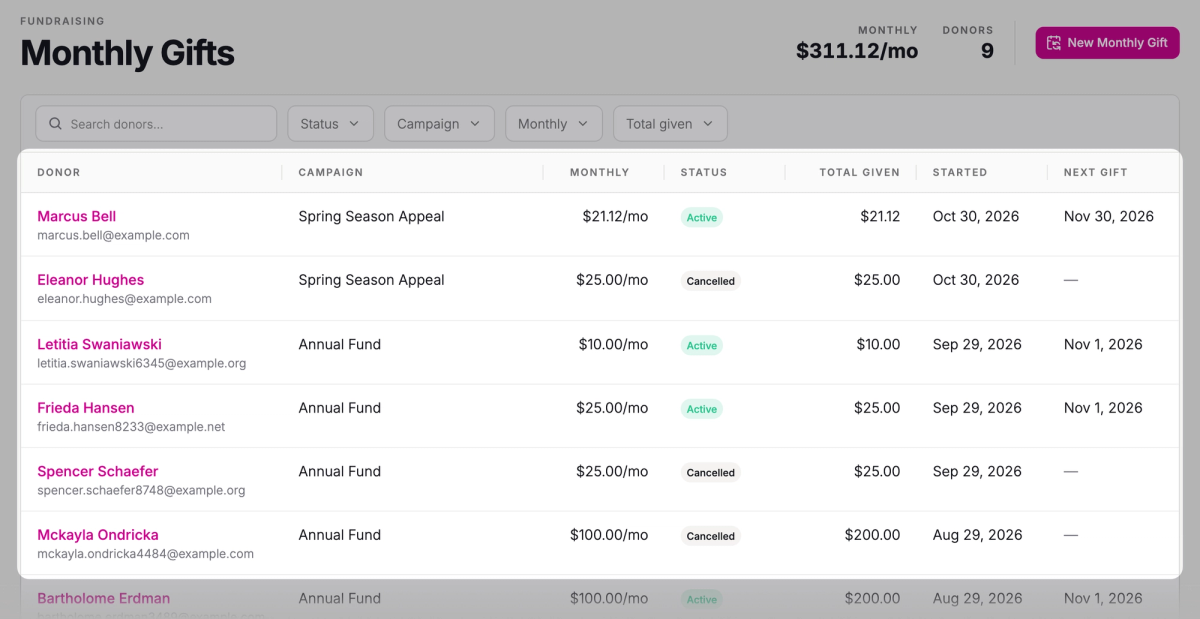
Paused means the donor paused it until a date they chose. Past due means a monthly payment didn't go through: it's tried again automatically, and the donor gets an email with a link to update their card. Cancelled gifts take no more payments.
Click a gift to see its details and payments. Click a payment to open it, for example to refund it.

What donors can change themselves
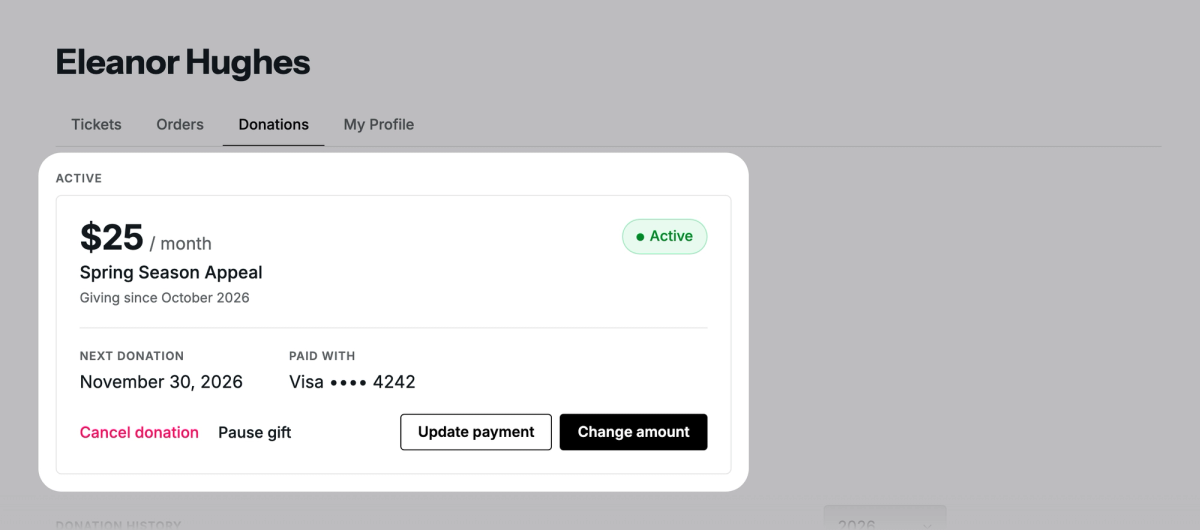
Donors look after their own monthly gifts. You can cancel a gift for a donor, but only the donor can pause it or change the amount. When they sign in on your site, the Donations page of their profile shows the gift with four buttons. The link in their welcome and thank-you emails opens the same options, no sign-in needed.
- Pause gift stops payments until a date they pick, then picks up again on its own.
- Change amount takes effect from their next monthly payment.
- Update payment switches to a new card. If a payment didn't go through, it's tried again on the new card.
- Cancel donation ends the gift right away.
Cancel a gift for a donor
If a donor asks you to stop their gift:
- Step 1:
Go to Fundraising › Monthly Gifts and open the gift.
- Step 2:
Click Cancel gift.
- Step 3:
Click Cancel gift again to confirm.
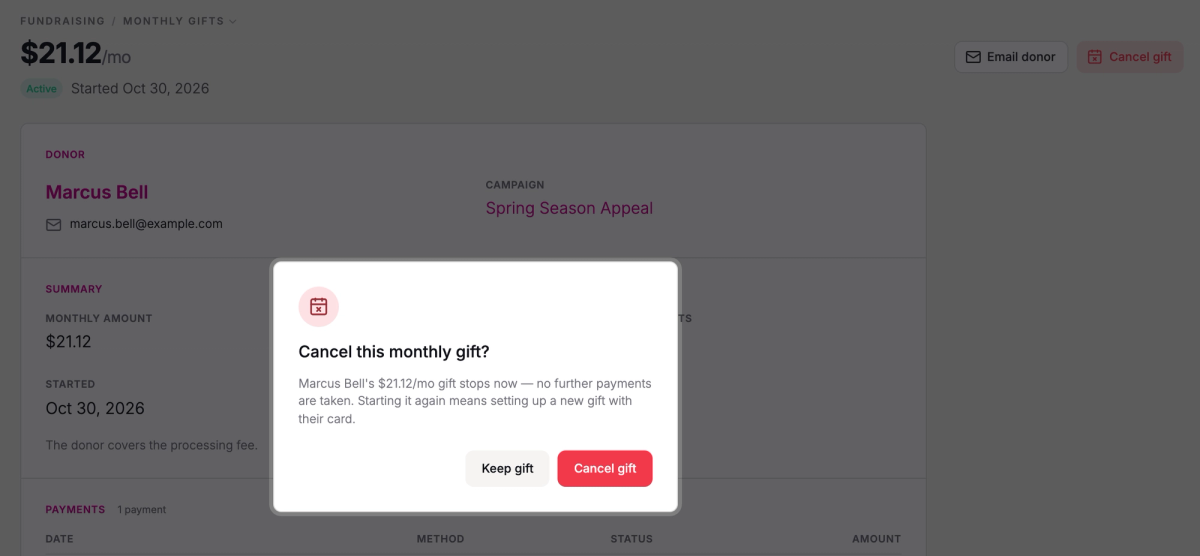
The gift stops right away, and no more payments are taken. Canceling doesn't refund payments already made; to give one back, refund it (see below). To restart a canceled gift, start a new one for the donor (below).
Start a monthly gift for a donor
When a donor would rather set up a monthly gift over the phone or in person, you can start it for them with their card. The donor needs an email address on their patron record: that's where the link to manage the gift goes.
- Step 1:
Go to Fundraising › Monthly Gifts.
- Step 2:
Click New Monthly Gift.
- Step 3:
Search for the donor by name, email, or phone, and choose them. If they're not in Stageworks yet, click Create new patron.
- Step 4:
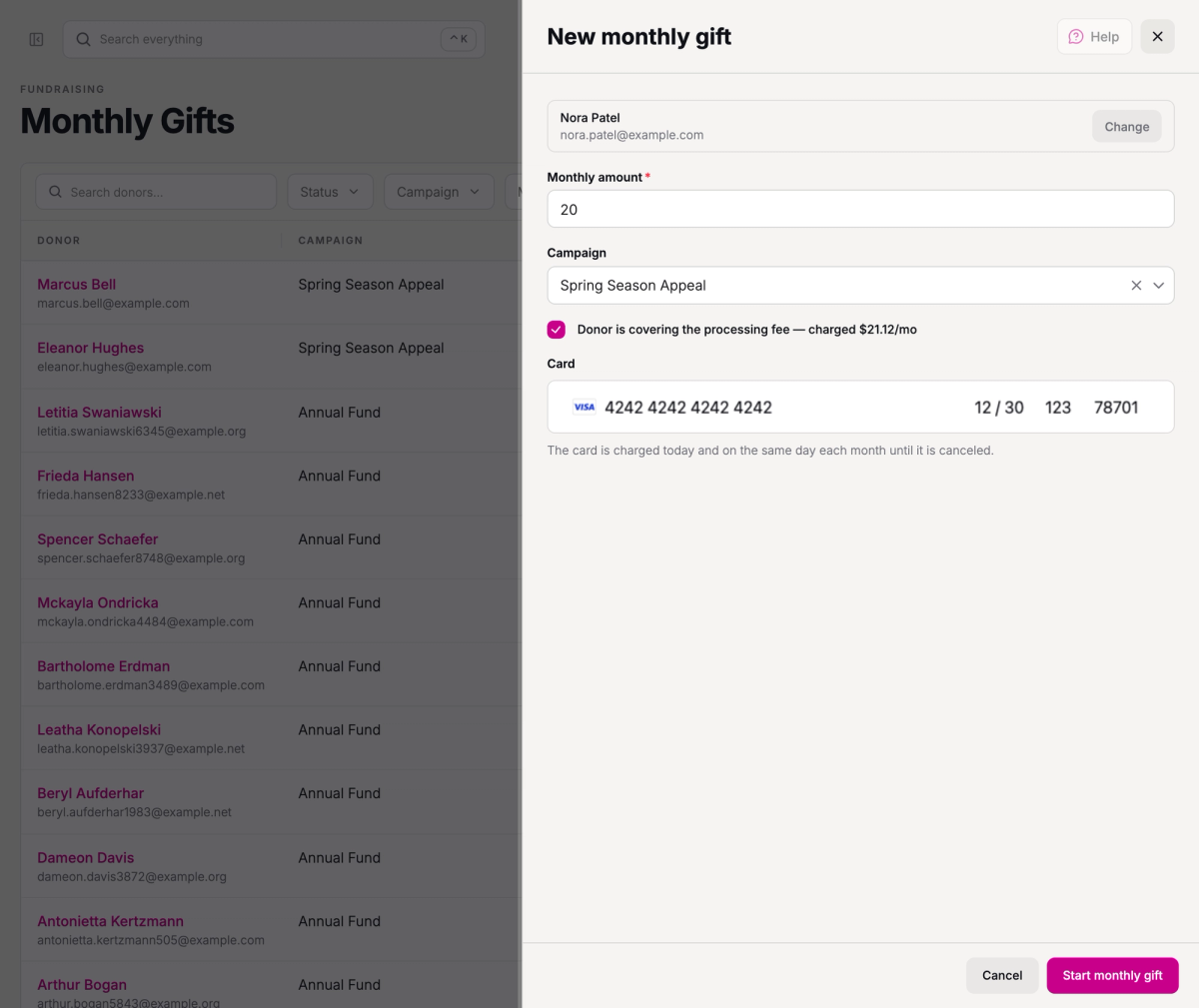
Enter the Monthly amount.
- Step 5:
To count the gift toward a campaign, choose it under Campaign.
- Step 6:
If the donor has agreed to cover the service fee, check Donor is covering the processing fee (that's the service fee). Once you've entered an amount, the checkbox shows what their card will be charged each month.
- Step 7:
Enter their card under Card.
- Step 8:
Click Start monthly gift.
- Step 9:
Check the summary, then click Start monthly gift to confirm.
The card is charged now and on the same day each month until the gift is canceled. By default, the donor gets a welcome email with a link to manage the gift.
Refund a gift
You can refund any gift a donor paid by card: a one-time gift, or a single payment of a monthly gift. The donor gets back everything they paid, including any fee they covered, and an email letting them know. The service fee isn't returned, so a refund costs your organization the fee.
- Step 1:
Go to Fundraising › Donations and open the gift.
- Step 2:
Click Refund.
- Step 3:
Check the amount, then click Refund donation.
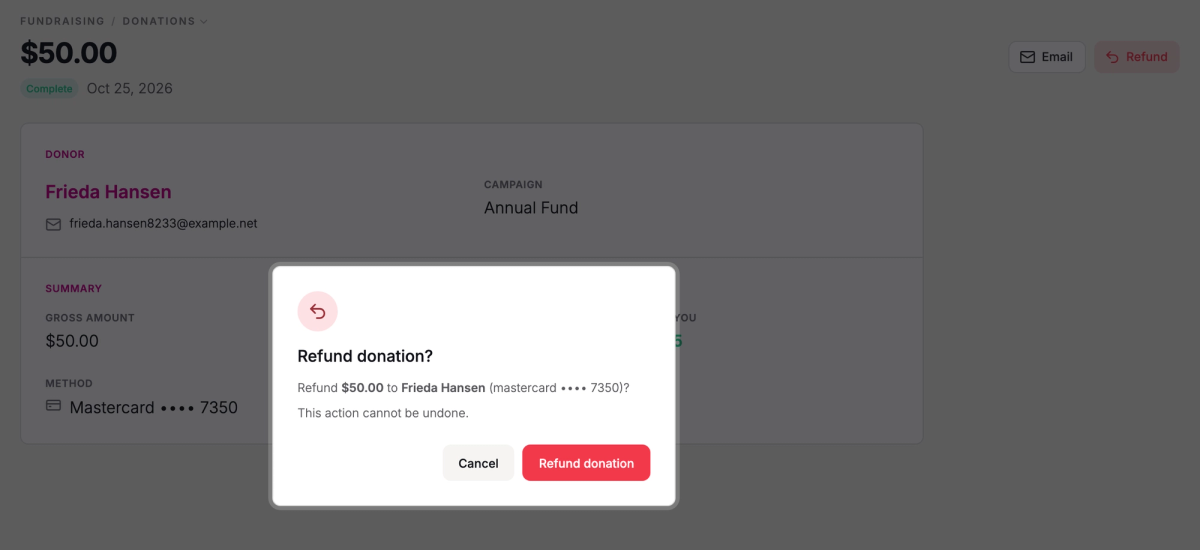
Refunding a monthly payment refunds that payment only; the gift keeps going unless you cancel it. You can also refund a gift added during ticket checkout here: only the gift is refunded, and the tickets in that order aren't affected.
SuggestedRecord and import donationsRecord checks and cash gifts by hand, or import your giving history from your old donor software.Was this article helpful?

Fundraising tools for nonprofits
Raise money right where you sell tickets, with campaign pages, one-time and monthly gifts, a record of gifts that come in other ways, and a donation ask at checkout.
Run a fundraising campaign
Give an appeal its own page on your site, with a goal donors can see, and see every gift to it in one place.
Record and import donations
Add gifts that came by check, cash or another platform to Stageworks, one at a time or from a spreadsheet, and link them to your patrons.
Ask for donations at checkout
Invite every ticket buyer to add a gift to your default campaign on their way through checkout.