
Record and import donations
Add gifts that came by check, cash or another platform to Stageworks, one at a time or from a spreadsheet, and link them to your patrons.
Keep every gift in one place, whether it came by check at your gala, as cash at the door, or through another giving platform. Record gifts one at a time or import a whole spreadsheet, and your donor records and campaign totals stay complete. For how this fits with campaigns and monthly gifts, see Fundraising tools for nonprofits.
Record a gift by hand
Every gift you record belongs to a patron, so it shows up in their giving history.
- Step 1:
Click Fundraising, then Donations.
- Step 2:
Click Record Donation.
- Step 3:
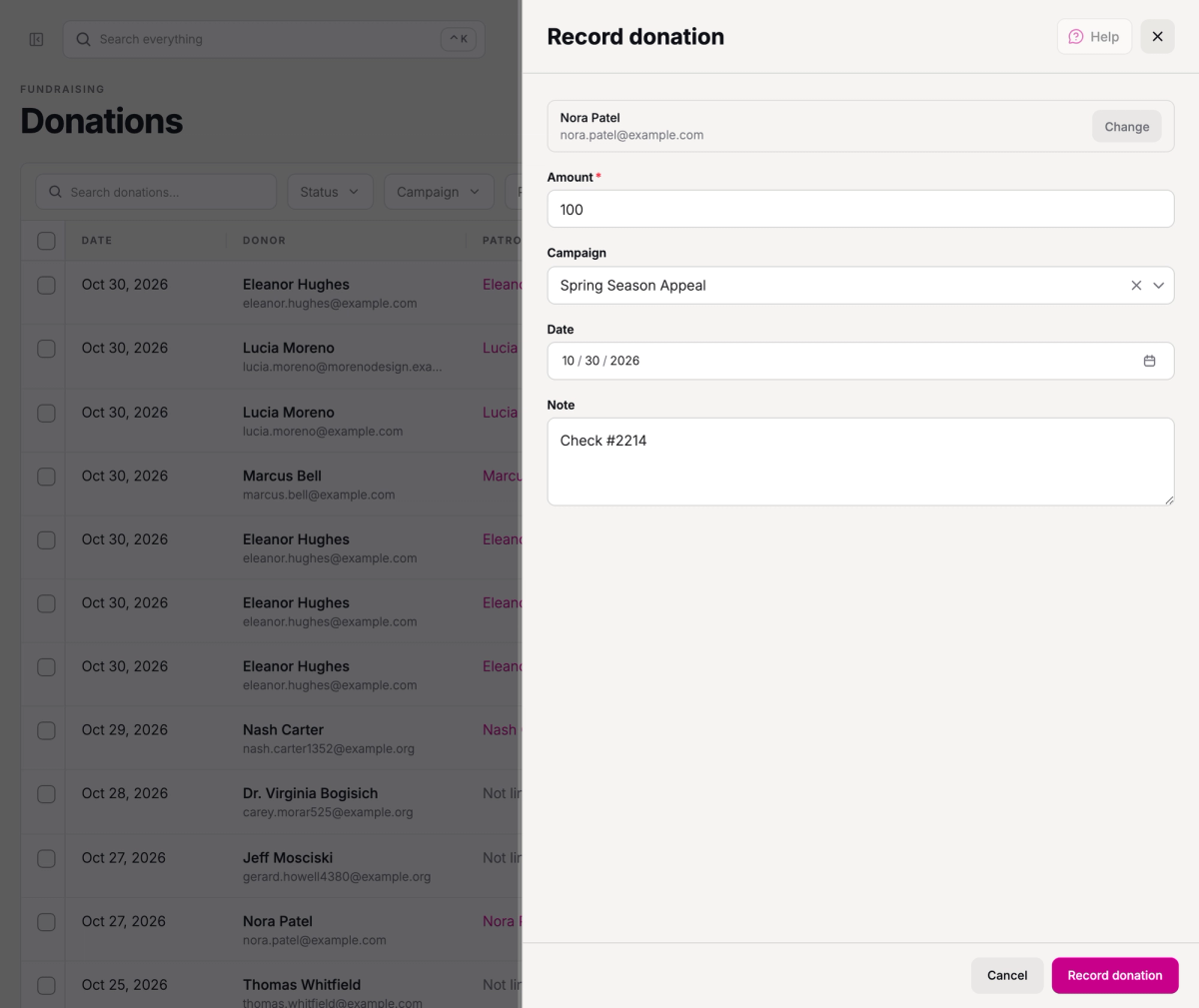
Search for the donor by name, email or phone, and choose them. If they're not there, click Create new patron, enter their name and an email or phone number, then click Use new patron.
- Step 4:
Enter the Amount.
- Step 5:
Choose the Campaign the gift should count toward, or leave it blank if it isn't for a campaign.
- Step 6:
Set the Date you received the gift. It's today's date until you change it.
- Step 7:
Add a Note, like the check number, so you can match the gift to your bank deposit later.
- Step 8:
Click Record donation.
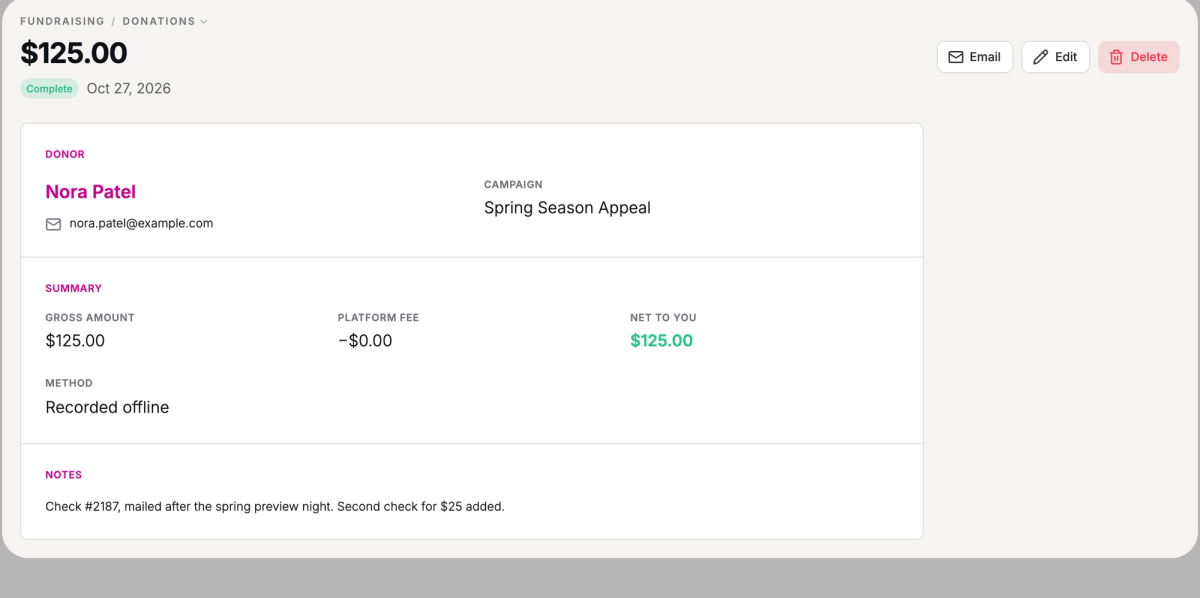
The gift shows up in your Donations list. Gifts you record carry no service fee, so the full amount is yours. On the gift's page, its method shows as Recorded offline.
Edit or delete a recorded gift
Open the gift from your Donations list. Click Edit to change its amount, campaign, date or note, then click Save changes. To remove it, click Delete, then Delete donation. Deleting can't be undone.
This works for the gifts you record or import. A gift paid by card through Stageworks can't be edited or deleted; refund it only to give the money back, as One-time and monthly gifts explains. Any gift can move to another patron: see Link gifts to a patron, below.
Import gifts from a spreadsheet
Moving from other donor software, or keeping a list of gifts from another platform? Bring them all in at once. Save your spreadsheet as a CSV file with column headers in the first row and one gift per row.
Each row needs an Amount and a donor: a name (Donor Name, First Name or Last Name), an email, or a Patron External ID that matches one of your patrons. Stageworks also reads Notes and the columns below, which are the ones to get right:
- Email links each gift to the patron with that email address. A gift with no matching email, like one with only a name, imports unlinked; you can link it afterward. If your patrons came from another system with their own IDs, a Patron External ID column links on those instead.
- Campaign matches your campaigns by name. A name that doesn't match one becomes a new, unpublished campaign, so check the spelling first.
- Donation ID is a unique ID for each gift, like the one your old system gave it. With it, you can import the same file again without doubling up.
- Date should be in a standard date format. Without one, a gift is dated the day you import it.
Importing doesn't email your donors, so you can bring in years of history without sending anyone a thank-you.
- Step 1:
On Donations, click Import.
- Step 2:
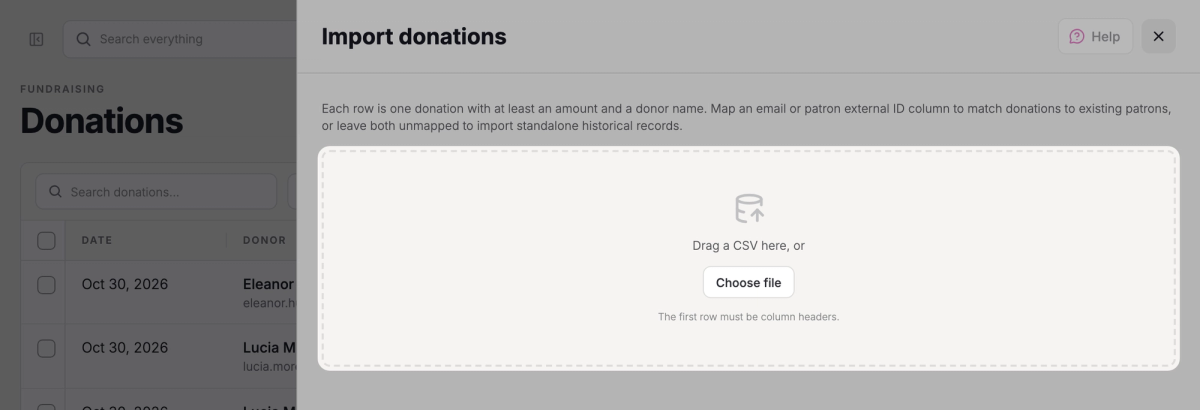
Drag your CSV onto the Import donations panel, or click Choose file and pick it.
- Step 3:
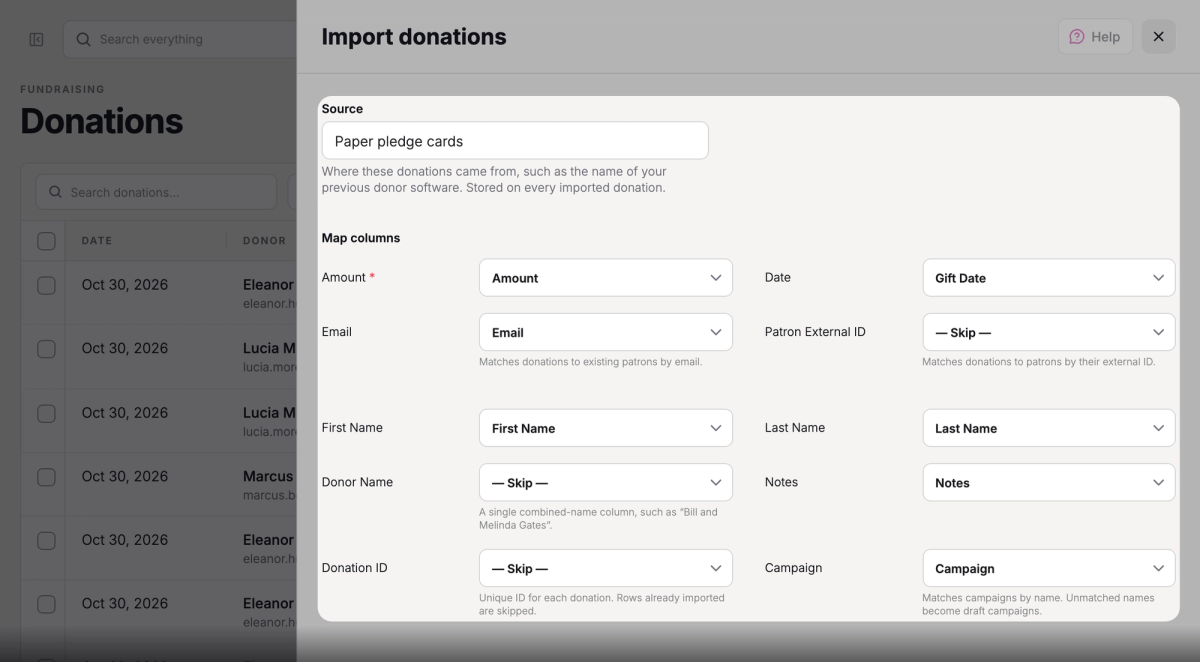
In Source, enter where these gifts came from, like the name of your old donor software. It's added to the notes of every gift in the file.
- Step 4:
Under Map columns, check the column chosen from your file for each item. Stageworks fills in the ones it recognizes; pick the right column for any it missed.
- Step 5:
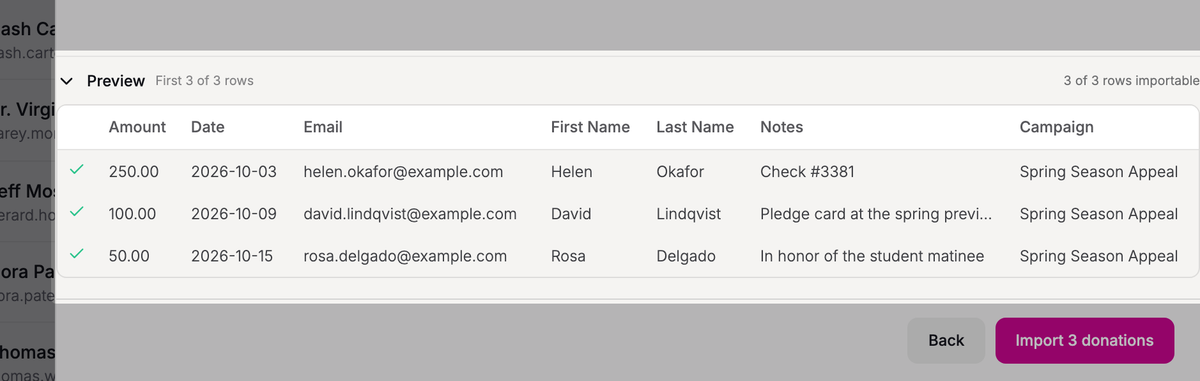
Check the Preview to see how many of your rows can be imported. You can import the rest and fix those afterward.
- Step 6:
Click the import button, like Import 120 donations.
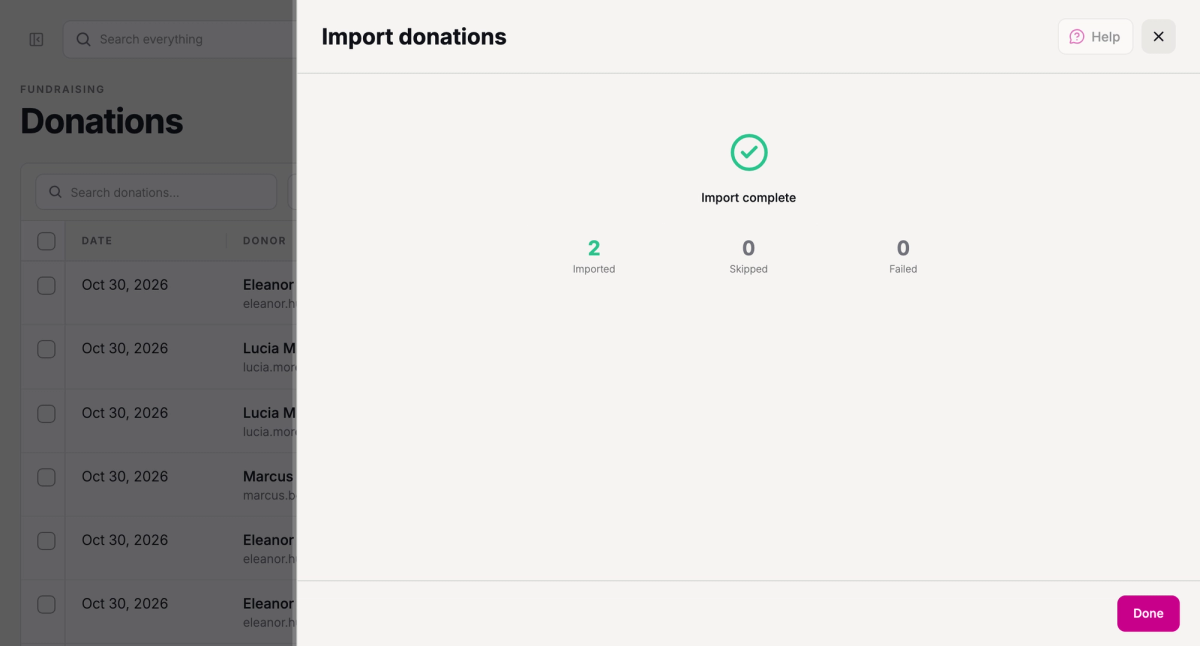
When the import finishes, you'll see Import complete and how many gifts were imported. If any rows couldn't be imported, click Download skipped rows for a file of them with the reason for each. Fix those rows, then import that file to add them. Click Done when you're finished.
Link gifts to a patron
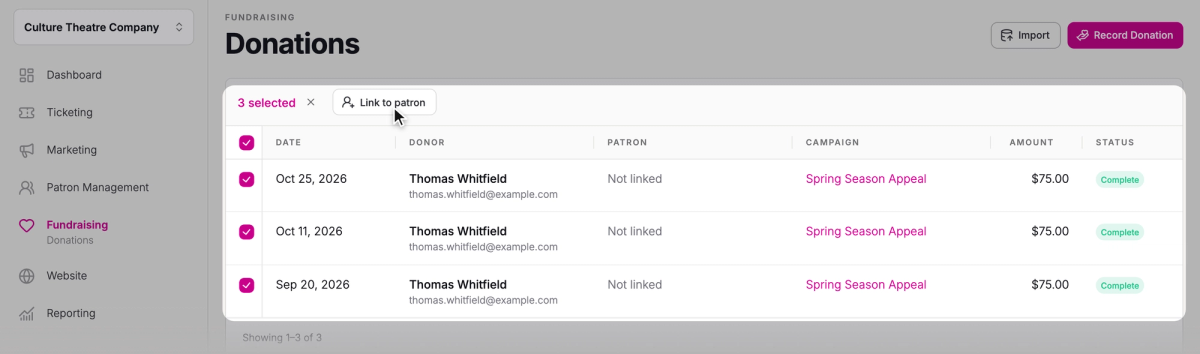
A gift that didn't match a patron shows Not linked in the Patron column. Link it so it counts in that patron's giving history.
- Step 1:
On Donations, filter Patron to Not linked.
- Step 2:
Check the box next to each gift from the same person.
- Step 3:
Click Link to patron.
- Step 4:
Search for the patron and choose them. If they're not in Stageworks yet, add them first.
- Step 5:
Click the link button, like Link 3 donations.
To move a gift that's on the wrong patron, check it in your Donations list and follow steps 3 to 5.
SuggestedAsk for donations at checkoutRaise more with no extra work: invite patrons to add a gift when they buy tickets.Was this article helpful?

Fundraising tools for nonprofits
Raise money right where you sell tickets, with campaign pages, one-time and monthly gifts, a record of gifts that come in other ways, and a donation ask at checkout.
Run a fundraising campaign
Give an appeal its own page on your site, with a goal donors can see, and see every gift to it in one place.
One-time and monthly gifts
Let donors give once or every month from your website, then see, start, cancel and refund gifts in Stageworks.
Ask for donations at checkout
Invite every ticket buyer to add a gift to your default campaign on their way through checkout.