
Set up roles and permissions
Give each person on your team exactly the access their job needs, with ready-made roles or ones you make yourself.
Give each person on your team exactly the access their job needs, from your box office staff to your marketing lead. A role is a set of permissions you give to team members. Set up a role for each job, then choose it when you invite someone, as Invite your team shows.
Who roles apply to
Every team member is an Owner, an Admin, or a User. Most staff should be a User, who gets exactly what their roles allow. Owners and Admins have every permission, whatever their roles. The main difference between them: only an Owner can make someone an Owner, and Admins can't change or archive an Owner.
A User with no role can't see anything, so give each User at least one role.
The ready-made roles
If your Roles tab (in Settings → Team) already has three ready-made roles, use them as they are, or change their permissions or names to suit your team.
- Team Member can check in guests and see most of Stageworks, like events, orders, and patrons, but can't change any of it. It doesn't include donations, programs, reports, or QuickBooks.
- Boxoffice Manager runs the box office: selling and changing orders, issuing refunds, managing patron records, and checking in guests. It can see events and venues, but not change them.
- Marketing Director can do everything with promo codes, email, and tracking links. It can see most of the rest, like orders, patrons, and reports.
Make your own role
Let's make a role for box office staff who sell tickets and check in guests at the door, called Front of House.
- Step 1:
Go to Settings → Team and click Roles.

- Step 2:
Click Add role.
- Step 3:
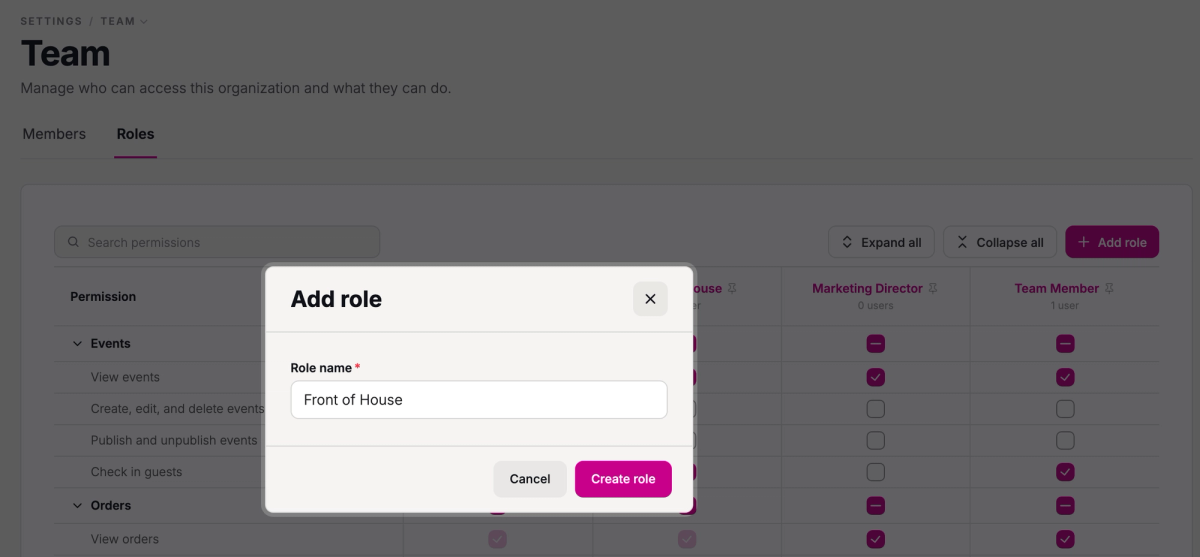
Enter a Role name, like Front of House, and click Create role.
- Step 4:
In the new role's column, check each permission it should have. For Front of House, that's View events, Check in guests, and Manage orders, which checks View orders for you.

Each box saves as soon as you check it, and the change applies to everyone who has the role. To give a role everything in a group, check the box on the group's row, like Events. That also covers any permissions Stageworks adds to the group later. Settings has no group box, so check each settings permission on its own.
To find a permission, type in Search permissions, like "refund".
Add a description
- Step 1:
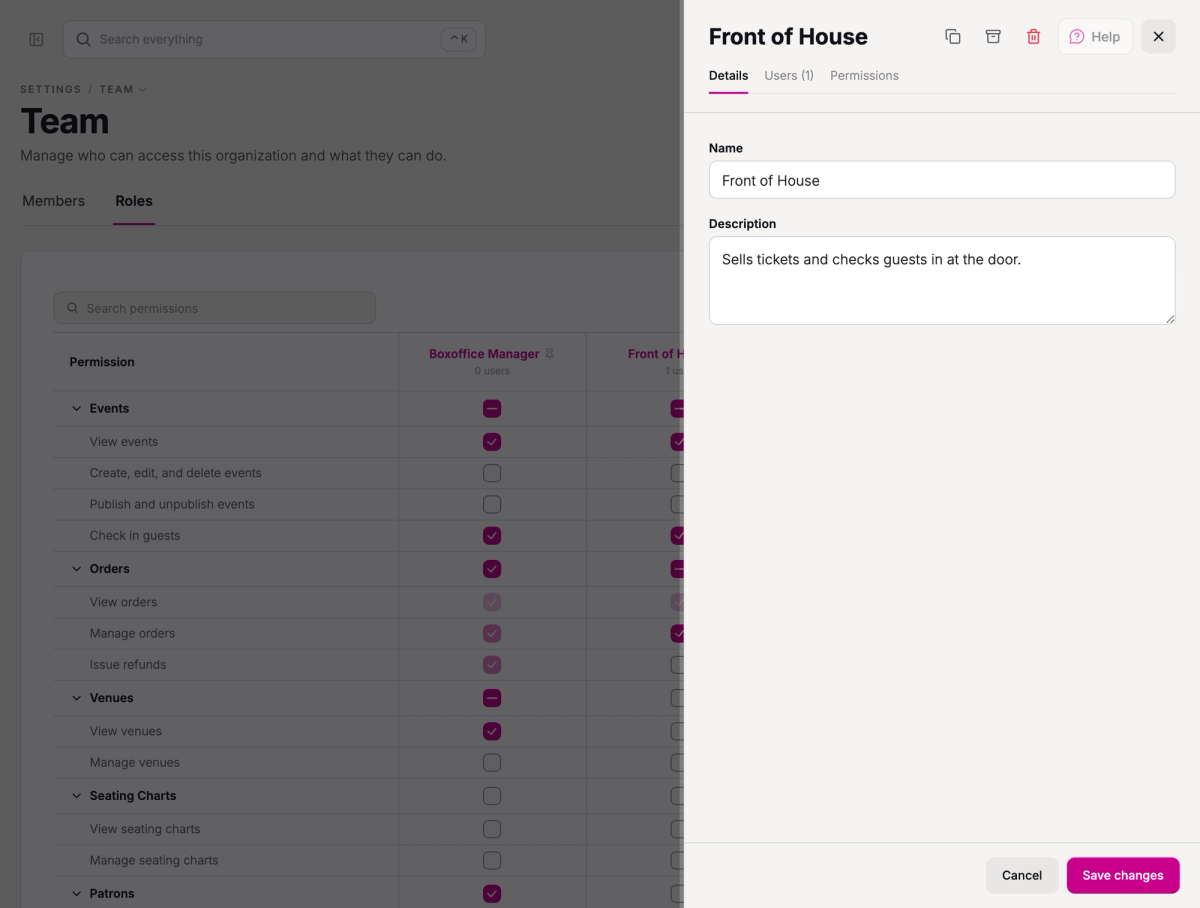
Click the role's name at the top of its column. A panel opens on its Details tab.
- Step 2:
Enter a Description that says what the role is for, and click Save changes.
Give the role to people
- Step 1:
In the same panel, click the Users tab.
- Step 2:
Click Add users.
- Step 3:
Check each person who should have the role, then click Add.
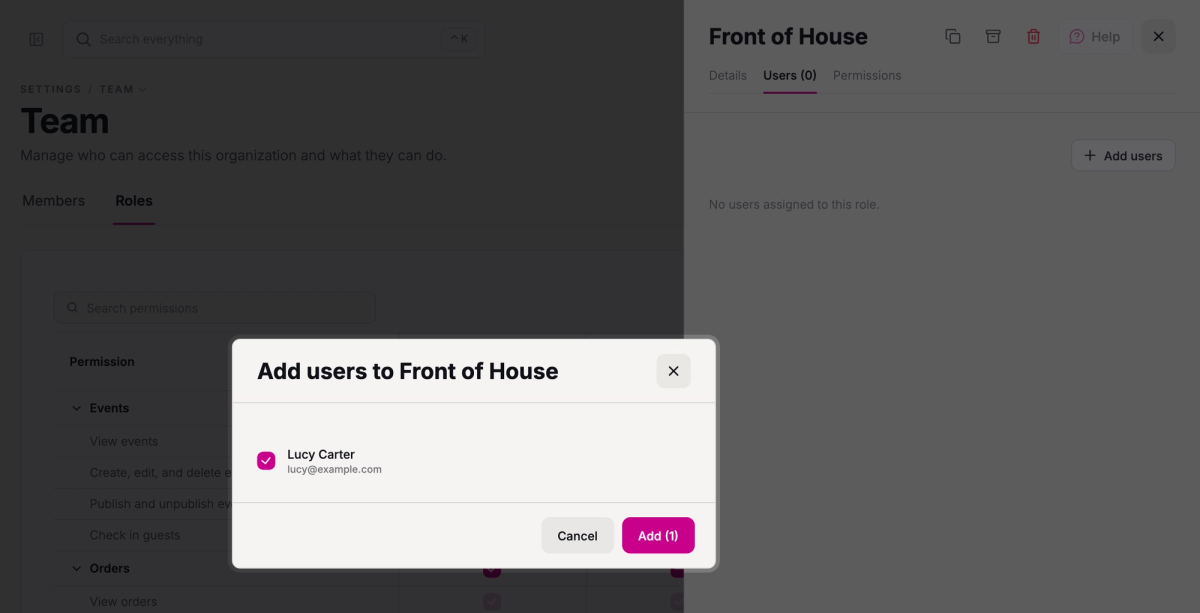
Only Users who've joined your team are listed. For someone new, choose the role when you invite them.
How permissions work
Permissions come in groups, one for each area:
| Group | Lets someone |
|---|---|
| Events | See, create, edit, delete, and publish events, and check in guests |
| Orders | See, create, and change orders, and issue refunds |
| Venues | See or manage venues |
| Seating Charts | See or manage seating charts |
| Patrons | See or manage patron records, and give patrons flex tickets |
| Flex Passes | See or manage flex passes |
| Memberships | See or manage memberships |
| Programs | See or manage programs: the classes, camps, and workshops patrons register for |
| Fundraising | See or manage fundraising campaigns |
| Donations | See or manage donations |
| Promo Codes | See or manage promo codes |
| See or send email campaigns, and manage mailing lists and your automated emails | |
| Links | See or manage tracking links |
| Images | See or manage the image library |
| Reporting | See reports |
| QuickBooks | See or manage the QuickBooks connection |
| Settings | Change each settings area separately: organization, portal (your organization's public site in Stageworks), team and roles, tags, email usage limits, payments, and integrations |
Someone with more than one role gets everything any of their roles allows, so a staff member who runs the box office and sends your emails can have both Boxoffice Manager and Marketing Director.
SuggestedStart a blog and write your first postLet someone write posts for your blog: the permission they need, and what writers can and can't do. SuggestedInvite your teamInvite people to your team and choose their roles as you send the invitation.
Was this article helpful?