
Run a fundraising campaign
Give an appeal its own page on your site, with a goal donors can see, and see every gift to it in one place.
A campaign gives each appeal its own page on your website, with a goal donors can see, and keeps every gift to it in one place. Run as many as you like, from your annual fund to a single gala night. For how campaigns fit with monthly gifts, donations at checkout and gifts made outside Stageworks, see Fundraising tools for nonprofits.
Create a campaign
- Step 1:
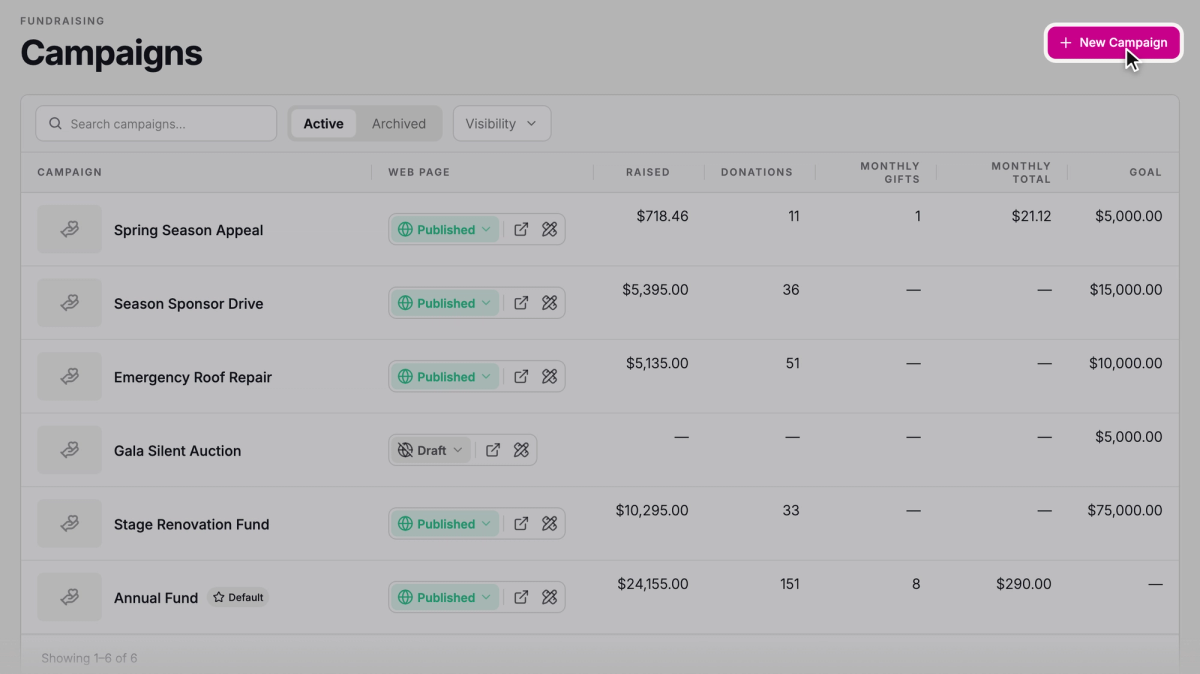
Go to Fundraising › Campaigns.
- Step 2:
Click New Campaign.
- Step 3:
Enter a Campaign Title, then click Create Campaign.
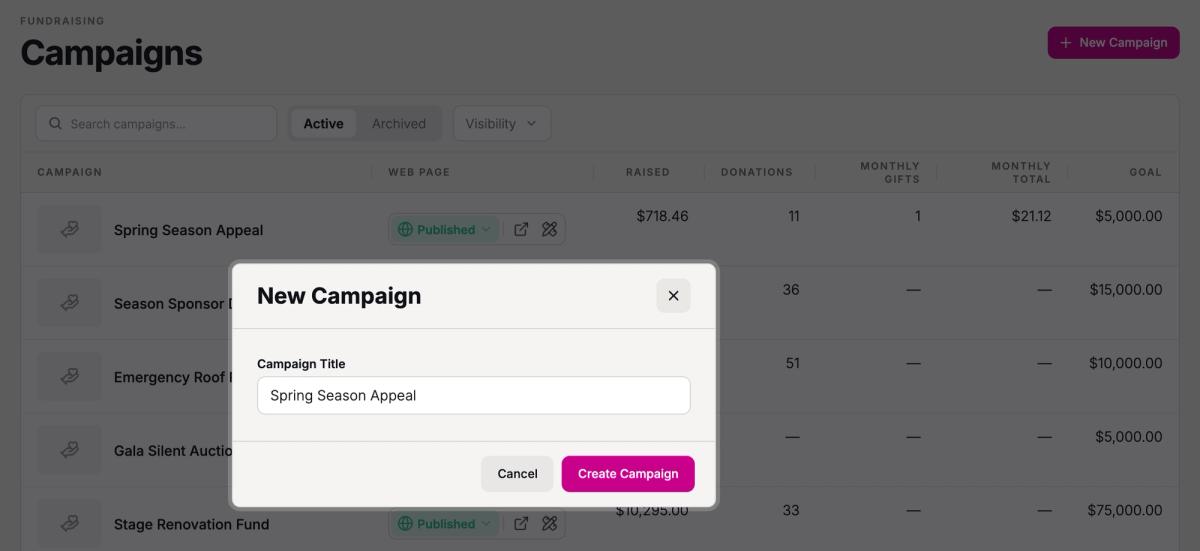
Use the name donors know the appeal by: it's the title on the campaign page. You land on the campaign's Overview. The campaign starts as a draft, so nobody can see its page or give to it until you publish.
Set it up
Description and goal
- Step 1:
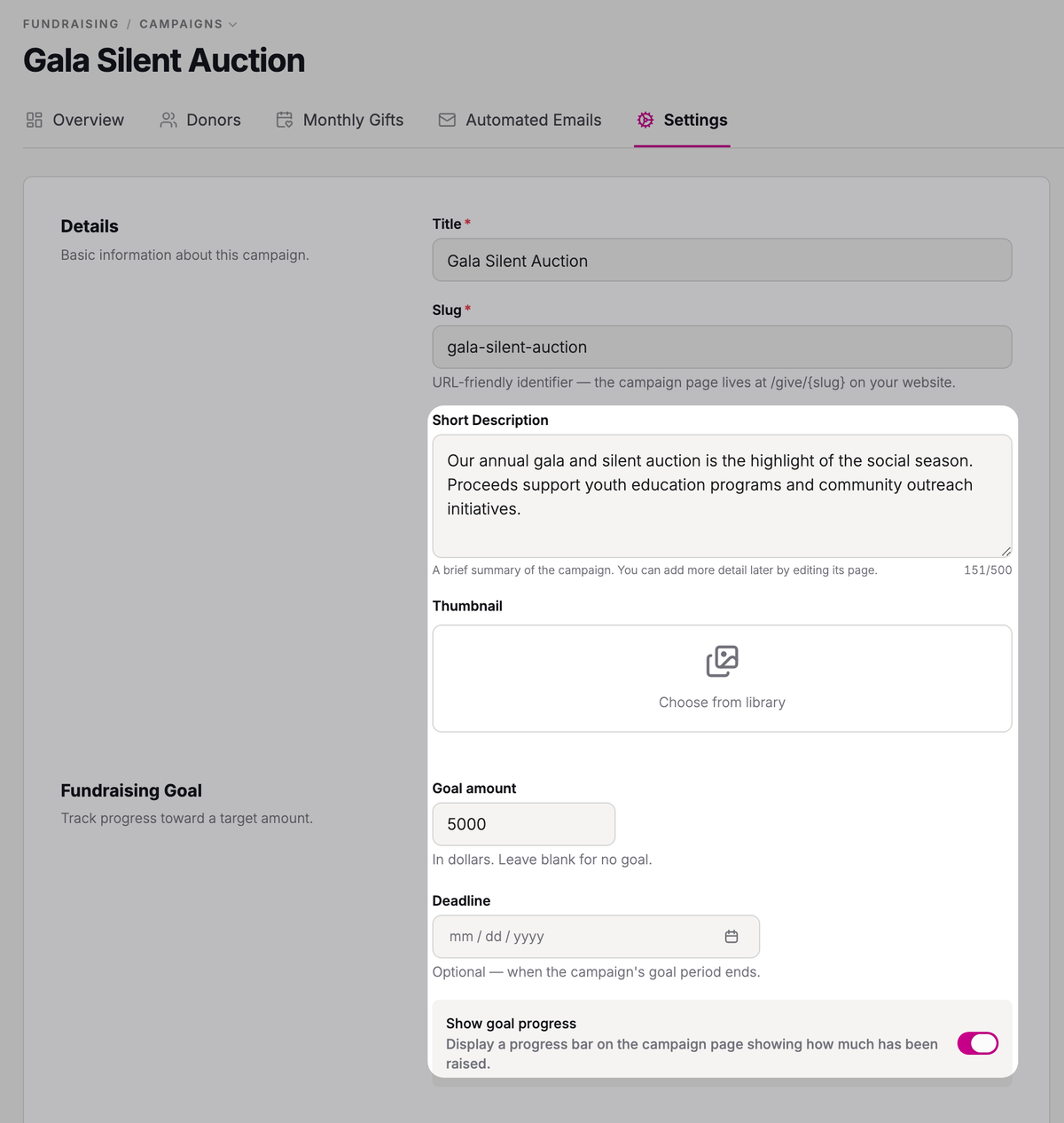
Click the Settings tab.
- Step 2:
In Short Description, say what you're raising money for. Donors see it on the campaign page, and it's the one thing you need before you can publish.
- Step 3:
In Goal amount, enter what you want to raise, or leave it blank for no goal.
- Step 4:
Turn on Show goal progress so donors see a progress bar toward your goal.
A Deadline is optional. It shows on the campaign page as the date the campaign ends.
Who covers the service fee
You choose whether donors can cover Stageworks' service fee. It comes out of each gift unless the donor covers it: at the standard rate for tax-exempt organizations, the fee on a $50 gift is $2.25 and you get $47.75. For the rates, see How service fees work.
Turn on Allow patrons to cover the platform fee (that's the service fee), and donors see a checkbox that reads "I’ll cover the platform fee ($2.34 extra)". If they check it, they pay $52.34 and you get the full $50: the fee is a little more because it's figured on the larger total. To have that box checked from the start, also turn on Default to opted in. Donors can still uncheck it.
Amounts and address
Under Preset Amounts, the One-time amounts and Monthly amounts are the amounts donors pick from on your page. To begin with, they're $10, $25, $50, $100 and $250; change them to suit the appeal. Donors can always enter their own amount. Turn on Collect mailing address if you'd like to ask donors for one (it's optional for them).
- Step 1:
Click Save changes.
Back on the Overview tab, a checklist shows what's left. Add a description is the only step you need; Set a goal and Add an image are optional. Once the description is saved, it reads "Everything's in place. Publish when you're ready."
Publish it
- Step 1:
On the Overview tab, click Publish campaign.

- Step 2:
Click Publish to confirm.
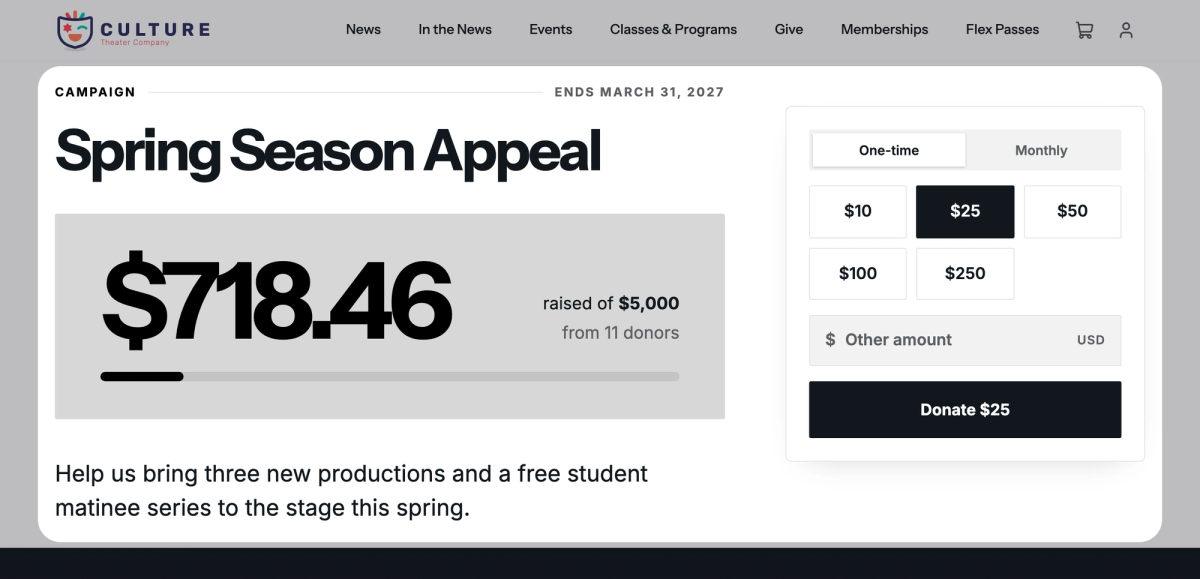
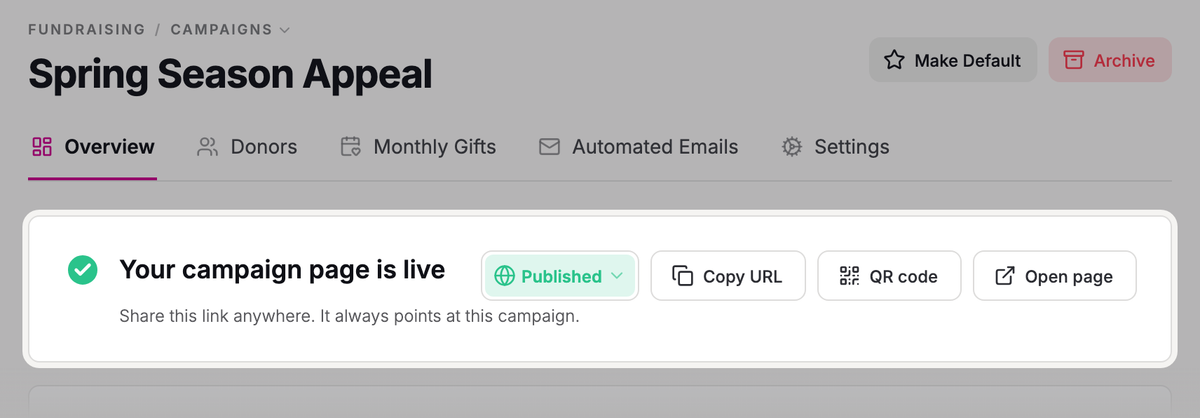
The Overview now says "Your campaign page is live". The page's address on your website comes from the campaign's title, like yoursite.com/give/spring-season-appeal (you can change the end of it in Slug under Settings). Click Open page to see it as donors do. Donors choose One-time or Monthly, pick an amount or type their own, and click the Donate button. Published campaigns are also listed on your site's Give page (yoursite.com/give).
To spread the word, click Copy URL and paste the link into emails, newsletters and social posts, or click QR code for printed pieces like programs and posters. To put a donate form on another website, copy the Donate widget's code from Embeddable Widgets on the Overview.
 SuggestedBuild and save patron segmentsSend your appeal to past donors: filter for them, save them as a segment, and email that segment.
Track your campaign
On the Overview, Raised shows what's come in, and how close you are to your goal if you set one.
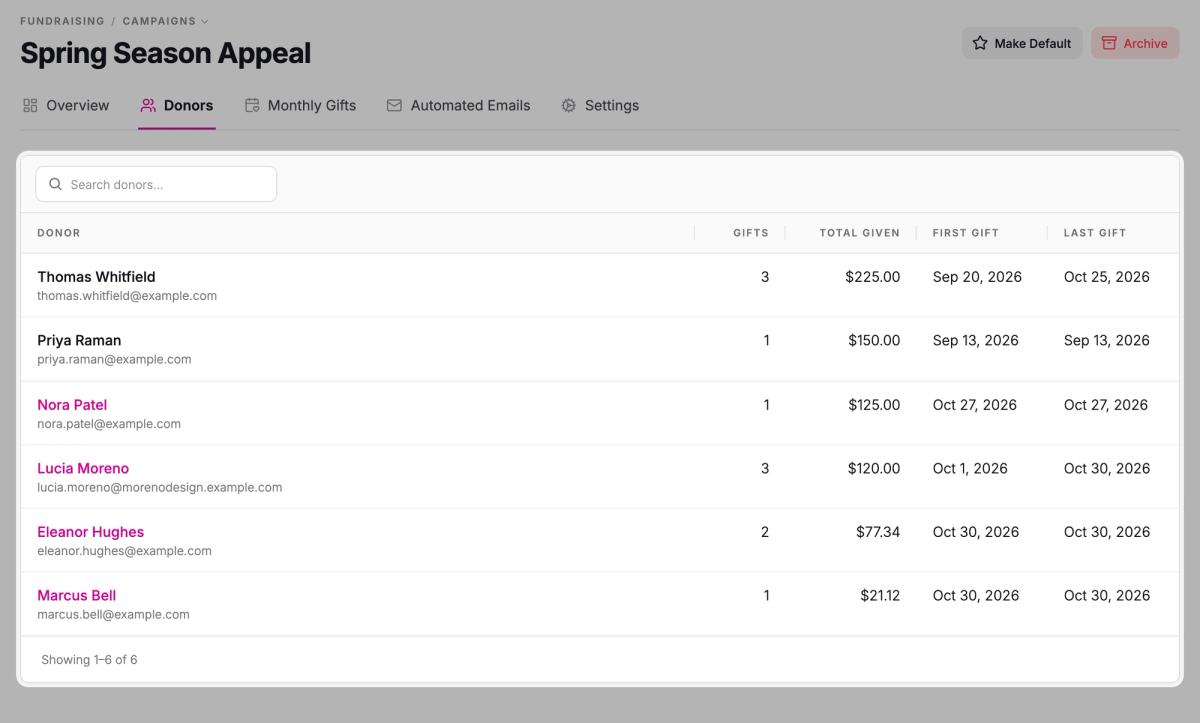
The Donors tab lists everyone who's given, one row per donor, with their Gifts, Total given, First gift and Last gift. Search it to find someone, or sort a column to see your biggest supporters.
The Monthly Gifts tab lists the monthly gifts to this campaign. To start one for a donor over the phone, see One-time and monthly gifts.
The Automated Emails tab shows the emails donors get from this campaign. Each uses your organization's default until you click it and give the campaign its own version, like a thank-you that mentions the appeal:
- Donation thank-you thanks donors for their gifts.
- Recurring donation welcome goes out when a monthly gift starts, with the link donors use to manage it.
- Recurring donation payment failed lets a monthly donor know a payment didn't go through.
Your default campaign
Your first campaign becomes your default, marked Default in the campaign list. It collects the donations patrons add when they buy tickets (see Ask for donations at checkout). The amounts offered at checkout are its One-time amounts, and it's listed first on your Give page. A general campaign, like your annual fund, makes a good default.
Keep your default campaign published: checkout only asks for a donation while it's published and not archived.
To make another campaign the default:
- Step 1:
Open the campaign.
- Step 2:
Click Make Default.
Archive a campaign
When an appeal is over, click Archive on the campaign, then Archive campaign. It stops taking new gifts and moves to the Archived tab. Its page stays up, saying it's no longer accepting donations, unless you check Also unpublish the page.
SuggestedOne-time and monthly giftsSee how donors give once or monthly, and how to manage gifts and refunds.Was this article helpful?

Fundraising tools for nonprofits
Raise money right where you sell tickets, with campaign pages, one-time and monthly gifts, a record of gifts that come in other ways, and a donation ask at checkout.
One-time and monthly gifts
Let donors give once or every month from your website, then see, start, cancel and refund gifts in Stageworks.
Record and import donations
Add gifts that came by check, cash or another platform to Stageworks, one at a time or from a spreadsheet, and link them to your patrons.
Ask for donations at checkout
Invite every ticket buyer to add a gift to your default campaign on their way through checkout.