
Choose who pays service fees
Decide whether patrons, your organization, or both pay the service fee on online sales, and whether patrons see it on its own line or built into the price.
Here's how to choose who pays the service fee on online sales: your patrons, your organization, or a split. You'll also choose whether patrons see the fee on its own line or built into the ticket price. For the basics, see How service fees work.
Choose who pays
- Step 1:
Go to Settings → Payments, then click the Fees tab. If you can't click it, card payments aren't set up yet.
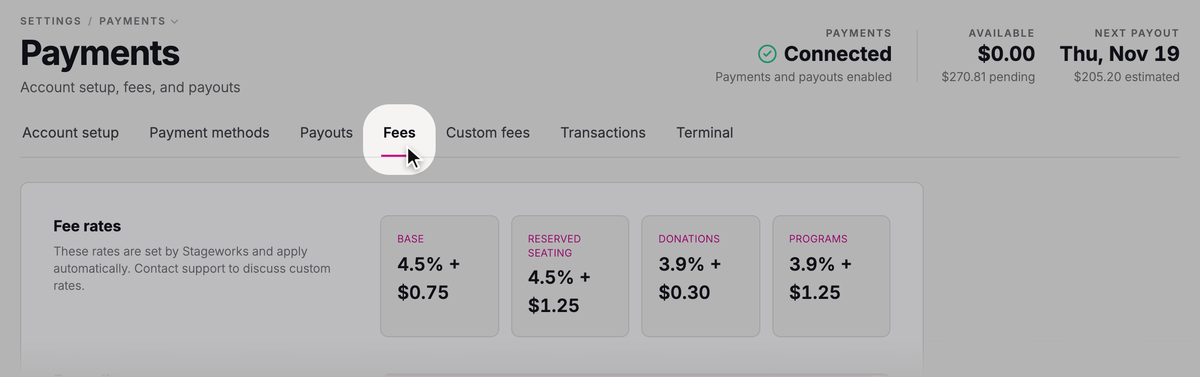
- Step 2:
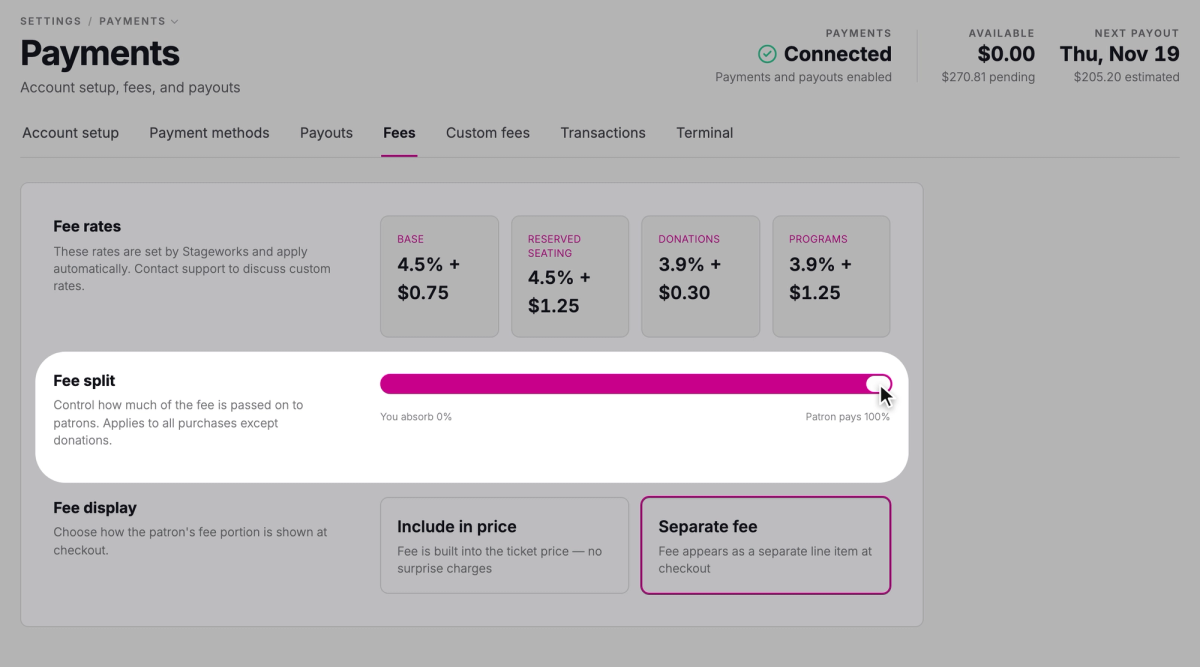
Drag the Fee split slider to set how much of the service fee patrons pay. Your organization pays the rest.
- Step 3:
Click Save changes. You'll see "Fee settings updated".
By default, patrons pay the whole service fee (Patron pays 100%). Say your Base rate is 4.5% + $0.75. A $35 ticket then carries a $2.33 service fee:
- At Patron pays 100%, the patron pays $37.33 and your organization gets $35.
- At Patron pays 0%, the patron pays $35 and your organization gets $32.67.
Your organization's amount is what's deposited; card processing comes out of the service fee. Anything in between splits the $2.33. The split applies only to the service fee; patrons still pay any fees you add yourself.
Choose how patrons see the fee
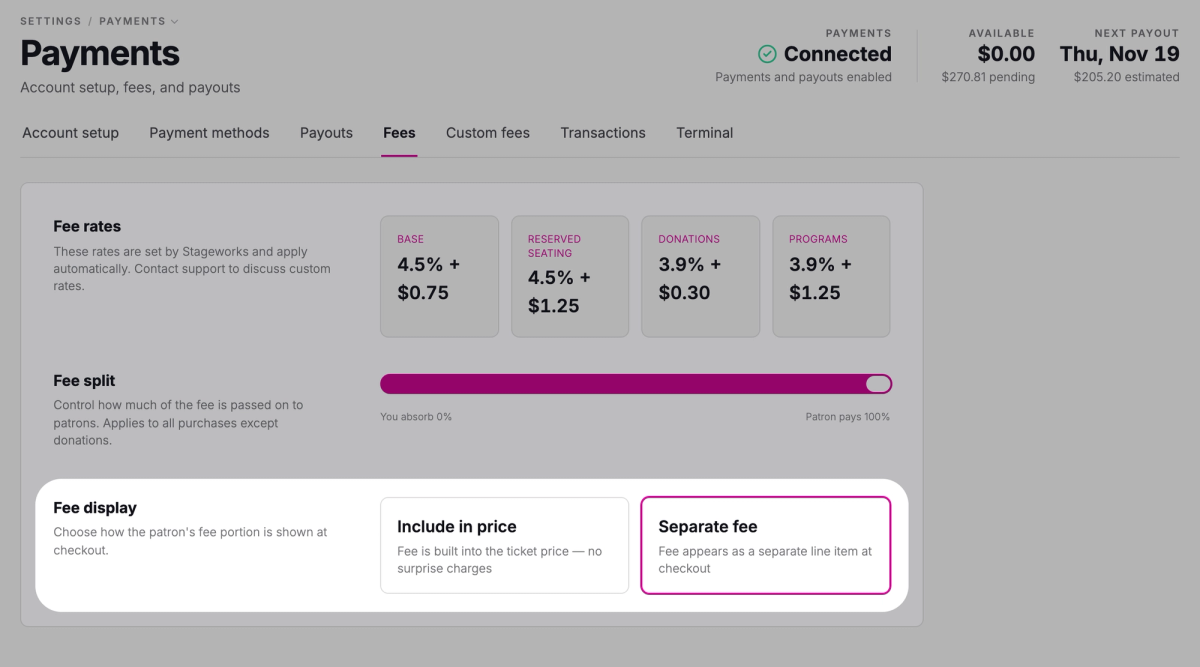
Patrons see their share of the fee in one of two ways:
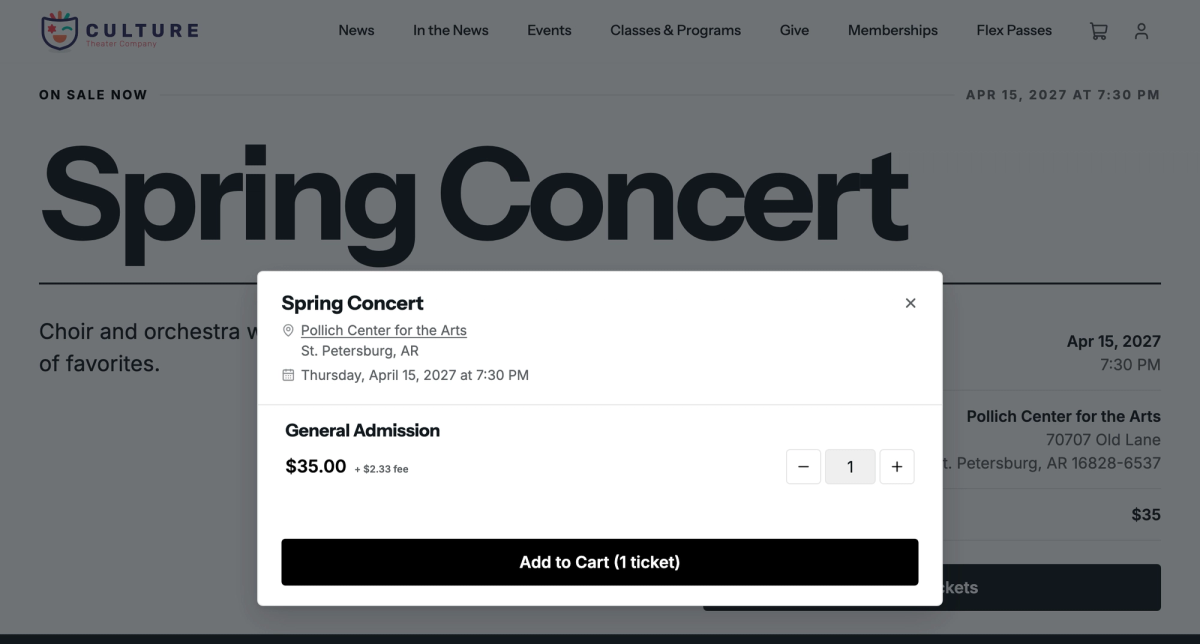
- Separate fee (the default): the price with the fee beside it, like "$35.00 + $2.33 fee", and a Service fees line in their cart and at checkout.
- Include in price: one price with every fee built in, $37.33 for the same ticket, when they choose tickets and at checkout.
Either way, patrons pay the same total.
- Step 1:
On the Fees tab, under Fee display, click Separate fee or Include in price.
- Step 2:
Click Save changes.
Choose for one event series
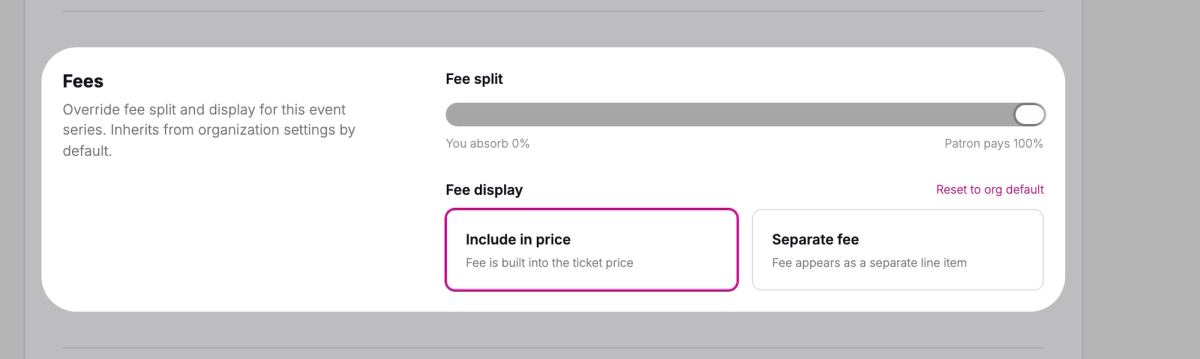
Each event series follows your organization's settings unless you set its own, for example to cover the fee yourself for a gala.
- Step 1:
Click Ticketing, then Events, and open the event series.
- Step 2:
Click the Settings tab.
- Step 3:
Under Fees, drag the Fee split slider, choose a Fee display, or both.
- Step 4:
Click Save changes. You'll see "Settings saved".
Anything you don't change keeps following your organization's settings. The New event page has the same Fees settings at the end.
New settings apply from then on, even to tickets in a patron's cart, but not to paid orders.
Let your organization pay for one ticket type
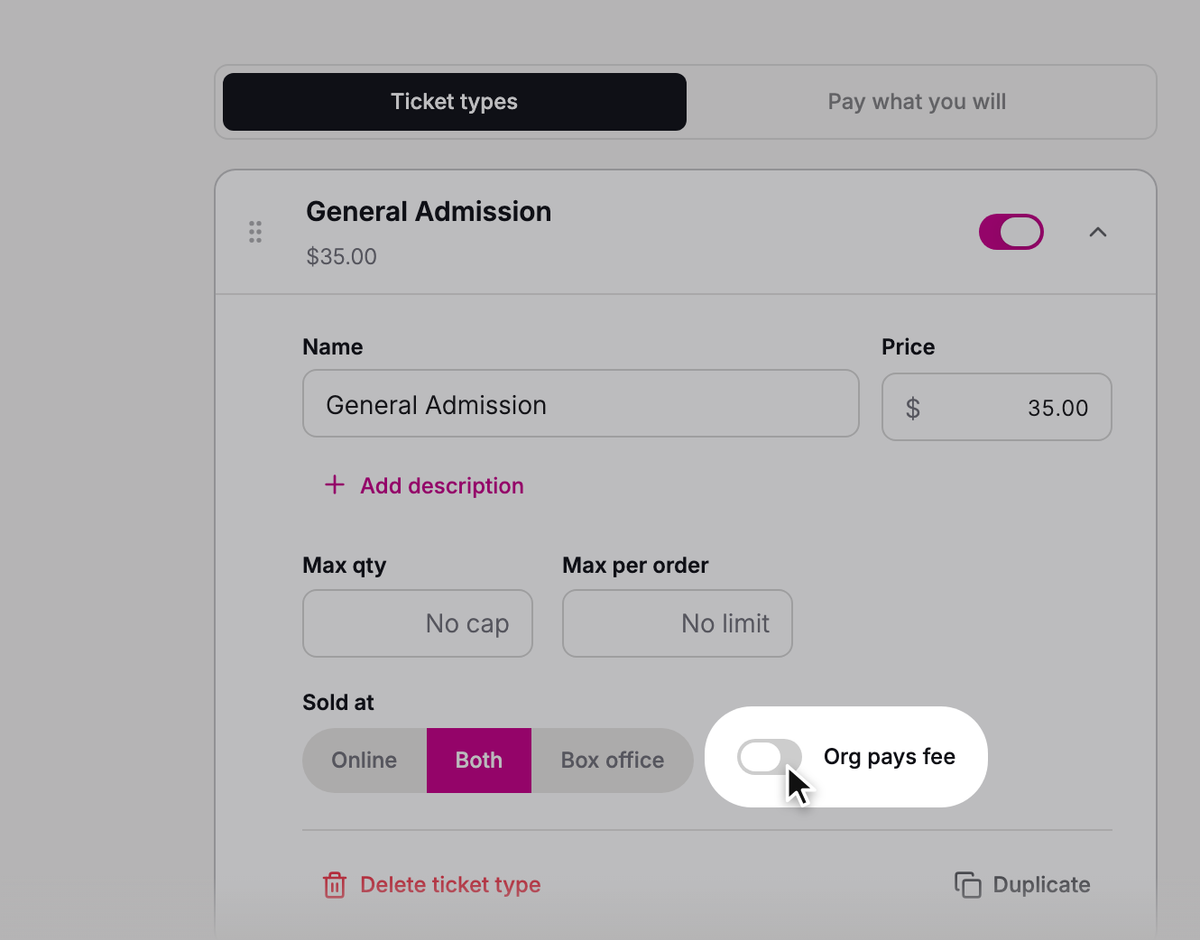
To cover the whole service fee on one kind of ticket, like a student ticket, turn on Org pays fee for it, whatever the series' split.
- Step 1:
Open the event series and click the Dates tab.
- Step 2:
Click the date.
- Step 3:
Find the ticket type and turn on Org pays fee.
- Step 4:
Click Save changes. You'll see "Date saved".
Each date has its own ticket types, so do this on each date you want covered.
SuggestedAdd your own feesAdd your own fees, like a facility fee, to ticket sales on top of the price.Was this article helpful?