
Set up a Wi-Fi card reader
Register a Stripe Wi-Fi card reader to your venue, then use it to take card payments at the door, on the web and in the Stageworks app.
A Wi-Fi card reader lets patrons tap, insert, or swipe their card at the door, whether you're selling from a computer or from the Stageworks app. In this guide you'll register the reader with Stageworks, then set it up on each computer and iPad you sell from. Let's get started!
Is a Wi-Fi reader right for you?
Stageworks takes card payments through Stripe, and works with two kinds of Stripe card reader:
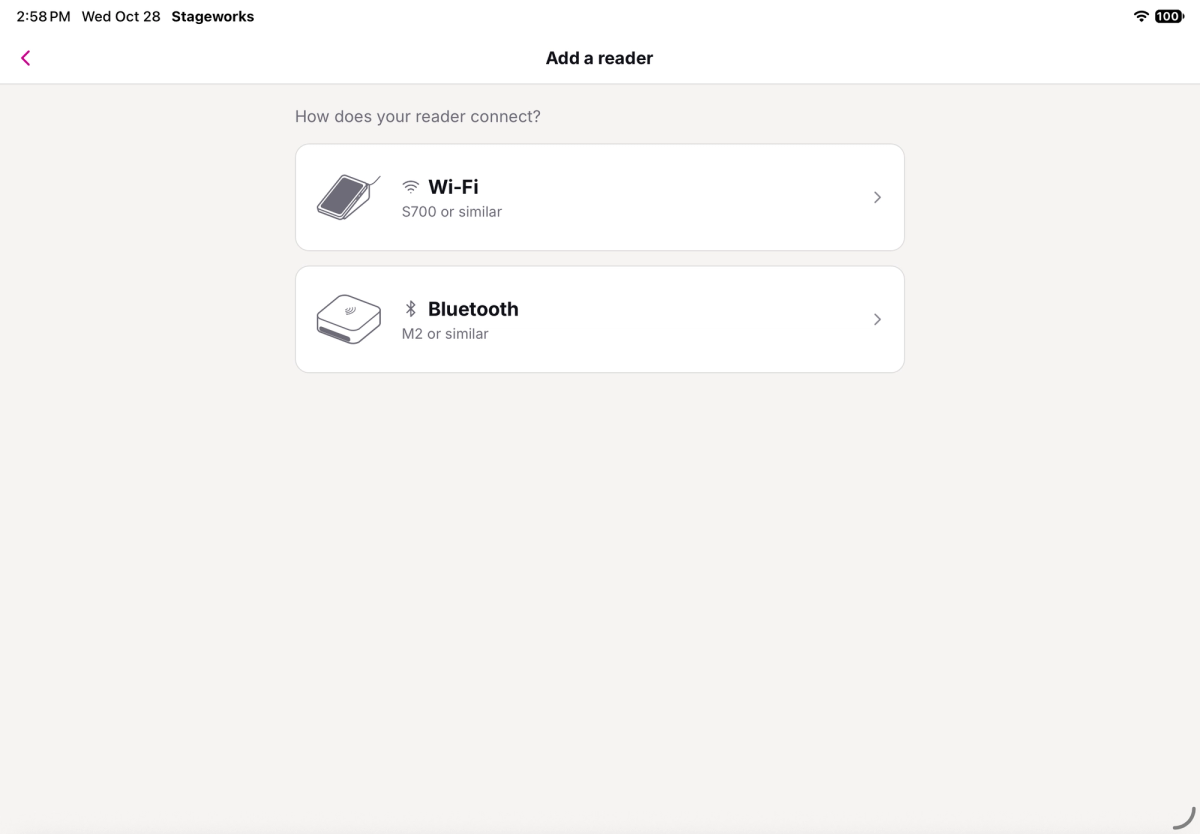
- Wi-Fi readers, like the Stripe Reader S700, sit on a counter, have their own screen, and connect to the internet over Wi-Fi. They work in both the web box office and the app. You register the reader to one of your venues, and then any of your computers or iPads can use it.
- Bluetooth readers, like the Stripe Reader M2, are small and easy to carry, but they only work in the app, paired to one iPad or phone. See Connect a Bluetooth card reader.
Choose a Wi-Fi reader if you sell from a computer, or want one reader on the counter that every computer and iPad can use. Choose Bluetooth if you only sell from the app and want to move around with it.
You can buy readers directly from Stripe: the Stripe Reader S700 and the Stripe Reader M2.
Register the reader
You register a Wi-Fi reader once. After that, it's available across your organization.
- Step 1:
Turn the reader on and connect it to your Wi-Fi, following the steps on its screen.
- Step 2:
On the reader, open Settings and choose Generate pairing code. It shows three words joined by hyphens.
- Step 3:
In Stageworks, go to Settings → Payments and click the Terminal tab. If you can't click it yet, finish Account setup on the same page first.
- Step 4:
Click Add reader.
- Step 5:
Under Venue, choose where the reader will take payments.
- Step 6:
In Registration code, type the three-word pairing code from the reader's screen.
- Step 7:
In Label, give the reader a name for where it sits, like Front Door or Lobby Bar. It's how you'll tell your readers apart on the web and in the app.
- Step 8:
Click Register.
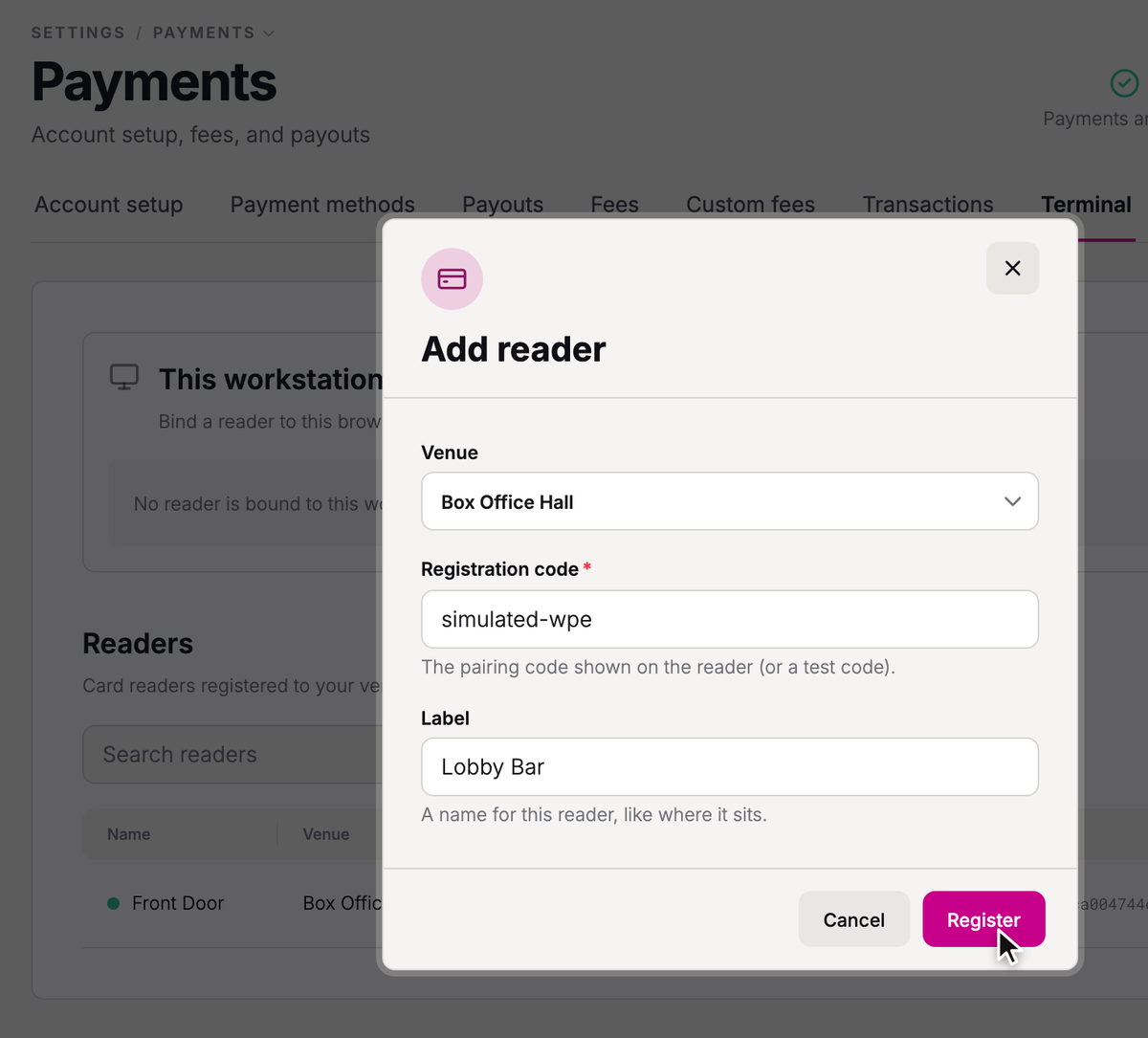
You'll see "Reader registered", and your reader appears under Readers with a dot that shows whether it's Online or Offline.
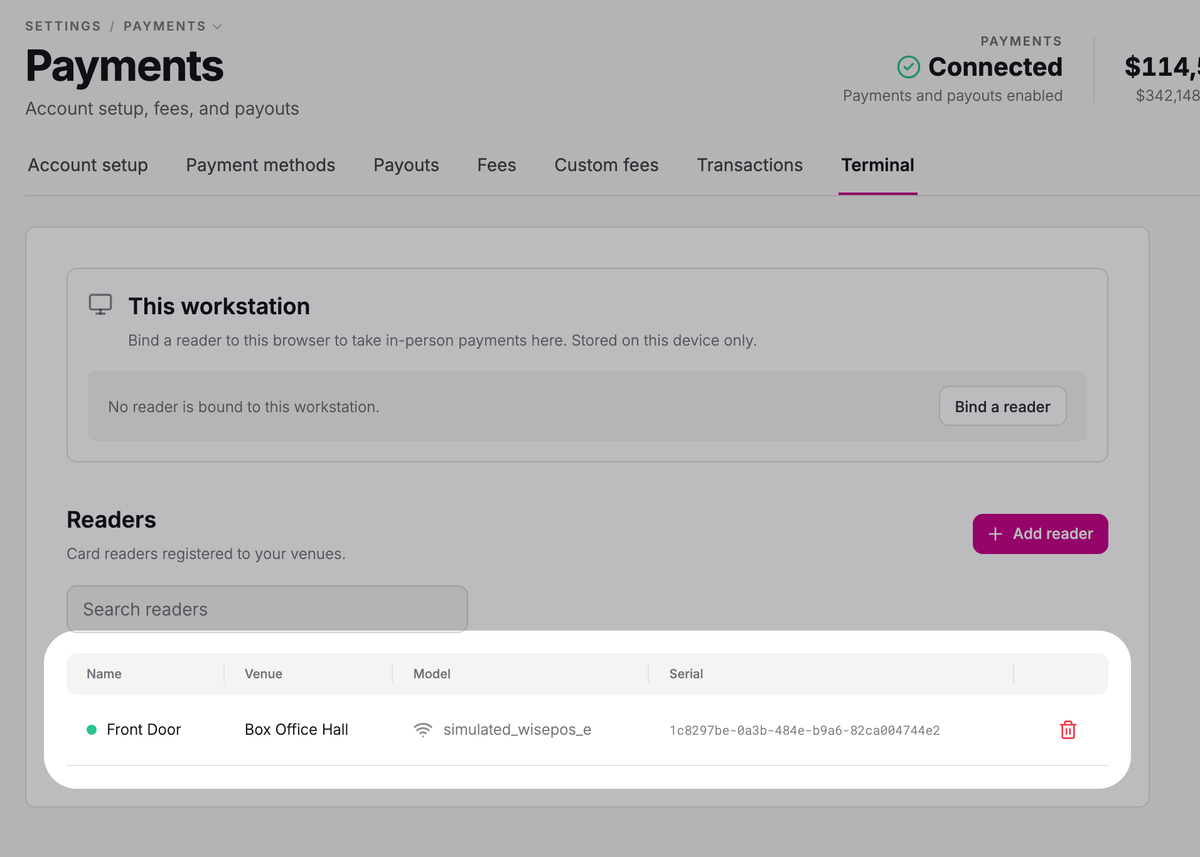
Use it on the web: link it to each computer
When you take a card in the web box office, the charge goes to the reader you've linked to that computer. The link is saved only in the browser you're using, so do this on each computer you sell from, in the browser you sell in.
- Step 1:
On the computer you'll sell from, go to Settings → Payments → Terminal.
- Step 2:
Under This workstation, click Bind a reader. This links a reader to this computer.
- Step 3:
Click your reader.
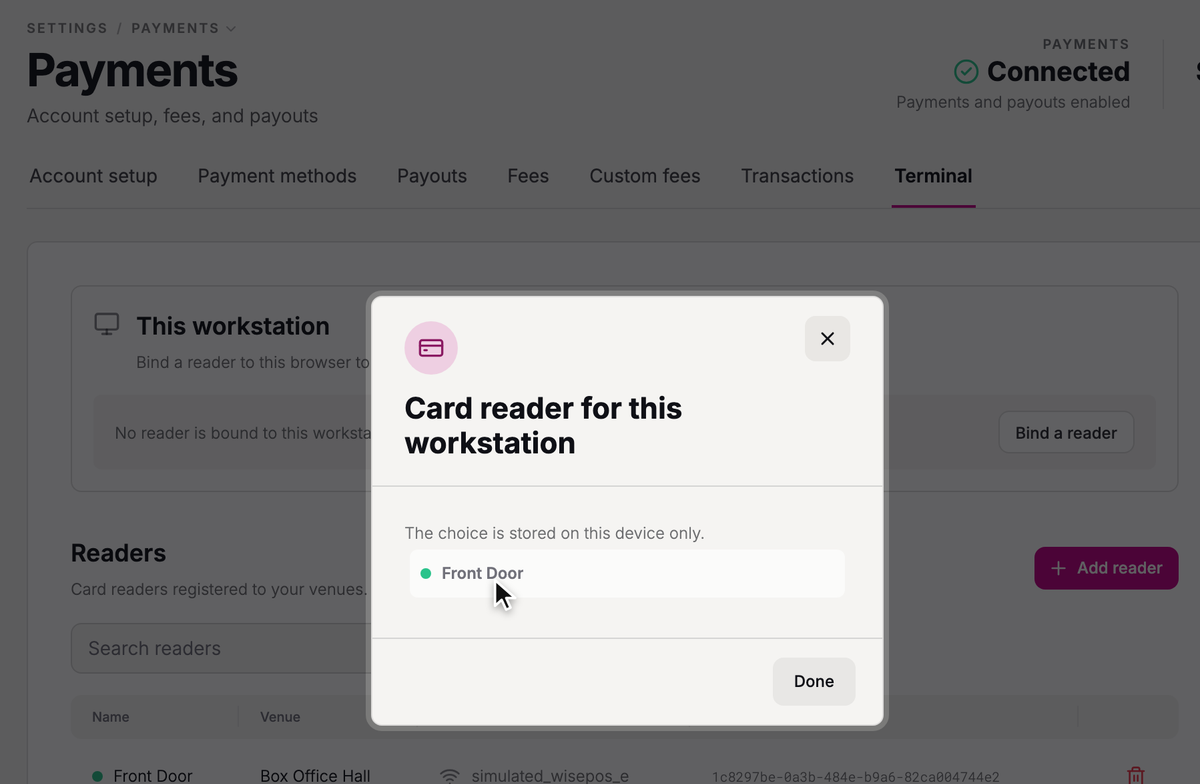
This workstation now shows your reader with Online. To switch to a different reader later, click Change.
From now on, when you sell tickets on this computer, the Card tab shows your reader, and the button at the bottom becomes Collect with the amount, like Collect $50.00. Click it, and the reader waits for the patron's card. See Sell tickets at the door for the whole sale.
Use it in the app
A Wi-Fi reader you've registered shows up in the Stageworks app too. You just choose it on each iPad.
- Step 1:
On My Events, tap your avatar at the top right, then tap Card Reader Setup.
- Step 2:
Under Available readers, tap your reader. It's listed with its venue.
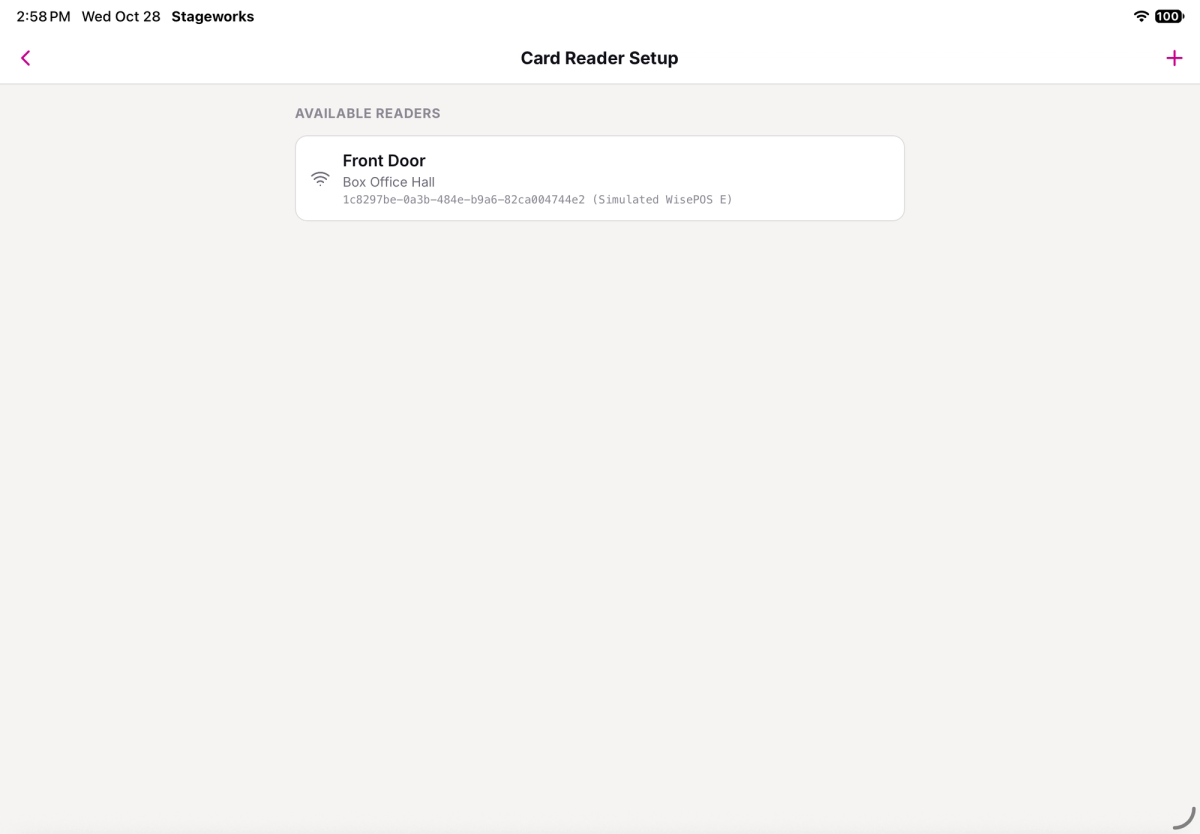
The iPad remembers your choice. When you sell tickets, the Payment step shows your reader under Card. Tap Charge card to take the payment. To use a different reader for a sale, tap Change beside it. See Sell tickets at the door.
Troubleshooting
"Failed to register reader"
Check that the code you typed matches the one on the reader's screen, and that the venue has its full street address. Then click Register again.
"This reader is offline"
You'll see this on the Card tab when the reader is switched off or has lost its Wi-Fi. Turn it on, check that it's connected, then click Reconnect.
Was this article helpful?

Box office: check in guests and sell tickets at the door
How the Stageworks box office works on the web and in the app, who can work your door, and which card reader suits your venue.
Check in guests on the web
Check guests in from the box office on your computer, collect from guests who still owe, and print a backup guest list.
Check in guests with the Stageworks app
Check guests in at the door from an iPad, iPhone, or Android device, by name or by scanning their ticket.
Give temporary staff an access code
Let volunteers and door staff check in guests for one event in the Stageworks app, with a 6-digit code instead of a Stageworks login.
Sell tickets at the door
Sell tickets to walk-up patrons from the web box office or the Stageworks app, and take payment by card reader, cash, or check.
Connect a Bluetooth card reader
Connect a Stripe Reader M2 to the Stageworks app on your iPad or phone, then take card payments with it at the door.