Set up and sell flex passes
Create a flex pass, choose its limits, events and packages, then sell those packages on your website and from the admin.
Here's how to set up a flex pass and get its packages selling. Patrons buy a package up front, like 4 tickets for $60, and get that many flex tickets to use later on the events you choose. If you'd like the ideas first, read Flex passes explained. Let's get started!
Create a flex pass
- Step 1:
Click Ticketing in the sidebar, then Flex Passes.
- Step 2:
Click Create flex pass.
- Step 3:
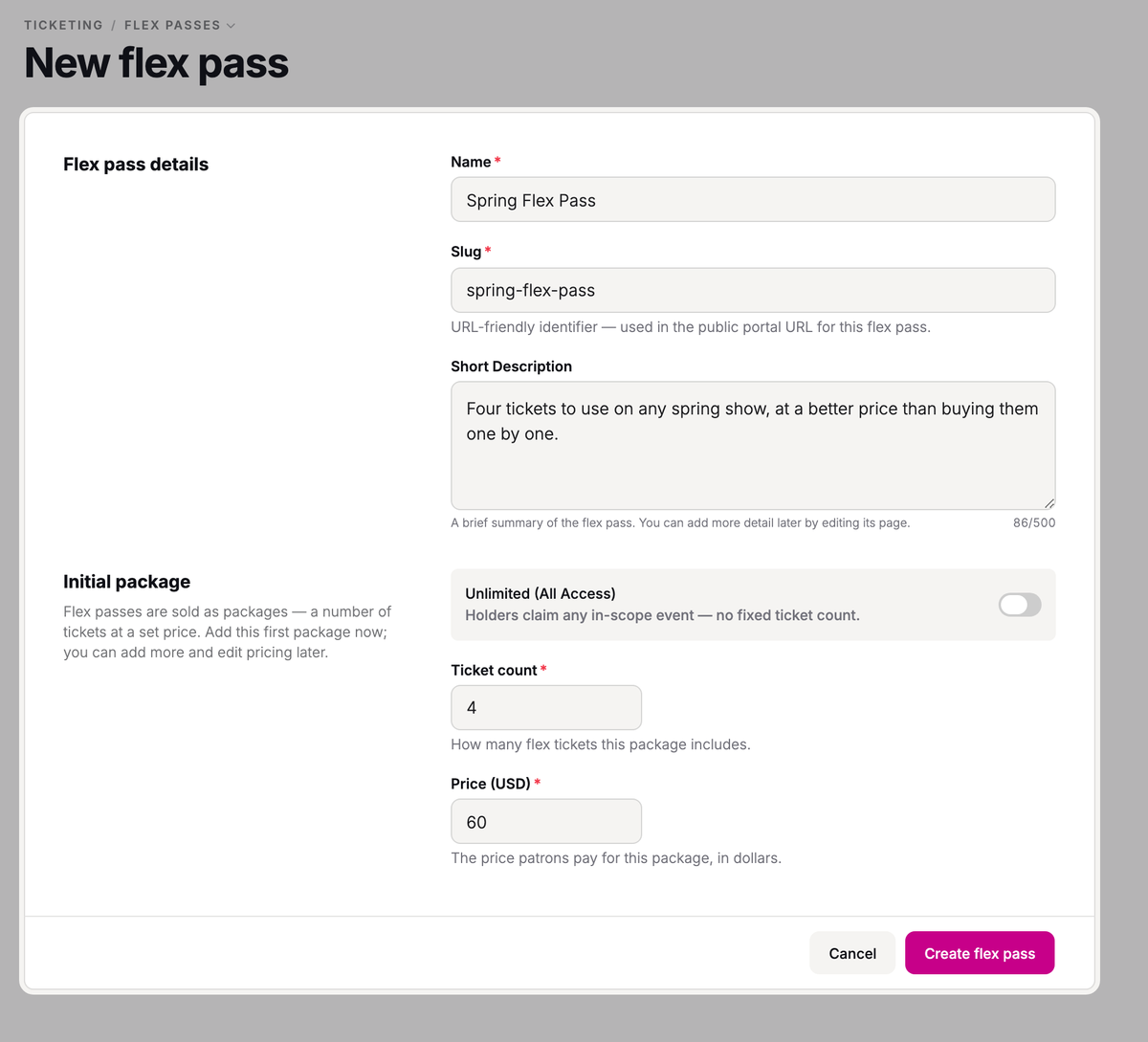
Enter a Name.
- Step 4:
In Short Description, say what the pass gets someone. It appears at the top of the pass's page, and you need one to publish.
- Step 5:
Under Initial package, enter the Ticket count and Price (USD) of your first package.
- Step 6:
Click Create flex pass.
You'll see Flex pass created and land back on the list. Click your pass to open it: the rest of setup happens on its tabs.
Set its limits
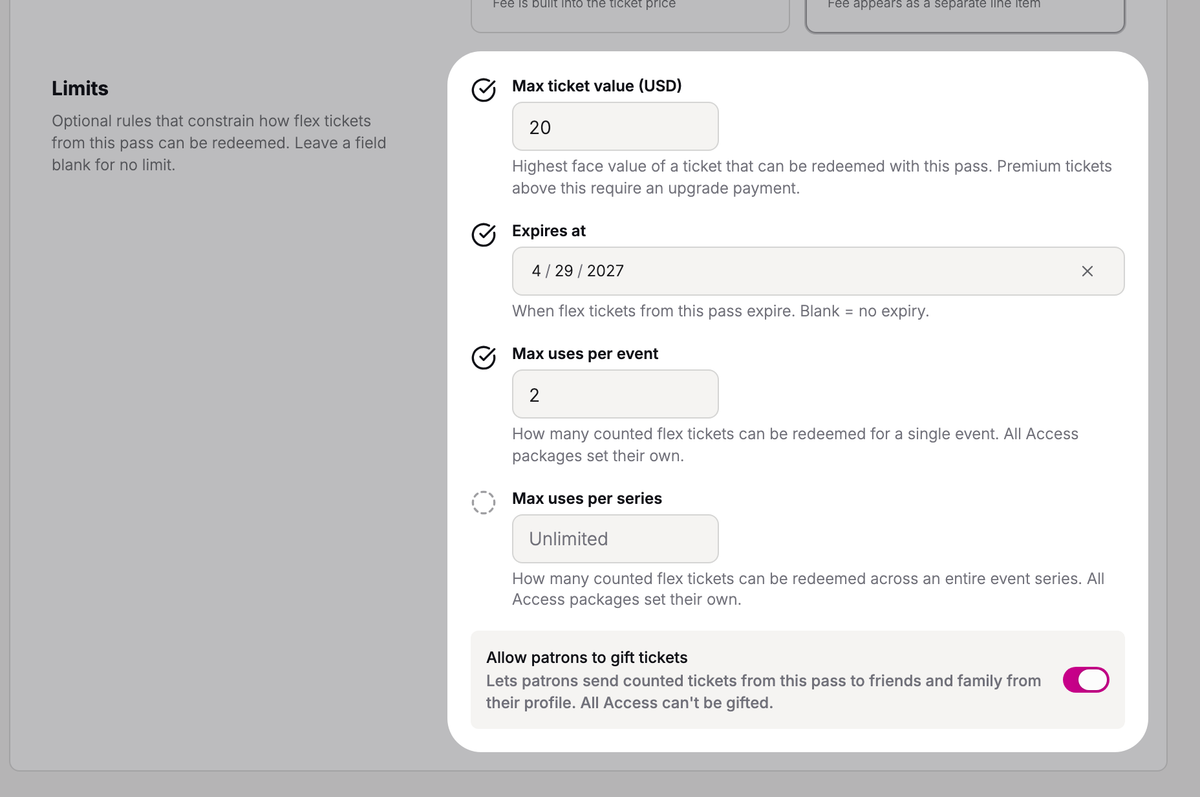
Open the Settings tab. Everything under Limits is optional; leave a field blank for no limit.
- Max ticket value (USD) is the most one flex ticket covers. For a pricier ticket, the patron pays the difference at checkout.
- Expires at is the last day flex tickets from this pass can be used. It's one date for the whole pass, so tickets bought or granted later expire that day too. Leave it blank and they never expire.
- Max uses per event and Max uses per series cap how many flex tickets one patron can use at each performance, or across a show's whole run. All Access packages use their own limits instead (see below).
- Allow patrons to gift tickets lets patrons send some of their flex tickets to friends and family from their profile. All Access can't be gifted.
Click Save changes when you're done.
Choose which events it covers
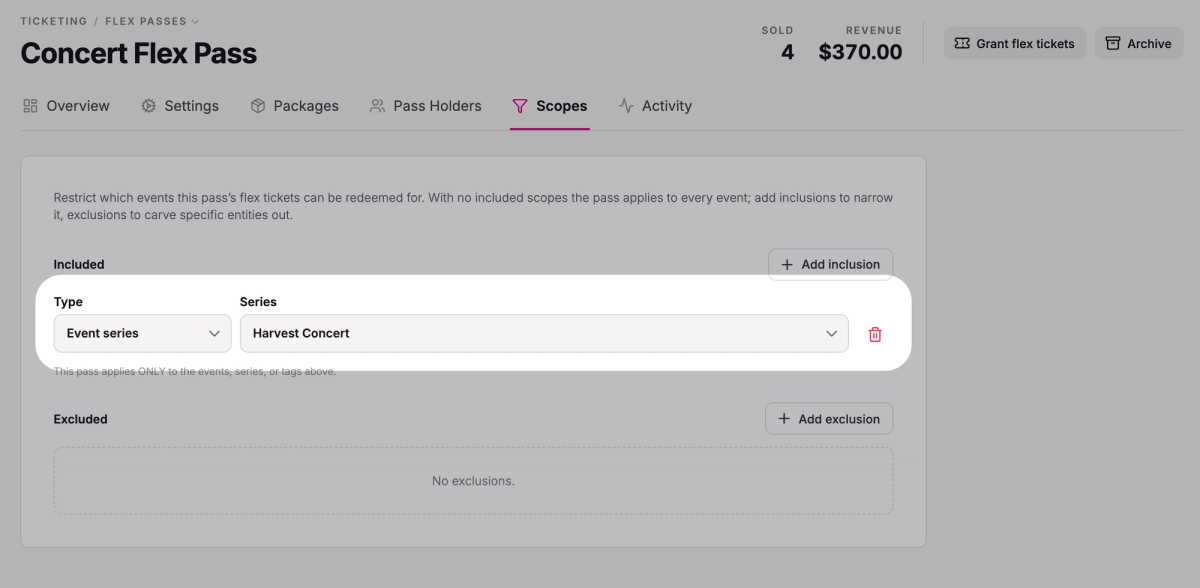
With nothing added on the Scopes tab, the pass works for every event. To narrow it:
- Step 1:
Click Add inclusion.
- Step 2:
Under Type, choose Event series, Event, or Event tag.
- Step 3:
Pick the series, event, or tag the pass should cover.
- Step 4:
Click Save scopes.
To leave something out, like a gala, click Add exclusion instead. An event that's both included and excluded is left out.
Add packages
Packages are what patrons actually buy. Your first one is already on the Packages tab, named after its ticket count (like 4 Pack); click its row to rename it. Add more to give patrons a choice, like an 8-ticket package at a better price per ticket.
- Step 1:
Click Add package.
- Step 2:
Enter the Name patrons will see.
- Step 3:
Enter the Ticket count and Price (USD).
- Step 4:
To cap how many of this package you'll sell, enter a Capacity.
- Step 5:
Click Add package.
All Access packages
An All Access package has no ticket count: its holders can use it on any event the pass covers. In Add package, turn on Unlimited (All Access), then enter Max uses per event, Max uses per series, or both. The limits count per package bought, so a patron with two gets twice as many.
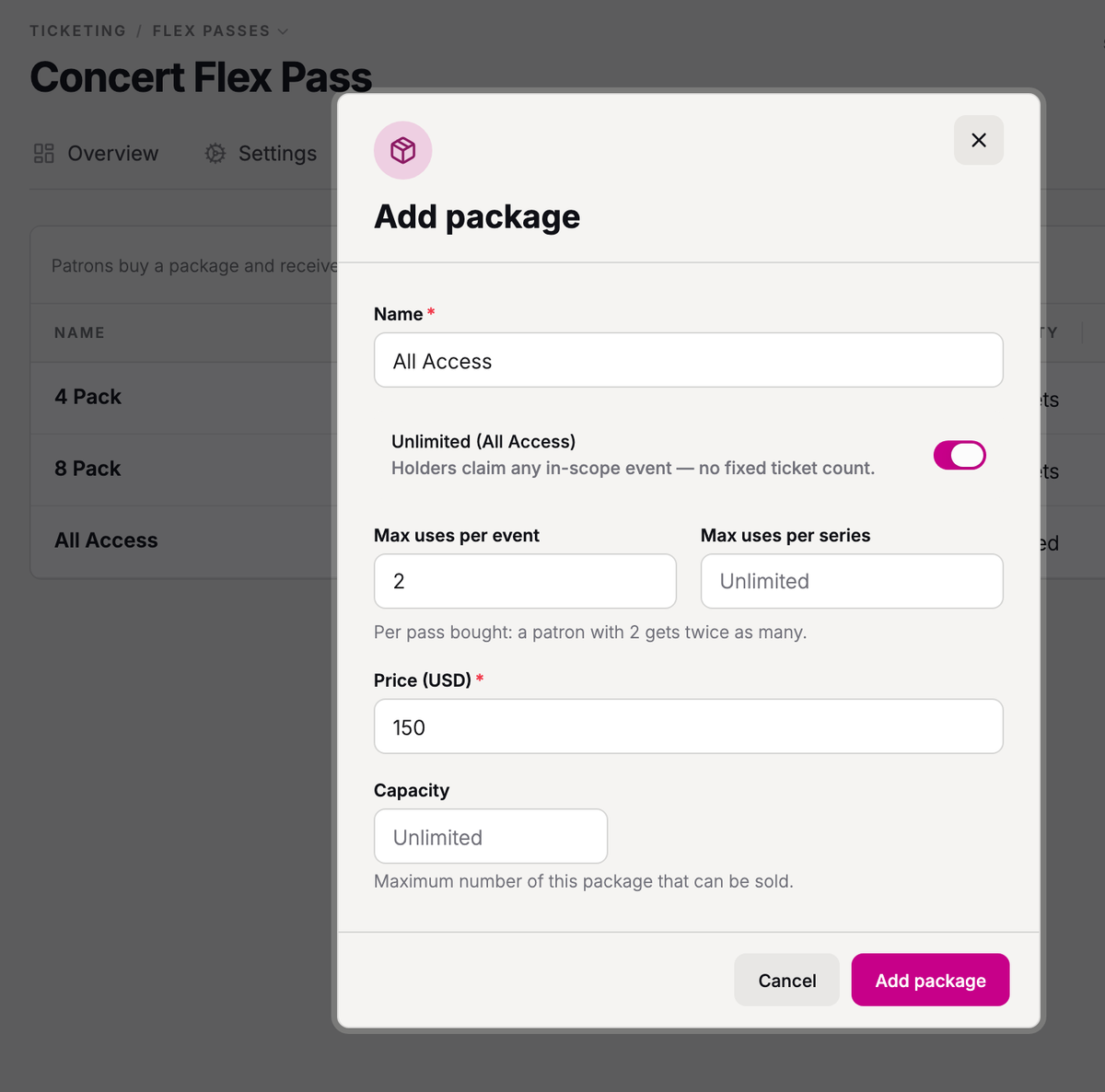
If you made your first package All Access when you created the pass, set its limits here: click its row, enter them in Edit package, and click Save package.
Put it on sale
Publishing the pass puts its packages on sale, online and at your box office.
- Step 1:
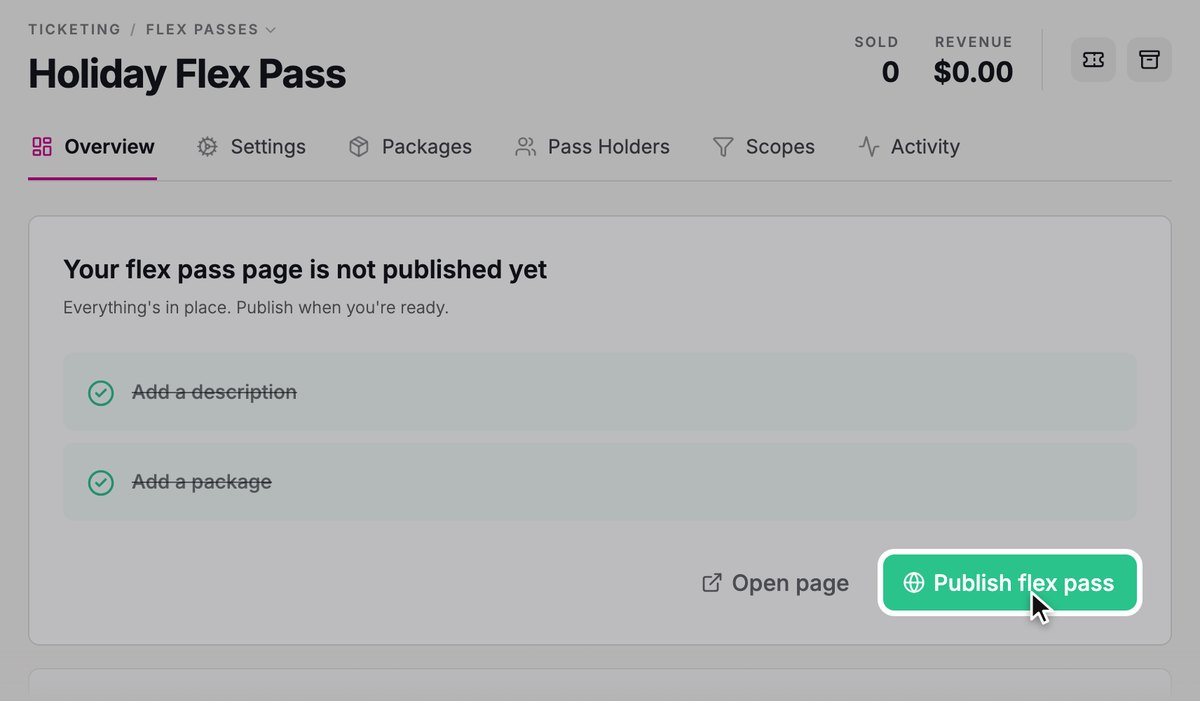
Open the Overview tab. Its checklist shows whether you have a description and a package, the two things you need.
- Step 2:
Click Publish flex pass.
- Step 3:
Click Publish to confirm.
The card changes to Your flex pass page is live. The pass's page is on the site Stageworks hosts for your organization: share it with Copy URL or QR code, or click Open page to see it. Patrons choose a package there, sign in as part of checkout, and pay by card.
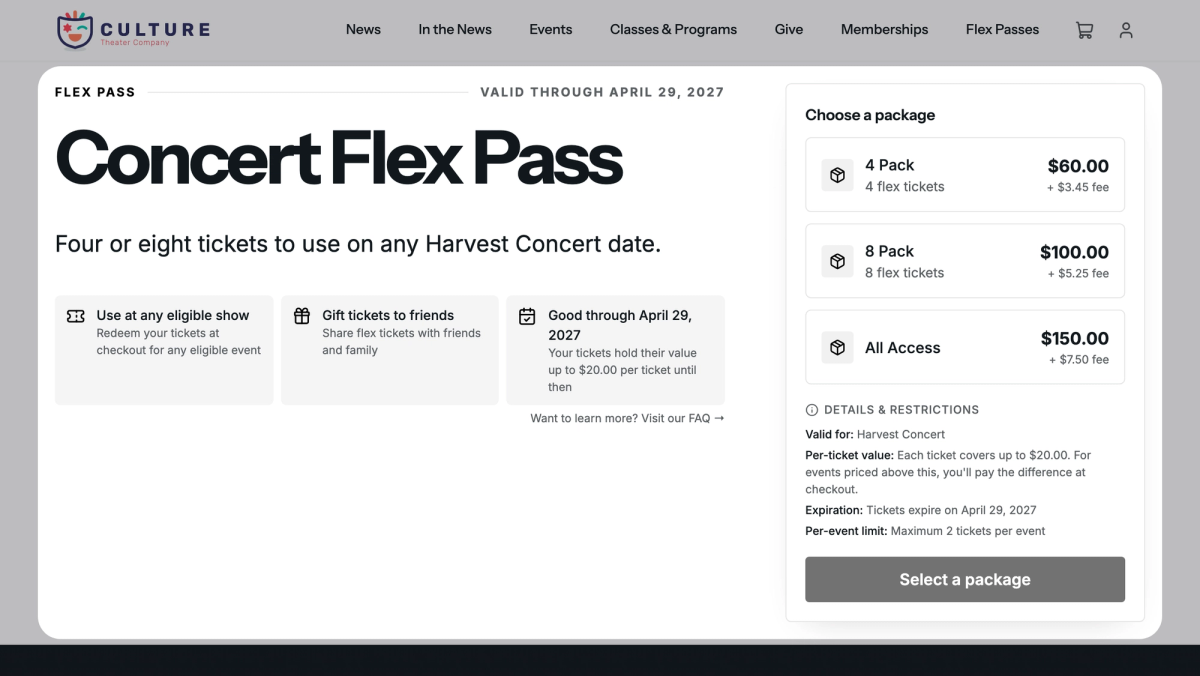
To put the packages on a website you run yourself, use the Embeddable Widgets section on the Overview tab, which needs the Manage portal settings permission.
Sell a package for a patron
For sales at the box office or over the phone:
- Step 1:
Click Ticketing, then Orders, and click New order.
- Step 2:
Click the Flex Pass tab.
- Step 3:
Search for the patron who's buying and choose them.
- Step 4:
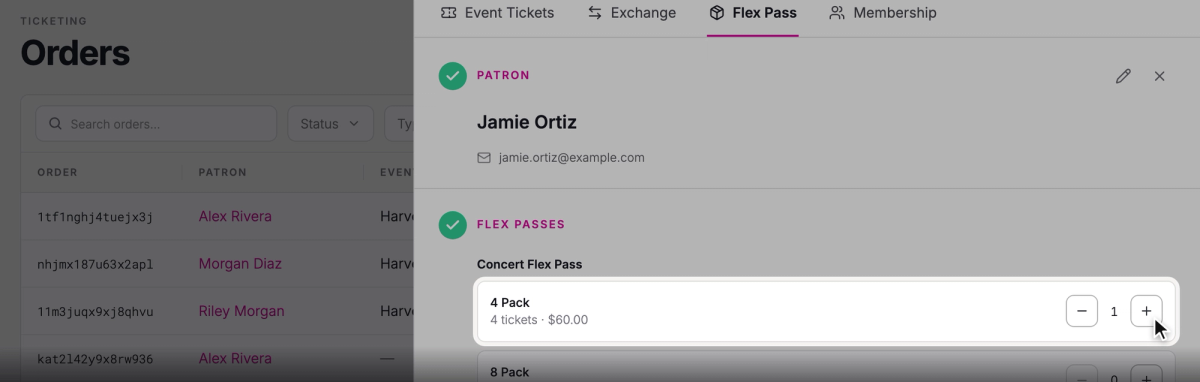
Under Flex passes, click + on the package they want.
- Step 5:
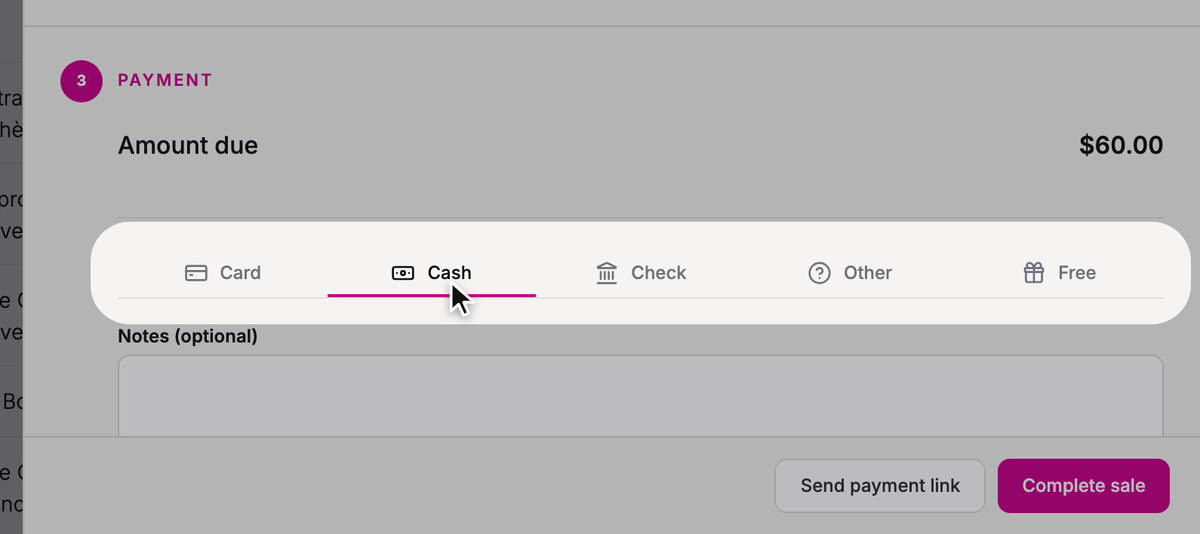
Under Payment, choose how they're paying. Card charges the patron's card now. Cash, Check, or Other records a payment you took yourself. Free records the sale at $0, which is how you comp an All Access package.
- Step 6:
To have the patron pay online instead, click Send payment link to text or email them a link. They don't need to sign in, and the flex tickets are theirs once they pay. Otherwise, click Complete sale, and you'll see Flex pass sold.
What the buyer gets
The patron gets a receipt by email, and the flex tickets go straight onto their balance. Every package they buy on a pass adds to the same balance. They'll see it under Flex Pass in their profile, and you'll see it on the patron's Flex Tickets tab.
Give flex tickets away
To comp volunteers, press, or crew, grant them flex tickets from the pass.
- Step 1:
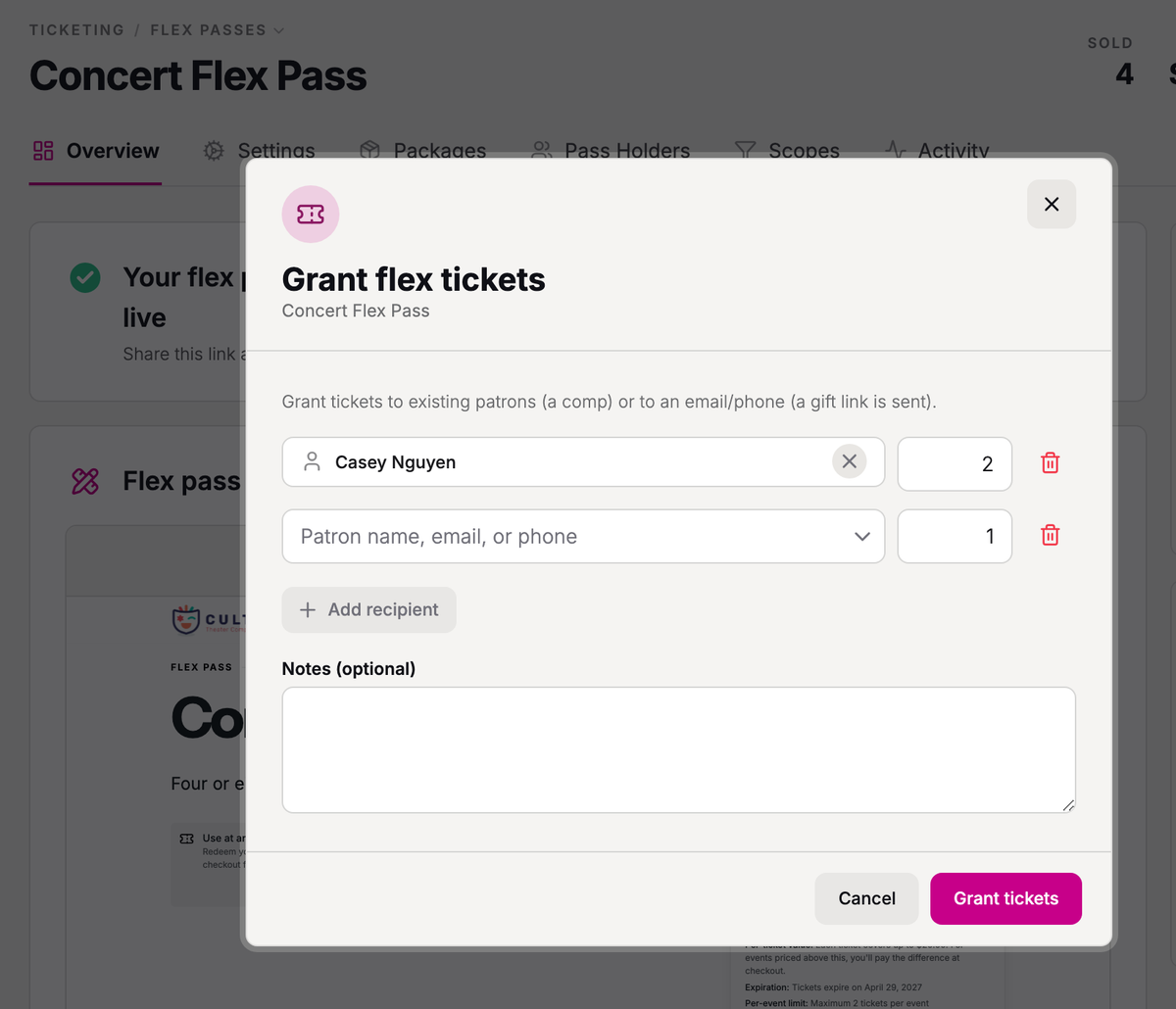
On the pass, click Grant flex tickets at the top.
- Step 2:
Under Recipient, search for a patron by name, email, or phone.
- Step 3:
Enter a Quantity.
- Step 4:
Click Grant tickets.
 SuggestedSend VIP invitationsComping press or crew for one show? Invite them instead, and they claim free tickets from a link.
A patron you pick from the matches gets the flex tickets right away, with an email letting them know. For someone who isn't in Stageworks yet, type their full email address or phone number and choose Send to “…”: they'll get a link to accept the tickets.
Granting always gives a set number of flex tickets, even on a pass with All Access. To comp All Access, sell the package with Free.
SuggestedHow flex pass redemption worksHow patrons and your box office staff use flex tickets on your events.Was this article helpful?