
Sell tickets at the door
Sell tickets to walk-up patrons from the web box office or the Stageworks app, and take payment by card reader, cash, or check.
Here's how to sell tickets to patrons who walk up to the door, from the box office on the web or from the Stageworks app. If you're new to the box office, start with Box office: check in guests and sell tickets at the door. Let's get started!
Before you start
Stageworks takes card payments through Stripe. To take cards in the app, you'll need one of Stripe's card readers. On the web, you can also type the card in. Cash and checks need nothing extra.
A Wi-Fi reader, like the Stripe Reader S700, works on the web and in the app. A Bluetooth reader, like the Stripe Reader M2, works only in the app. See Set up a Wi-Fi card reader or Connect a Bluetooth card reader.
Two things work the same way on the web and in the app:
- Walk-up sales. Close to showtime, the patron is optional, so you can sell to someone without taking their details. Further out, choose a patron, or add a new one with their mobile number.
- Tickets are held as soon as you add them. If you leave the sale before it's paid, Stageworks asks what to do with the tickets. Put on hold keeps them for you to finish later, and Cancel order puts them back on sale.
Sell from the web box office
- Step 1:
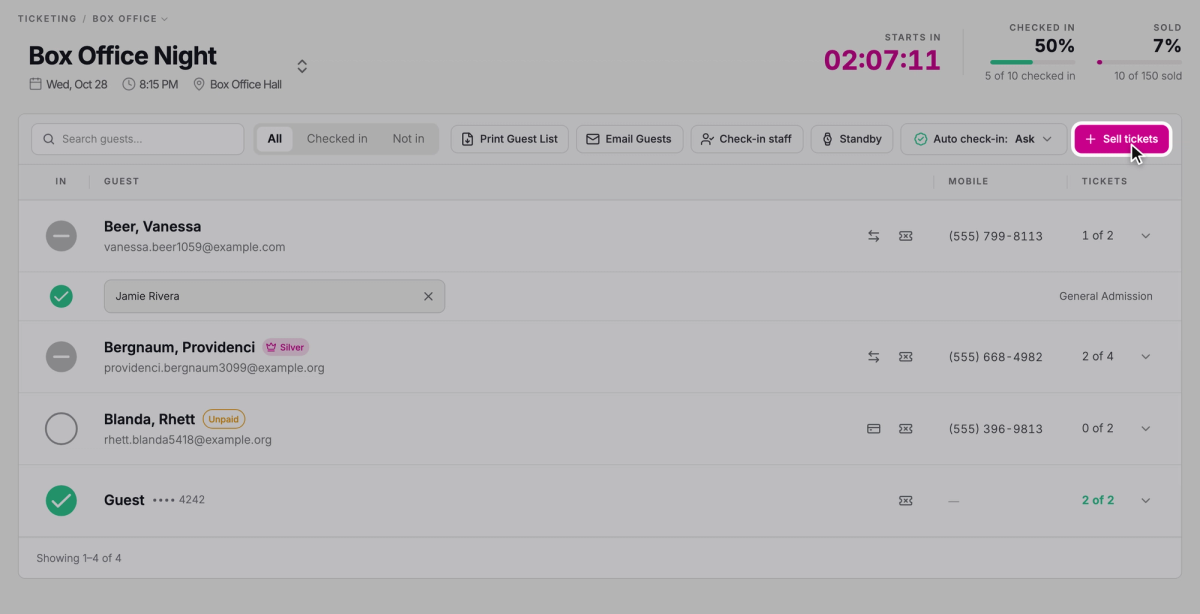
Click Ticketing, then Box Office. It opens on your next event, or the one that's on now. To pick a different date, click the event's name at the top.
- Step 2:
Click Sell tickets.
- Step 3:
Choose how many of each ticket type with + and −, then click Add to order.
- Step 4:
Under Patron, search by phone, email, or name and pick the patron, or click Create new patron if they're not in Stageworks yet. For a walk-up sale, leave it empty.
- Step 5:
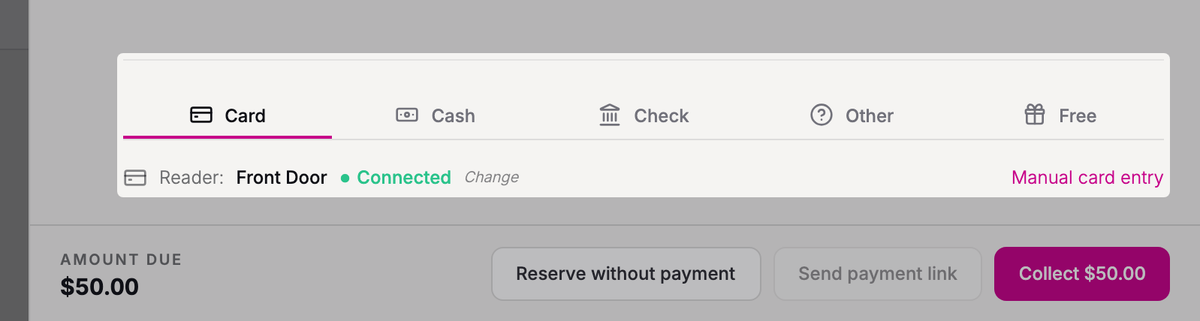
Under Payment, choose how the patron is paying, then take payment as described below.
Take payment
Card is selected first. If you've set up a card reader on this computer, you'll see its name and Connected, and the button at the bottom shows the amount, like Collect $50.00. Click it and have the patron pay on the reader. Stageworks shows Waiting for card, then Approved.
Without a reader, or after you click Manual card entry, type in the patron's card and click Complete order. To set up a reader on this computer, see Set up a Wi-Fi card reader.
For Cash, Check, or Other, take the payment yourself, then click Complete order to record it. Free completes the order with nothing to pay, for comps.
If the patron isn't paying right now, you have two other ways to finish:
- Reserve without payment keeps the tickets as an unpaid order. The patron's row in the guest list shows Unpaid, and they pay when they check in (see Check in guests on the web).
- Send payment link texts or emails the patron a link to pay on their own phone. The link expires in 24 hours.
After the sale
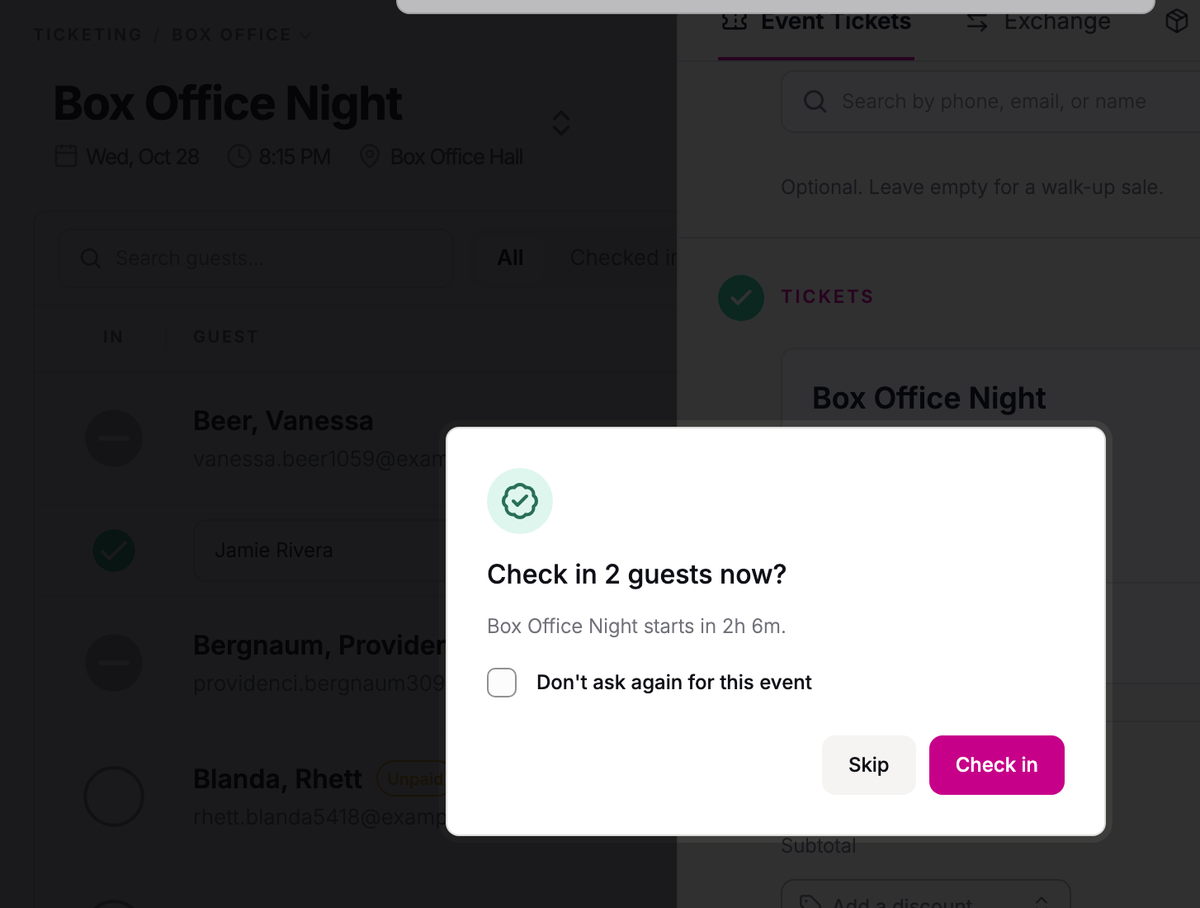
You'll see Order completed, and the new guests appear in the guest list. Close to showtime, Stageworks also asks if you'd like to check them in, like Check in 2 guests now? Click Check in if they're heading inside, or Skip to check them in later.
Sell from the app
You can sell from the Stageworks app on an iPad or phone. Get it from the App Store or Google Play, and sign in to Stageworks. If you're using an access code, you won't see Sell tickets.
- Step 1:
Open the event from My Events and tap Sell tickets at the top right.
- Step 2:
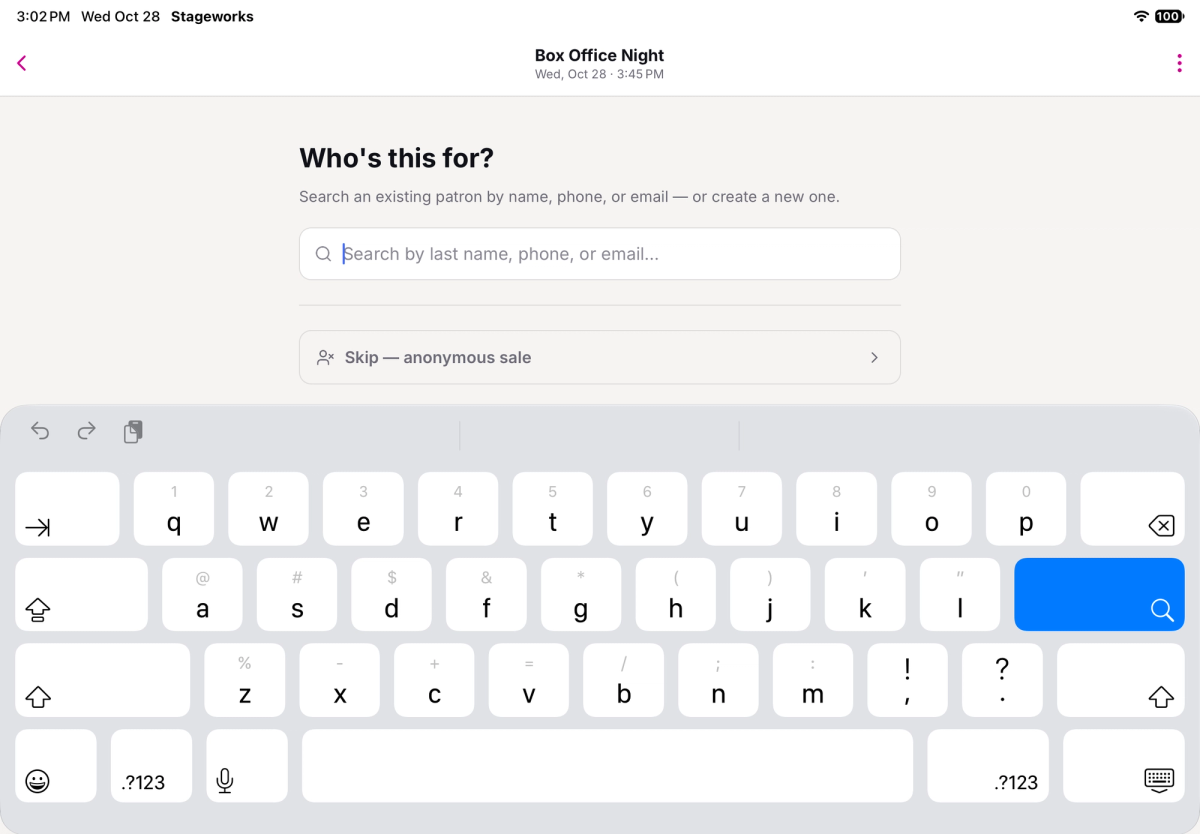
On Who's this for?, search by last name, phone, or email and tap the patron. If they're new, tap Create new patron; a mobile number is enough. Or tap Skip — anonymous sale to sell without taking their details.
- Step 3:
On Tickets, set how many of each ticket type with + and −, then tap the button with the total.
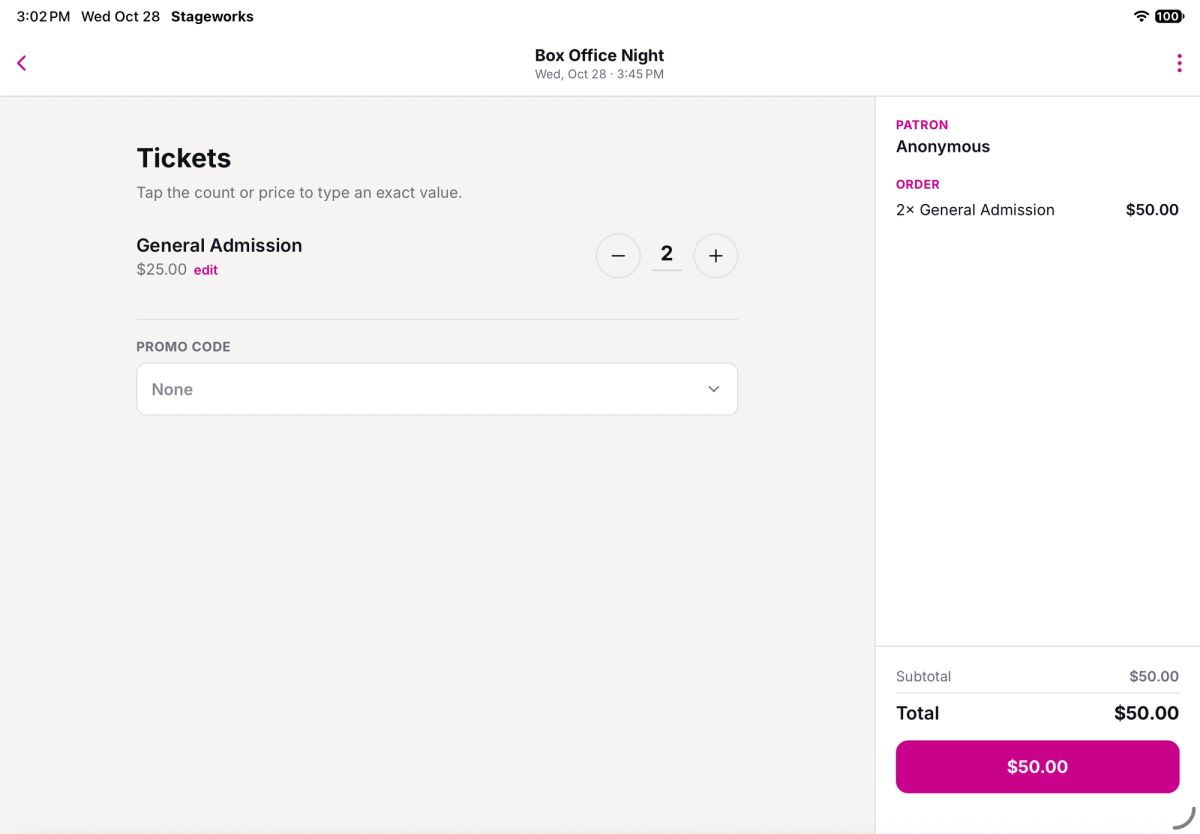
- Step 4:
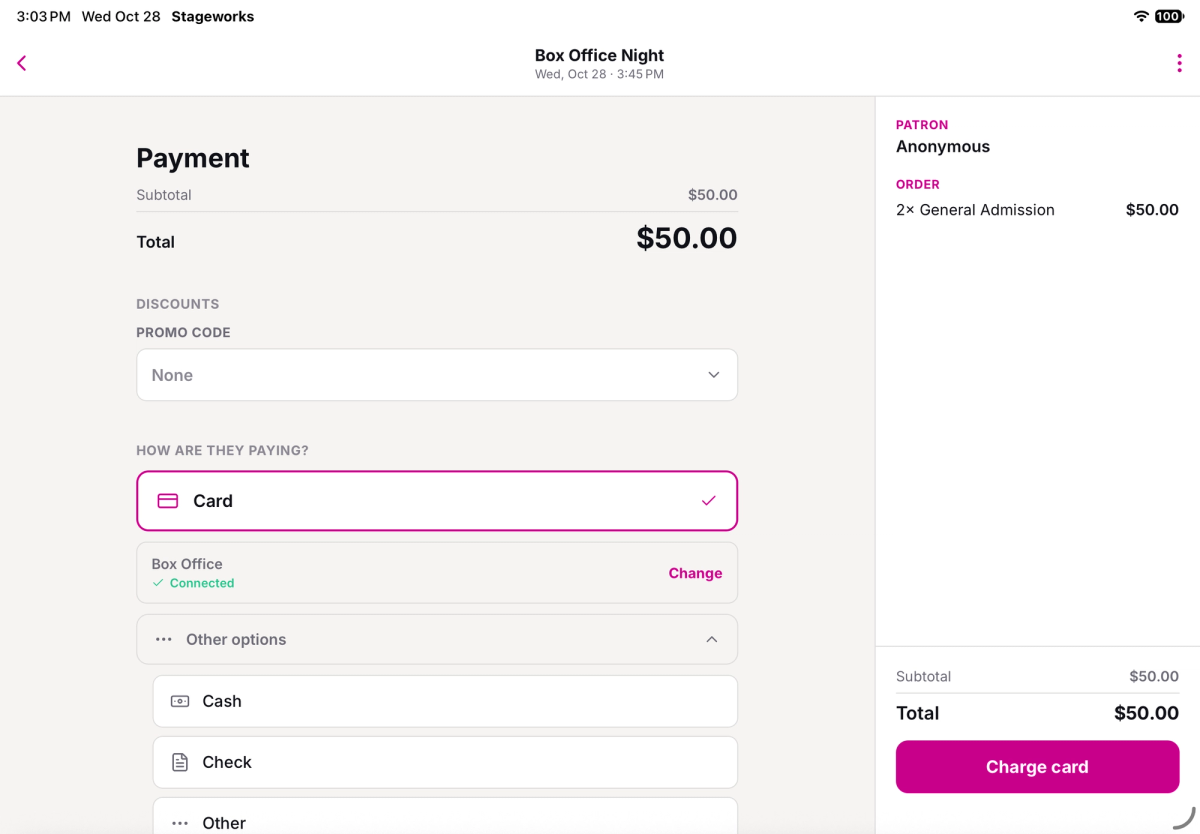
Under How are they paying?, choose Card to use your reader, or tap Other options for Cash, Check, or Other.
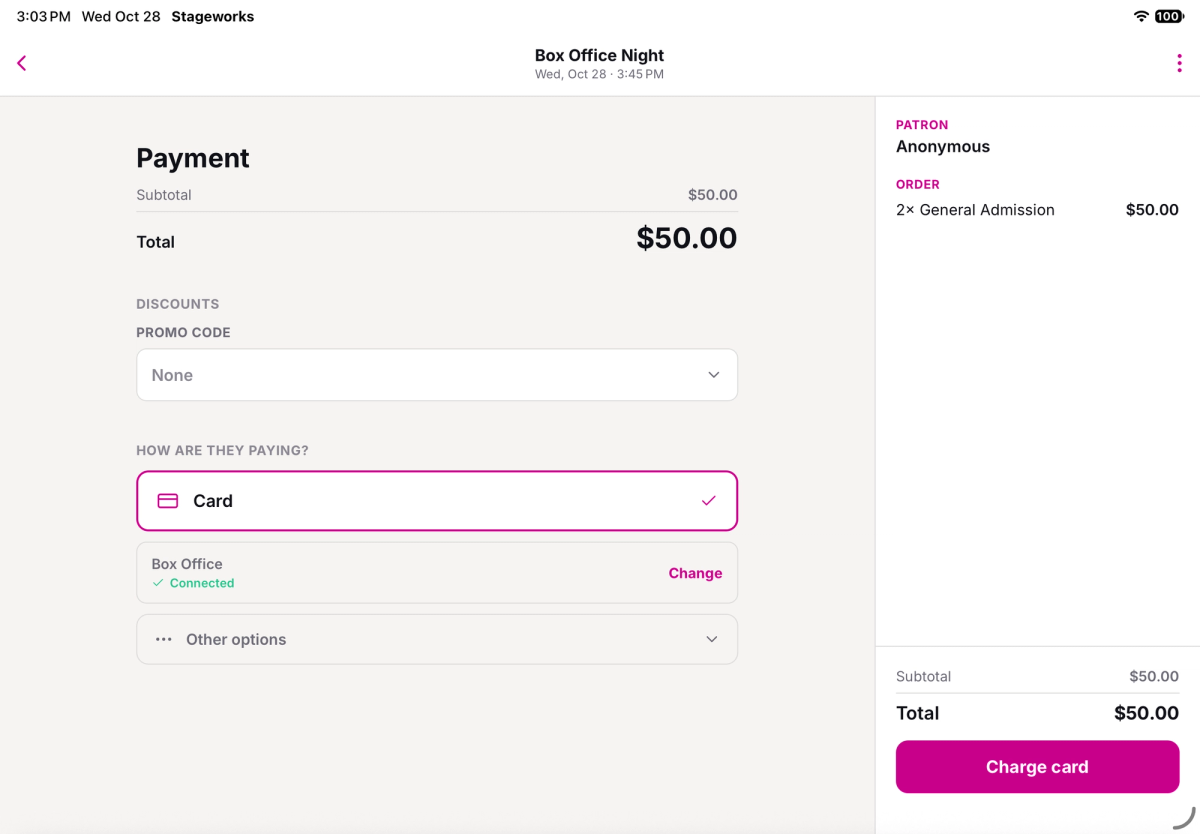
- Step 5:
Tap Charge card and have the patron tap, insert, or swipe their card on the reader. For Cash, Check, or Other, tap Complete Order.
- Step 6:
If you see a prompt to check in the new guests, like Check in 2 guests for Box Office Night?, tap Check in, or Not now to check them in later.
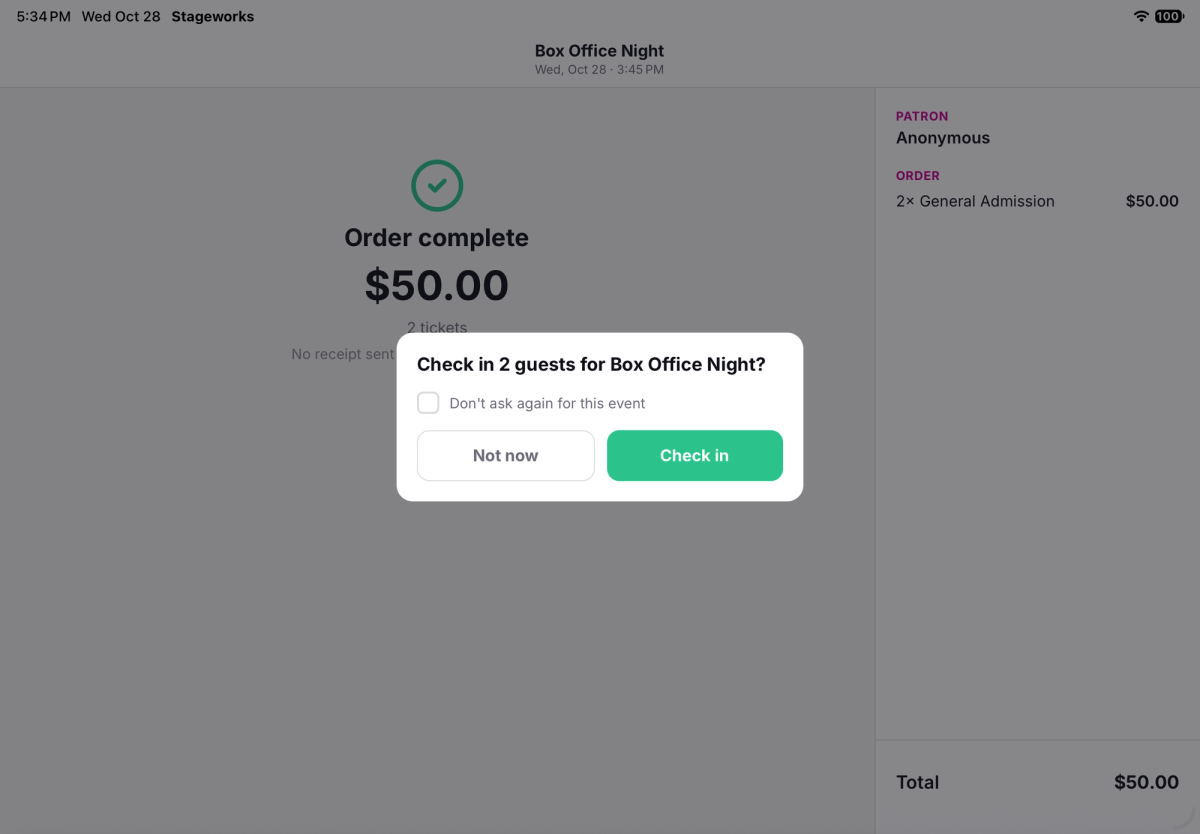
Card shows the reader the charge goes to. To use a different one, tap Change. If it says No reader selected, tap Choose. When the patron has a mobile number, Other options also has Text a payment link.
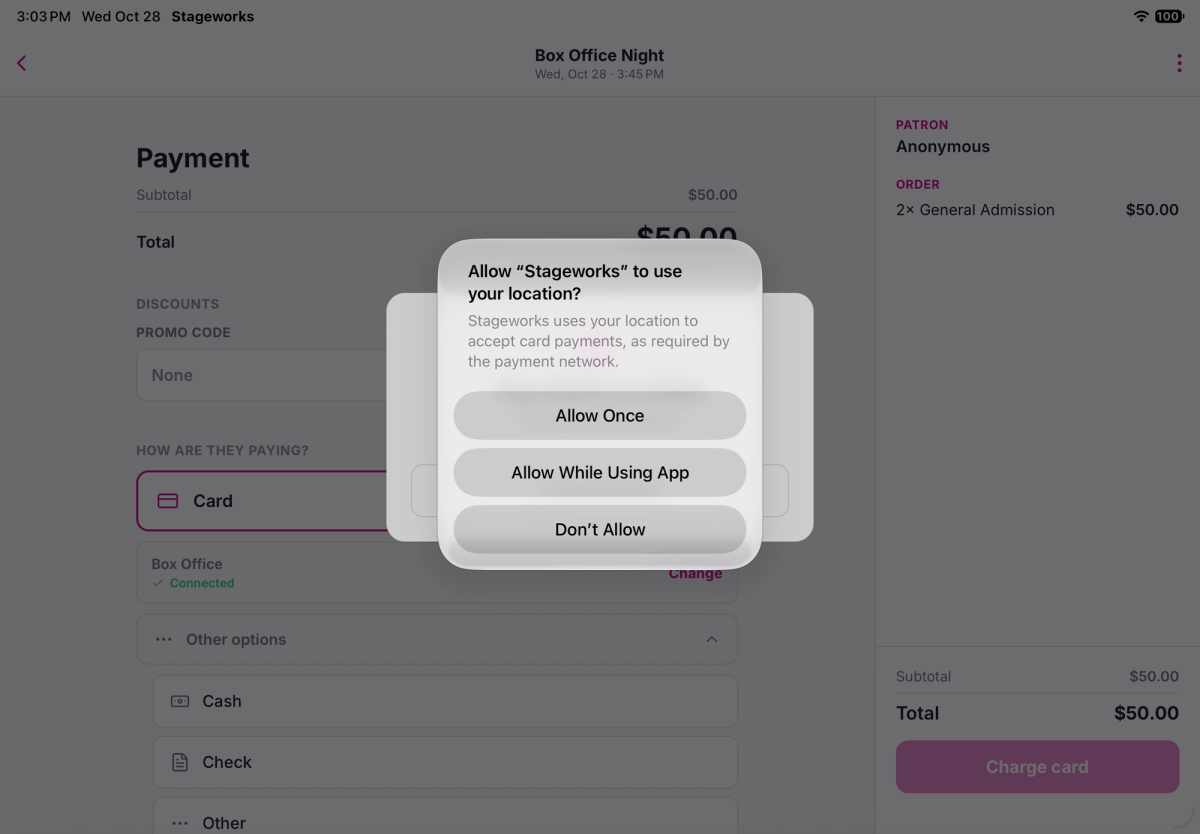
The first time you charge a card with a Bluetooth reader, iOS asks to let Stageworks use your location. Tap Allow While Using App: without it, the reader can't take payments.
After the sale, Order complete shows the total and whether a receipt went to the patron. Tap Done, or answer the check-in prompt, to go back to the guest list.
Troubleshooting
What if the app can't reach my Bluetooth reader?
Under the reader on the Payment step, you'll see a warning like Can't reach this reader — check it's switched on. Make sure the reader is switched on and close by, then tap Try again.
Was this article helpful?

Box office: check in guests and sell tickets at the door
How the Stageworks box office works on the web and in the app, who can work your door, and which card reader suits your venue.
Check in guests on the web
Check guests in from the box office on your computer, collect from guests who still owe, and print a backup guest list.
Check in guests with the Stageworks app
Check guests in at the door from an iPad, iPhone, or Android device, by name or by scanning their ticket.
Give temporary staff an access code
Let volunteers and door staff check in guests for one event in the Stageworks app, with a 6-digit code instead of a Stageworks login.
Set up a Wi-Fi card reader
Register a Stripe Wi-Fi card reader to your venue, then use it to take card payments at the door, on the web and in the Stageworks app.
Connect a Bluetooth card reader
Connect a Stripe Reader M2 to the Stageworks app on your iPad or phone, then take card payments with it at the door.