
Connect a Bluetooth card reader
Connect a Stripe Reader M2 to the Stageworks app on your iPad or phone, then take card payments with it at the door.
A Bluetooth card reader lets you take card payments anywhere you can bring an iPad. In this guide you'll connect one to the Stageworks app, take a payment with it, and disconnect it when you're done. Let's get started!
Is a Bluetooth reader right for you?
The Stripe Reader M2 is small and easy to carry, so it's a good fit for selling while you walk a line, work a lobby, or run a show in the park. It connects to the Stageworks app on one phone or iPad at a time.
A Bluetooth reader doesn't work with the web box office. If you sell from a computer at the door, or want one reader that every device can share, choose a Wi-Fi reader like the Stripe Reader S700, which sits on a counter and has its own screen. See Set up a Wi-Fi card reader.
You can buy either one directly from Stripe: the Stripe Reader M2 or the Stripe Reader S700.
Before you start
You'll need the Stageworks app on your iPad, signed in with your Stageworks account (not an access code). If you haven't set it up yet, see Check in guests with the Stageworks app. Keep the reader charged and close by.
Connect the reader
- Step 1:
On My Events, the app's home screen, tap your avatar (your photo or initials) at the top right, then tap Card Reader Setup.
- Step 2:
Tap + at the top right.
- Step 3:
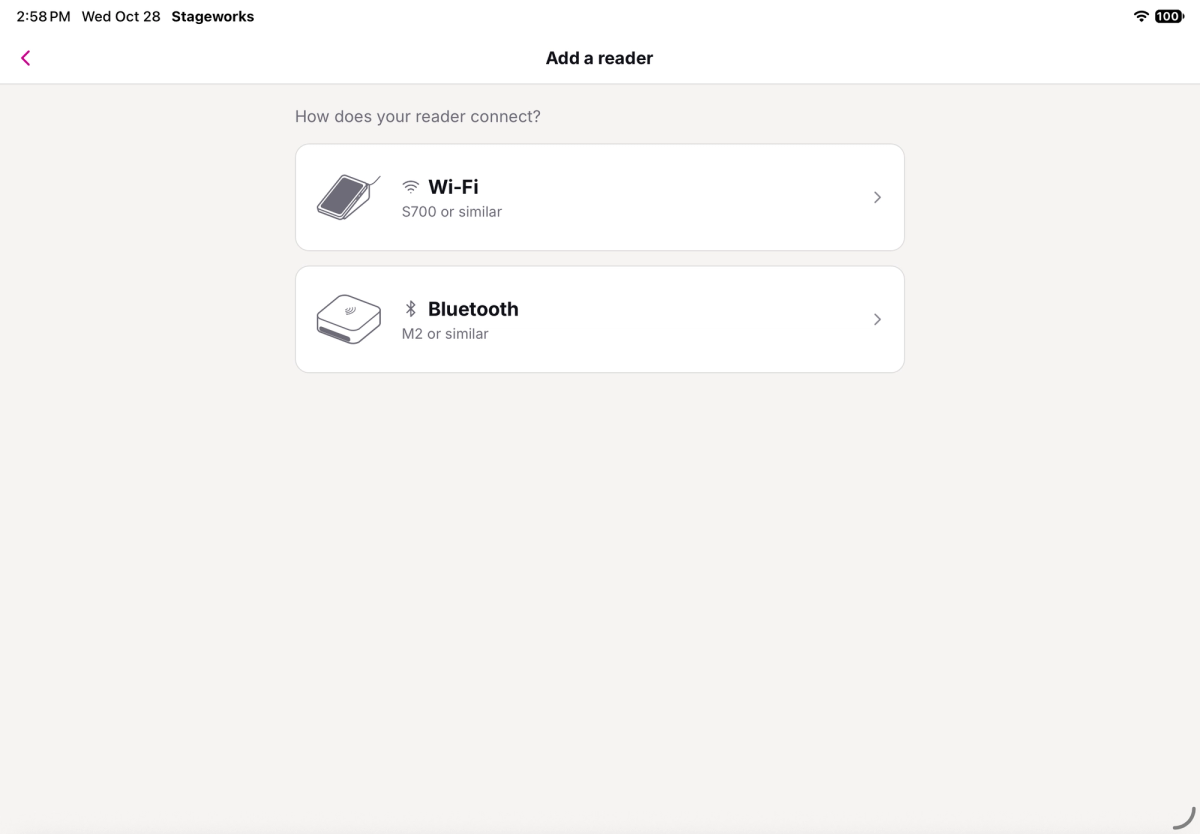
Tap Bluetooth.
- Step 4:
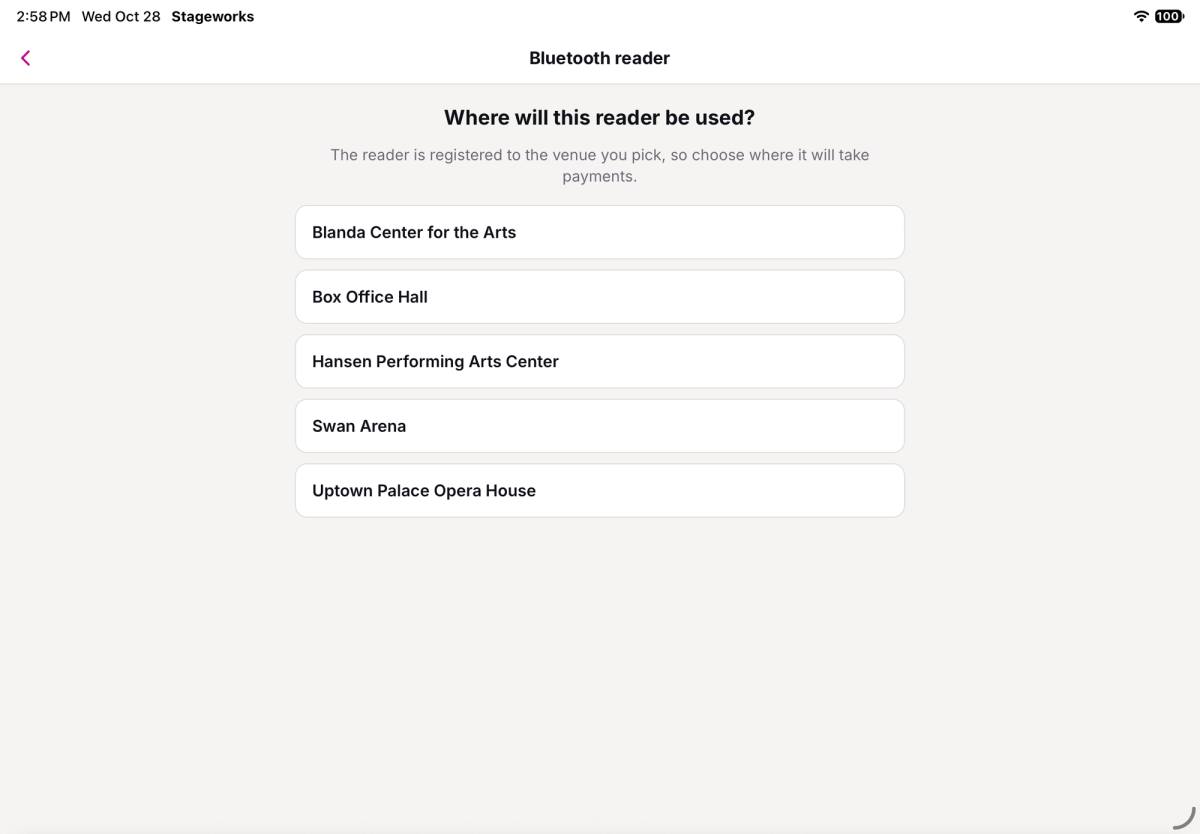
If you're asked Where will this reader be used?, tap the venue where it'll take payments.
- Step 5:
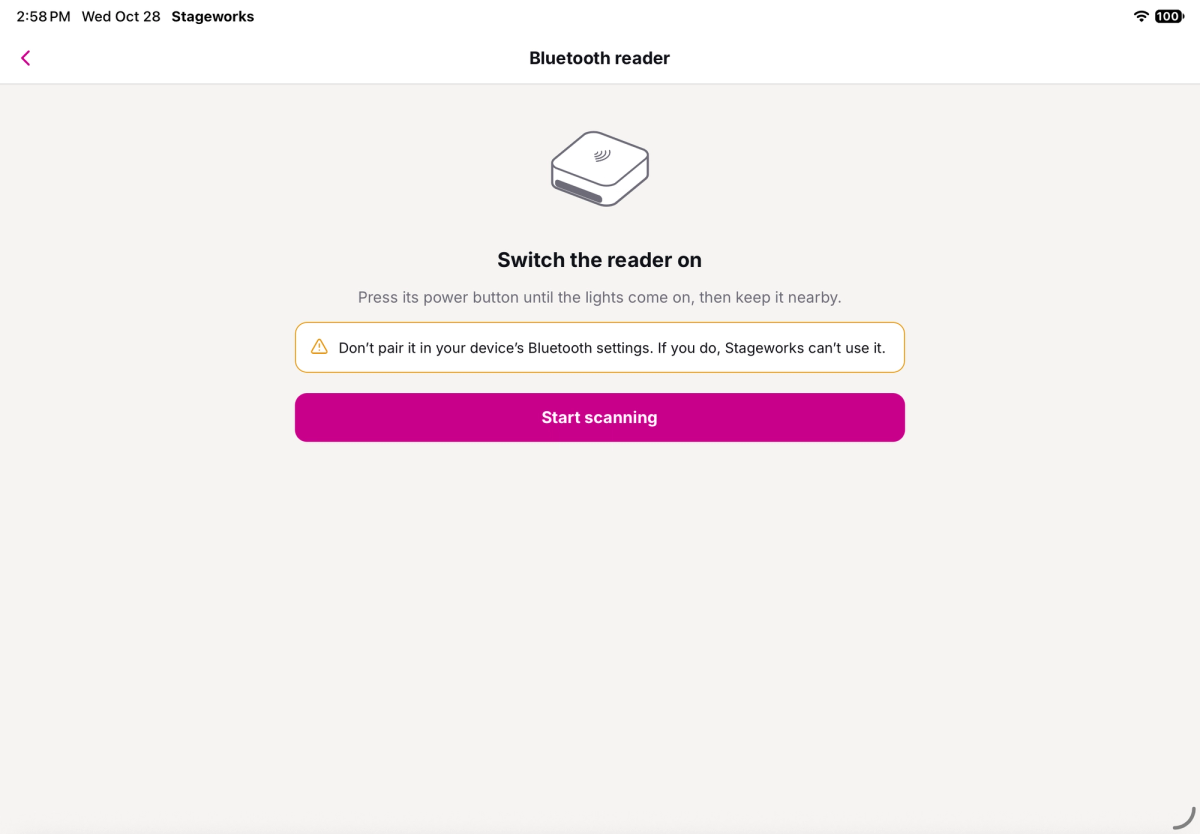
Press the reader's power button until its lights come on, and keep it next to your iPad.
- Step 6:
Tap Start scanning. If your iPad asks to let Stageworks use Bluetooth, allow it.
- Step 7:
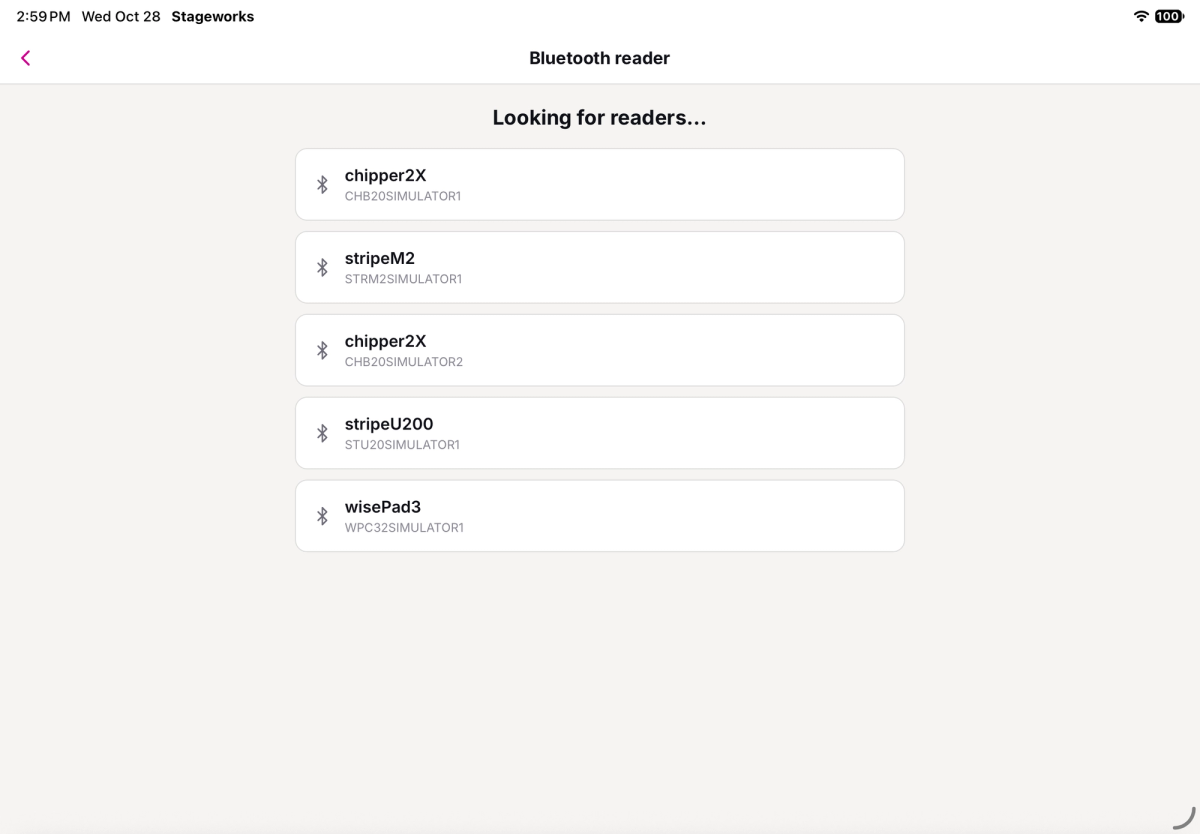
When your reader shows up, tap it.
- Step 8:
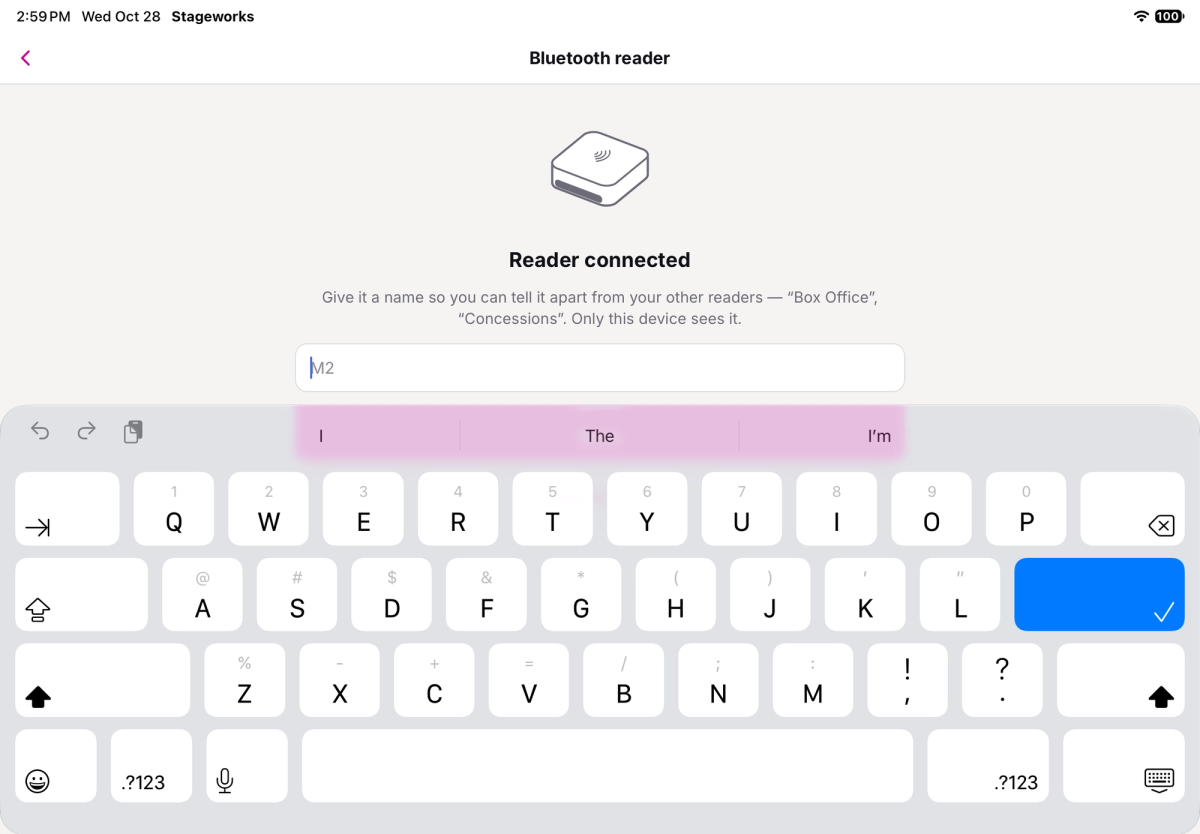
When you see Reader connected, type a name for it, like Box Office, and tap Save name. Only this iPad sees the name.
You're back on Card Reader Setup, and your reader shows This device · connected.
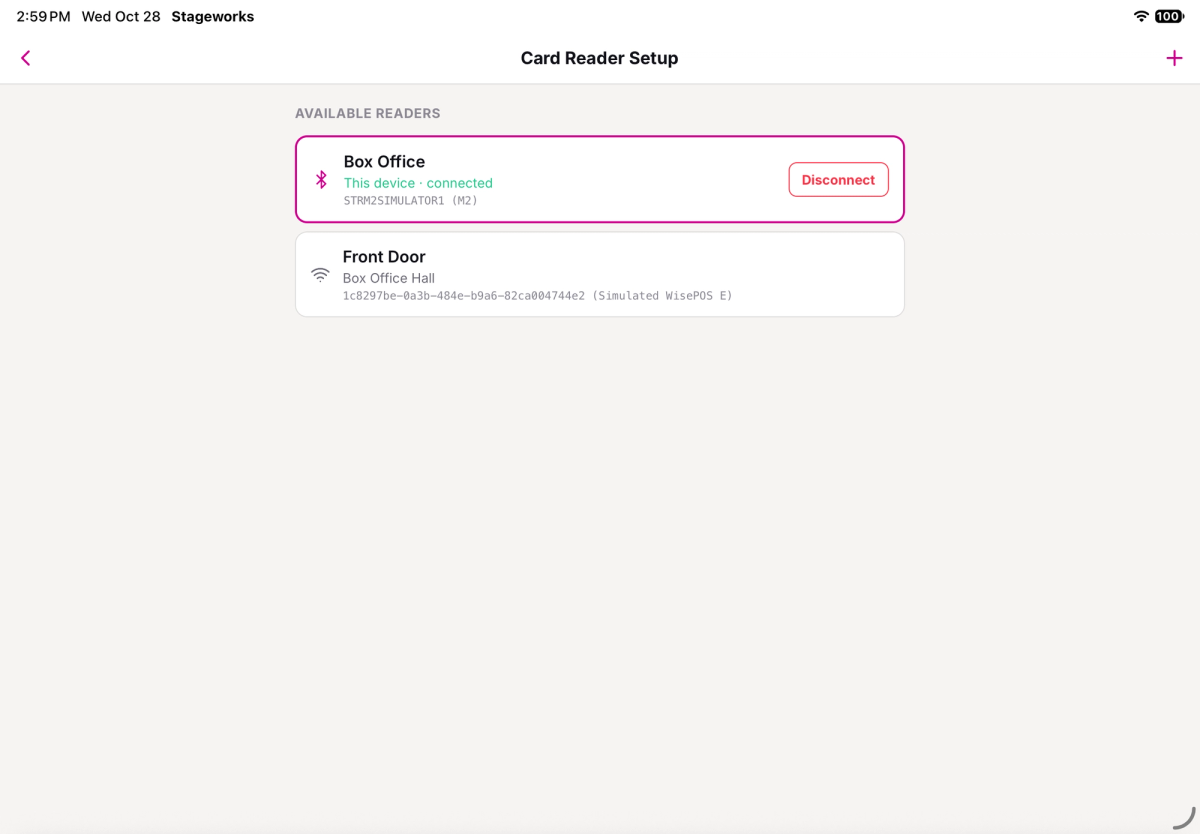
You only connect a reader once on each iPad. After that, switch the reader on before the doors open, and the app reconnects to it on its own: the Payment step shows Connected.
Take payments with it
When you sell tickets in the app, Card is already chosen on the Payment step, with your reader and Connected underneath. For the whole sale, see Sell tickets at the door.
- Step 1:
On the Payment step, tap Charge card.
- Step 2:
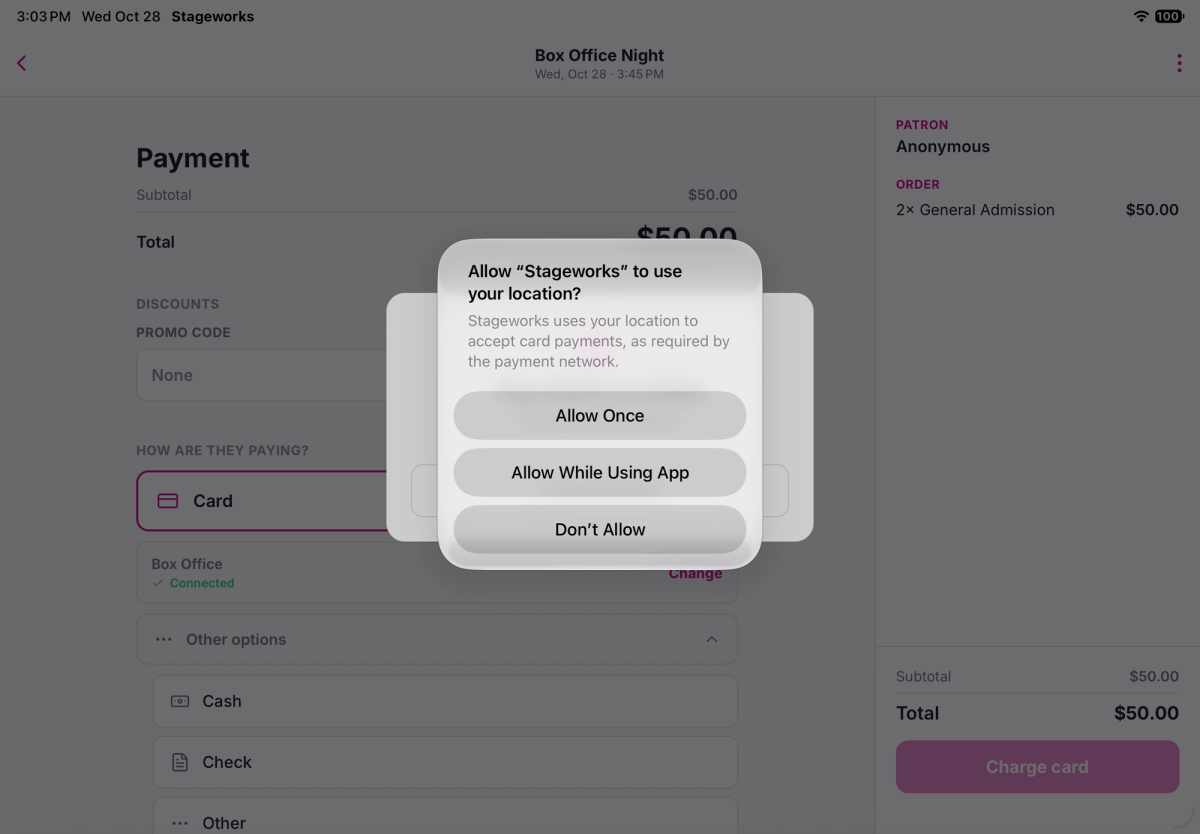
The first time you charge a card on this iPad, it asks to let Stageworks use your location. Tap Allow While Using App. If you don't allow it, you can't take card payments.
- Step 3:
When the app shows Tap, insert, or swipe, hand the patron the reader so they can pay.
If the reader's battery is getting low, you'll see Connected — battery is low, charge it soon under the reader. Charge it between shows.
Disconnect or switch readers
All of this happens in Card Reader Setup.
- To stop using the reader on this iPad, tap Disconnect on its row. To use it again, tap the row.
- To switch to another reader, tap it in the list. During a sale, you can also tap Change next to the reader on the Payment step.
- To use the reader on a different iPad, disconnect it here first, then connect it on the other iPad the same way.
Troubleshooting
"No readers found"
The reader is off, too far away, or was paired in your iPad's Settings app. Switch it on, bring it close, and if it's listed under Bluetooth in Settings, remove it there. Then tap Scan again.
What if the app can't reach the reader?
The reader may have switched off or moved too far from your iPad. Press its power button, bring it close, then tap Try again under the reader.
Was this article helpful?

Box office: check in guests and sell tickets at the door
How the Stageworks box office works on the web and in the app, who can work your door, and which card reader suits your venue.
Check in guests on the web
Check guests in from the box office on your computer, collect from guests who still owe, and print a backup guest list.
Check in guests with the Stageworks app
Check guests in at the door from an iPad, iPhone, or Android device, by name or by scanning their ticket.
Give temporary staff an access code
Let volunteers and door staff check in guests for one event in the Stageworks app, with a 6-digit code instead of a Stageworks login.
Sell tickets at the door
Sell tickets to walk-up patrons from the web box office or the Stageworks app, and take payment by card reader, cash, or check.
Set up a Wi-Fi card reader
Register a Stripe Wi-Fi card reader to your venue, then use it to take card payments at the door, on the web and in the Stageworks app.