
Invite your team
Invite your staff to Stageworks by email, choose how much each person can do, and manage pending invitations, access, and people who leave.

Bring your whole team into Stageworks, each person with the access their job needs. Invite someone by email, choose what kind of member they are, and give them roles that match their work, like selling tickets at the box office or sending your email campaigns. To choose what each role can do, see Set up roles and permissions. Let's get started!
Owners, Admins and Users
Every member has a type. Most staff should be a User, who gets exactly what their roles allow. Give someone more than one role, and they get everything each of those roles allows.
Owners and Admins have every permission, whatever their roles. The main difference: only an Owner can make someone an Owner, and Admins can't change or archive an Owner.
Volunteers who only check guests in on show day don't need an invitation at all: see Give temporary staff an access code.
Invite someone
- Step 1:
Go to Settings → Team → Members.
- Step 2:
Click Invite member.
- Step 3:
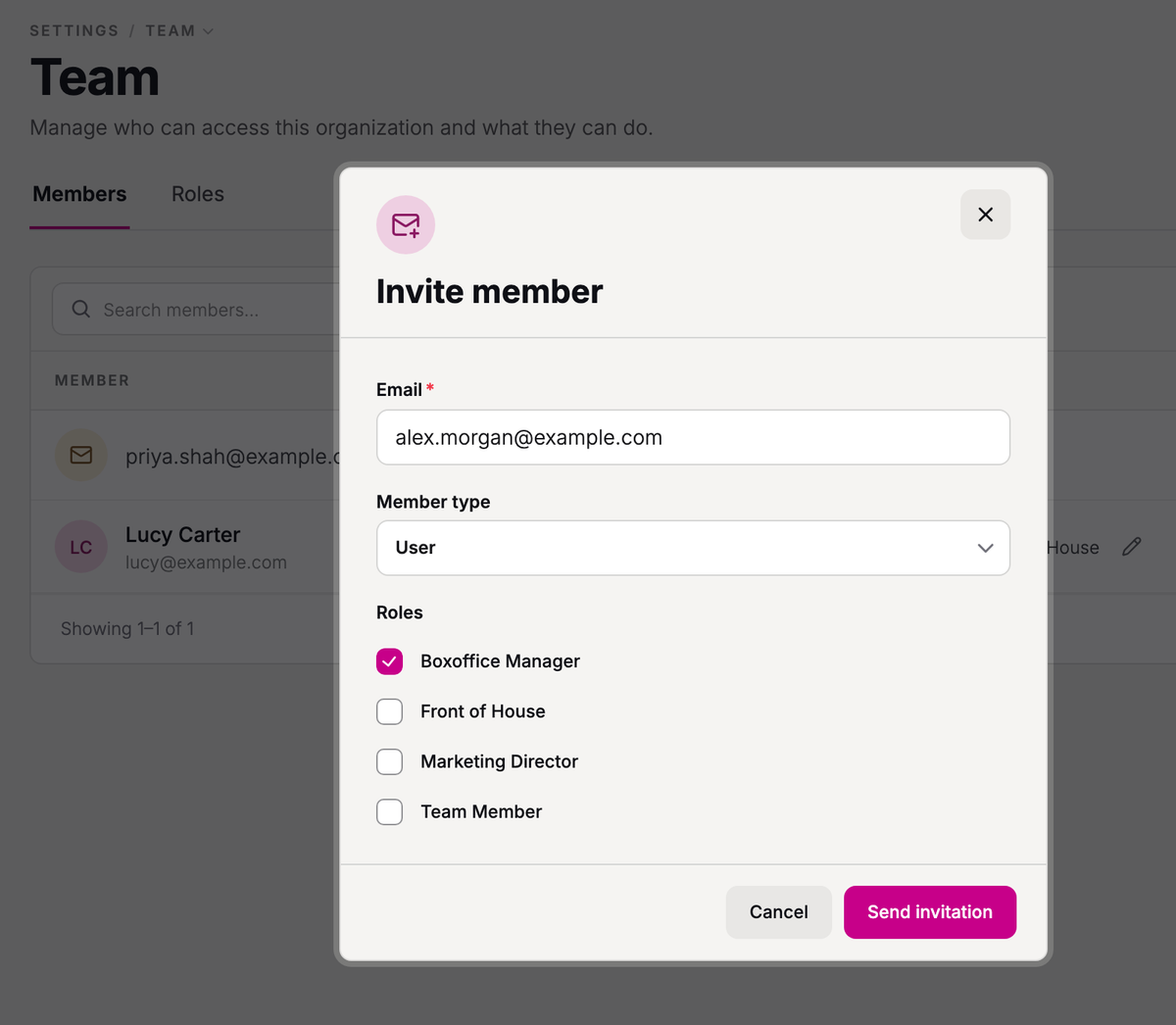
Enter their email address in Email.
- Step 4:
Choose a Member type: Owner, Admin, or User.
- Step 5:
For a User, check the roles to give them under Roles. Give them at least one, since a User with no roles can't see anything.
- Step 6:
Click Send invitation.
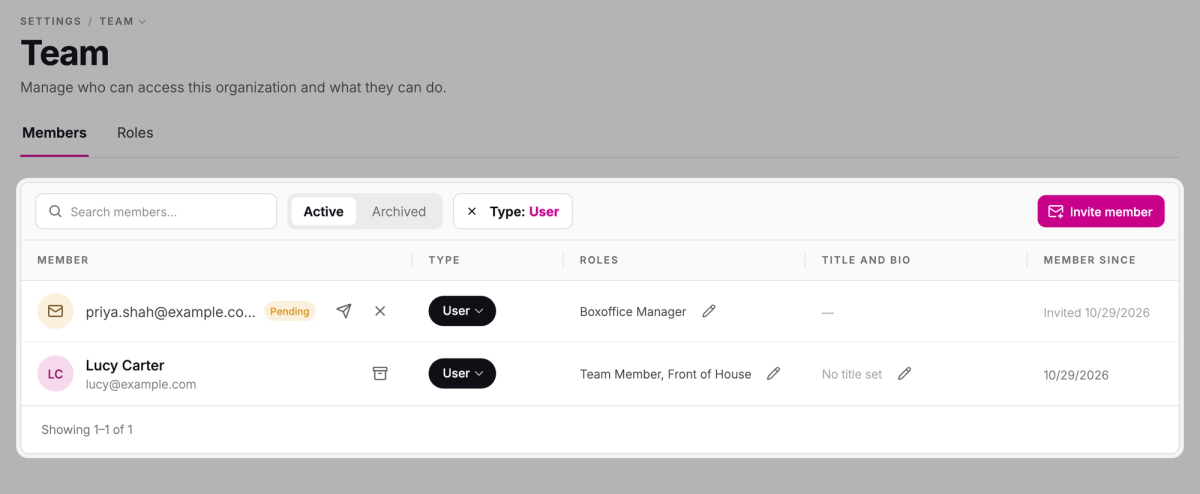
They'll get an email invitation, and they join your team once they accept it. Until then, they're listed at the top of Members.
Pending invites
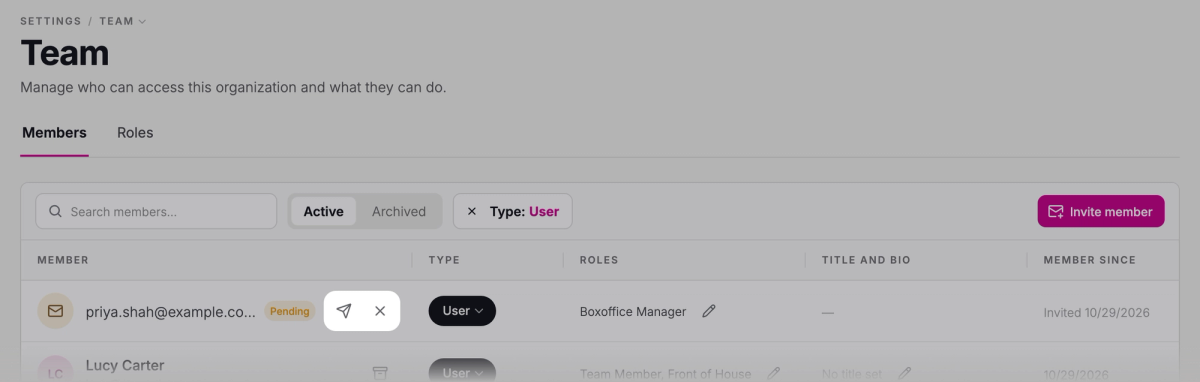
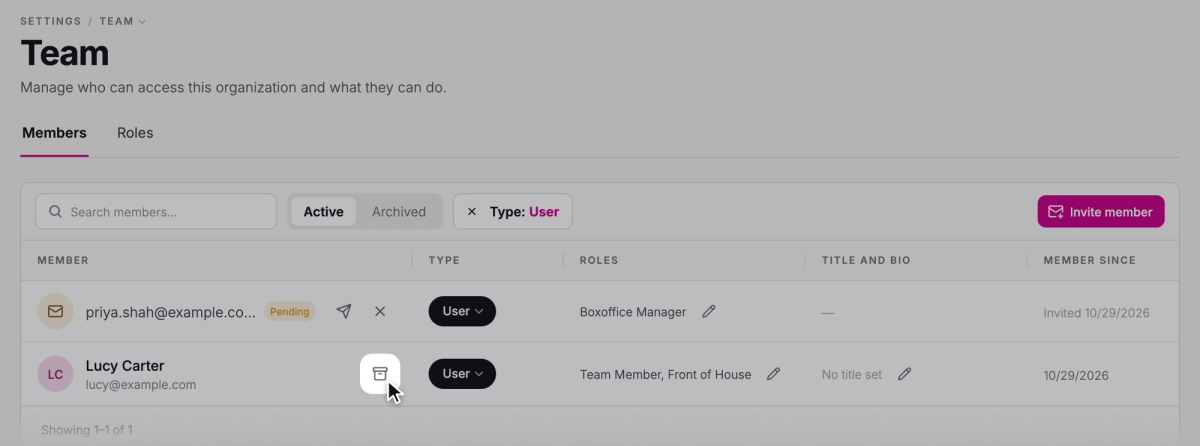
Each pending invitation has two buttons beside its email address:
- The send icon sends the invitation again, handy if they can't find the email.
- The X revokes the invitation. Click Revoke to confirm, and their invitation link stops working.
Change someone's access
You can change a member's type and roles at any time. This works on pending invitations too, so you can fix a mistake before they accept.
Change their member type
- Step 1:
In Members, click the person's current type, like User, in the Type column.

- Step 2:
Choose Owner, Admin, or User.
It saves right away, and you'll see "Member type updated". Make a User an Admin or Owner and Stageworks keeps their roles on file, ready for when you switch them back to User.
Change a User's roles
Roles only apply to Users, so Owners and Admins show a dash in the Roles column.
- Step 1:
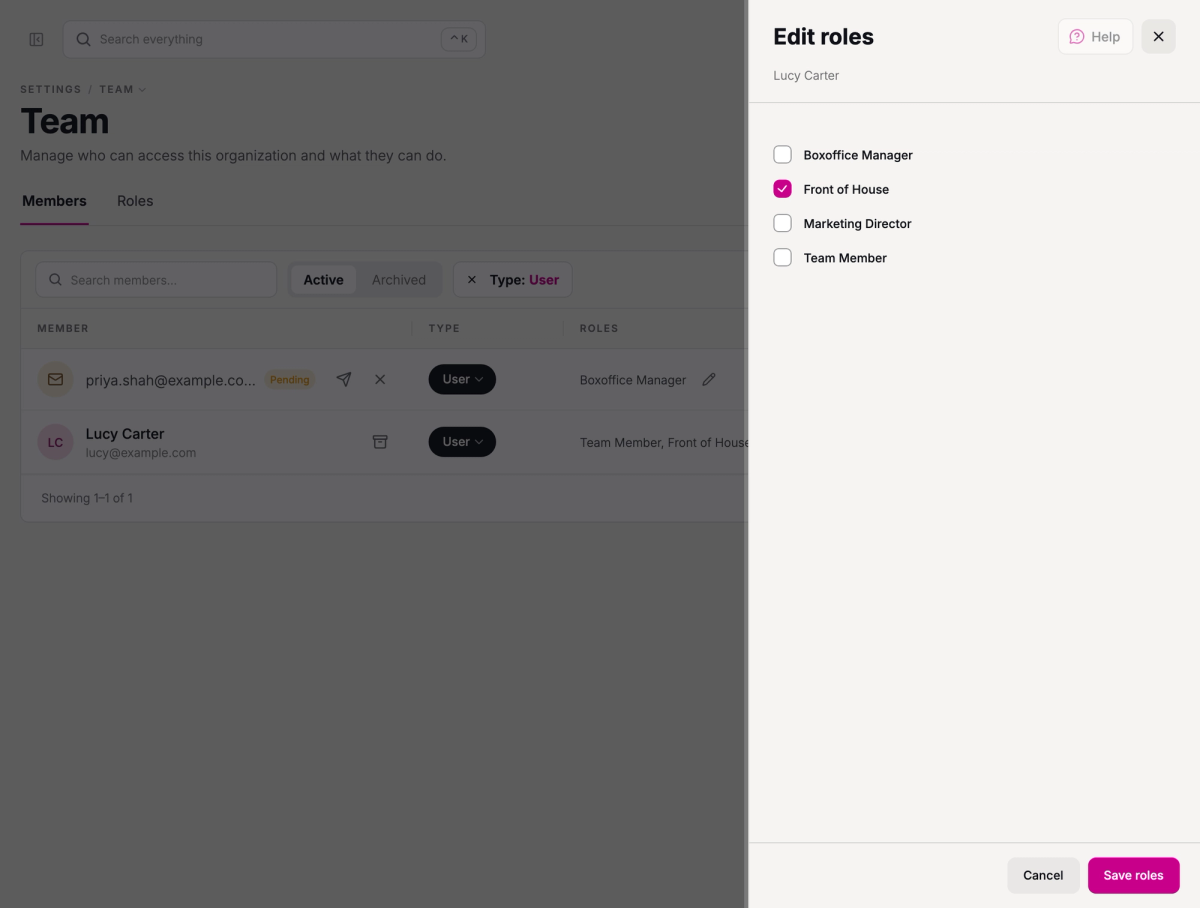
Click the pencil beside the User's roles in the Roles column.
- Step 2:
In Edit roles, check the roles they should have and uncheck the ones they shouldn't.
- Step 3:
Click Save roles.
Their new access takes effect right away.
Remove someone
When someone leaves your organization, archive them.
- Step 1:
In Members, click Archive member (the box icon) on their row.
- Step 2:
Click Archive to confirm.
They lose access to your organization right away and move to the Archived tab. If they come back, open Archived and click Restore member on their row. They get back the same member type and roles they had before.
SuggestedSet up roles and permissionsChoose what each role can do: use the ready-made roles you may see, or create your own.Was this article helpful?