
Import your contacts from another email provider
Bring your mailing list with you when you move to Stageworks, by importing a CSV of your subscribed contacts into one of your lists.
Moving to Stageworks doesn't mean starting your list over. You'll export your subscribed contacts from your old email service as a CSV file, then import it into one of your mailing lists. Let's get started!
Before You Start
In your old email service, export your subscribed contacts as a CSV file. A CSV is a spreadsheet saved as plain text; most email services offer it as an export option. The first row of the file should be the column headers.
Stageworks imports each contact's email address, and their first and last name if the file has them in separate columns. Other columns, like tags or signup dates, aren't imported.
You'll import into one of your mailing lists in Stageworks, so make that list first if you haven't already. Build your mailing lists shows how.
Import your file
- Step 1:
At the bottom of the sidebar, click Settings, then Import Data.
- Step 2:
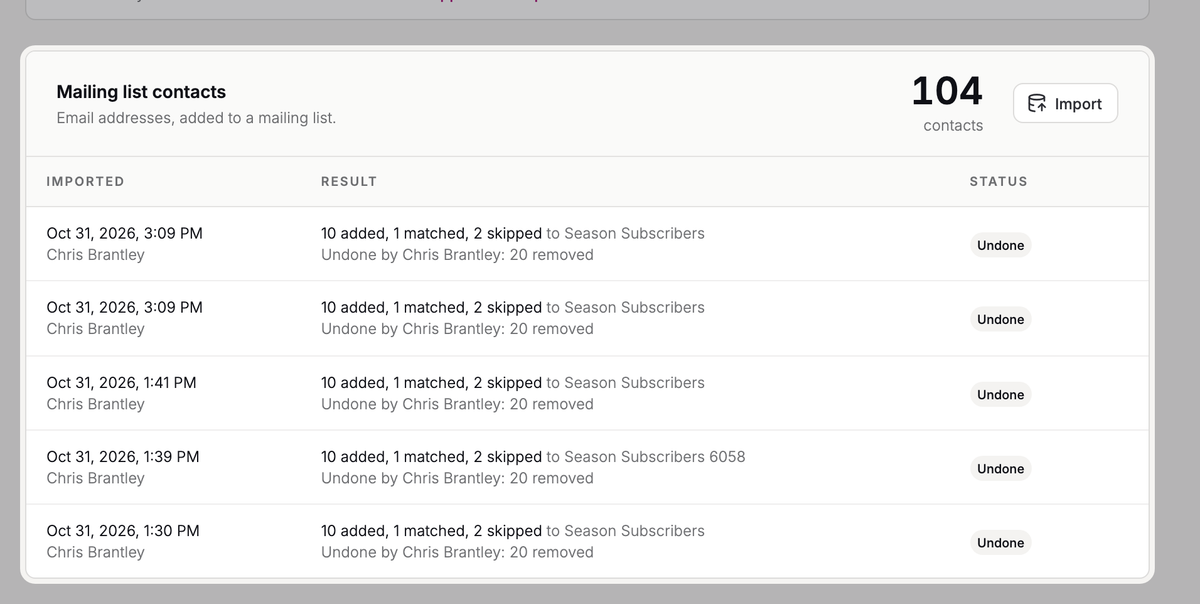
Under Mailing list contacts, click Import.
- Step 3:
Choose your list under Mailing list, then click Continue.

- Step 4:
Click Choose file and pick your CSV, or drag it onto the Drag a CSV here box.
- Step 5:
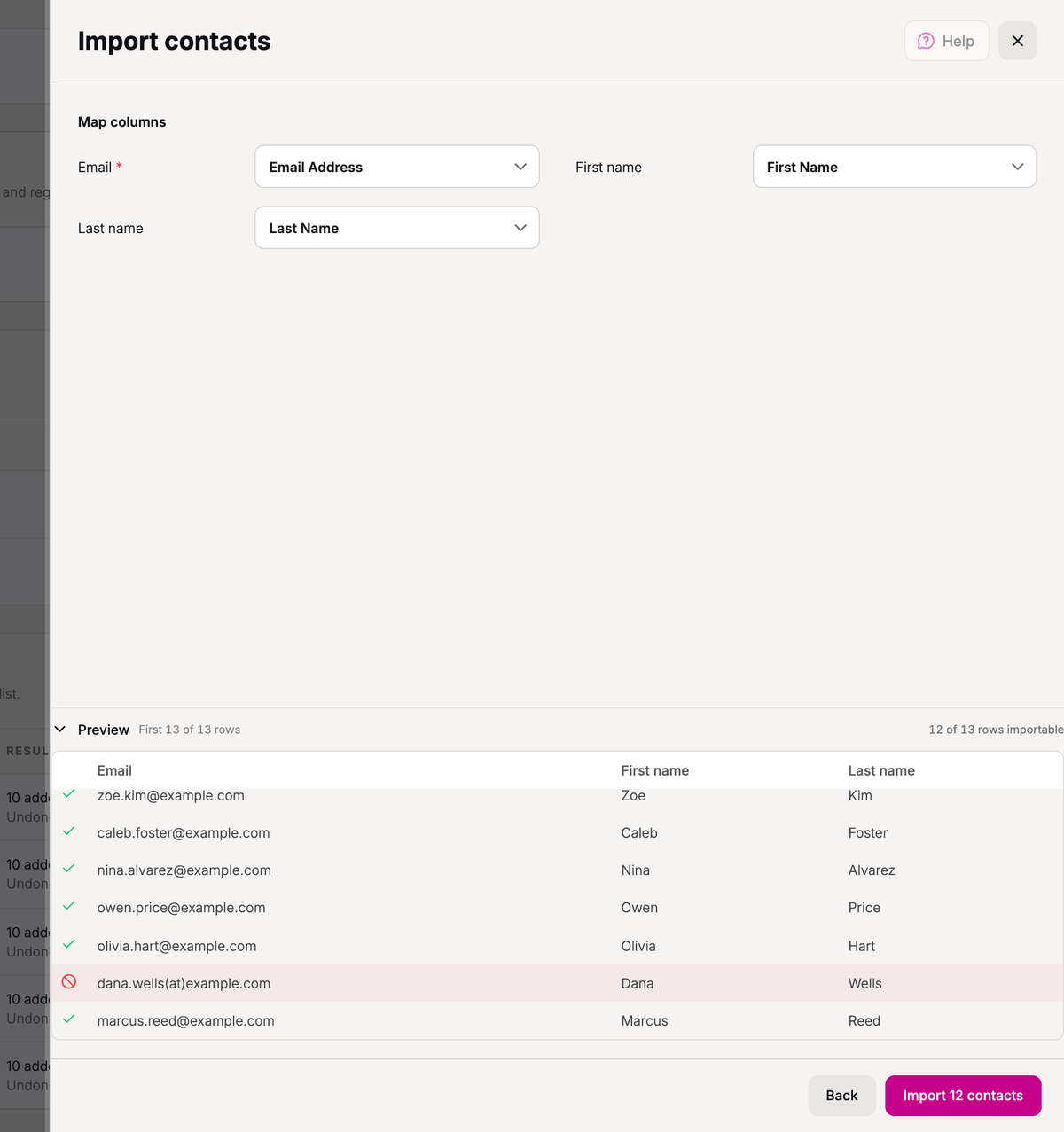
Under Map columns, check that Email is set to your file's email column, and First name and Last name to its name columns. Stageworks picks them from your headers, so there's usually nothing to change. A single full-name column isn't split, so map First name and Last name to separate columns.
- Step 6:
Check the Preview. It shows how many rows can be imported and marks rows whose email isn't valid.
- Step 7:
Click the button at the bottom that counts your rows with a valid email, like Import 250 contacts.
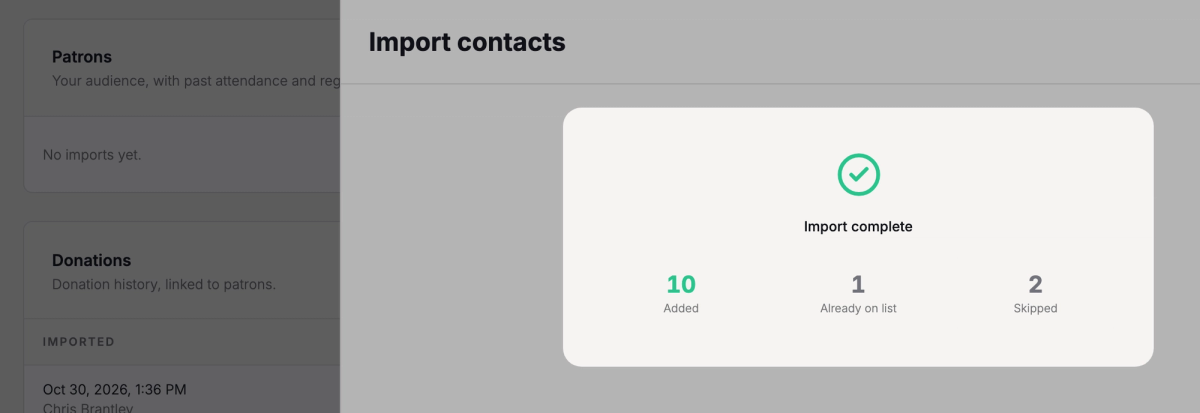
Give it a moment. When it's done, you'll see Import complete and the results. Click Done.
Check the results
When the import finishes, you'll see three numbers:
| Result | What it means |
|---|---|
| Added | People added to the list. |
| Already on list | People who were on this list before. They're left as they are: anyone who unsubscribed from this list stays unsubscribed. |
| Skipped | Rows whose email isn't valid, and rows that repeat an email from earlier in the file. |
If someone is already a contact in Stageworks, say from another list, they're added to this list without a duplicate, and their name isn't changed. Anyone who opted out of your marketing email in Stageworks stays opted out, even if they're in the file.
Each import is also listed under Mailing list contacts on the Import Data page, with who ran it and the list it went to. There, "matched" is the same as Already on list.
Undo an import
Imported the wrong file, or into the wrong list? You can undo it.
- Step 1:
Click Settings, then Import Data.
- Step 2:
Under Mailing list contacts, find the import and click Undo.
- Step 3:
Check what will be removed, then click Undo import.
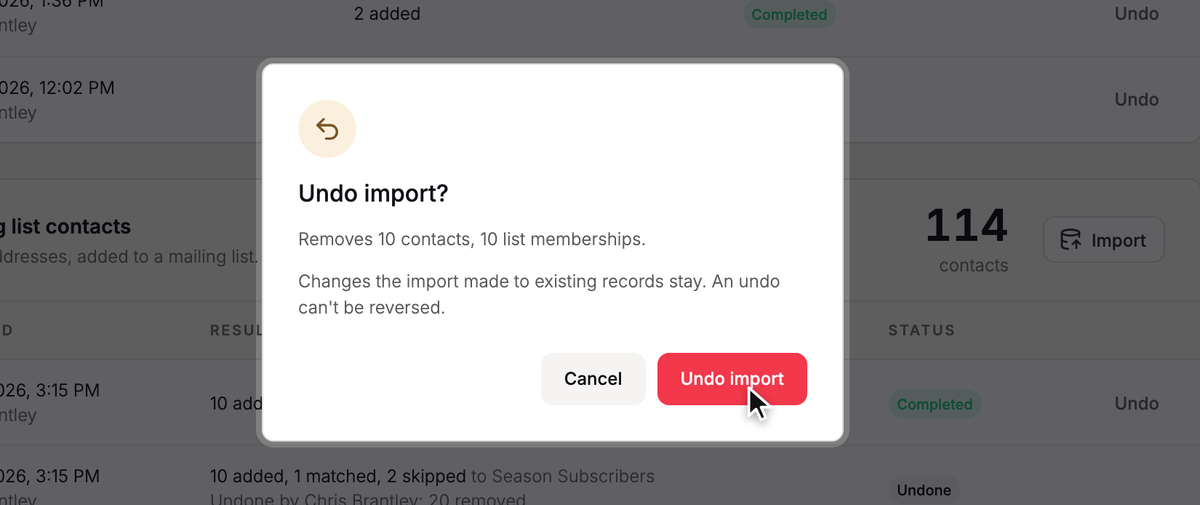
Undo removes everyone that import added to the list. People who were on the list before the import aren't touched. If any imported contacts have had activity since, they're kept, and the dialog tells you how many.
An undo can't be reversed, but you can always import the file again.
Troubleshooting
"That file is a spreadsheet (Excel or Numbers), not a CSV. Export it as CSV and try again."
Open the file in Excel or Numbers, export it as CSV, and choose the new file.
"That file couldn't be read as a CSV. Only CSV files are supported."
The file isn't plain text. Export your contacts from your old email service as a CSV again, and choose that file.
"Email is required — map it to a column."
Stageworks couldn't tell which column holds the email addresses. Under Map columns, choose your email column for Email.
"That file is larger than 25 MB."
Split it into smaller CSVs, each with the column headers in its first row, and import them one at a time into the same list.
Was this article helpful?
Email marketing in Stageworks
Email your patrons and your mailing lists from the same place you sell tickets, and see the ticket sales and donations each email brings in.
Build your mailing lists
Create mailing lists, add contacts by pasting their email addresses, and keep each list up to date as people come and go.
Let patrons sign up for your emails
Choose the list website signups join, add a signup form to any page, and see how patrons manage the emails they get from you.
Choose who gets your email
Send a marketing email to a mailing list, a patron segment, all your patrons, or one person, and see how many people it will reach.
Write a marketing email
Write a simple Text email or design an HTML email from blocks, and use layouts so every HTML email looks like your organization.
Send or schedule a marketing email
Send yourself a test, then send your marketing email right away or schedule it for later, and pause, cancel or reuse it afterwards.
Track your email results
See how each marketing email did, from opens and clicks to the ticket sales and donations it brought in, and compare all your emails in one report.