
Manage your payouts
See what's on its way to your bank, change the account you're paid to, and choose when your sales are sent.

Your sales reach your bank on a schedule you choose: every business day, on the weekdays you pick, or on set dates each month. Here's how to check what's coming, change the bank account you're paid to, set your schedule, and keep some money in reserve. Let's get started!
How payouts work
When patrons pay by card, the money lands in your Stageworks balance as pending. It becomes available after a set number of business days, called your funds availability period. Then your payout schedule sends your available balance to your bank.
Stageworks sets this period for you. You'll find yours on the Payouts tab in Settings → Payments, next to Funds availability.

Check your balance and next payout
- Step 1:
Go to Settings → Payments. It opens on the Account setup tab.

The header at the top of every Payments tab sums it up:
- Available is what's ready to go to your bank. The amount under it, marked "pending", is money from recent sales that isn't available yet.
- Next payout shows the date and amount of your next payout. When it says "estimated", it's worked out from your schedule and balance, so it's a guide rather than a promise. "In transit" means it's on its way to your bank.
If your schedule is Paused, Next payout says so, with a Manage Settings link to the Payouts tab.
Change the bank account that gets paid
- Step 1:
Go to Settings → Payments.
- Step 2:
On the Account setup tab, scroll down to Payout details. It shows the account your payouts go to.
- Step 3:
Click Edit beside it and follow the prompts to add the new account.
Choose a payout schedule
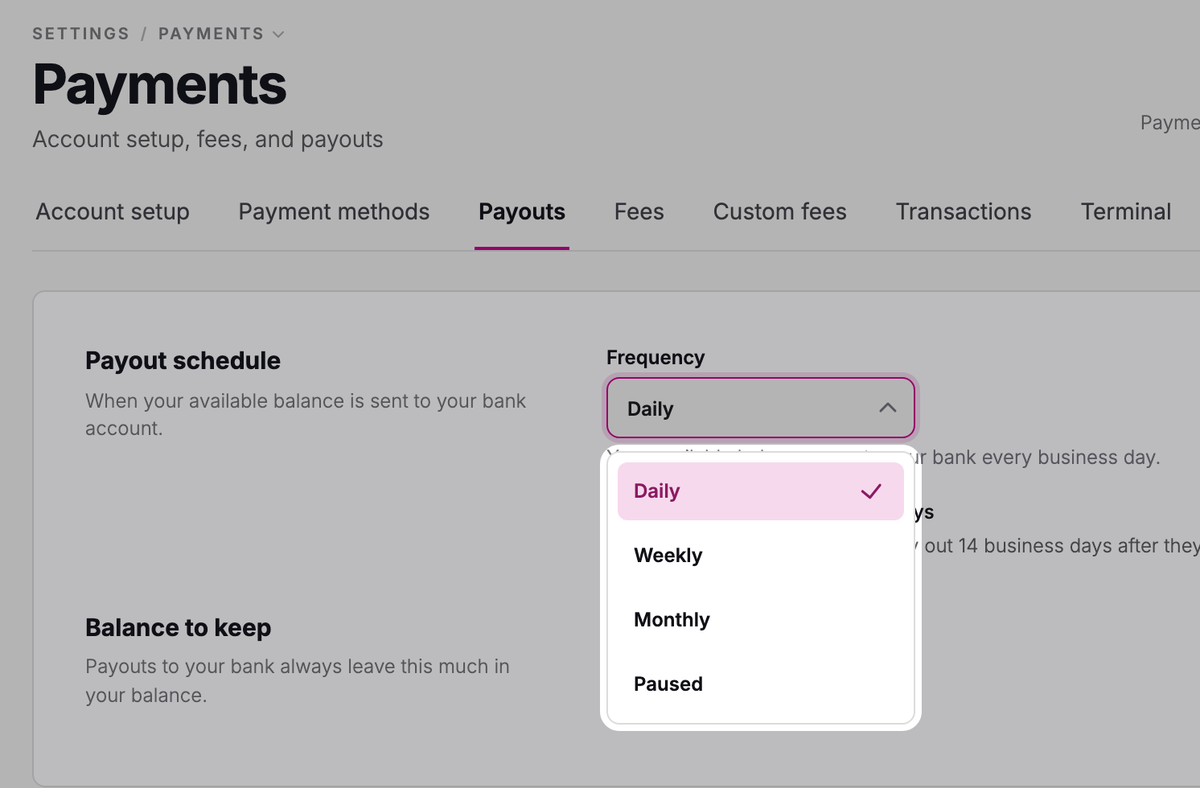
Frequency decides when your available balance goes to your bank:
- Daily: every business day.
- Weekly: on the weekdays you check under Days.
- Monthly: on the dates you choose under Dates. In shorter months, a date like the 31st pays on the last day.
- Paused: nothing goes to your bank until you choose a schedule again.
- Step 1:
Go to Settings → Payments, then click the Payouts tab.
- Step 2:
Under Payout schedule, choose a Frequency.
- Step 3:
For Weekly, check one or more days under Days. For Monthly, pick one or more dates under Dates.
- Step 4:
Click Save changes.
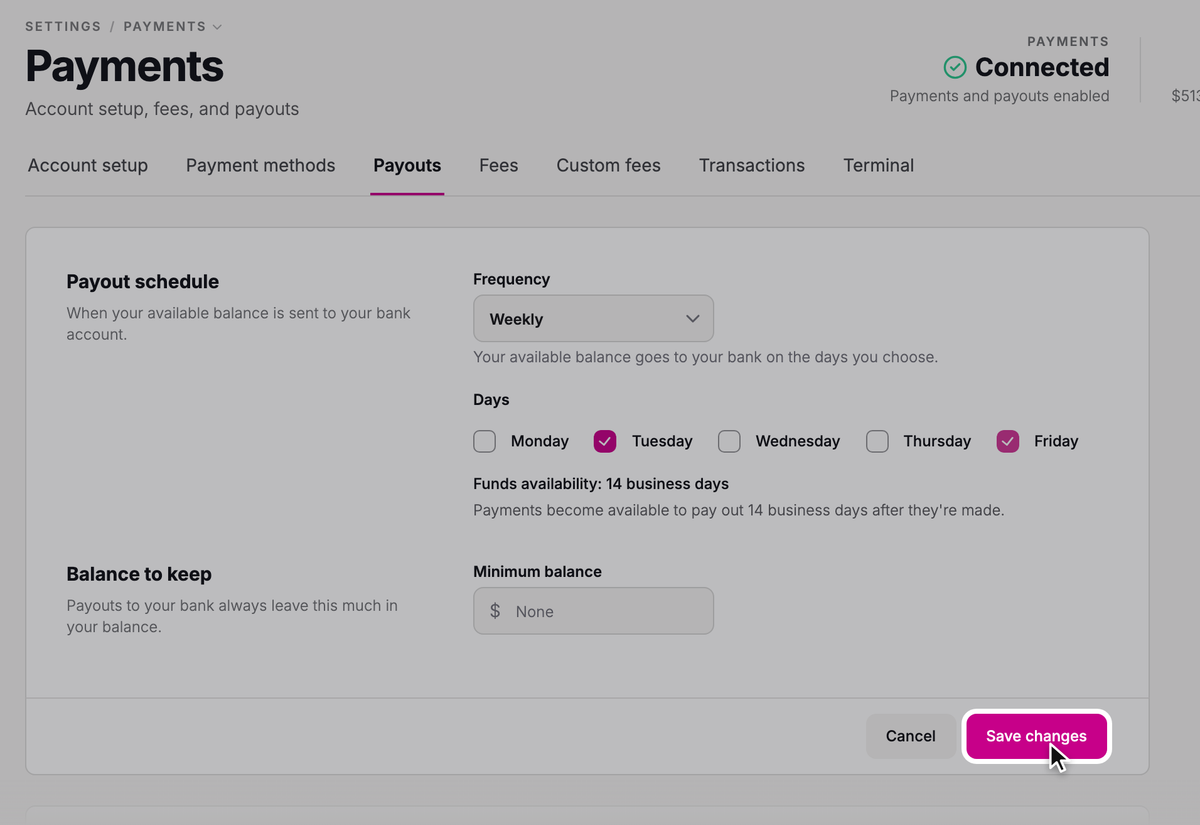
Next payout in the header updates to match your new schedule.
Keep a minimum balance
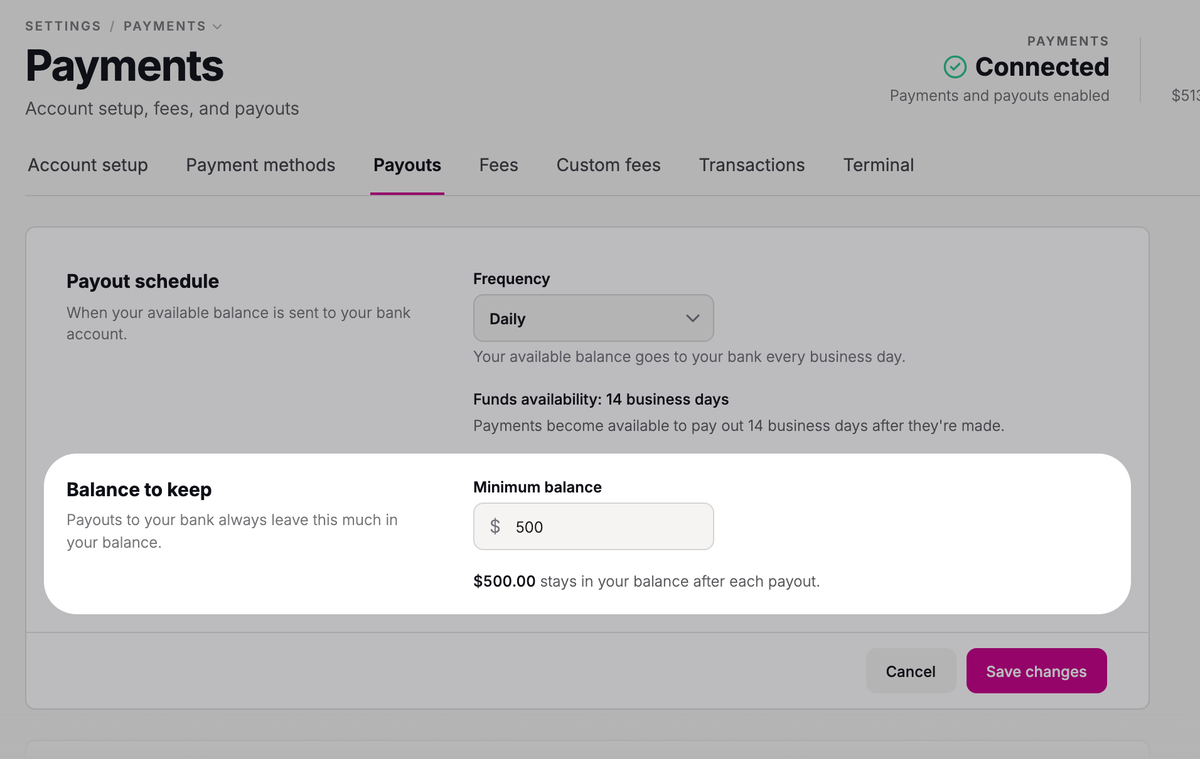
If you'd like money on hand, for example to cover refunds, you can keep some of your balance back. Payouts always leave that much behind.
- Step 1:
On the Payouts tab, under Balance to keep, enter an amount in Minimum balance.
- Step 2:
Click Save changes.
If your organization shares revenue with connected organizations, you'll also see Keep what you owe connected orgs. It's always on, so what you owe them stays in your balance on top of your minimum.
See past payouts
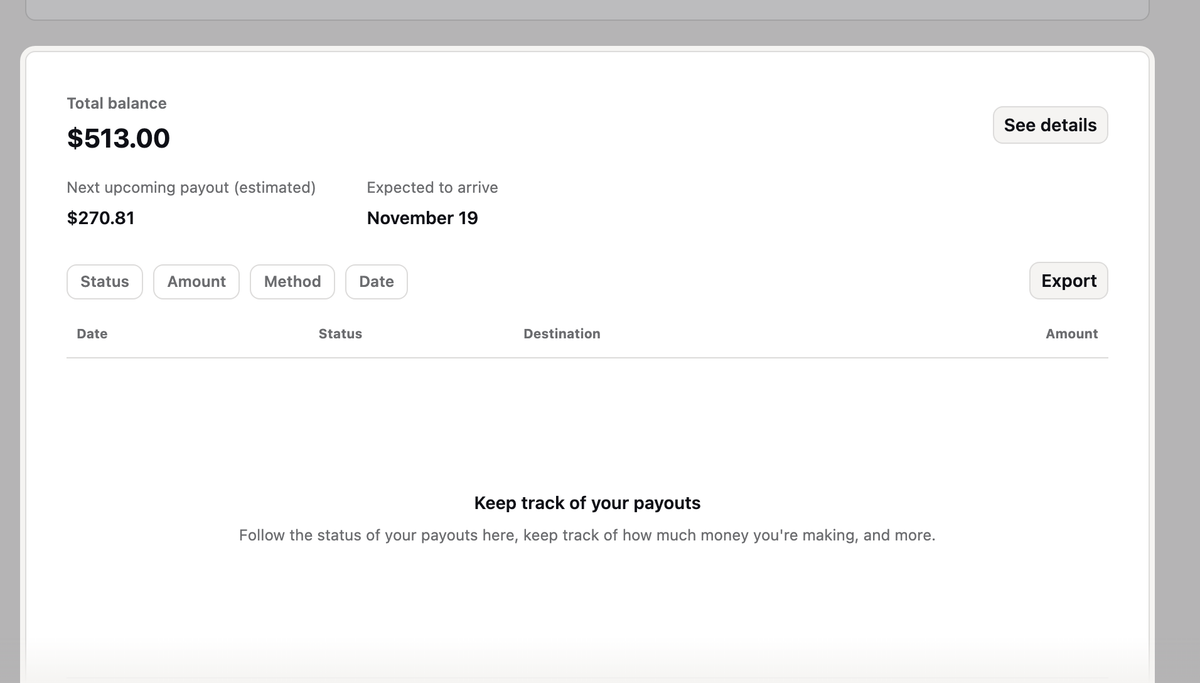
Below your settings on the Payouts tab, you'll find your past payouts. Click Export to download the list.
 SuggestedQuickBooks Online and StageworksUsing QuickBooks? Each payout can go there when you sync, dated the day it reached your bank, ready to match in your bank feed.
When payouts pause
Now and then, payouts pause until something is fixed.
Payouts are paused
When Stageworks updates its Terms of Use, only your organization's owner can accept them, and they get reminder emails before the deadline. If they haven't accepted by then, payouts pause. You'll see Payouts are paused at the top of the Payouts tab, and the owner, admins, and anyone with Manage payment settings get an email.
When the owner signs in, an Updated Terms of Use prompt asks them to accept. If you're not the owner, let them know. As soon as they accept, payouts resume on your schedule. Until then, your sales keep coming in and stay in your balance. You can still change your schedule; it takes effect once they accept.
Payouts paused or Payments need attention
Sometimes Stageworks needs more details about your organization to keep paying out, such as updated bank details or an ID document. A notice in the sidebar says Payouts paused or Payments need attention, and everyone who manages payments gets an email asking for updated payment details.
Click Review in Settings in the sidebar notice, or Update payment details in the email, and finish the steps on the Account setup tab. If it says Payments need attention, payouts are still going out, so take care of it before they pause.
Was this article helpful?