
Give temporary staff an access code
Let volunteers and door staff check in guests for one event in the Stageworks app, with a 6-digit code instead of a Stageworks login.
Volunteers and door staff don't need a Stageworks login to help at the door. Give each of them an access code, and they can check in guests for that event in the Stageworks app. Let's get started!
What an access code is for
An access code is a 6-digit code that unlocks one event in the Stageworks app. Whoever enters it can see that event's guest list, check guests in, and scan tickets. They can't sell tickets, take payments, or see any of your other events.
Your staff member has 24 hours to enter the code: that's the "Expires in 24 hours" you'll see beside it. Once they do, they stay signed in through the event, and their access ends on its own a few hours after the event ends. They can enter the code ahead of time, but checking guests in only opens on the day of the event.
Give each person their own code, so you can end one person's access without affecting anyone else.
Create a code
- Step 1:
In the sidebar, click Ticketing, then Box Office. If it's showing a different event, click the event's name at the top and choose the performance they're working.
- Step 2:
Click Check-in staff.
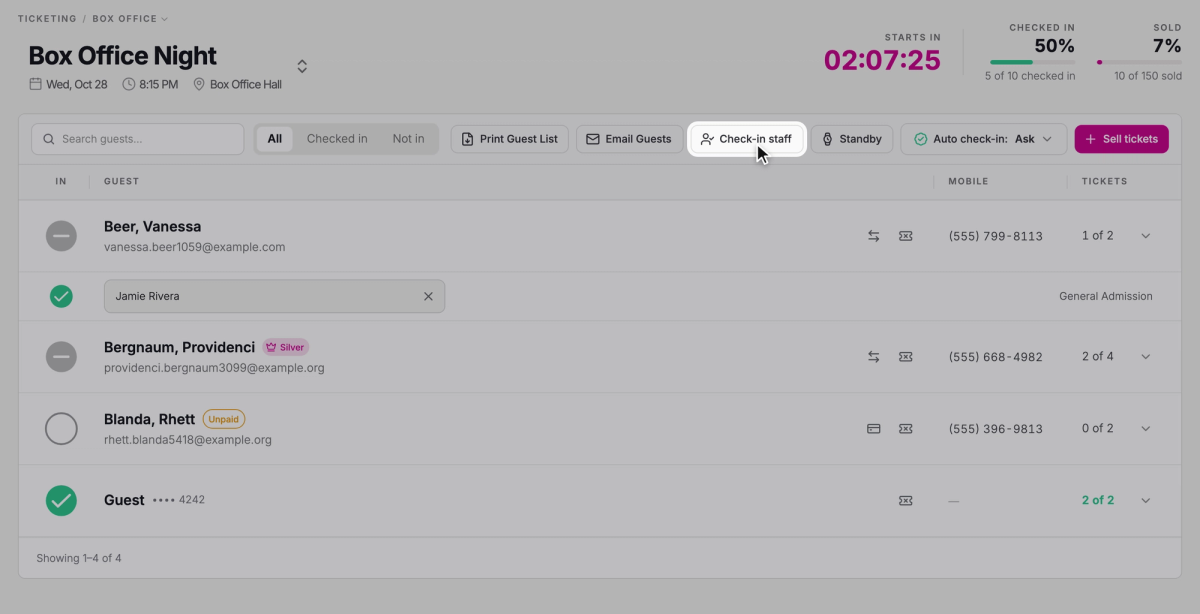
- Step 3:
Click Add.
- Step 4:
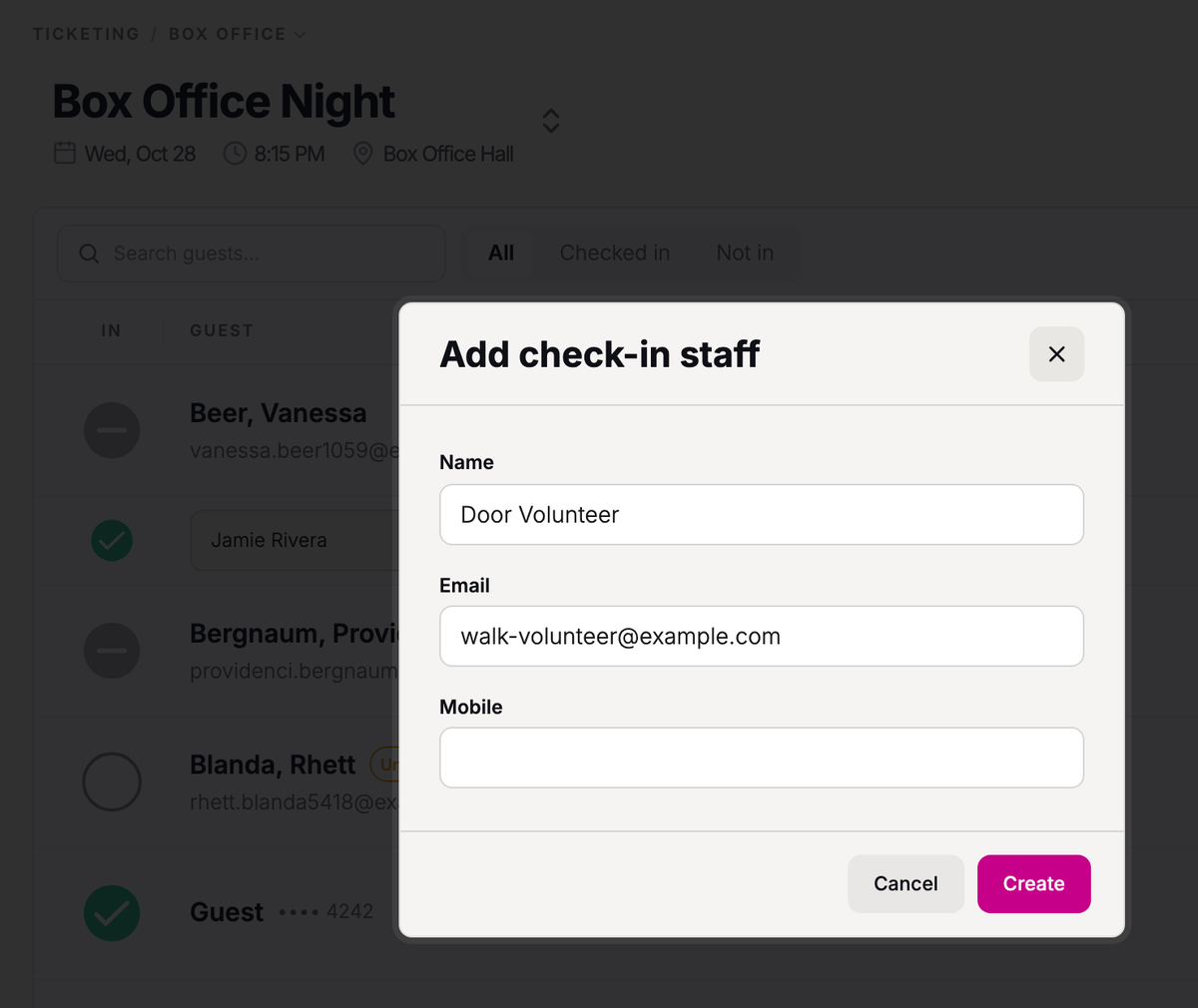
Enter the staff member's Name. To send them the code, also enter their Email, their Mobile, or both.
- Step 5:
Click Create.
- Step 6:
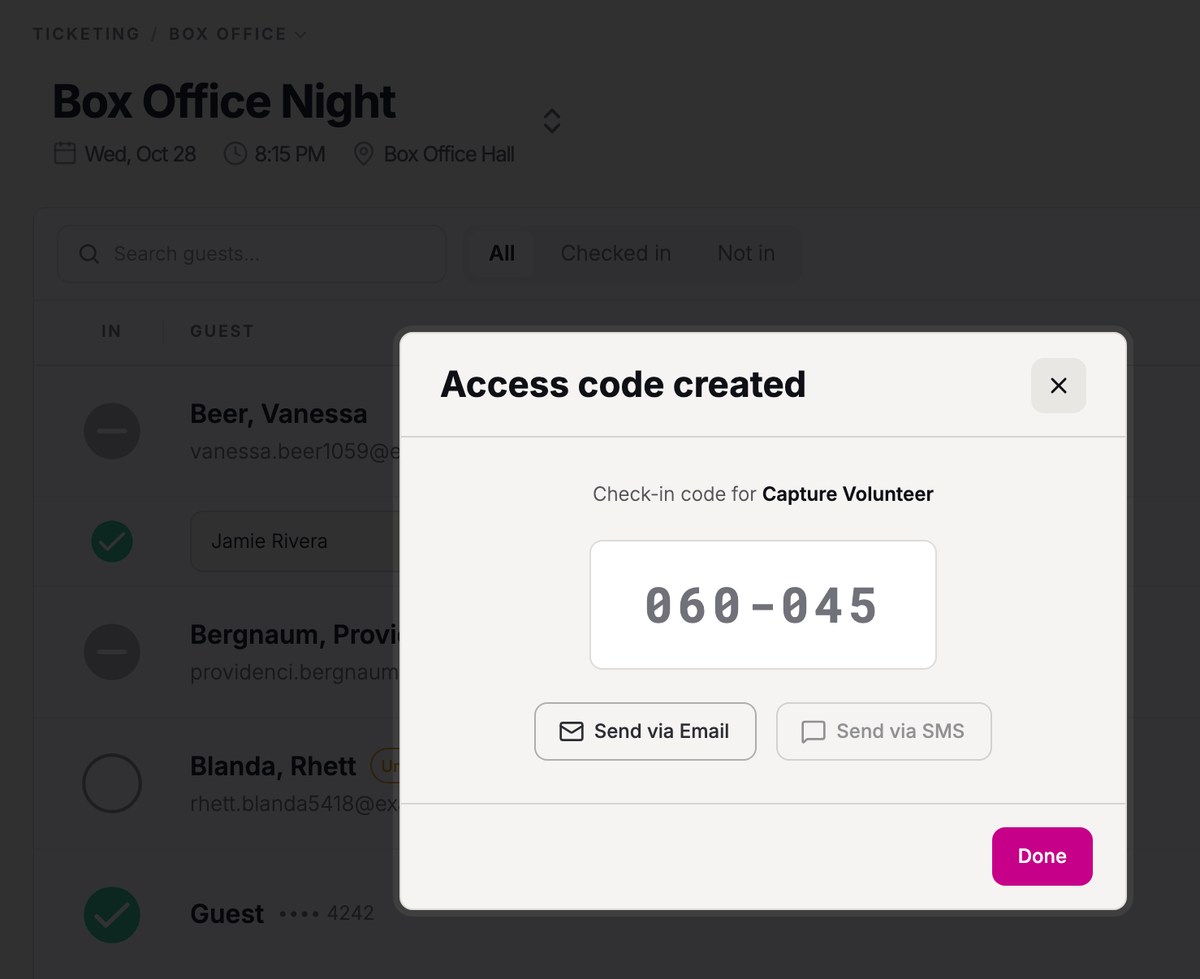
You'll see Access code created with their code. Click Send via Email or Send via SMS.
- Step 7:
Click Done.
The email or text gives your staff member their code, the event and its date, and links to download the Stageworks app. No email or mobile? Give them the code yourself. You'll find it again any time under Check-in staff.
What your staff do
Here's what your staff member does on their phone or tablet. You can forward these steps, or walk them through it at the door.
- Step 1:
Install the Stageworks app from the App Store or Google Play.
- Step 2:
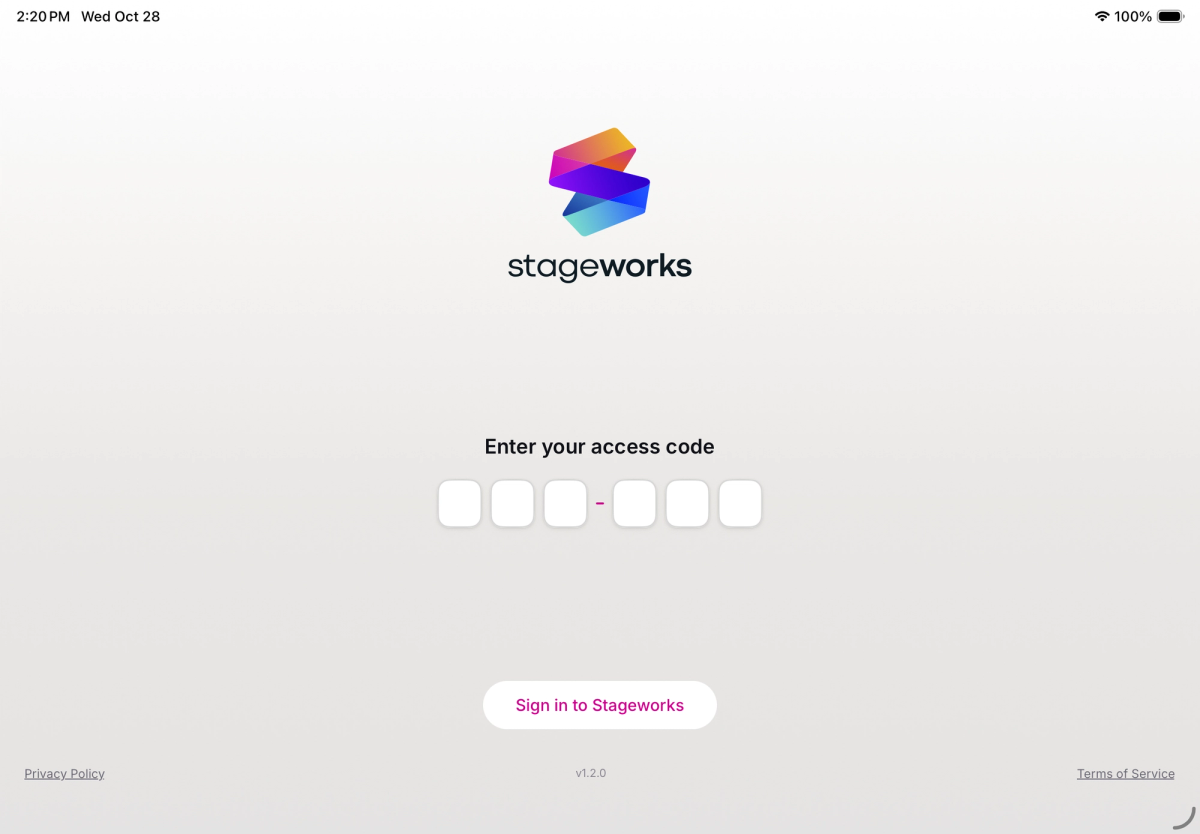
Open the app, and on Enter your access code, type the 6-digit code. There's no button to tap: the app checks it as soon as they type the last digit.
- Step 3:
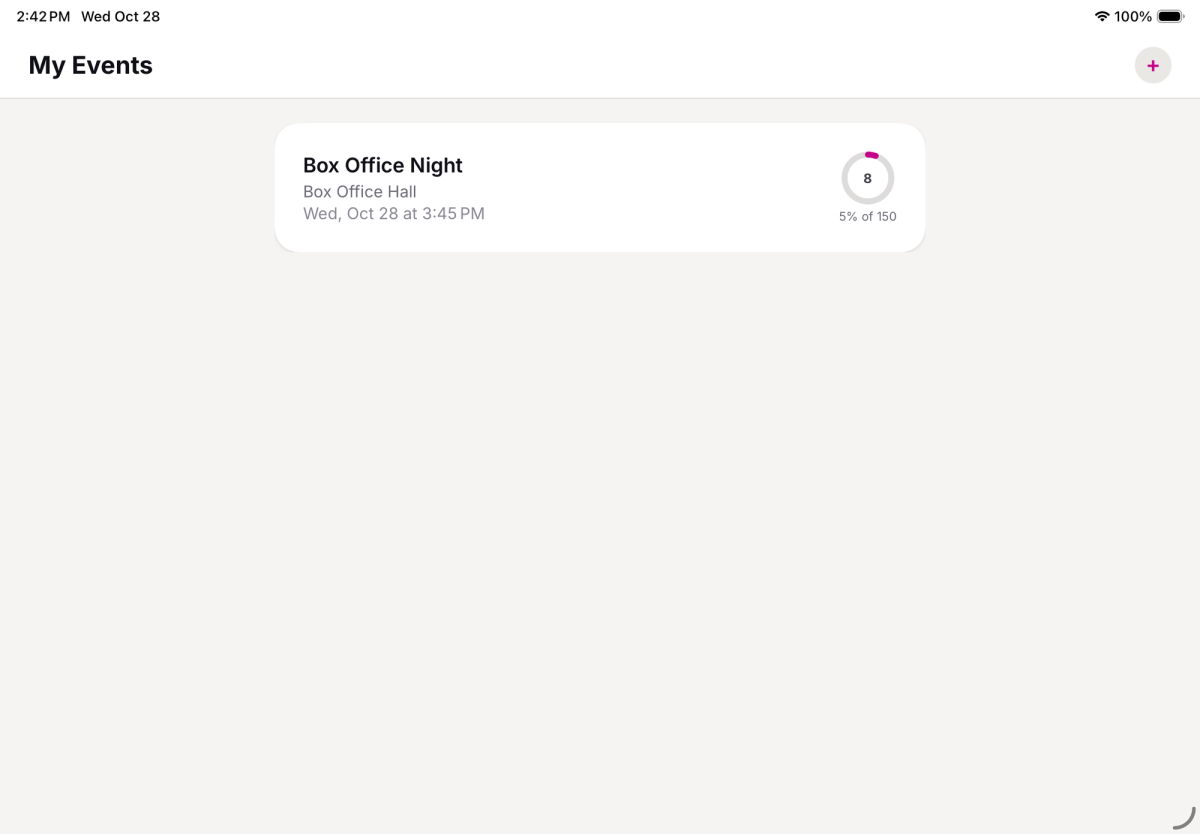
Under My Events, tap the event.
- Step 4:
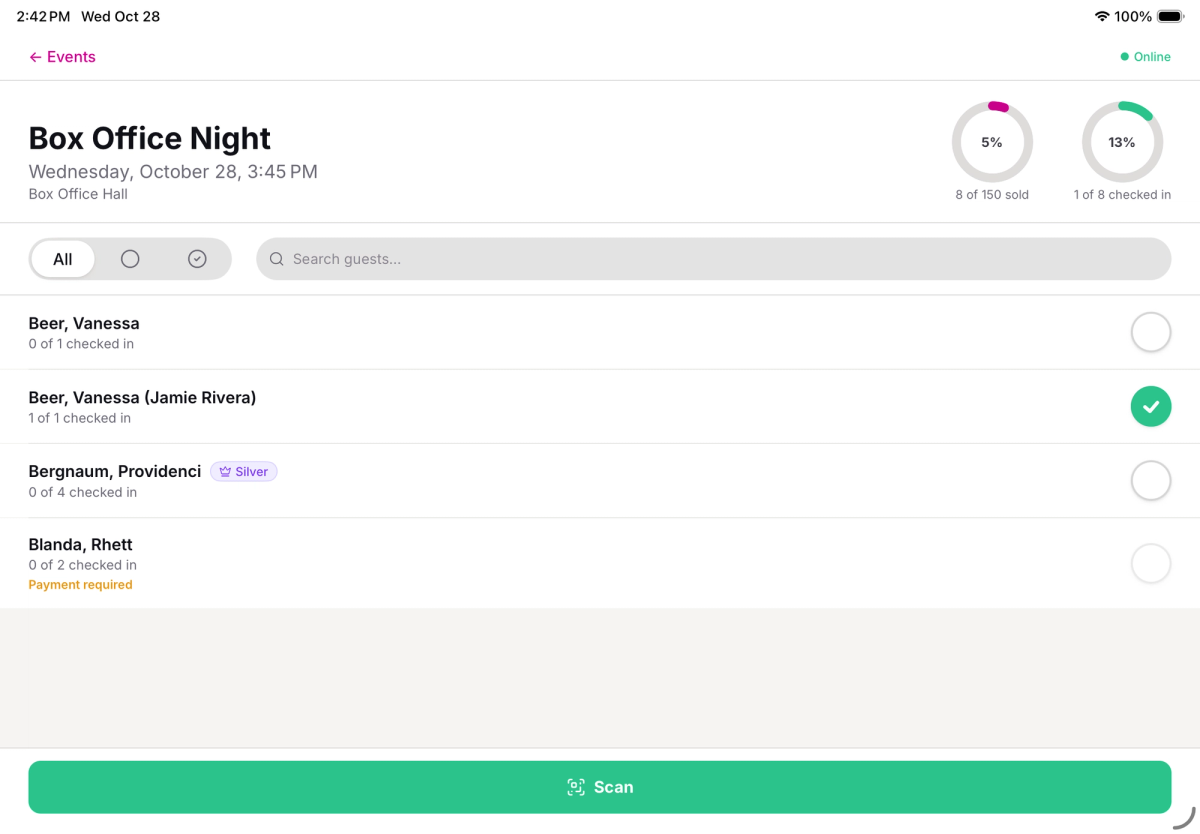
Check guests in from the guest list, or tap Scan to scan their tickets.
Check in guests with the Stageworks app explains checking guests in step by step.
Your staff can skip Sign in to Stageworks on the first screen: that's for people with a Stageworks login. And they won't need the code again on that device, since they stay signed in through the event. Working another event? They tap + at the top right of My Events and enter that event's code.
Revoke a code
Revoke a code when someone shouldn't have access any more, like a volunteer who can't make it or a phone that's gone missing. Otherwise there's no need: access ends on its own after the event.
- Step 1:
Click Check-in staff, then click the staff member's row.
- Step 2:
Click Revoke.
- Step 3:
When you're asked "Revoke this access code? The staff member loses access immediately.", click Revoke.
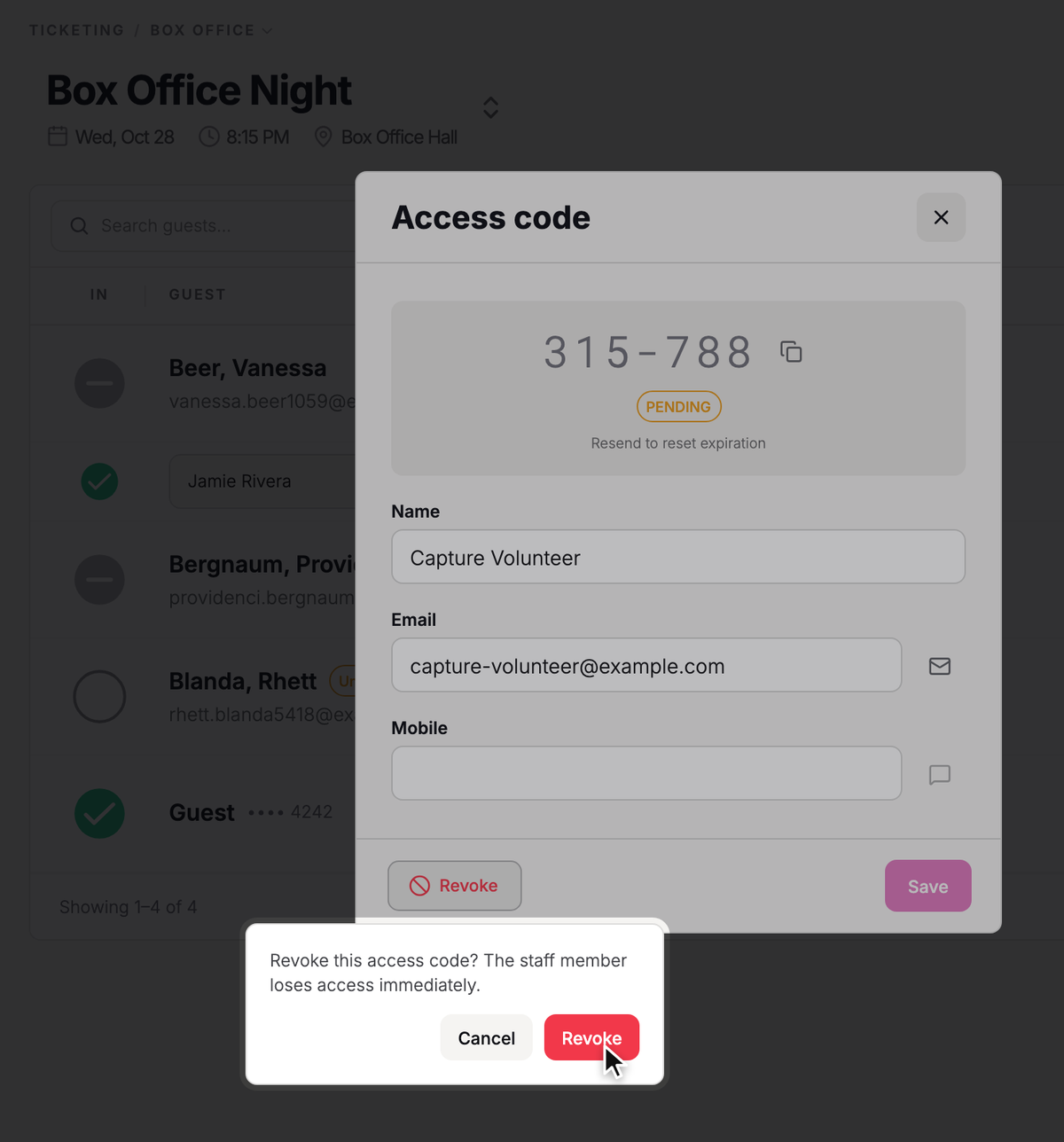
The code now shows under Revoked in Check-in staff. You can't turn it back on, so if you change your mind, create a new code.
Troubleshooting
"Code has expired"
Your staff member didn't enter the code within 24 hours. Under Check-in staff, click their row, click the send button beside their email or mobile, then click Send. They'll have another 24 hours to enter it.
"Check-in isn't open yet"
It's not the event's day yet. Nothing's wrong: they'll be able to check guests in on the day.
Was this article helpful?

Box office: check in guests and sell tickets at the door
How the Stageworks box office works on the web and in the app, who can work your door, and which card reader suits your venue.
Check in guests on the web
Check guests in from the box office on your computer, collect from guests who still owe, and print a backup guest list.
Check in guests with the Stageworks app
Check guests in at the door from an iPad, iPhone, or Android device, by name or by scanning their ticket.
Sell tickets at the door
Sell tickets to walk-up patrons from the web box office or the Stageworks app, and take payment by card reader, cash, or check.
Set up a Wi-Fi card reader
Register a Stripe Wi-Fi card reader to your venue, then use it to take card payments at the door, on the web and in the Stageworks app.
Connect a Bluetooth card reader
Connect a Stripe Reader M2 to the Stageworks app on your iPad or phone, then take card payments with it at the door.