
Show events, campaigns, and passes on a page
Add listing blocks to a page of your website to show your published events, campaigns, memberships, and passes, or to feature one show.
Listing blocks put your shows, campaigns, memberships, and passes on your website, and keep those pages up to date for you. Here's how to add one, which block to pick for what, and how to feature a single show. Let's get started!
Add a listing block
- Step 1:
In the sidebar, click Website, then Pages.
- Step 2:
Click the title of the page you want to add to. It opens in the editor.
- Step 3:
On the Blocks tab, find the Listings group.

- Step 4:
Drag a block from the group onto the page, to where you want it. Its settings open on the Options tab.

- Step 5:
Set the block up on the Options tab. The sections below cover the options for each block.
- Step 6:
Click Save, then choose Save & publish.
If the page is still a Draft, Save saves your edits straight away, with no box to choose from, and they show once you switch the page to Published.
A listing shows only what you've published, and it updates on its own. Publish a new event and it joins the list without you editing the page.
Archiving doesn't take something off the list while it's published: its card says it's no longer on sale or accepting donations.
SuggestedEdit a page and publish your changesMore on the editor, and on saving changes without publishing them yet.Home Sections
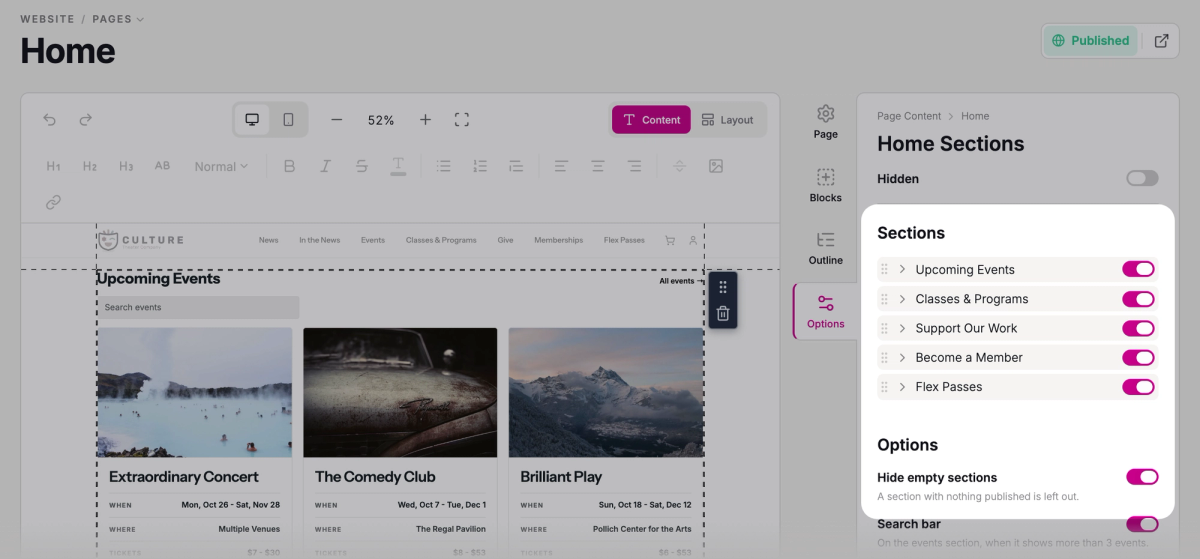
Home Sections is the listing block that shows your season at a glance: one section each for your events, classes, campaigns, memberships, and passes. Your Home page starts out built from it, so it already lists what you publish.
Out of the box, the sections are headed Upcoming Events, Classes & Programs, Support Our Work, Become a Member, and Flex Passes. The events section includes shows that are already running, as well as upcoming ones. When a section has more than it shows, it links to the full list, like All events.
On the Options tab, under Sections, drag the sections into the order you want, or use the switch beside one to turn it off. Click a section to change its Heading, the wording of its Link to the full list, how many Items it shows, and its Layout: Grid, List, or Band.
Hide empty sections is on to start with, so a section with nothing published is left out. If you don't sell memberships, nobody sees an empty memberships heading.
Event List and Event Calendar
Use Event List for a page of shows, like your season page. Use Event Calendar when it's the dates that matter.
Event List
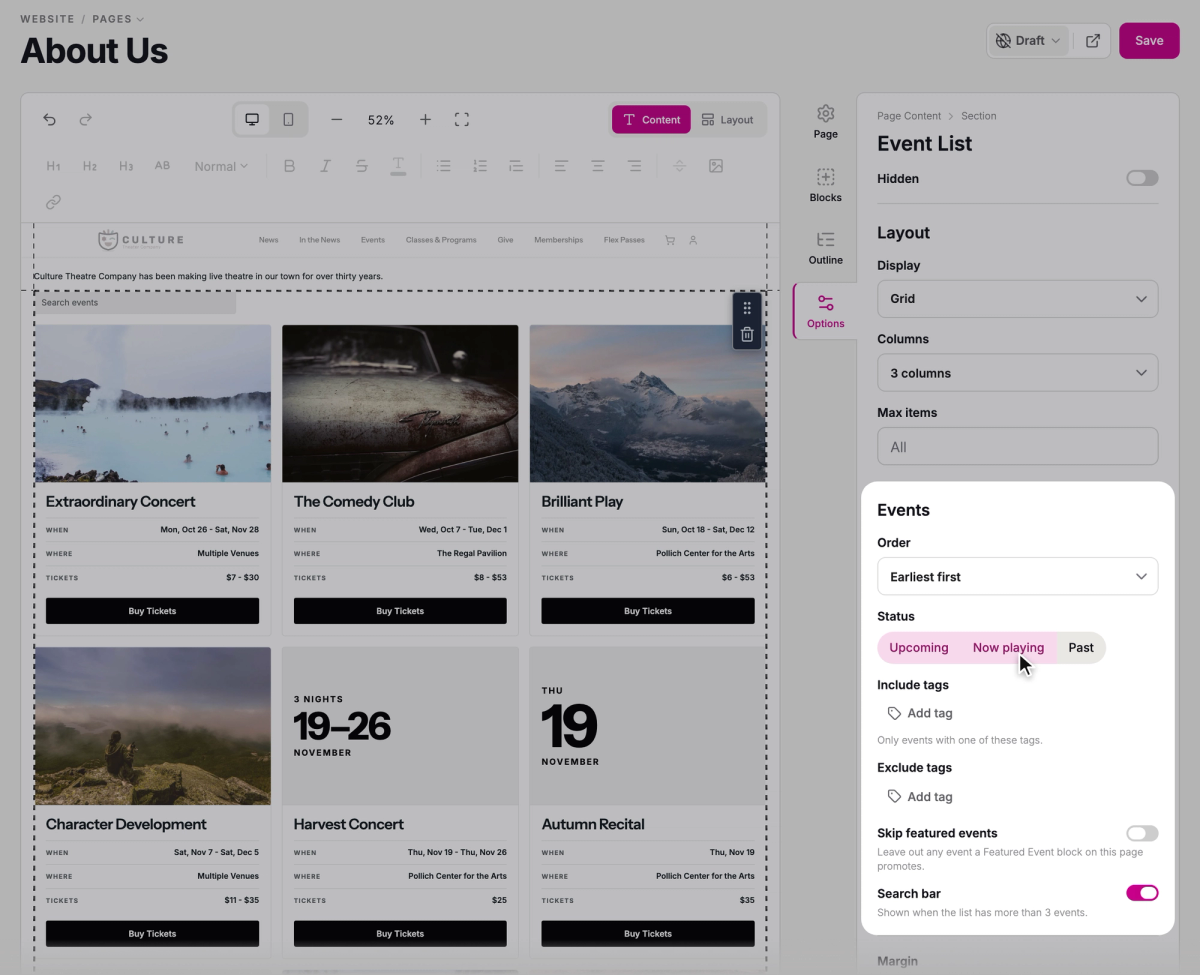
Event List shows your published events as cards. Under Display, choose a Grid or a List; for a grid, pick how many Columns. To cap how many events appear, set Max items.
The options under Events decide which shows make the list:
- Status shows Upcoming, Now playing, or Past events, or any mix. A new Event List starts on Upcoming only, so to keep a show on the list while it's running, click Now playing too.
- Order lists them Earliest first or Most recent first.
- Include tags and Exclude tags narrow the list by the tags on your events, for a page of just your youth productions, say.
- Skip featured events leaves out any show a Featured Event block on the same page is already promoting, so it doesn't appear twice.
- Search bar lets visitors search the list. It's on to start with, and shows once there are more than 3 events.
Event Calendar
Event Calendar lists each performance date, rather than each show. Under View, choose Calendar for a month calendar, or List for a list of dates. Visitors see the view you choose; they can't switch. It has the same tag filters and Search bar as Event List.
Feature one event
Featured Event gives one show the spotlight: its headline, artwork, summary, details, and a button to buy tickets.
- Step 1:
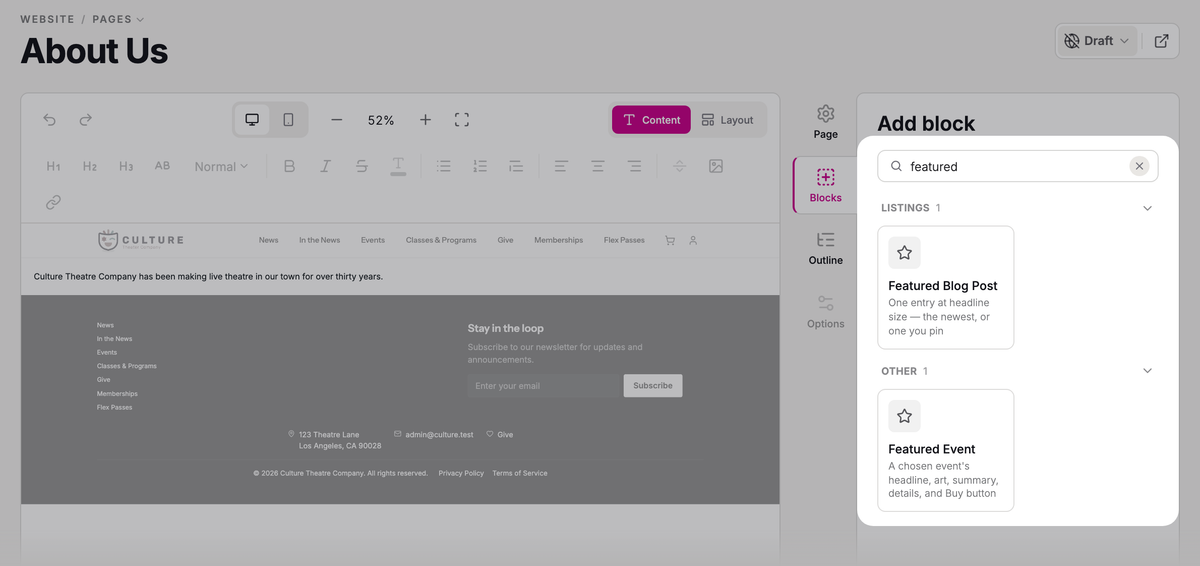
On the Blocks tab, type "featured" in the search box, or open the Other group.
- Step 2:
Drag Featured Event onto the page.
- Step 3:
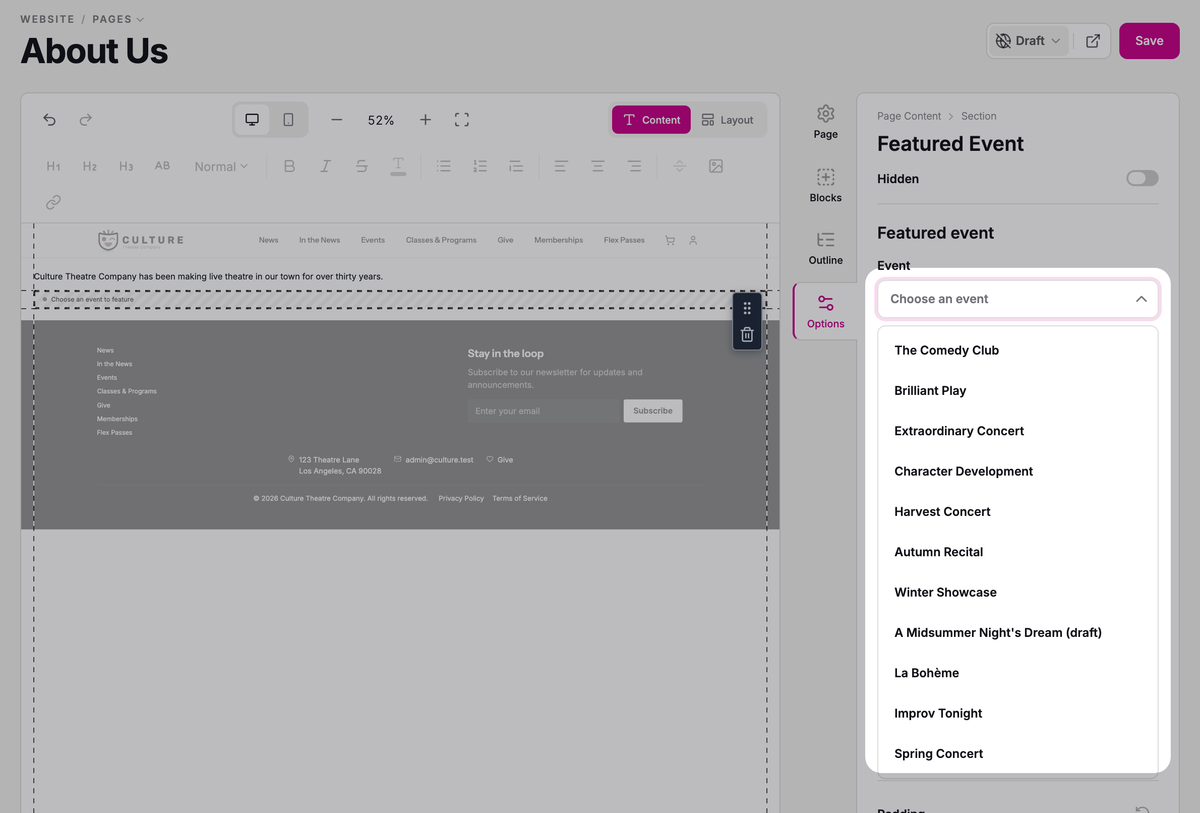
On the Options tab, click Choose an event and pick your show.
- Step 4:
Click Save, then choose Save & publish.
You can pick a current or upcoming event, or one that doesn't have dates yet. Unpublished events are marked "(draft)", so you can set the page up ahead of time: visitors won't see the block until you publish the event.
Hide when the event has passed is on to start with, so the block comes off your site once the show is over.
On a page with Home Sections, the featured show is left out of the events section, so it isn't listed twice.
Programs, campaigns, memberships, and passes
The other listing blocks each show one kind of item, with the same Display, Columns, and Max items as Event List.
Campaign List shows your published fundraising campaigns, newest first. To set one up, see Run a fundraising campaign.
Membership List shows your published membership programs.
Pass List shows your published flex passes, and drops each one once it expires. Set up and sell flex passes covers creating them.
Program List shows your classes and programs.
Collection List shows everything published of one kind, like all your events or all your memberships: choose which under Shows. In When empty, write what visitors see when there's nothing in it yet. Your Events, Classes & Programs, Give, Memberships, and Flex Passes pages are each built from one.
SuggestedLet patrons sign up for your emailsSet up the Email Signup block and choose which list new subscribers join.Troubleshooting
"No events available at this time."
Nothing published matches the list's options. On an Event List, check Status: with only Upcoming on, a show that's already running isn't listed, so click Now playing too. Then check its tag filters, and that the event is published.
"Hidden from visitors until this event is published"
The show in your Featured Event is still a draft. Publish the event, and the block appears on your site.
"Hidden from visitors — this event has passed"
The featured show is over, and Hide when the event has passed is on. Select the block and pick another show under Event, or delete the block.
Was this article helpful?
Your Stageworks website
What's on your Stageworks website from day one, how its pages, layout, and theme fit together, and where to go to change each one.
Edit a page and publish your changes
Change what's on a page of your website, check it on your site, and publish it when it's ready.
Make your website look like your brand
Set your website's colors, fonts, corners, and spacing with a theme, check it's easy to read, and put it on your site.
Edit your site's header, menu, and footer
Set up the logo, menu, and footer that appear on every page of your Stageworks website, then publish them in one go.
Add a page to your website
Create a new page on your Stageworks website, publish it, add it to your menu, and archive or delete it when it's no longer needed.