
Check in guests with the Stageworks app
Check guests in at the door from an iPad, iPhone, or Android device, by name or by scanning their ticket.
The Stageworks app turns an iPad or phone into your guest list. You can check guests in by name, scan the QR code on their tickets, and see who's still to arrive. Let's get started!
Get the app
The app runs on iPad, iPhone, and Android. An iPad is what most box offices use, and it's what you'll see in this guide.
- Download Stageworks from the App Store for iPad and iPhone.
- Get Stageworks on Google Play for Android.
You'll need a Stageworks login, or an access code: volunteers and temporary staff use a code instead, and check guests in the same way. See Give temporary staff an access code.
Sign in
- Step 1:
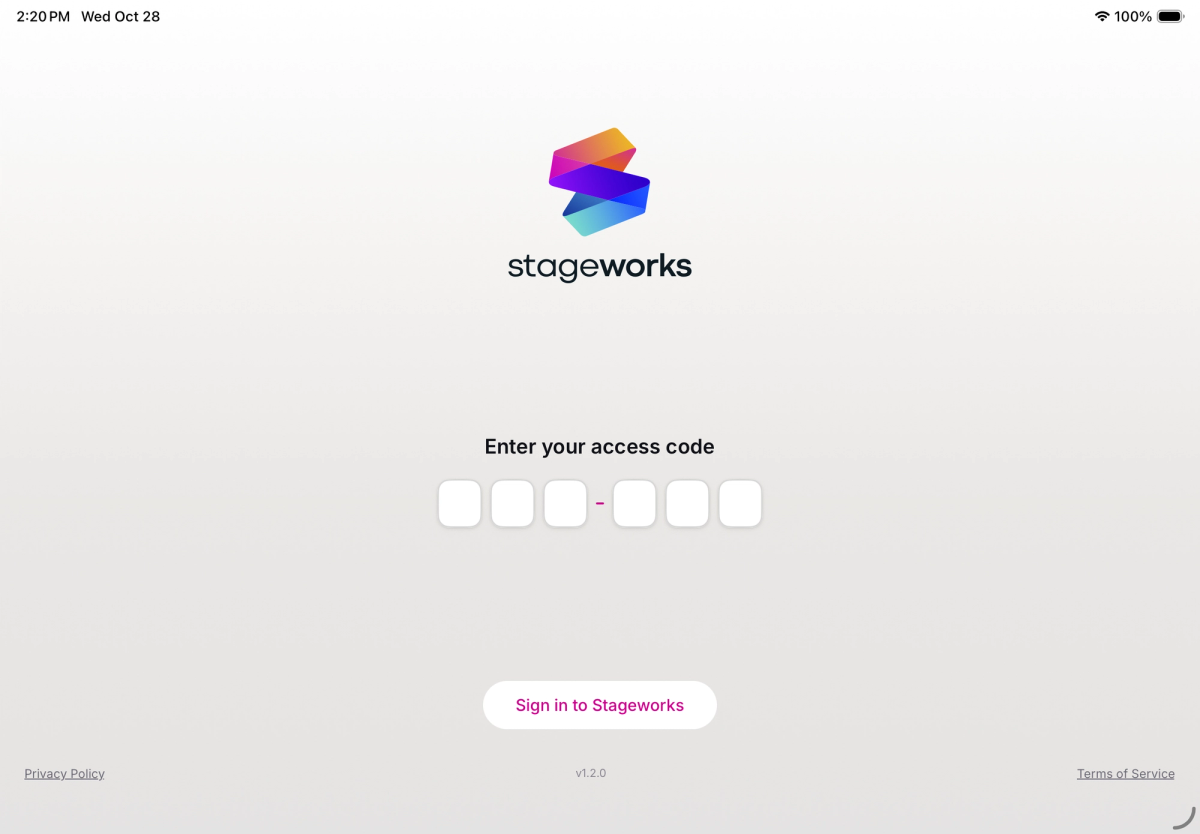
Open the app and tap Sign in to Stageworks.
- Step 2:
Sign in with your Stageworks login, the same one you use on the web.
You'll land on My Events, with your organization's upcoming events. If you belong to more than one organization, tap your picture or initials at the top right and choose Switch Organization to change which one you're working in.
Check in guests
- Step 1:
Under My Events, tap your event. You can type in Search events to find it.
- Step 2:
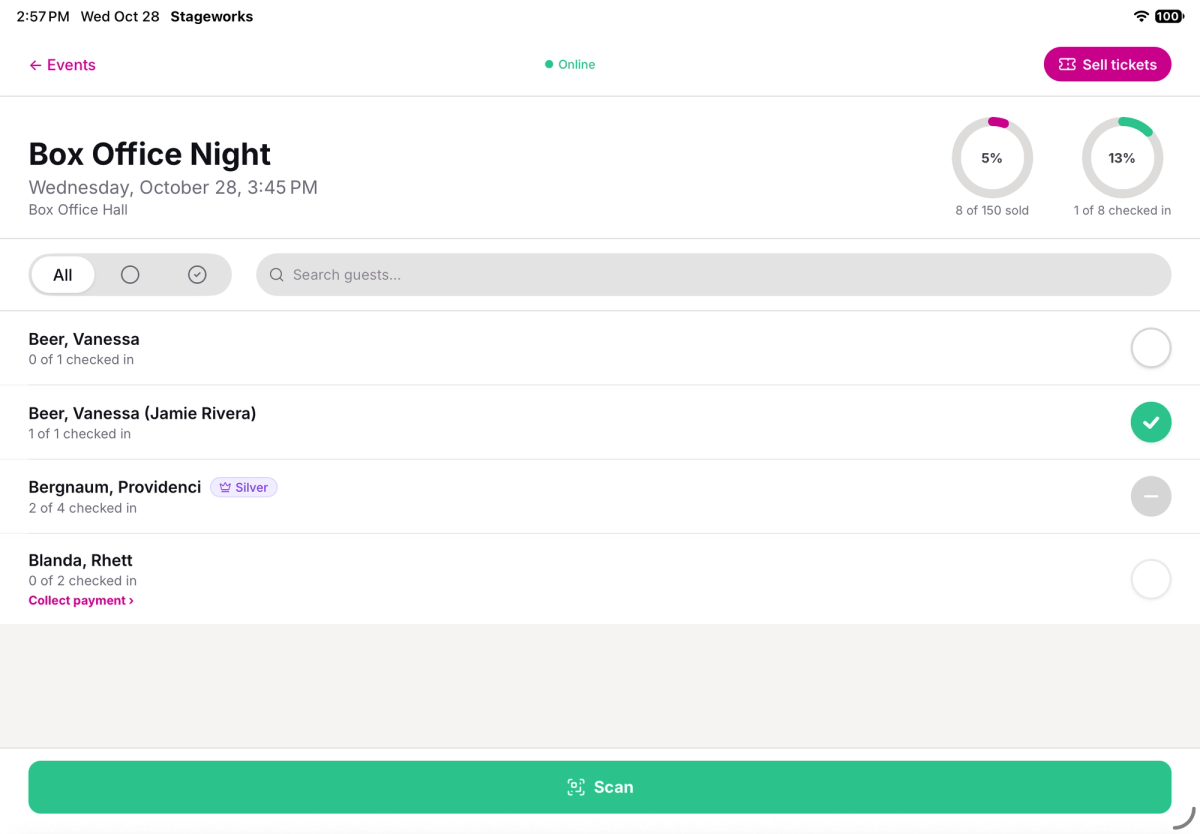
You'll see the event's guest list: your guests, and how many of their tickets are checked in.
- Step 3:
Find your guest. Type their name, email, or phone number in Search guests... (on a phone, tap the magnifying glass first). Or use the filter beside it to show All guests, guests still to arrive (the empty circle), or guests who've arrived (the check mark).
- Step 4:
Tap the empty circle on the right of their row to check them in. A guest with one ticket is checked in right away, and the circle turns green.
Guests with more than one ticket
When a patron has several tickets, tapping their circle asks if the whole party is checking in, like "Are all 4 guests checking in?"
- Tap Yes, all 4 if the whole party is at the door.
- Tap No if only some of them are here. You'll get to choose which tickets to check in.
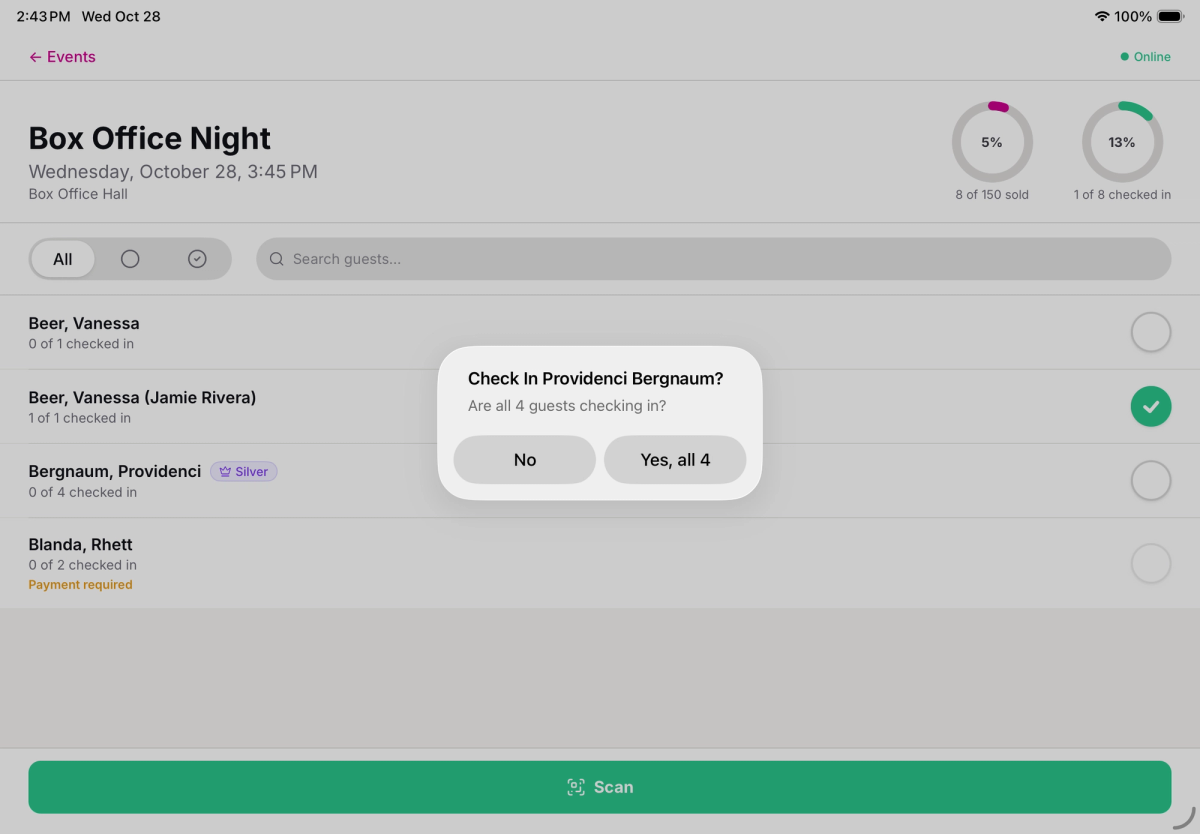
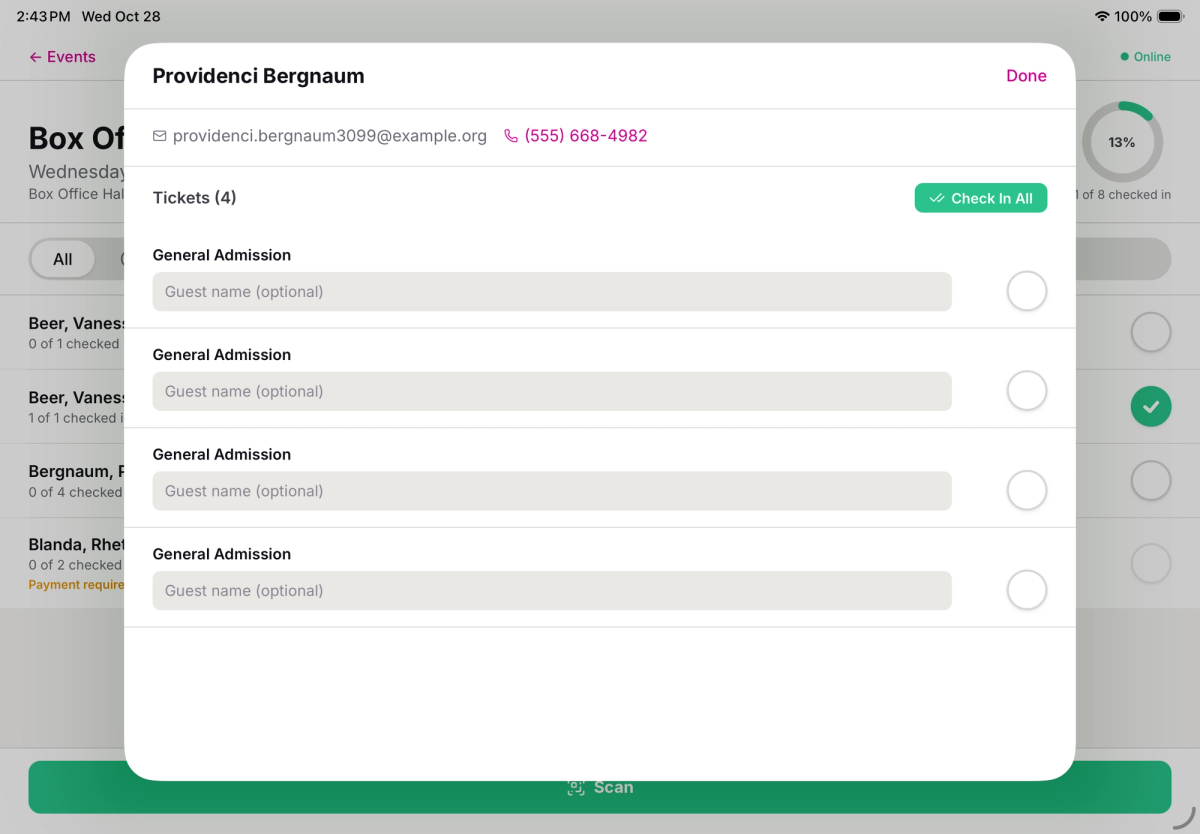
Tapping No opens a list of the patron's tickets. You can open it any time by tapping the patron's name.
- Step 1:
Tap the circle beside each ticket that's checking in now, or tap Check In All for the whole party.
- Step 2:
If you know who's holding a ticket, you can type their name in Guest name (optional).
- Step 3:
Tap Done.
Each checked-in ticket shows the time it was checked in. Back in the list, a row with only some tickets checked in shows a gray minus circle and a count like "2 of 4 checked in".
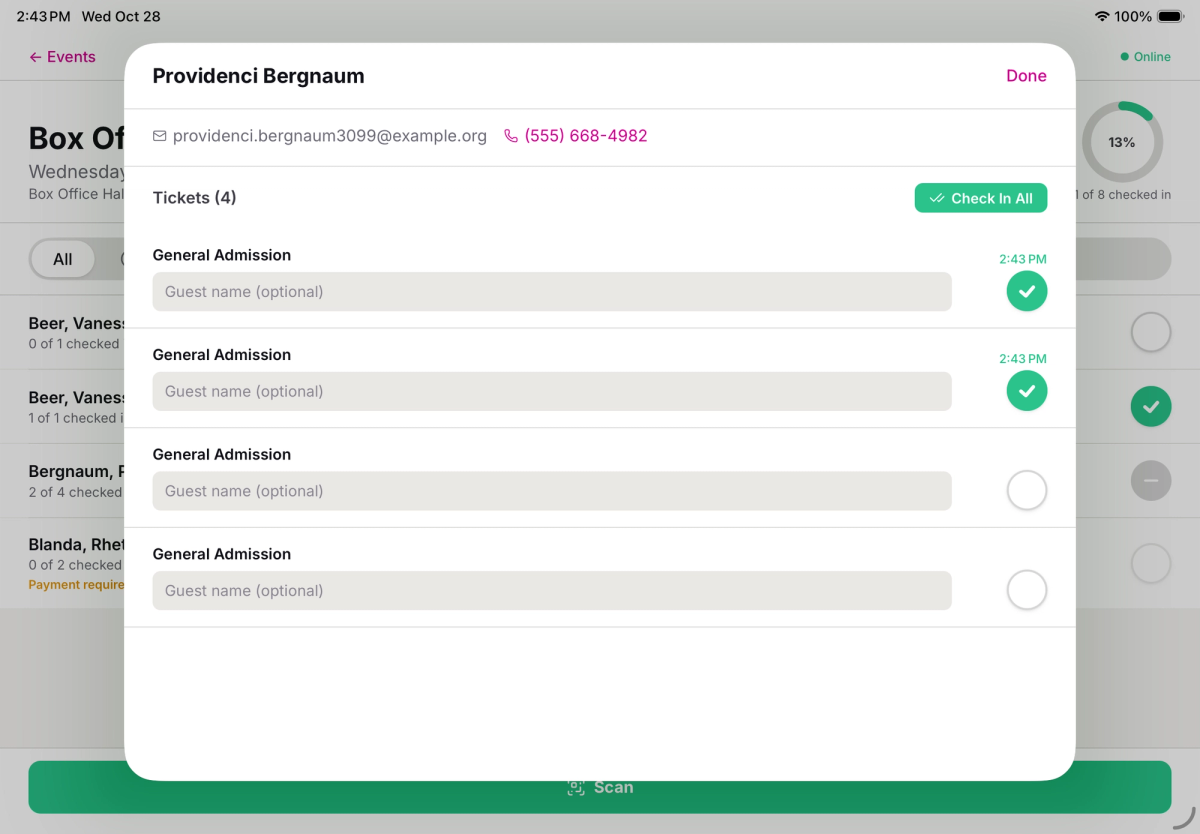
Checked in the wrong person? Tap their green circle and choose Undo. To undo a single ticket, tap the patron's name and tap that ticket's circle.
Guests who still need to pay
If a patron reserved tickets but hasn't paid, their tickets show Payment required, and you can't check them in until they pay. To take payment, tap Collect payment › under their name, then check them in.
To sell to someone who walks up, tap Sell tickets at the top right. See Sell tickets at the door.
Scan tickets
Each ticket your patrons get has a QR code. Scanning it checks in that ticket, which is the fastest way through a line.
- Step 1:
Tap Scan at the bottom of the guest list. The first time, allow Stageworks to use your camera.
- Step 2:
Point the camera at the QR code on the patron's ticket, with the code inside the frame.
You'll see Checked in! with the patron's name, and hear a chime. When the message goes away, scan the next ticket. If a ticket can't be checked in, you'll hear a different sound and see why, like Already checked in or Payment required.
Stay online
The app needs an internet connection to check guests in. The top of the guest list shows Online while you're connected. Check-ins from other devices show up in your list as they happen, so several people can work the same door.
Without internet, the circle switches back and you'll see Check-in failed. You can't take payments while you're offline either.
Troubleshooting
"Check-in failed"
The app couldn't reach Stageworks to save the check-in. Check that the top of the guest list shows Online, not Offline, then tap the circle again.
"Invalid ticket"
The app didn't find that ticket on this event's guest list. Check that you opened the right show and date, and that the patron's ticket is for it.
Was this article helpful?

Box office: check in guests and sell tickets at the door
How the Stageworks box office works on the web and in the app, who can work your door, and which card reader suits your venue.
Check in guests on the web
Check guests in from the box office on your computer, collect from guests who still owe, and print a backup guest list.
Give temporary staff an access code
Let volunteers and door staff check in guests for one event in the Stageworks app, with a 6-digit code instead of a Stageworks login.
Sell tickets at the door
Sell tickets to walk-up patrons from the web box office or the Stageworks app, and take payment by card reader, cash, or check.
Set up a Wi-Fi card reader
Register a Stripe Wi-Fi card reader to your venue, then use it to take card payments at the door, on the web and in the Stageworks app.
Connect a Bluetooth card reader
Connect a Stripe Reader M2 to the Stageworks app on your iPad or phone, then take card payments with it at the door.