
Check in guests on the web
Check guests in from the box office on your computer, collect from guests who still owe, and print a backup guest list.
Here's how to check in guests from the box office on your computer: find them on the guest list, check in a whole party or just part of it, and collect from anyone who still owes. If you'd rather work the door on an iPad or phone, see Check in guests with the Stageworks app. Let's get started!
Open the box office
- Step 1:
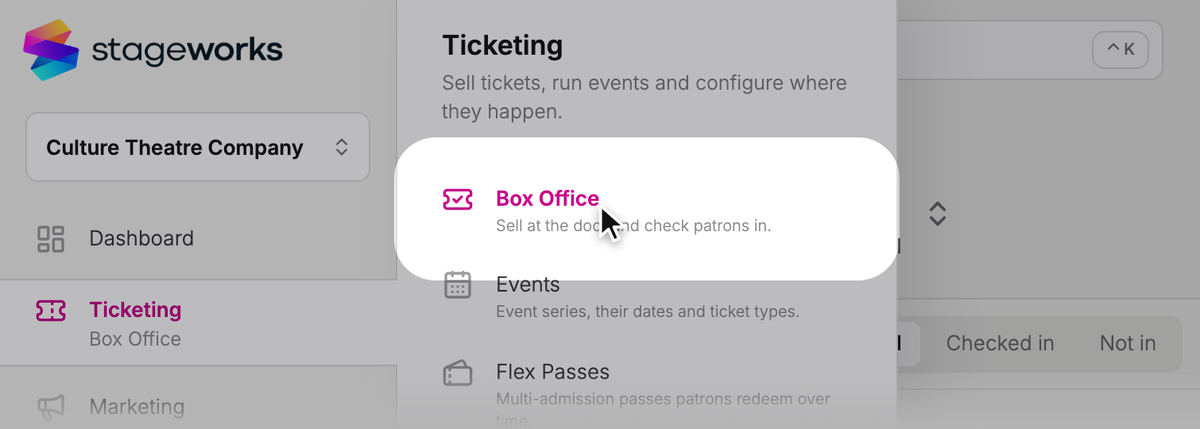
In the sidebar, click Ticketing, then Box Office.
- Step 2:
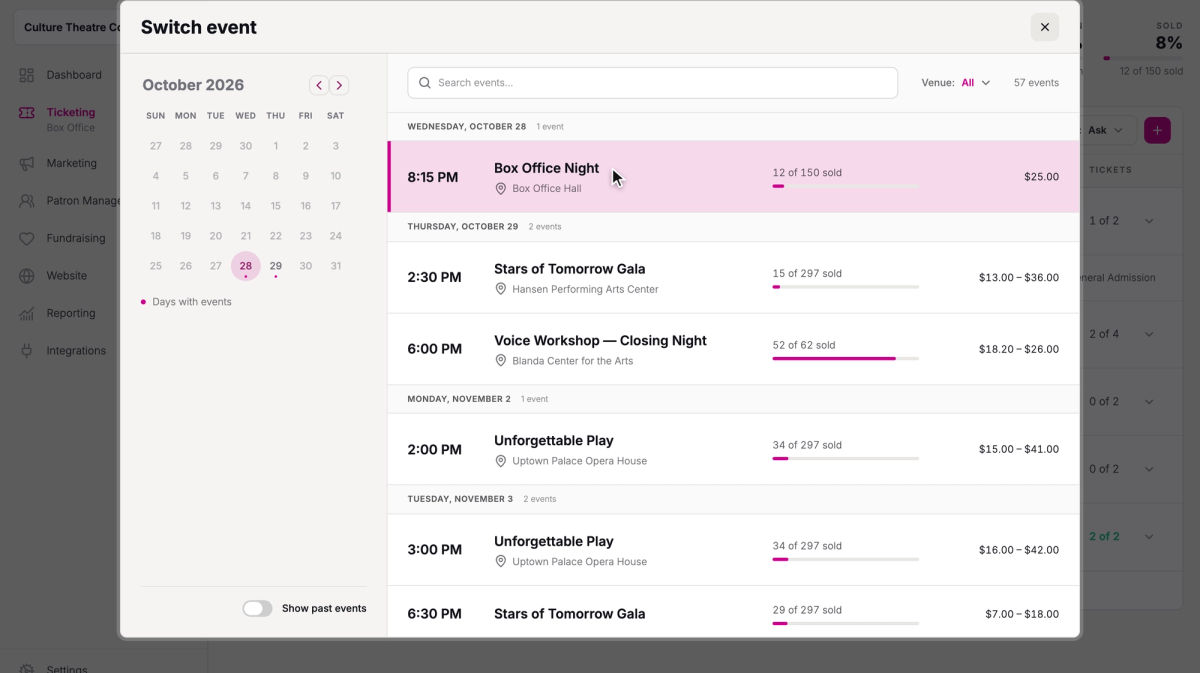
The box office opens on the performance that's on right now, or the next one. To work a different performance, click its name at the top of the page.

- Step 3:
In Switch event, click the performance in the list.
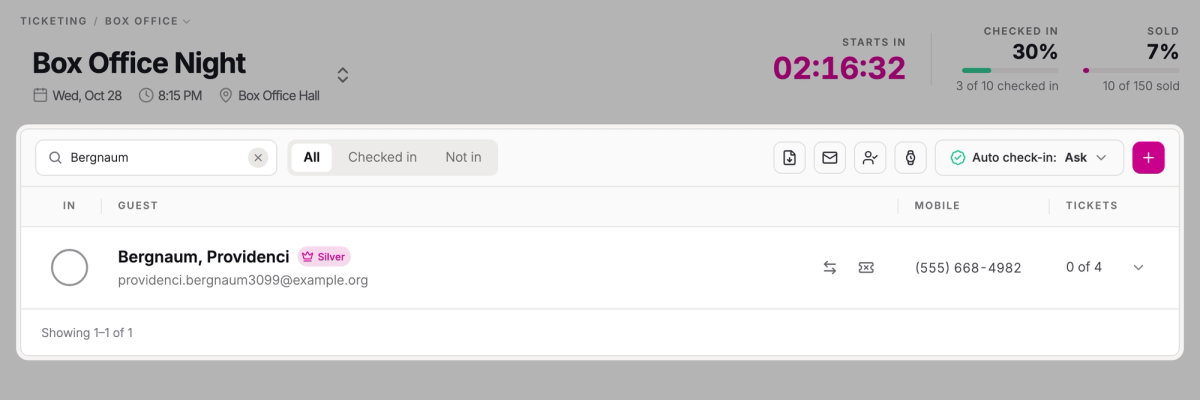
At the top, you'll see a countdown to the start of the show, how many guests are Checked in, and how many tickets are Sold out of your capacity.
If your internet drops, a Connection lost icon appears beside the event's name. Check-ins from other devices won't show until it's back. If it doesn't clear once you're back online, reload the page.
Check in guests
- Step 1:
Type the guest's name or email in Search guests….
- Step 2:
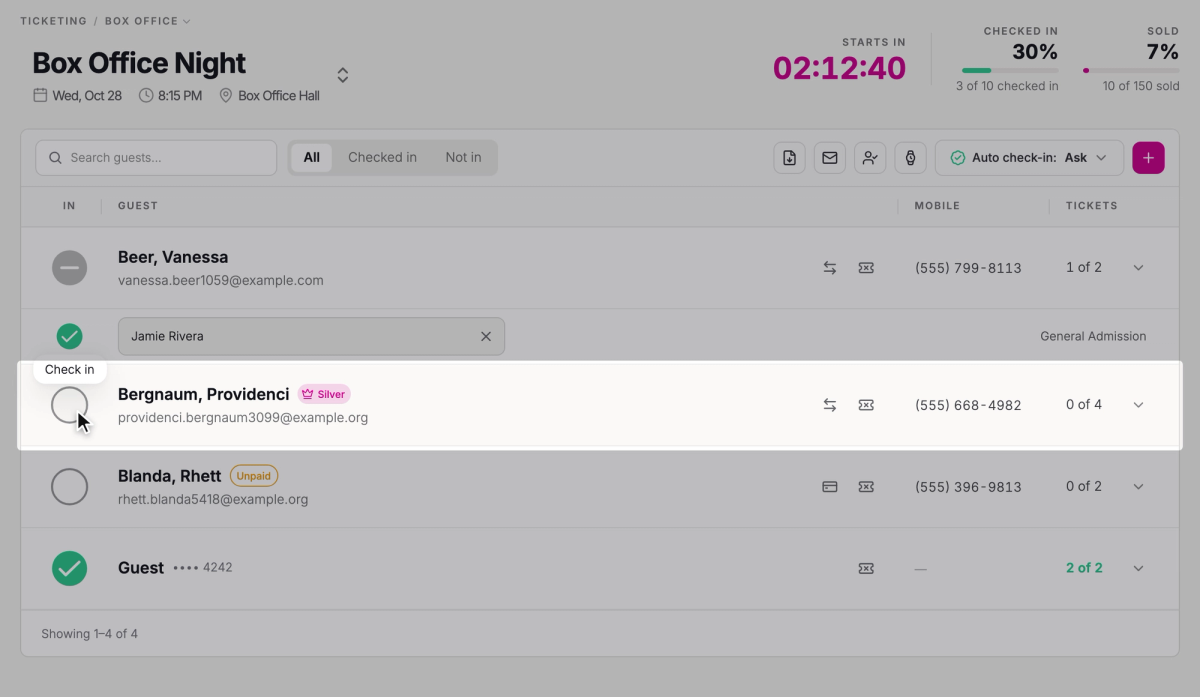
Click the circle in the guest's In column. It fills in with a check once they're in.
- Step 3:
If you see How many guests are checking in?, it starts at everyone in the party who isn't in yet. If only some of them have arrived, click − until the number's right, then click the Check in button, like Check in 2.
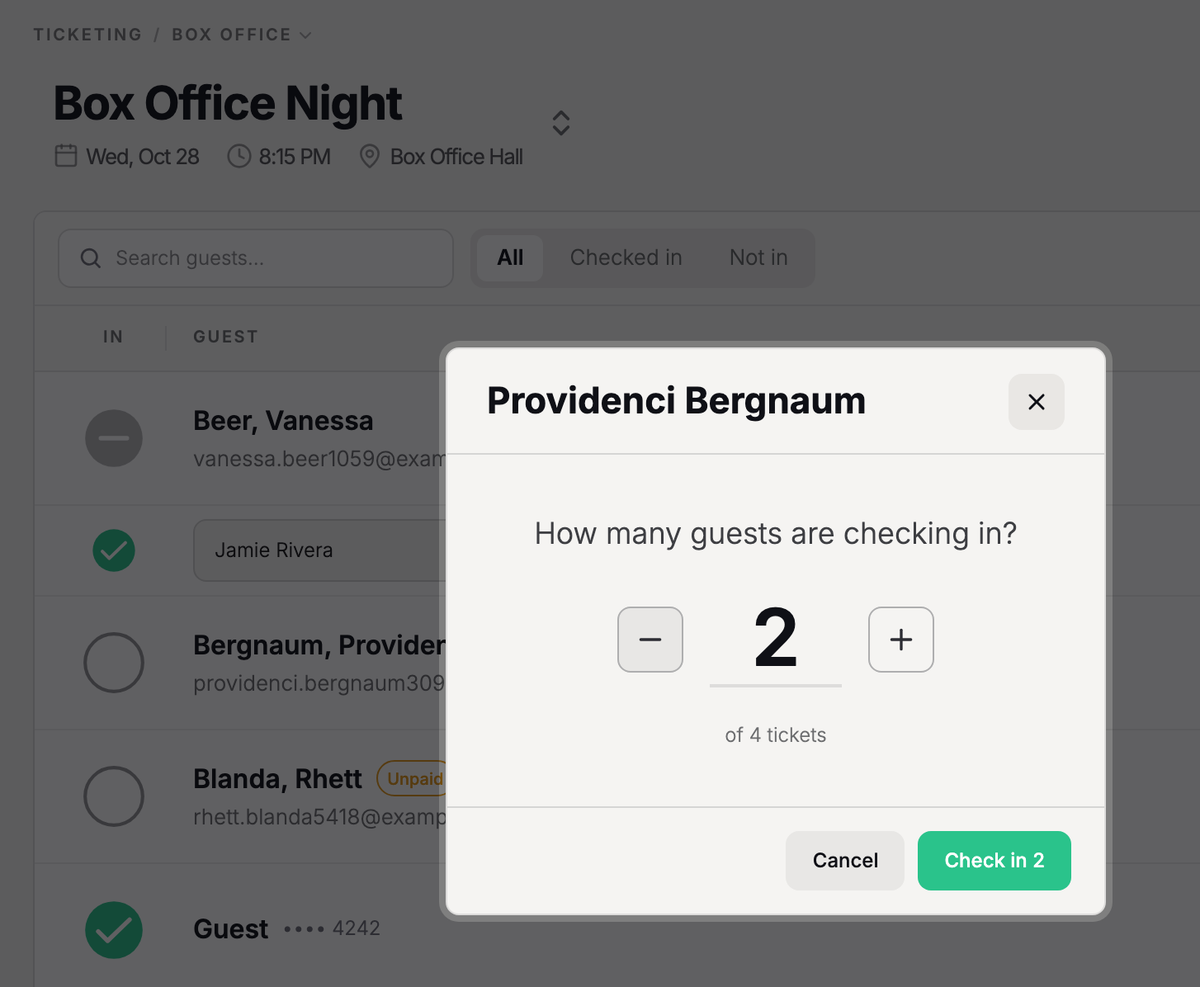
The Tickets column shows how many of the party are in, like 2 of 4, and turns green once everyone is. When the rest of the party arrives, click the circle again to check them in.
To check in a particular ticket, click the guest's row. It opens one line per ticket, each with its own circle.
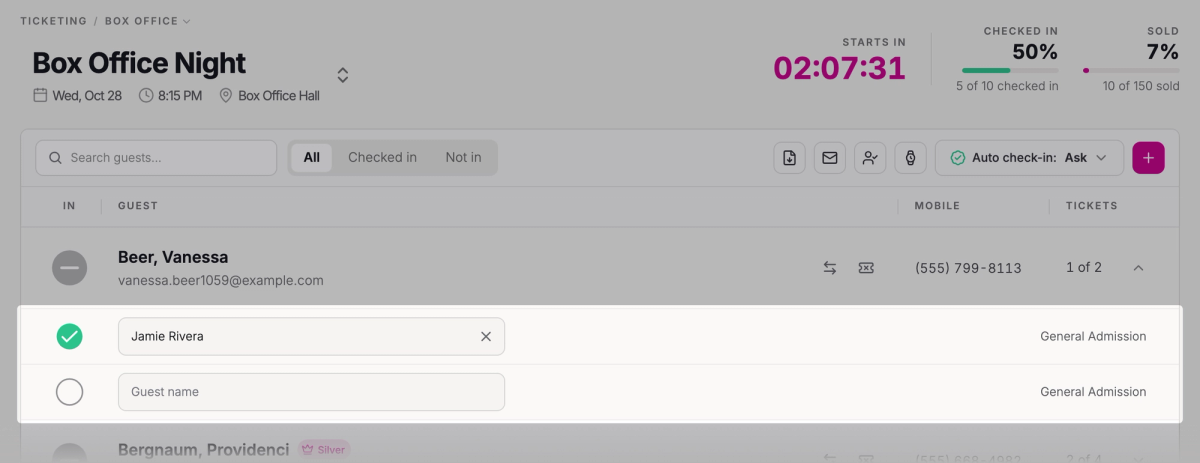
Checked someone in by mistake? Open their row and click that ticket's circle again to undo it.
See who's still to come
Use the tabs beside the search: All, Checked in, and Not in. Not in includes parties that are only partly in.
Working the door with others
Check-ins show up on your other computers and in the Stageworks app as they happen, so several people can check in guests for the same show at once. For volunteers who don't have a Stageworks login, see Give temporary staff an access code.
Guests who still owe
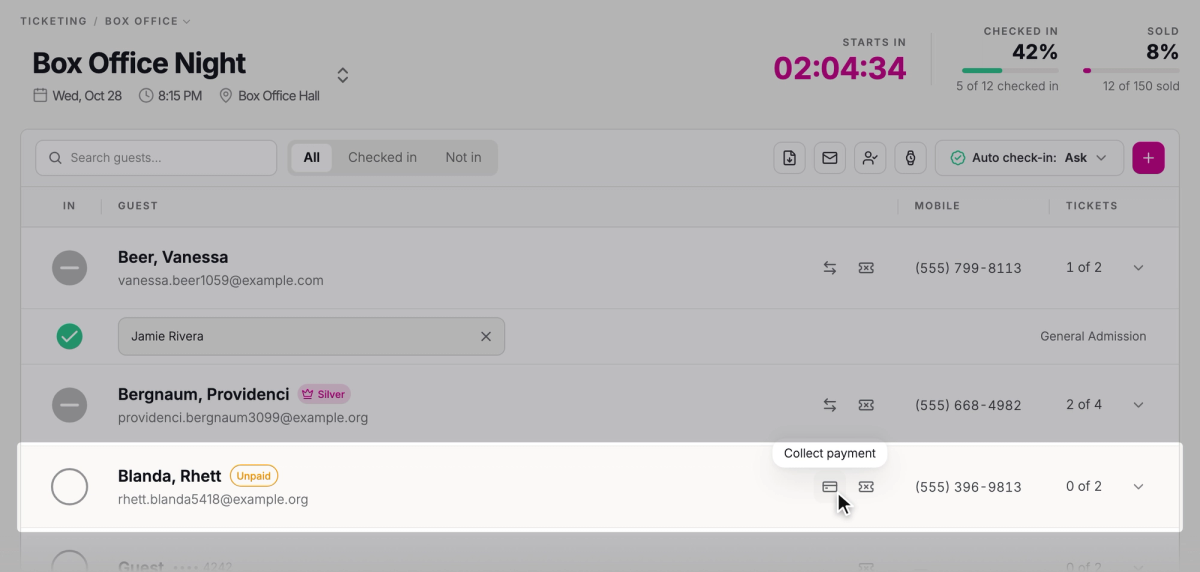
A guest whose tickets were reserved without payment shows Unpaid beside their name. They pay at the door before you check them in.
- Step 1:
Click the card icon (Collect payment) on the guest's row, or click their circle. Either one opens Complete payment.
- Step 2:
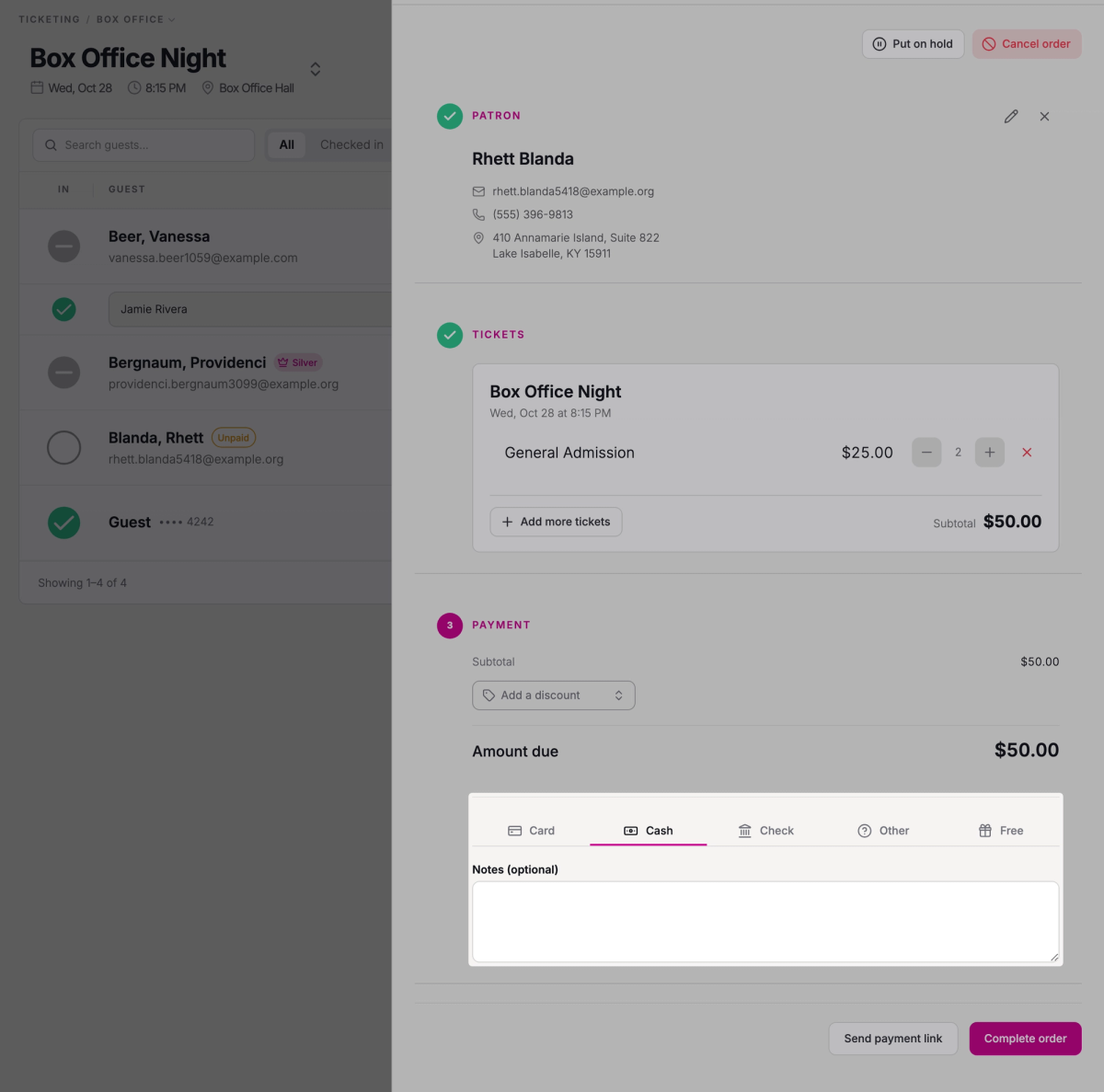
Choose how the patron is paying: Card to type in their card details, or Cash, Check, or Other.
- Step 3:
Take the payment, then click Complete order.
- Step 4:
Paying doesn't check the guest in, so click their circle again to check them in.
To sell tickets to someone who walks up without any, see Sell tickets at the door.
Tip: print a backup guest list
If the internet might be unreliable where you are, like an outdoor show in a park, print your guest list before the doors open.
- Step 1:
Click Print Guest List above the guest list.
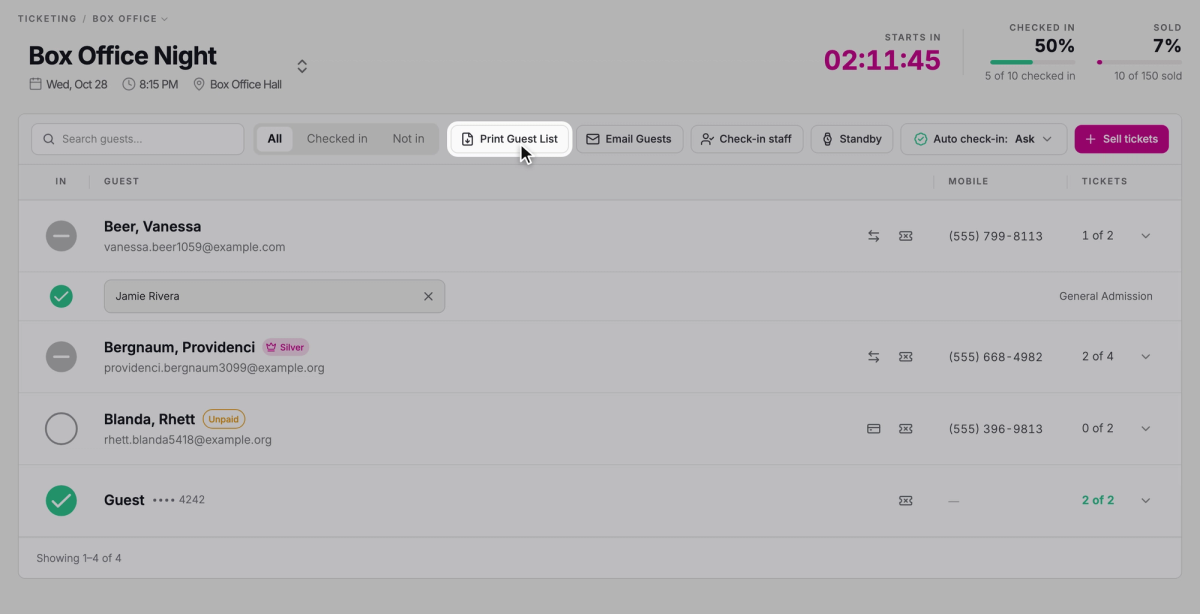
You'll get a PDF of your guests and their tickets, ready to print. It's a snapshot of the moment you print it, so print it close to opening.
Troubleshooting
"No upcoming events"
The box office opens for an event that's coming up or has just started. Add a date to your event, then open the box office again. If you're just getting started, see Create your first event.
"Check-in failed"
The guest wasn't checked in, usually because the internet dropped. Check your connection and click the circle again.
Was this article helpful?

Box office: check in guests and sell tickets at the door
How the Stageworks box office works on the web and in the app, who can work your door, and which card reader suits your venue.
Check in guests with the Stageworks app
Check guests in at the door from an iPad, iPhone, or Android device, by name or by scanning their ticket.
Give temporary staff an access code
Let volunteers and door staff check in guests for one event in the Stageworks app, with a 6-digit code instead of a Stageworks login.
Sell tickets at the door
Sell tickets to walk-up patrons from the web box office or the Stageworks app, and take payment by card reader, cash, or check.
Set up a Wi-Fi card reader
Register a Stripe Wi-Fi card reader to your venue, then use it to take card payments at the door, on the web and in the Stageworks app.
Connect a Bluetooth card reader
Connect a Stripe Reader M2 to the Stageworks app on your iPad or phone, then take card payments with it at the door.