
Start a blog and write your first post
Add a blog to your website, write and publish your first post, show your posts on other pages, and let your team write too.
A blog gives your website a home for news, announcements, and behind-the-scenes stories. Here's how to create one, publish your first post, show your posts on other pages, and let your team write too. Let's get started!
Before you start
Create a blog
- Step 1:
Click Website in the sidebar, then Blogs.
- Step 2:
Click New blog.
- Step 3:
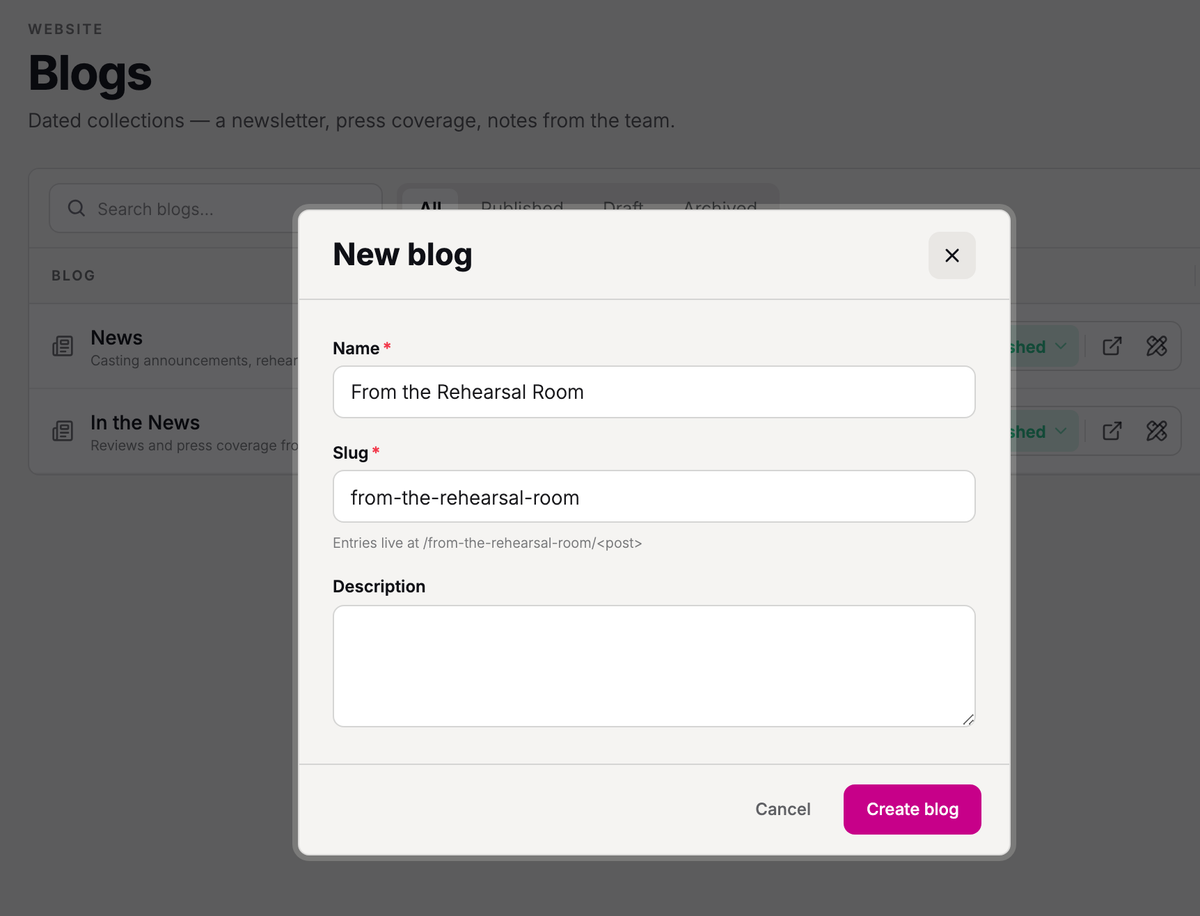
Type a Name, like "News" or "From the Rehearsal Room". The Slug, which sets your blog's address, fills in as you type.
- Step 4:
Add a Description if you'd like. Search engines can show it with your blog's main page.
- Step 5:
Click Create blog.
A blog with the slug "news" lives at /news, and its posts' addresses start with it.
Your blog opens on its Posts tab as a Draft, so visitors can't see it yet. You'll publish it with your first post.
Write your first post
- Step 1:
On your blog's Posts tab, click New post.
- Step 2:
Type a Title.
- Step 3:
Under Author, choose who wrote it. You're already selected.
- Step 4:
Under Image, click Choose image and pick one from your image library, or upload a new one.

- Step 5:
Click Create post.
The post opens in the page editor as a Draft, dated today. Its address comes from the title and stays put if you change the title later.
Write the post
Your post is already laid out for you: click a part of the page to change it.
- Step 1:
Change the title.
- Step 2:
Click "Add a short description", under the image, and write a sentence or two to introduce the post. This introduction also shows with the post on your blog's main page.
- Step 3:
Click into the body below it and write your post.
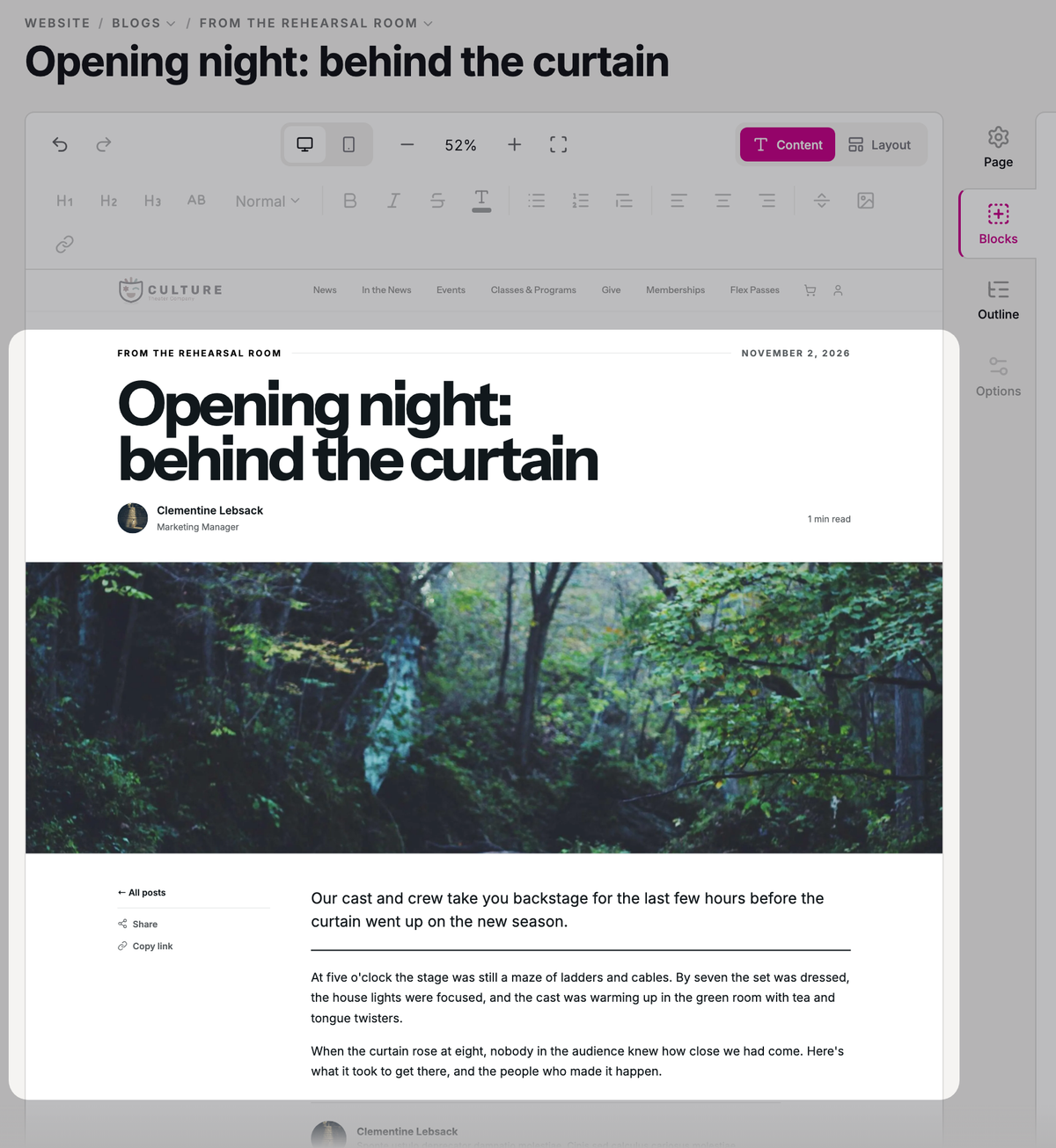
The body can hold images, video, and anything else your other pages can.
Readers see the date at the top of the post, and your posts are sorted by it. To change it, click the date and change Date on the Options tab. Changing it doesn't schedule the post.
Your byline
Click the byline and open the Options tab. Under Author, the author's job Title (like "Artistic Director"), Bio, and Author photo come from their profile in Settings → Team, and changing them here changes this post only. The bio shows in the author card at the end of the post; with no bio, there's no card.
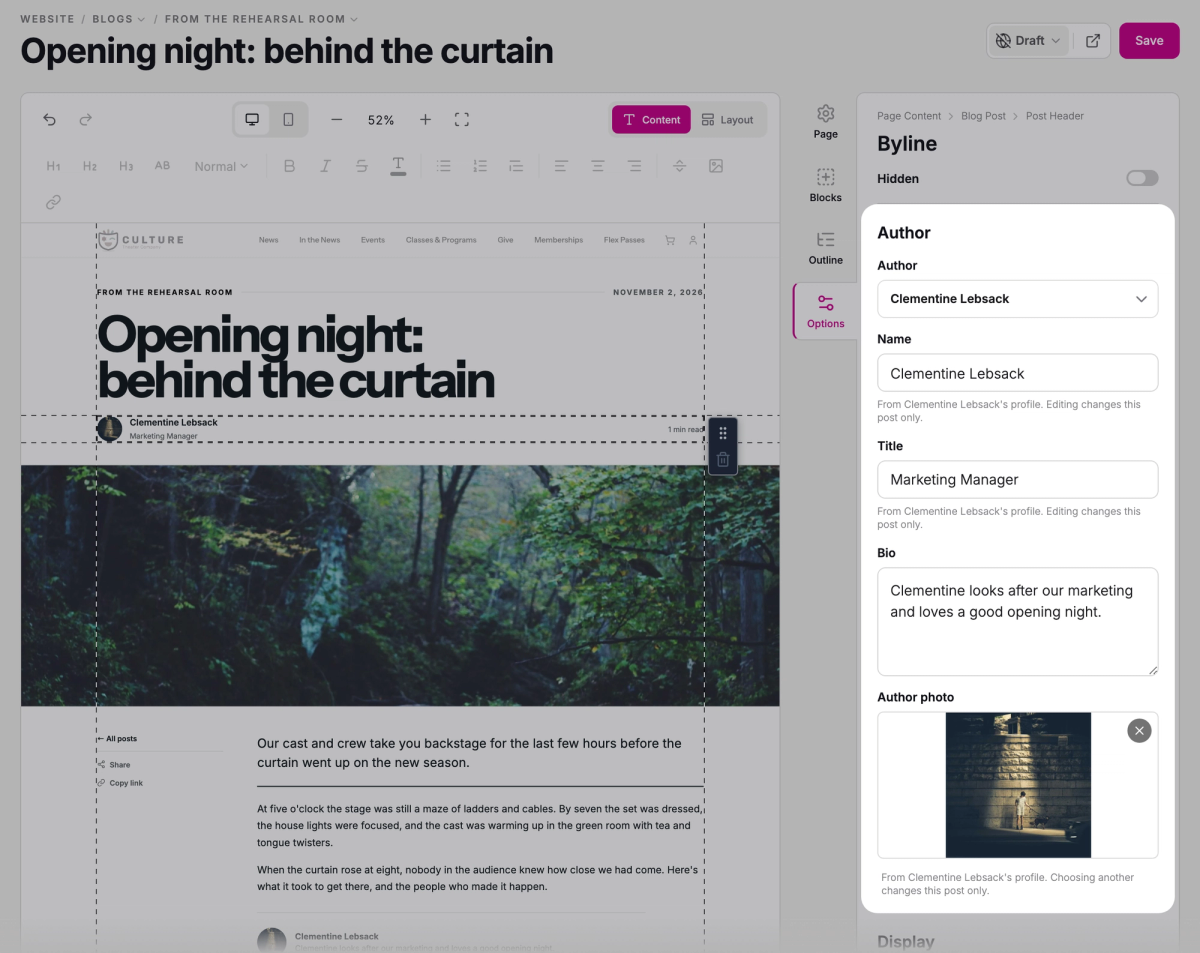
For a guest writer, choose No author (or a guest) under Author and type their Guest name.
If you change your own title, bio, or photo, saving asks Save these details to your profile? Click Save to my profile to use what you typed on your future posts too, or Just this post. Either way, the post is saved.
Save your post
Click Save, at the top of the editor. You'll see "Changes saved": your edits are on the post's page, but a new post stays a Draft, hidden from visitors, until you switch it to Published below.
Publish your post and your blog
Visitors can only see a post when both the post and its blog are Published, so the first time, you'll publish them together.
- Step 1:
At the top of the editor, click Draft, then choose Published.
- Step 2:
In Publish the blog too?, click Publish post and blog.
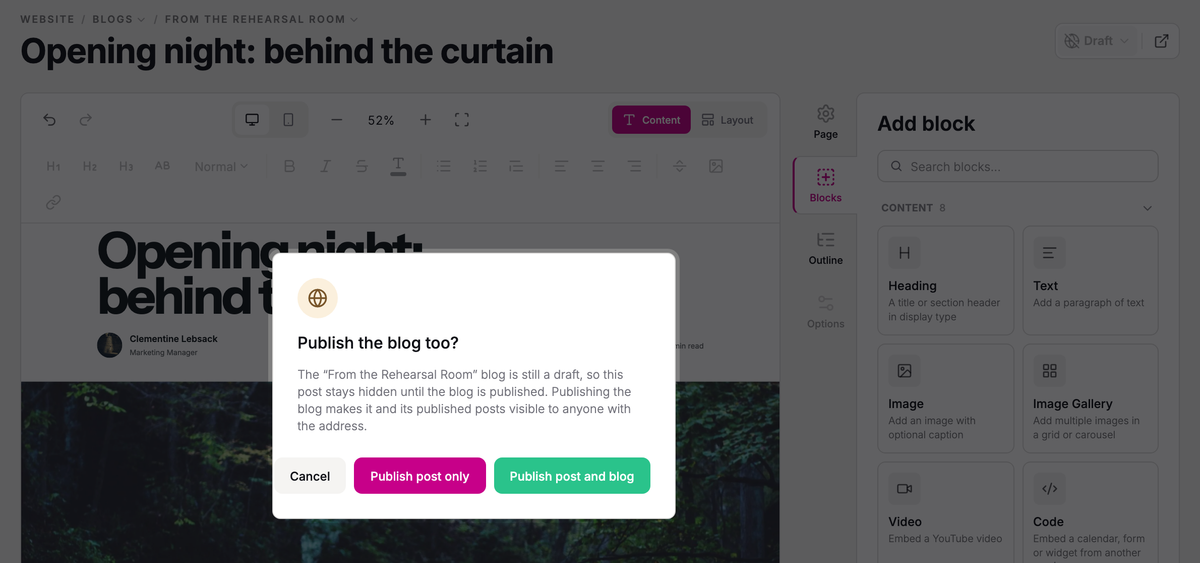
Publish post only keeps the whole blog hidden, which is handy for writing a few posts before you launch. Those posts show Blog is a draft until you publish the blog.
To publish or hide the blog on its own, click its status on the Blogs list, or at the top of the blog once you open it. Unpublishing a blog takes it and its posts off your site, but deletes nothing.
What visitors see
Your blog's main page shows your newest post at the top and earlier posts below it. Once your blog is published with a published post, it's added to your site's menu.
Show your posts on other pages
To show your posts on any page, like your home page, add one of these blocks from the Listings category on the page editor's Blocks tab (see Edit a page and publish your changes):
- Featured Blog Post shows one post at headline size: the newest, unless you choose one under Entry.
- Blog Posts lists your posts, newest first, as a Blog roll, Grid, or List.
Both show posts from the blogs you choose under Draw from; leave it empty for all your published blogs.
Look after your blog
Rename it or change its address
- Step 1:
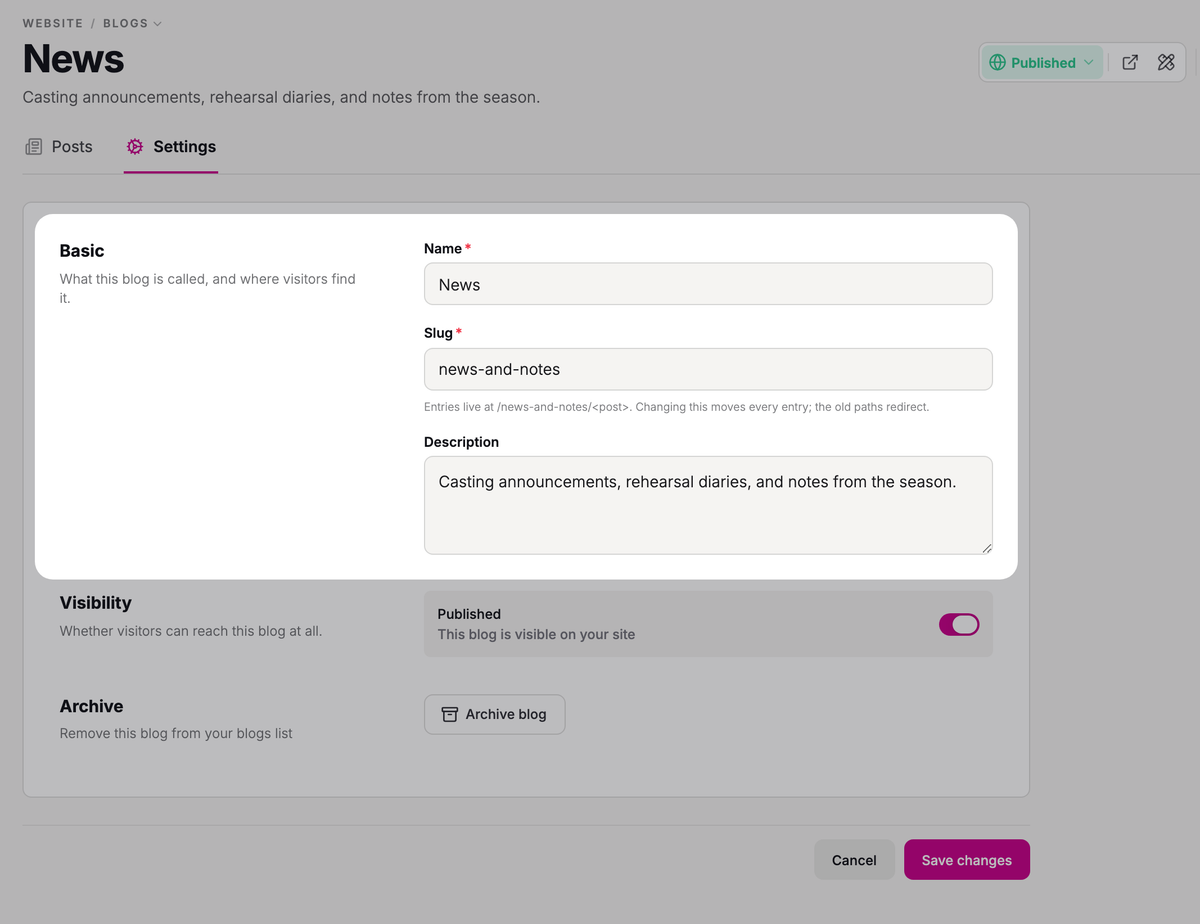
On the Blogs list, click your blog, then the Settings tab.
- Step 2:
Change the Name, Slug, or Description.
- Step 3:
Click Save changes.
Changing the slug moves your blog and every post to new addresses, and the old addresses redirect to the new ones, so existing links keep working.
Archive or restore a blog
To archive a blog, click Archive blog on its Settings tab and confirm. It moves to the Archived tab of your list, but a published blog stays on your site unless you check Also unpublish the page. Blogs can't be deleted, so archiving is how you put one away.
To bring it back, open it from the Archived tab, go to Settings, and click Restore blog.
Hide or delete a post
On your blog's Posts tab, click a post's status in the Web page column and choose Draft to take it off your site, or Published to put it back, then confirm.
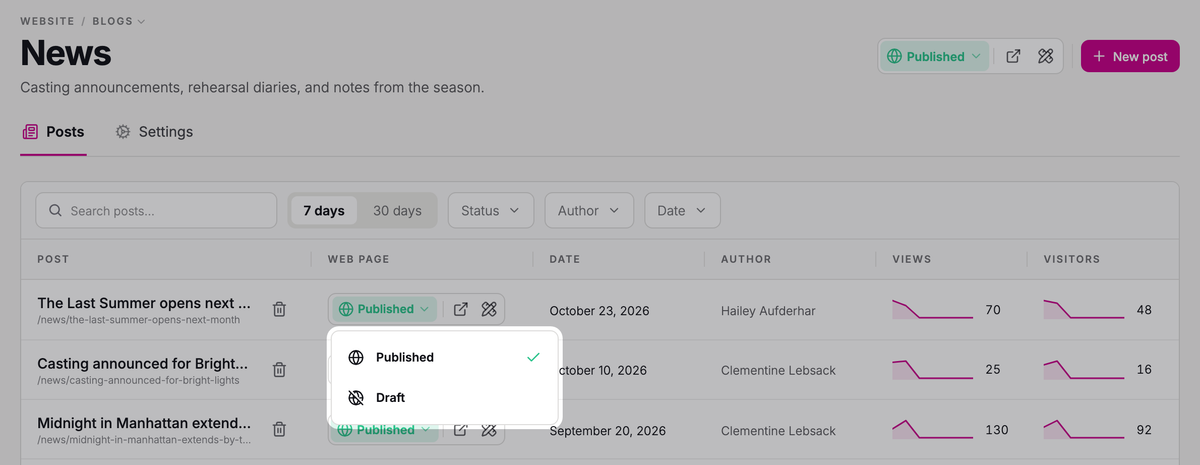
Pending changes means edits saved but not yet published. Switching a post to Published doesn't publish them: choose Publish changes from the same menu.
To remove a post for good, choose Delete post on its row and confirm. This can't be undone.
Let your team write posts
To let someone write posts, give their role the Write and publish blog posts permission in Settings → Team. It includes adding pictures to their posts, from your image library or by uploading new ones.
Writers find your blogs under Website → Blogs, or through Write a blog post on their dashboard. There they can write, publish, hide, and delete posts. They can't create, publish, or archive a blog, or change its settings, so create the blog for them first. Their posts in a Draft blog stay hidden until you publish the blog.
Troubleshooting
"Couldn't create the blog"
Most likely, another page or blog already uses that address. Change the Slug and try again.
SuggestedYour Stageworks websiteGet the big picture of your website and where each part of it is set up.Was this article helpful?