
Add a page to your website
Create a new page on your Stageworks website, publish it, add it to your menu, and archive or delete it when it's no longer needed.
Your website comes with pages for your events, giving, and passes, and you can add your own: an About page, a Visit Us page, a page for your season sponsors. Here's how to create a page, fill it in and publish it, add it to your menu, and tidy it away later. Let's get started!
Create the page
- Step 1:
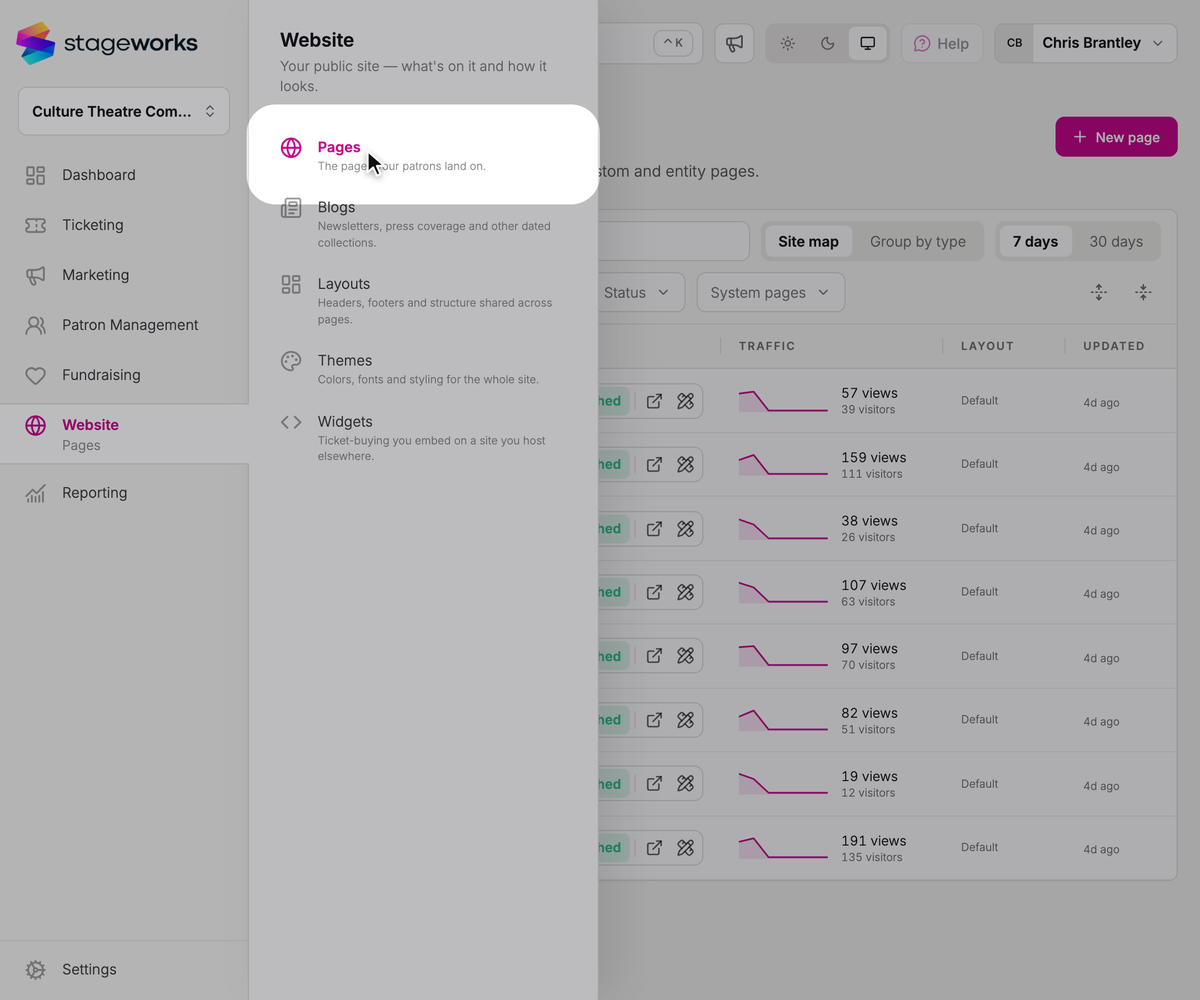
In the sidebar, click Website, then Pages.
- Step 2:
Click New page.
- Step 3:
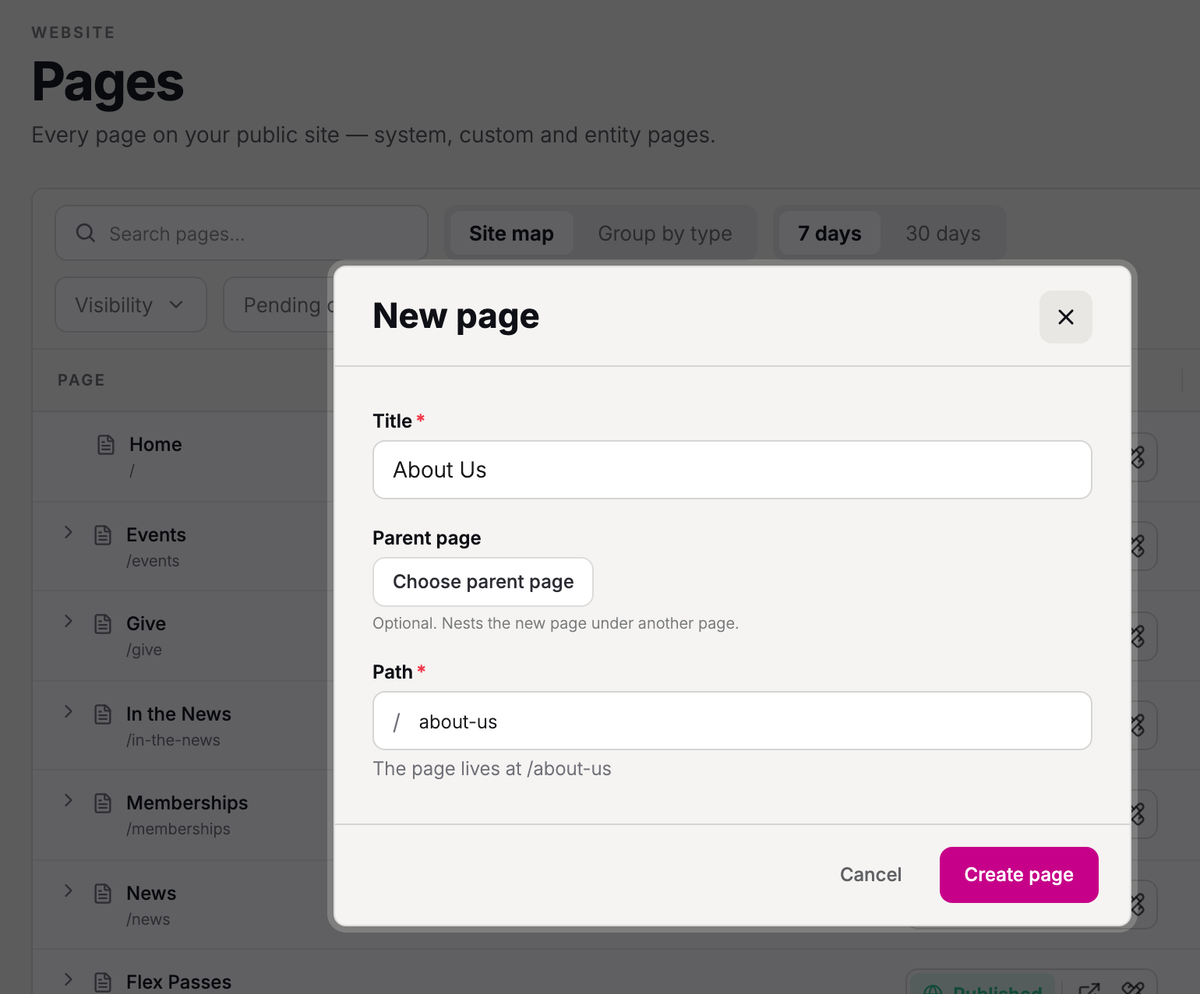
Enter a Title, like "About Us". The Path, the end of the page's web address, fills in as you type: "about-us" makes it yoursite.com/about-us.
- Step 4:
To put the page's address under another page's, like /about-us/our-history, click Choose parent page and pick it. Skip this for a page that sits at the top of your site.
- Step 5:
Check the Path: you can't change it once the page is created, and every page needs its own. Use lowercase letters, numbers, and hyphens, and keep it short and easy to read. The line under it shows the page's full address.
- Step 6:
Click Create page.
Build and publish it
Your new page opens in the editor, empty and set to Draft. Visitors who go to its address see a "page not found" page until you publish it, so you can take your time.
- Step 1:
Add your content by dragging blocks, like Text and Image, from the Blocks tab beside the page.
- Step 2:
Click Save. While the page is a Draft, your edits are saved straight away, and you'll see "Changes saved".
- Step 3:
At the top of the editor, click Draft and choose Published.

- Step 4:
Click Publish to confirm.
You'll see "Page published", and anyone with the address can now visit the page.
SuggestedEdit a page and publish your changesEverything about the editor: adding and arranging blocks, page settings, and saving changes to a live page.Add it to your menu
Your site's sections, like Events and Give, join your menu once they have something published. A page you add won't appear there until you add a link to it. Publish the page first, or visitors won't see its link.
Your menu sits in the header, part of your layout: the header, footer, and page width your pages share. You edit it on the editor's Layout tab, and a change shows on every page that uses that layout.
- Step 1:
In the editor, click Layout above the page.
- Step 2:
On the Outline tab, click Navigation, your menu, under Site Header. Then open the Options tab.
- Step 3:
Under Links, hover your mouse where you want the new link and click the plus sign that appears.
- Step 4:
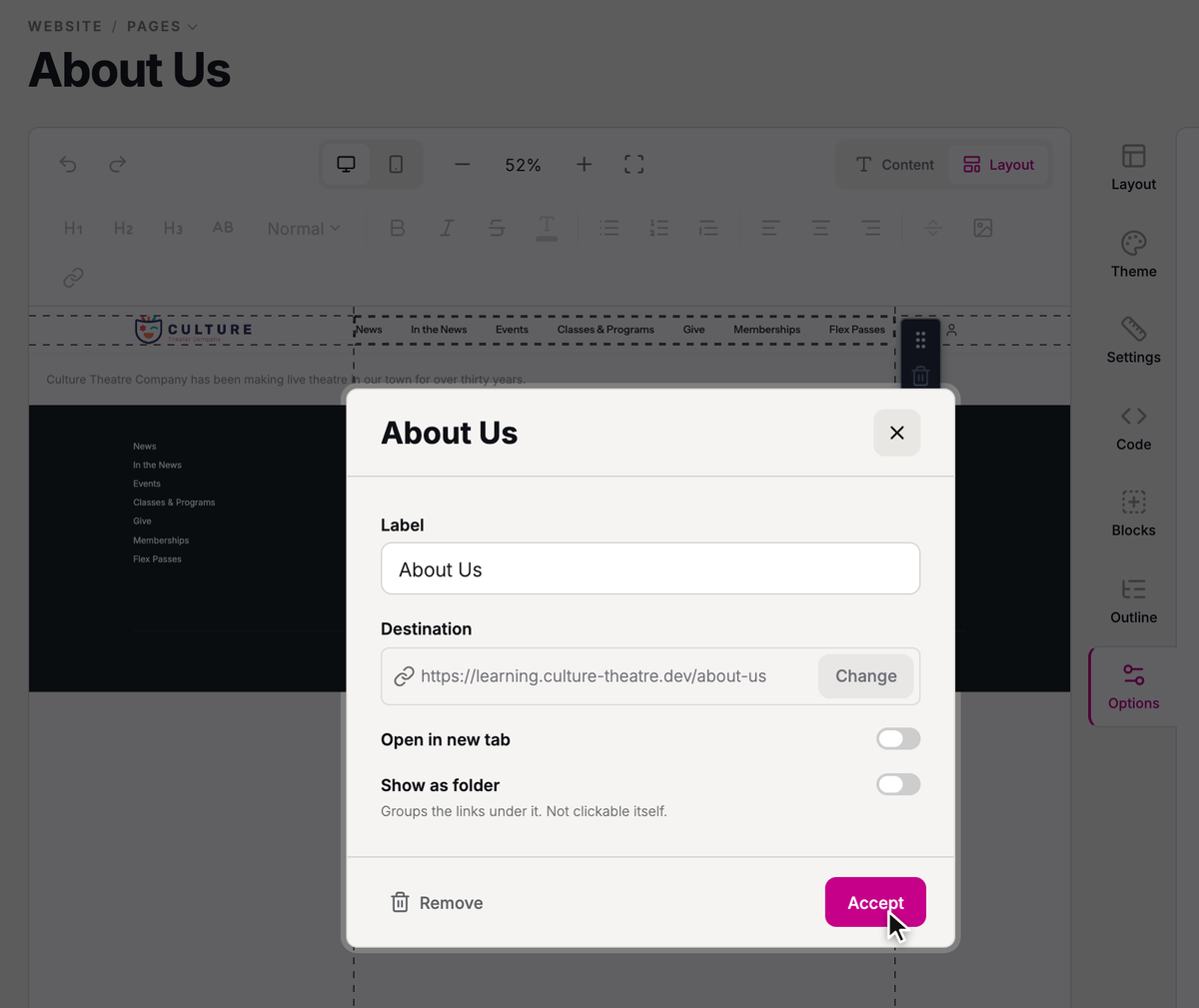
Type a Label, click Choose destination, pick your new page, and click Accept.
- Step 5:
Click Save, then Save & publish to put the link live.
Archive, restore, or delete a page
When a page has done its job, archive it. Archiving takes it off your list of pages and keeps it, path and all, in case you want it back.
- Step 1:
On the Pages screen, click Archive in the page's row.
- Step 2:
If the page is published, check Also unpublish the page to take it off your site too.

- Step 3:
Click Archive page.
To find your archived pages, click Status above the list and choose Archived pages.
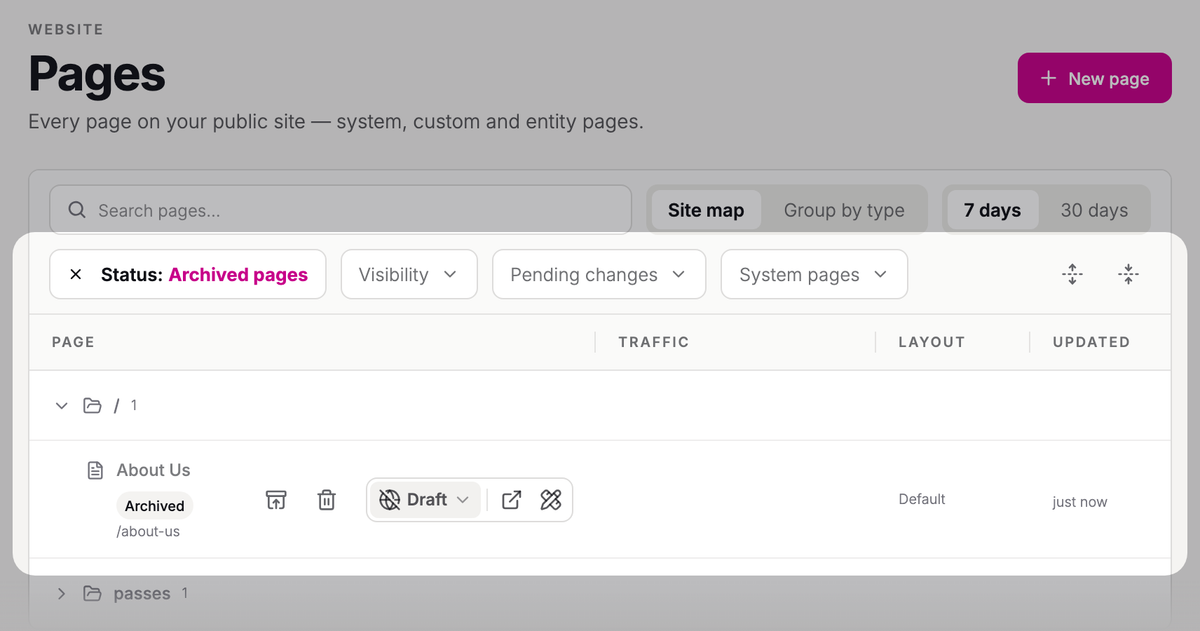
From there, click Restore in a page's row, then Restore page, to put it back on your list. It comes back published or unpublished, just as you archived it.
To get rid of an archived page for good, click Delete permanently in its row, then Delete page. This deletes the page and everything on it, and it can't be undone.
You can't archive or delete your homepage, section pages like Events and Give, or the pages for your events, campaigns, and passes.
Troubleshooting
"Use lowercase letters, numbers and hyphens, with / between parts"
The Path has a capital letter, a space, or another character, or part of it starts or ends with a hyphen. Change it to something like "visit-us", then click Create page again.
"/events" is a reserved path and cannot be used
Your path starts with a word Stageworks already uses for its own pages, like events, give, passes, memberships, cart, or checkout. Choose a different path, like "our-events", or put the page under a parent page of your own.
Was this article helpful?
Your Stageworks website
What's on your Stageworks website from day one, how its pages, layout, and theme fit together, and where to go to change each one.
Edit a page and publish your changes
Change what's on a page of your website, check it on your site, and publish it when it's ready.
Make your website look like your brand
Set your website's colors, fonts, corners, and spacing with a theme, check it's easy to read, and put it on your site.
Edit your site's header, menu, and footer
Set up the logo, menu, and footer that appear on every page of your Stageworks website, then publish them in one go.
Show events, campaigns, and passes on a page
Add listing blocks to a page of your website to show your published events, campaigns, memberships, and passes, or to feature one show.