
Let patrons sign up for your emails
Choose the list website signups join, add a signup form to any page, and see how patrons manage the emails they get from you.
Patrons can join your mailing lists right from your website. Here's how to choose the list they join and add a signup form to any page, plus what patrons see when they want fewer emails. Let's get started!
Choose the list signups join
Your default list is the mailing list people join when they sign up on your website. Website signups join it, unless a signup block (a signup form you've added to a page) is set to a different list. So make one list your default before you share any signup forms. To create a list first, see Build your mailing lists.
- Step 1:
In the sidebar, go to Marketing → Mailing Lists and click the list you want new signups to join.
- Step 2:
Click the Settings tab.
- Step 3:
Turn on Default list.

- Step 4:
Click Save changes.
Lists you've marked Internal list on the same tab, like a staff or board list, never appear on signup forms or on the page where patrons manage their emails.
To see who's signed up, open the list's Contacts tab, where website signups are marked Signed up. They're mailing list contacts, and a contact on a list isn't automatically a patron (patrons are the people in your patron list: anyone who's bought tickets, donated, or registered). So to reach all your signups, send to the list, not All patrons (marked Everyone in the picker).
Where patrons sign up
Patrons can sign up in a few places:
- Your site's footer. If your footer has a signup form (it's headed Stay in the loop unless you've changed it), patrons just type their email and click Subscribe. It always adds them to your default list.
- A signup block on a page. You can add the same kind of form to any page, like your homepage or a season announcement. See below.
- The Subscribe page. Every Stageworks site has one: your website's address followed by /subscribe. Patrons enter their email, and their name if they like, then choose which of your lists to join. Your default list is the box that's already checked, labeled with your organization's name, and your other lists appear under More ways to stay connected:.
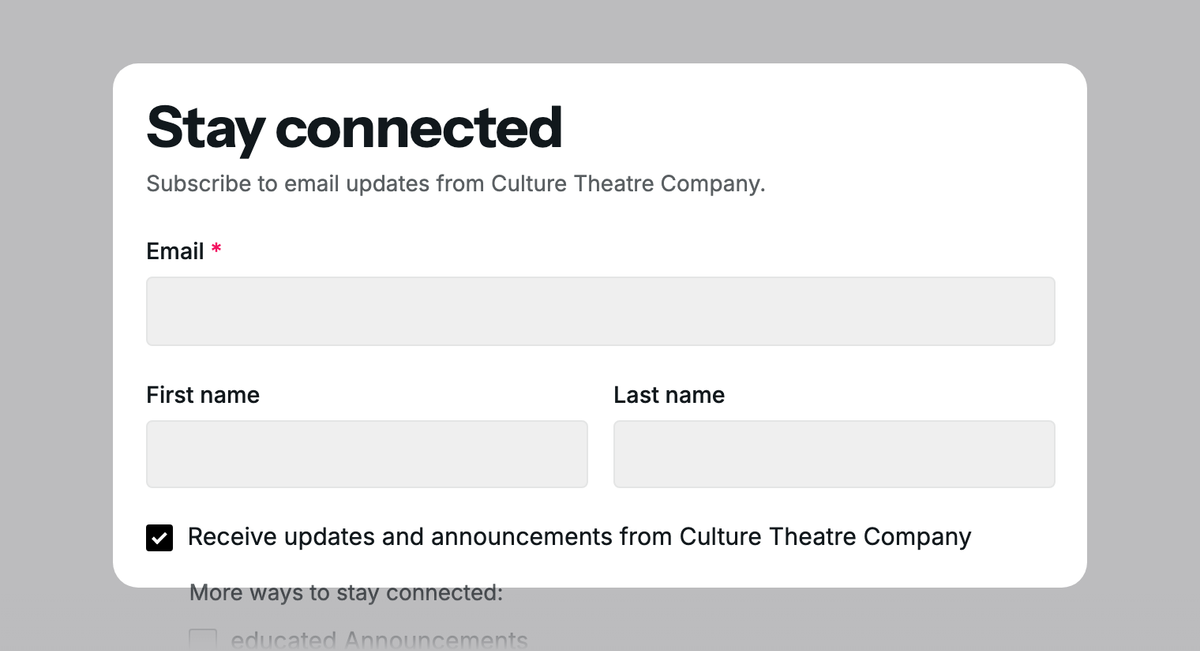
Patrons who opt in to your emails at checkout or in their account join your default list too.
Signups take effect right away, with no confirmation email for patrons to click first.
Add a signup block to a page
- Step 1:
In the sidebar, go to Website → Pages and open the page you want the form on.
- Step 2:
On the Blocks tab, drag Email Signup onto the page where you want the form.
- Step 3:
The block's settings open on the Options tab. Under Email signup, reword the Heading, Description, Button, or Success message (what patrons see after signing up) if you like.
- Step 4:
Under Mailing list, choose the list signups join in Join: your default list (it reads like Default list (Season Subscribers)) or one of your other lists.
- Step 5:
Click Save, then Save & publish.
A block pointed at another list adds signups to that list only. That's handy for a form on a specific page, like a volunteer signup on your gala page.
The welcome email
Stageworks sends a welcome email to each new subscriber who signs up on your website, right after they sign up. It's on to start, and you can turn it off under Settings → Email, on the Automated Emails tab.
How patrons manage their emails
Every Text and HTML email ends with Unsubscribe and Email Preferences links.
- Unsubscribe stops all your marketing email to that address, though receipts and tickets still arrive. The page it opens also offers Manage email preferences for anyone who wanted fewer emails.
- Email Preferences shows your lists. Patrons check the ones they want and click Save preferences, or click Unsubscribe from all. Leaving one list keeps the others coming.
Someone who unsubscribed from all your email can sign up again, and that counts as their consent. A patron set to No marketing in Stageworks still won't get marketing email after signing up, though, until you change it on their profile.
SuggestedPatron communication preferencesChange what a patron receives yourself, like when they ask you to stop sending marketing email.Troubleshooting
"Choose at least one list to subscribe to"
A patron sees this when the form has no list to join: you don't have a default list, or the block's list was archived. Make a list your default, or open the block and choose another list under Join.
Was this article helpful?
Email marketing in Stageworks
Email your patrons and your mailing lists from the same place you sell tickets, and see the ticket sales and donations each email brings in.
Build your mailing lists
Create mailing lists, add contacts by pasting their email addresses, and keep each list up to date as people come and go.
Import your contacts from another email provider
Bring your mailing list with you when you move to Stageworks, by importing a CSV of your subscribed contacts into one of your lists.
Choose who gets your email
Send a marketing email to a mailing list, a patron segment, all your patrons, or one person, and see how many people it will reach.
Write a marketing email
Write a simple Text email or design an HTML email from blocks, and use layouts so every HTML email looks like your organization.
Send or schedule a marketing email
Send yourself a test, then send your marketing email right away or schedule it for later, and pause, cancel or reuse it afterwards.
Track your email results
See how each marketing email did, from opens and clicks to the ticket sales and donations it brought in, and compare all your emails in one report.