
Add a ticket widget to your website
Put a Buy Tickets button, an event listing, or a calendar on your own website, styled to match it, so patrons can buy tickets from it.
Sell tickets right from your own website. Stageworks widgets put a Buy Tickets button, an event card, a calendar, or a full listing of your shows on any page you like, styled to match your site. Here's how to set one up, copy its code, and paste it on your site. Let's get started!
Before you start
You'll need to be able to add code to a page on your website. Most site builders have a block for it, called something like Embed, Code, or Custom HTML.
Widgets show published events, so publish the event you want to sell first.
Set up your widgets on a computer, since the preview doesn't show on smaller screens.
Choose and set up a widget
We'll set up a Buy Tickets Button for one show. Other widgets work much the same way.
- Step 1:
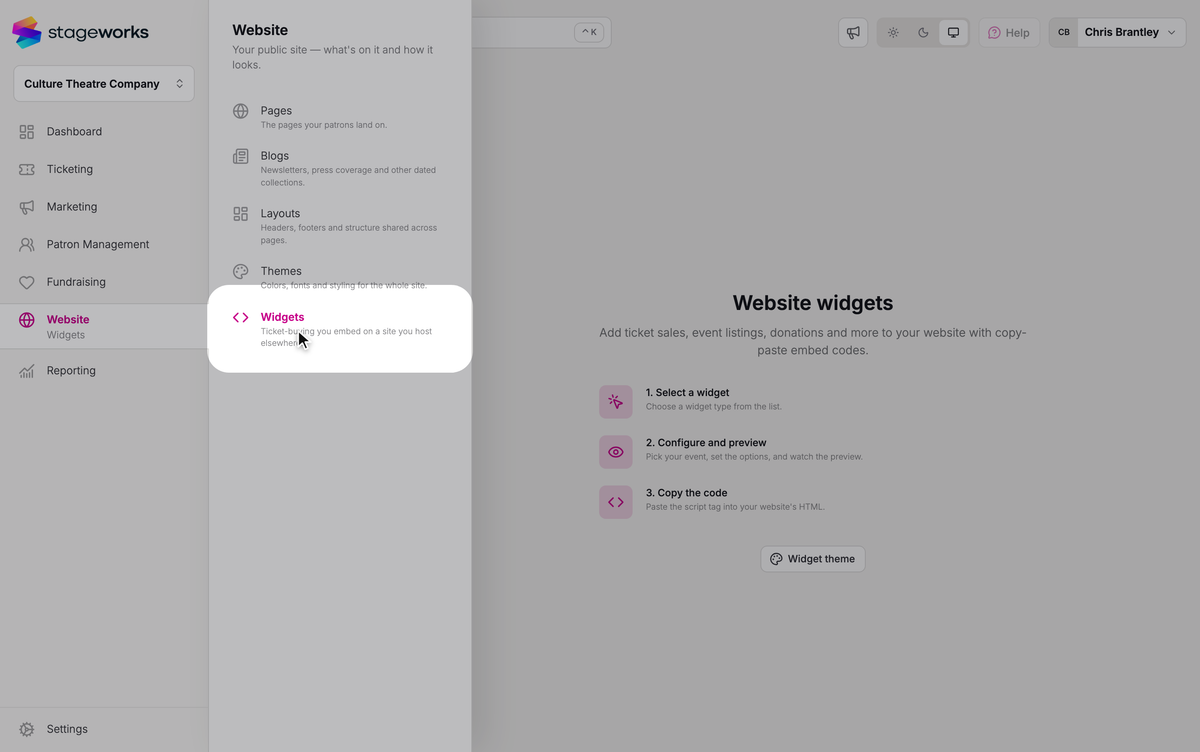
In the sidebar, click Website, then Widgets.
- Step 2:
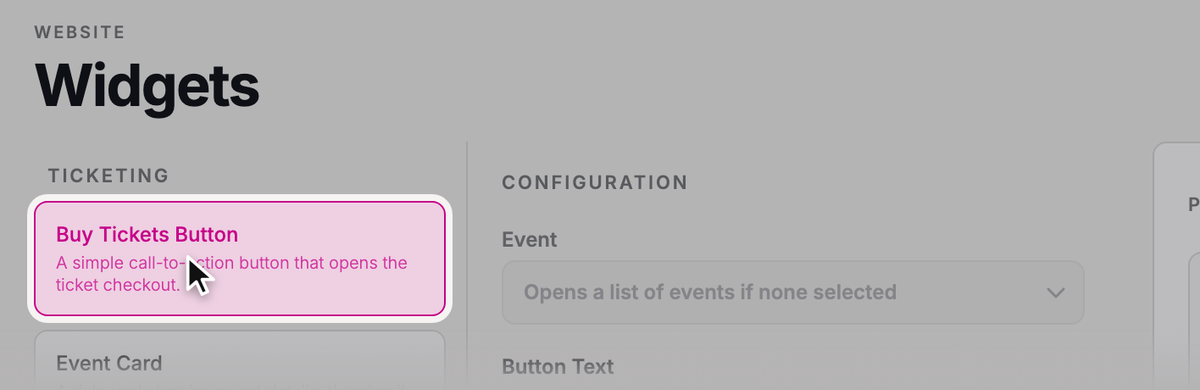
In the list of widgets, click Buy Tickets Button.
- Step 3:
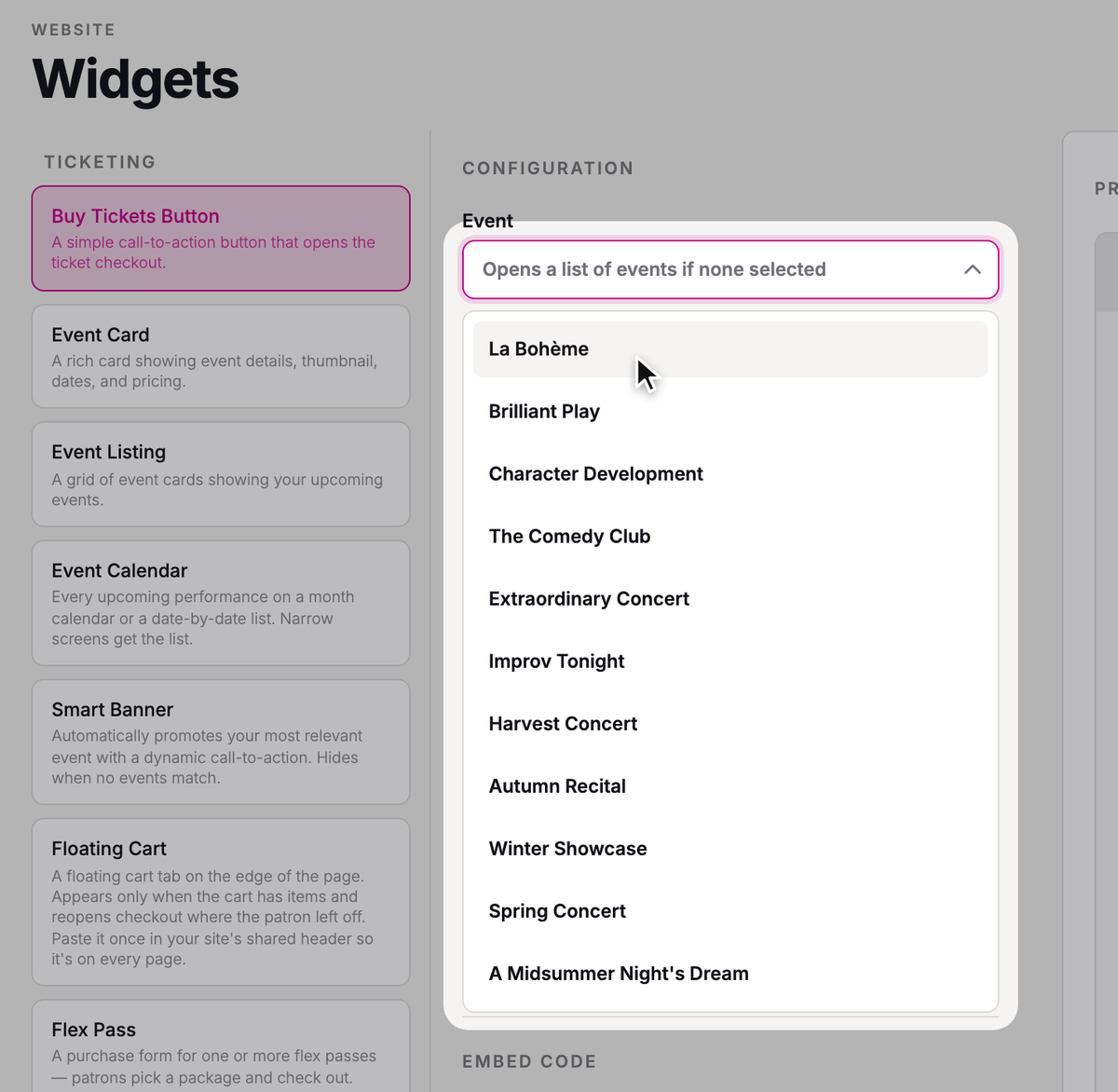
Under Event, choose the event this button sells.
- Step 4:
Change any other options you like, such as Button Text or Size. The Preview shows the widget on a sample page and updates as you go.

Widgets are grouped by what they do. Fundraising and Email widgets show only when Donations and Email marketing are turned on, in Settings → Organization.
Other widgets ask for different things. An Event Listing shows several upcoming events, so instead of one event you choose Max Events and a Layout.
Choose what the button does
Ticket widgets, like the Buy Tickets Button, Event Card, and Event Listing, have a Button Behavior setting that decides where patrons go when they click to buy.
Open checkout drawer is the default. On a computer, checkout opens in a drawer on the side of your page, and patrons buy their tickets without leaving your site. On a phone or tablet, tapping the button takes them to Stageworks' checkout page instead, and closing it brings them back to your page.
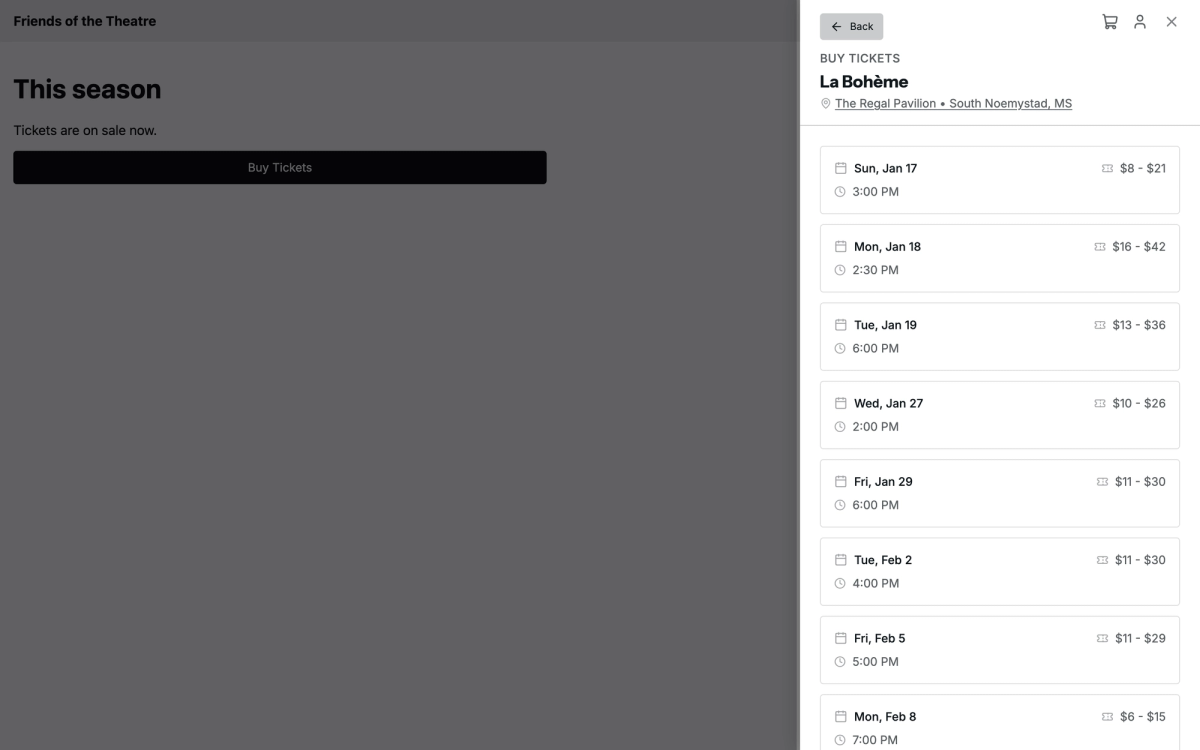
Go to event page takes patrons to the event's page on your Stageworks website, where they buy their tickets.
Go to event page in a new tab does the same, but on a computer it opens a new tab, so your page stays open behind it. On phones and tablets, the event page opens in the same tab.
With either event page option, you can turn on Open ticket selection immediately, so patrons go straight to choosing their tickets.
Copy the code and paste it on your site
- Step 1:
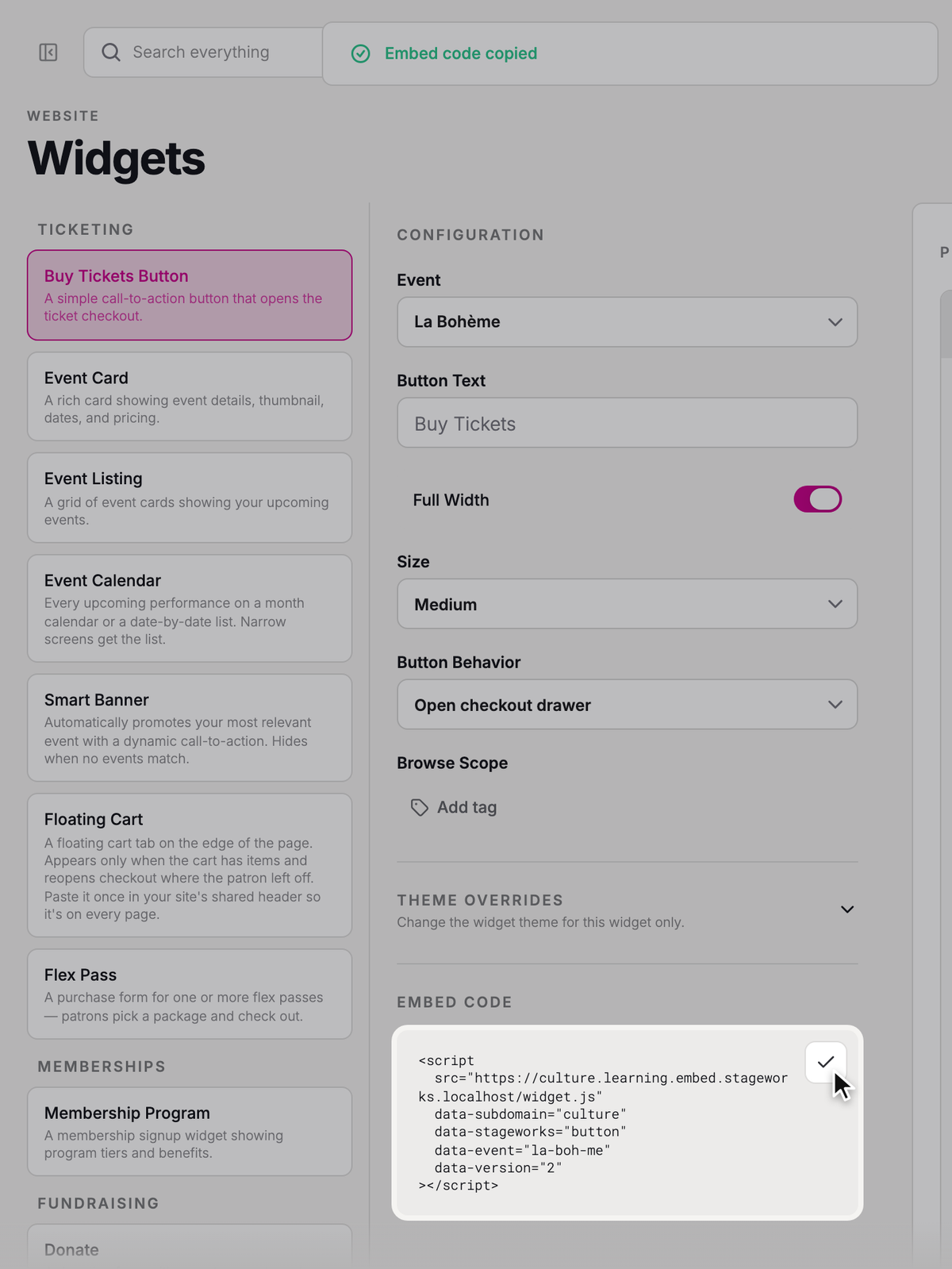
Below the settings, click the copy button at the top right of the Embed code box. You'll see "Embed code copied".
- Step 2:
On your site, add an Embed, Code, or Custom HTML block where you want the widget, and paste the code into it.
- Step 3:
Save or publish the page on your site, then open it and try the widget.
Each widget has its own code, so repeat these steps for each one. You can have several on the same page, like a calendar near the top and a button further down.
Add the Floating Cart
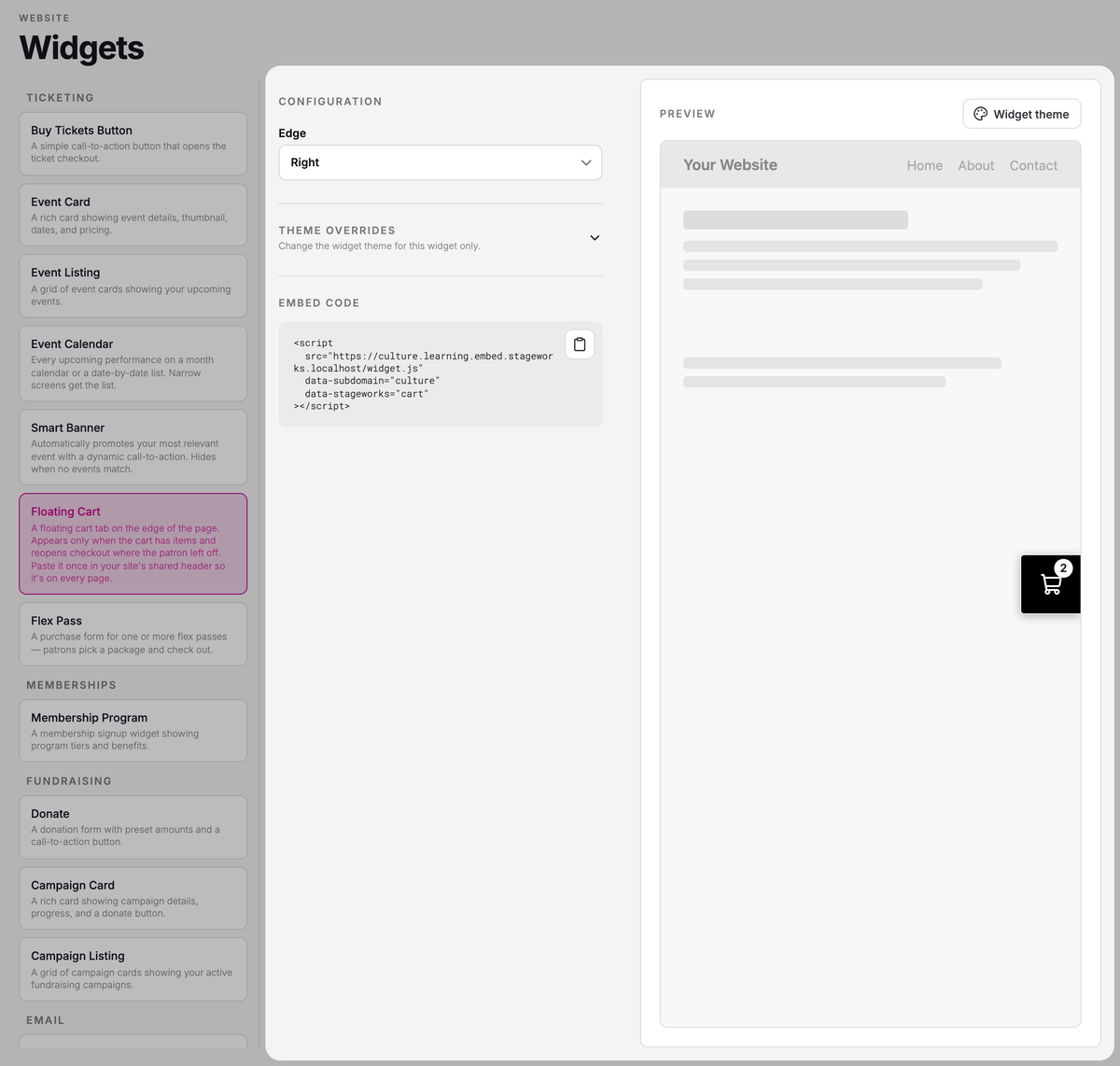
The Floating Cart is a small cart tab on the edge of your site. On a computer, it appears once a patron has something in their cart, so they can get back to it from any page. Clicking it opens their cart.
- Step 1:
In Widgets, click Floating Cart.
- Step 2:
Under Edge, choose Right or Left.
- Step 3:
Copy the code, and paste it once where your site builder lets you add code to every page, such as a site-wide header or code setting.
Don't worry if you can't see the tab after you paste it: it only appears once there's something in the cart. The Preview shows it with a sample cart.
Match your site's look
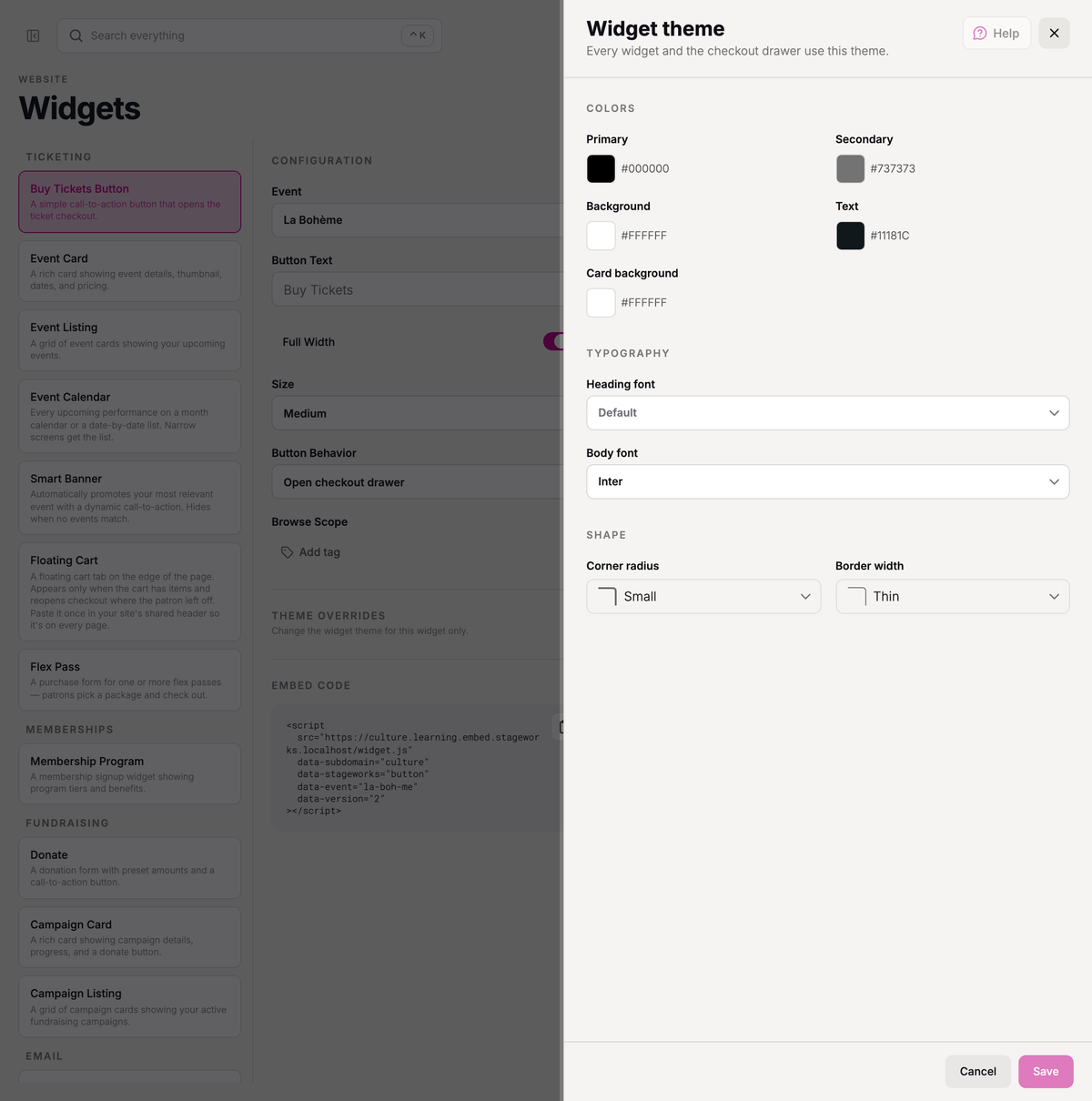
The widget theme sets the colors, fonts, and corners for every widget and for the checkout drawer, so your widgets can match your own site.
- Step 1:
In Widgets, click Widget theme (with a widget open, it's above the preview).
- Step 2:
Under Colors, set Primary, Secondary, Background, Text, and Card background to match your site.
- Step 3:
Under Typography, choose a Heading font and a Body font.
- Step 4:
Under Shape, choose a Corner radius and a Border width.
- Step 5:
Click Save.
Widgets already on your site pick up the new look within a few minutes, with no code to replace. To change the colors or corners of just one widget, open Theme overrides while you set it up, then copy and paste its code again.
SuggestedSell tickets on a website you host elsewhereHow patrons buy through your widgets, and every widget you can add.Troubleshooting
"Publish this event first"
You'll see this on a draft event's Overview, in place of its widgets. Publish the event before you add its widgets to your site. To publish it, see Create your first event.
"Couldn't copy the embed code"
Your browser didn't let Stageworks copy the code. Select it in the Embed code box and copy it yourself.
Was this article helpful?