
Set your site's name, favicon, and search settings
Name your website, choose how it looks in browser tabs, search results, and shared links, and change its address.
Your website's name, description, and pictures are what people see in browser tabs, in search results, and when someone shares a link to your site. Here's how to set them all in one place, how they work with each page's own settings, and how to change your website's address. Let's get started!
Open your website settings
- Step 1:
Click Settings in the sidebar.
- Step 2:
Click Website.
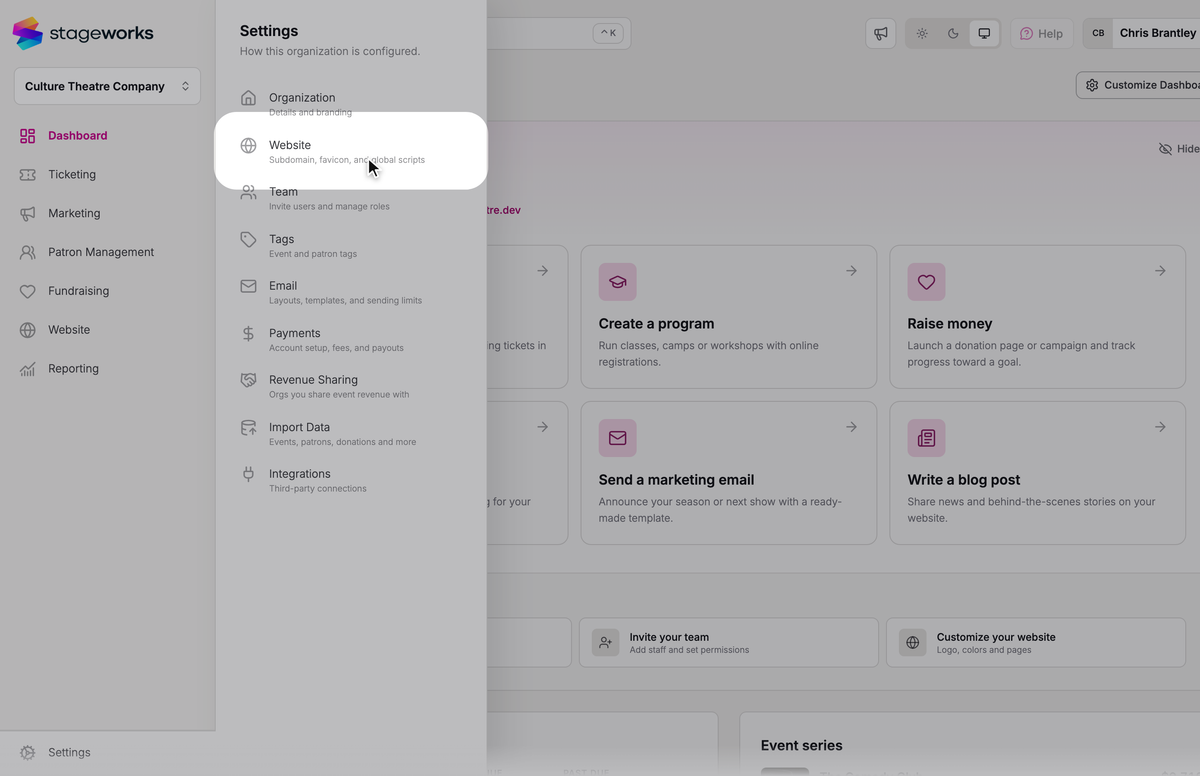
Your site's name and pictures are under Site identity. Its address is under Subdomain, at the top.
Name your site
- Step 1:
In Site title, type your site's name as you'd like it to appear in browser tabs and search results. Keep it short, since tabs show it after each page's name.
- Step 2:
In Description, write a sentence or two about your organization. It's shown in search results and link previews, and about 160 characters is a good length.
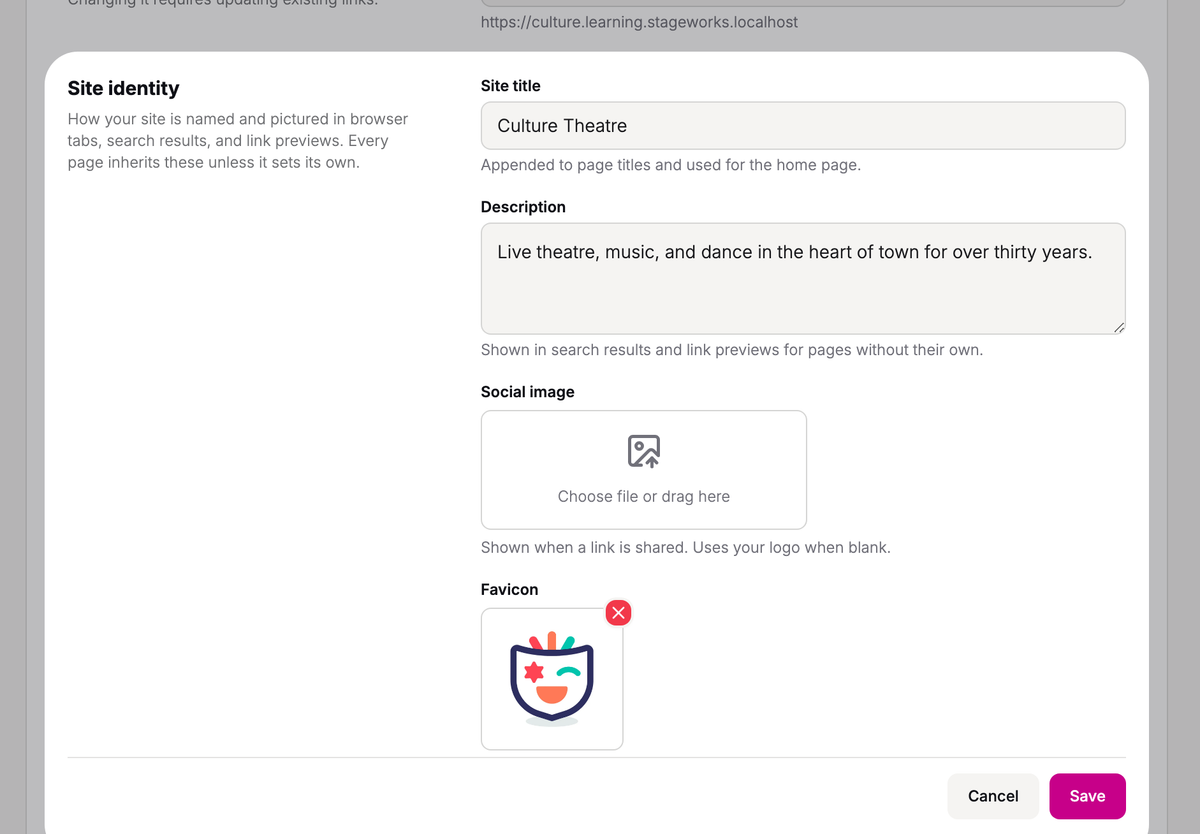
If you leave Site title blank, your site uses your organization's name, which you'll see faintly in the field.
Choose the picture for shared links
When someone shares a link to your site, on social media or in a message, the preview shows your social image. Leave it blank and your site uses your logo from Settings → Organization.
- Step 1:
Click the Social image field and choose an image from your computer. A wide one, around 1200×630 pixels, fits link previews best.
Add a favicon
Your favicon is the little icon in browser tabs and bookmarks. Upload your own, or bring in the one from a website you already have.
Upload an image
- Step 1:
Click the Favicon field and choose a square PNG, JPG, or SVG from your computer.
Your favicon is always shown square, so the edges of a wider image get cut off.
Use the icon from your current website
- Step 1:
Under Favicon, click Extract from website.
- Step 2:
In Website URL, type your current website's address. A preview of its icon appears.
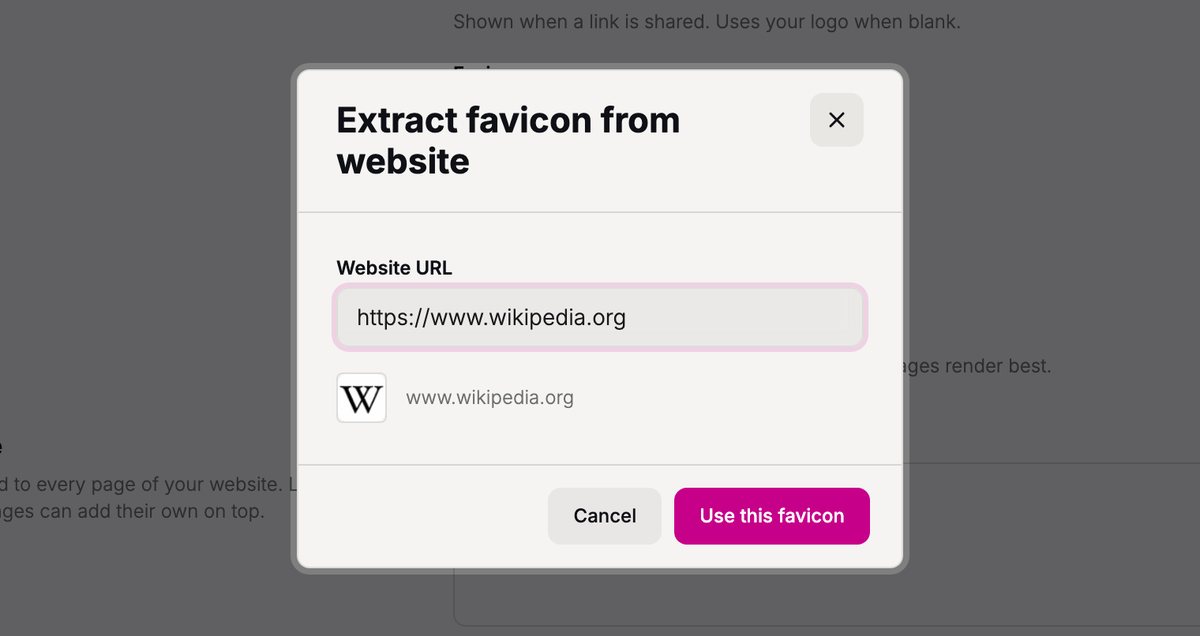
- Step 3:
Click Use this favicon.
The icon fills in the Favicon field.
Save your changes
As soon as you change anything, Cancel and Save appear at the bottom. Nothing is saved until you click Save, including a favicon you've just uploaded or brought in.
- Step 1:
Click Save.
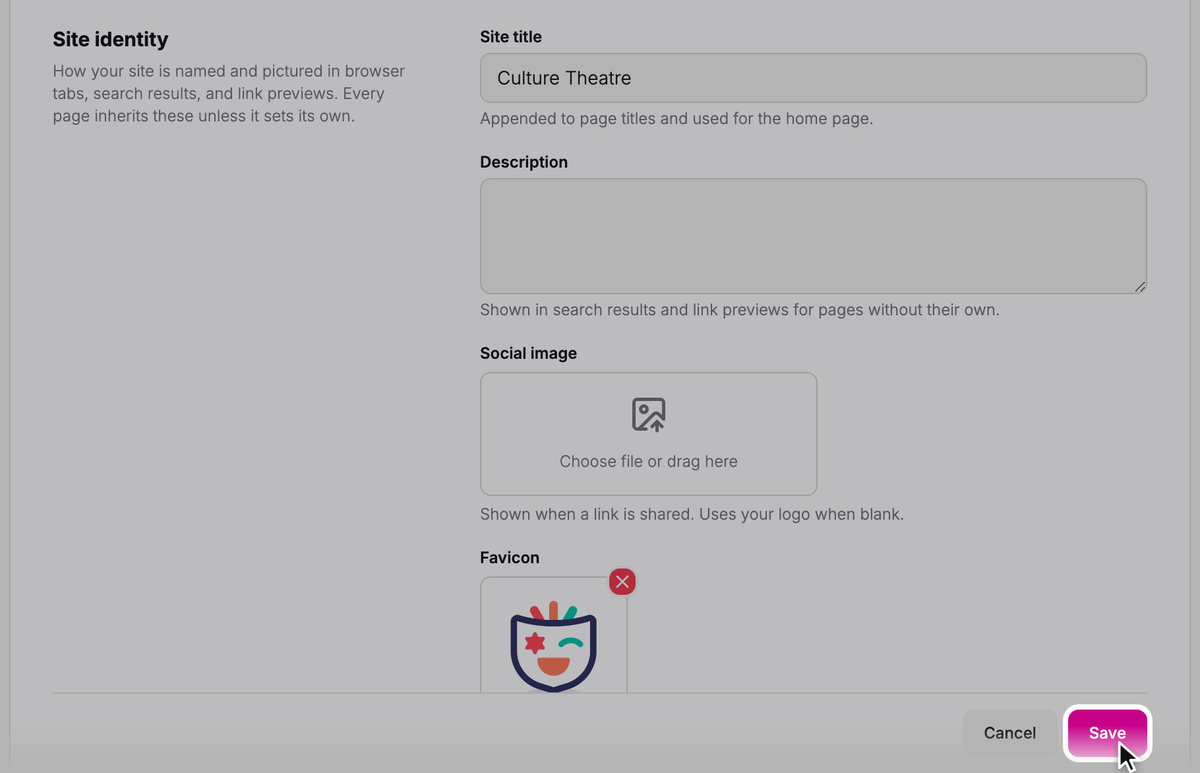
You'll see "Website settings saved", and your changes are on your website right away. Cancel puts back what you last saved.
How your site and its pages work together
Each page on your website can have its own title, description, and social image. Here's how they combine with your site's:
The browser tab shows a page's name, or its own title if you've set one, then your site title: "Events | Culture Theatre". Your home page shows just your site title.
A page's own description and social image take the place of your site's. Pages without their own use your site's.
Your favicon is the same on every page.
Search settings are set page by page
Whether search engines list a page is up to each page, not your site as a whole. Every page starts with Allow search indexing on, so search engines can list it.
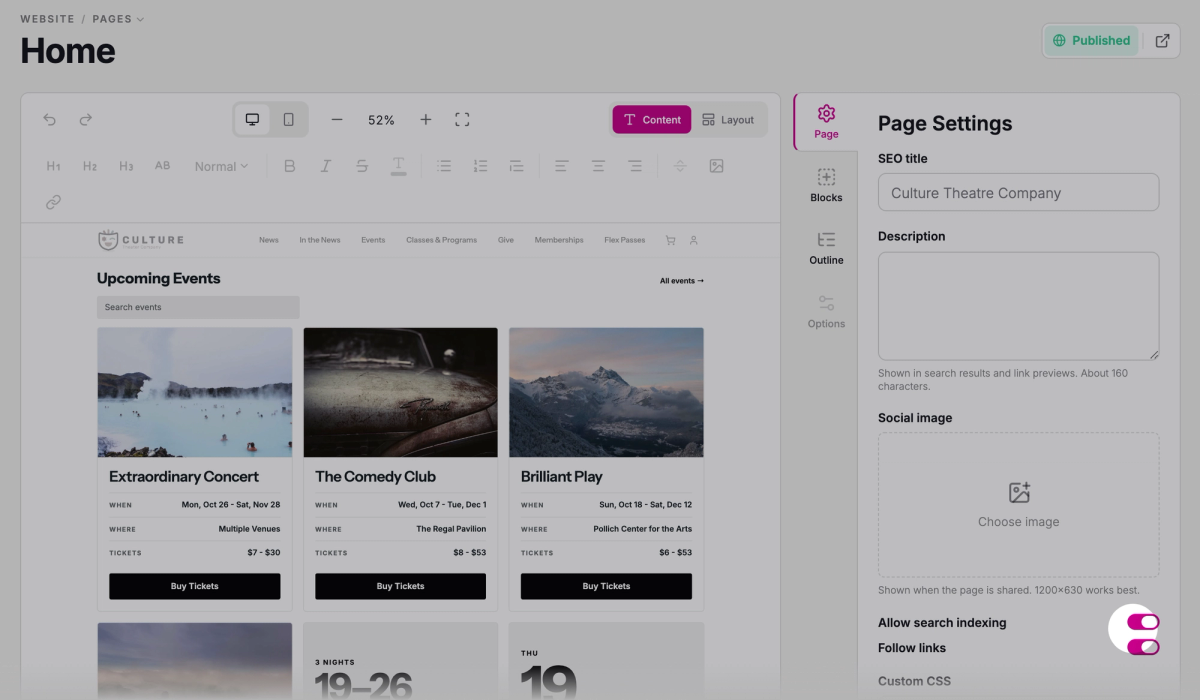
To keep a page out of search results, like a thank-you page, open it in the page editor and turn off Allow search indexing under Page Settings on the Page tab. Then save and publish the page. That's also where you'll set a page's own title, description, and social image.
Change your Stageworks address
Your subdomain is the name at the start of your Stageworks address, which is shown under the Subdomain field. Saving a new one moves your whole website to the new address straight away, so choose it carefully.
- Step 1:
In Subdomain, type the new name, using lowercase letters, numbers, and hyphens. The address under the field changes as you type.
- Step 2:
Click Save.
- Step 3:
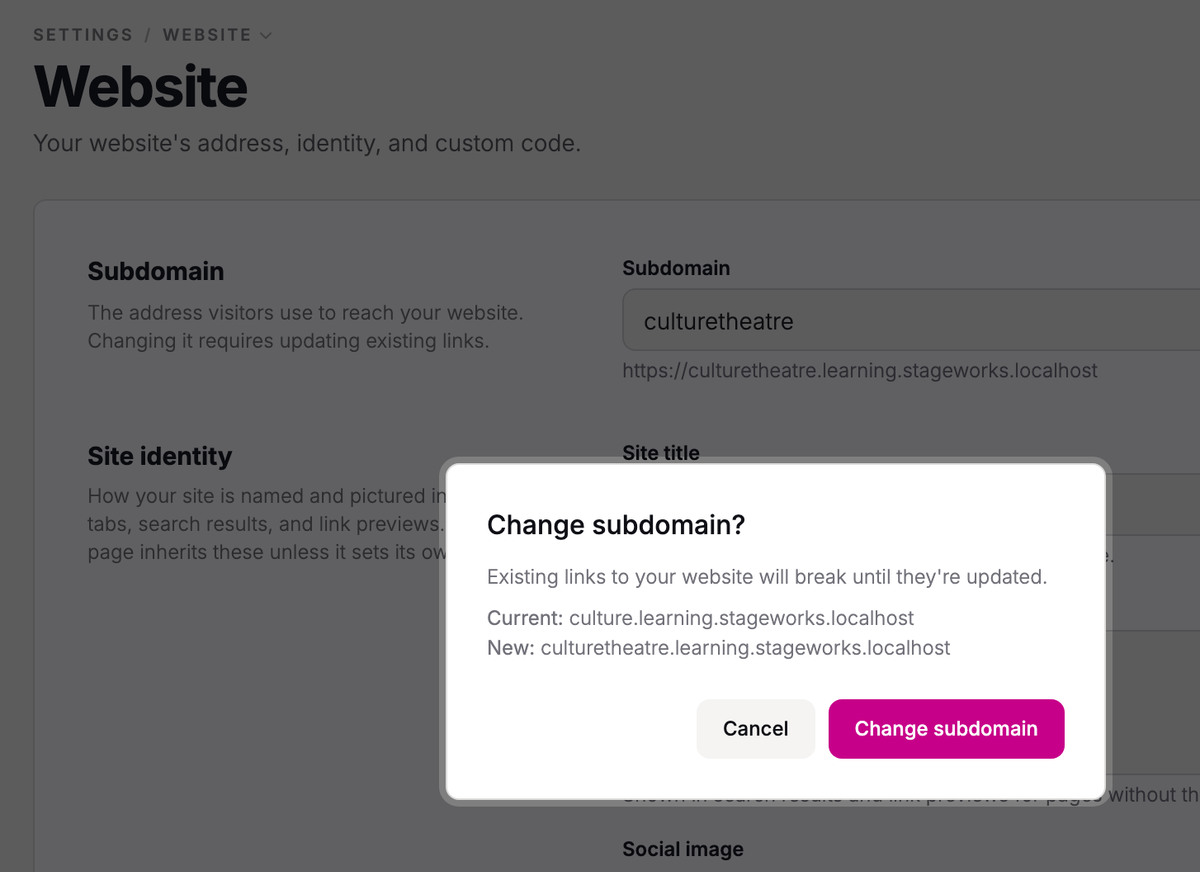
In the Change subdomain? box that opens, check the current and new addresses, then click Change subdomain.
Your website is now at the new address. Update the links you control, like those on your social media profiles, and replace QR codes and printed material as you can.
Custom code
The Code section, at the bottom of the page, is for adding your own code to every page, and you can leave it alone.
Troubleshooting
"This subdomain is not available."
Another organization already uses that name, or it's one Stageworks keeps for itself, like www or help. Try a different one.
"Use lowercase letters, numbers and single hyphens, up to 63 characters, starting and ending with a letter or number."
Your subdomain has something that isn't allowed, like a space, an underscore, or two hyphens in a row. Change it and click Save again.
"Could not load a favicon for this domain."
Stageworks couldn't find an icon at that address. Check that you typed it correctly and that the website is public, or upload a square image in the Favicon field instead.
SuggestedYour Stageworks websiteGet the big picture of your website and where each part of it is set up.Was this article helpful?