
Write a marketing email
Write a simple Text email or design an HTML email from blocks, and use layouts so every HTML email looks like your organization.
Here's how to write a marketing email in Stageworks, either as a simple letter-style Text email or as a designed HTML email built from blocks: pieces like text, images, and buttons. You'll pick a type, add a subject and recipients, write or design your message, and save it as a draft, ready to send. Let's get started!
Text or HTML?
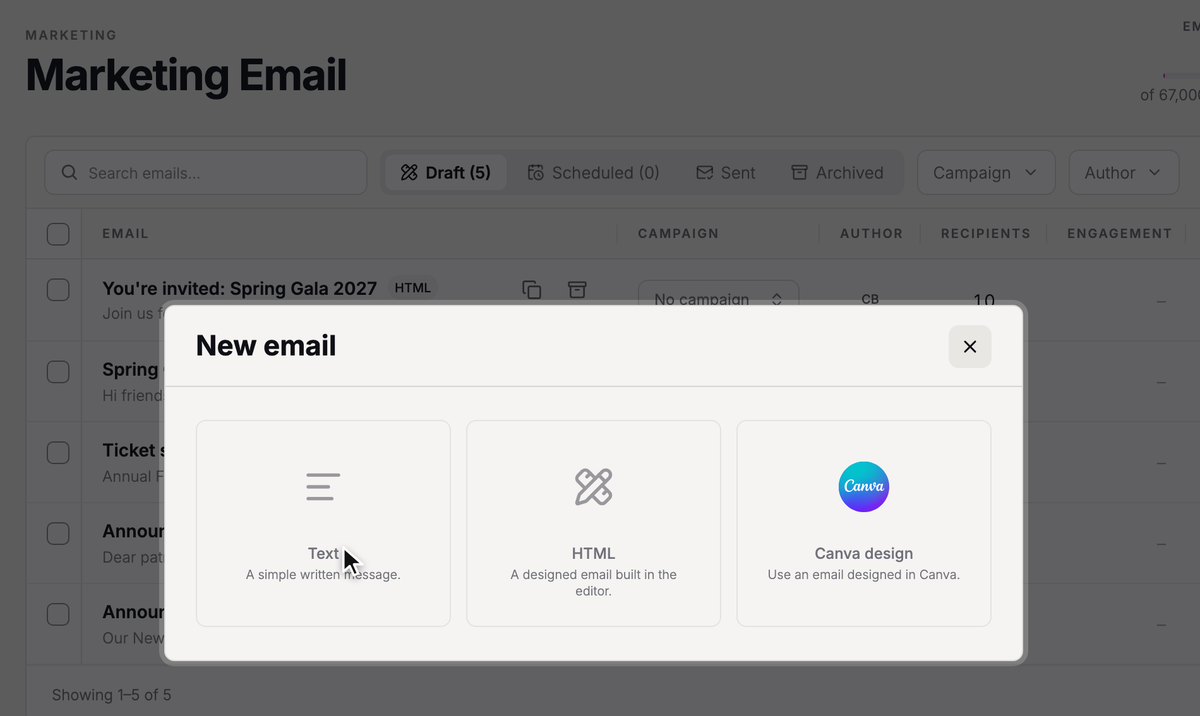
When you click New email, you choose what kind of email to write:
- Text: a simple written message that reads like a personal letter from your organization. Use it for a quick note, a thank-you, or news that doesn't need pictures.
- HTML: a designed email. Use it when you want images, buttons, and a layout (the header, footer, and styling your emails share) with your logo and colors, like a season announcement or a newsletter.
A Text email sends only what you write in the message area, so an HTML email that goes out as Text leaves out its header, images, buttons, and columns.
Either way, Stageworks adds a footer to every Text and HTML email with your organization's name, its address if you've added one, and Unsubscribe and Email Preferences links, so you never need to add your own.
Write a Text email
- Step 1:
In the sidebar, go to Marketing → Marketing Email.
- Step 2:
Click New email.
- Step 3:
Click Text.
- Step 4:
Type your subject where it says Subject line.
- Step 5:
Click To and choose who gets the email: a mailing list, a segment, or individual people.
- Step 6:
In From, keep your organization's name or type the name your email should come from.
- Step 7:
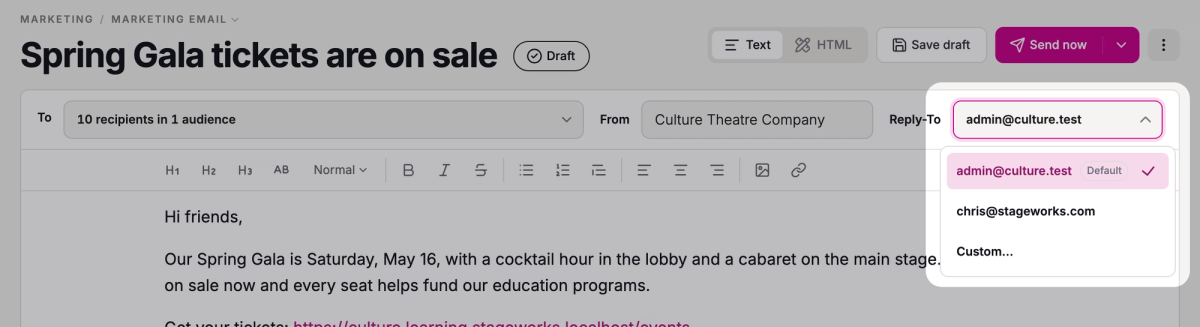
Under Reply-To, choose where replies go: your organization's email address (marked Default), your own address, or Custom… to type another one.
- Step 8:
Click in the message area and write your email. Use the toolbar for headings, bold and italic text, lists, and links.

- Step 9:
Click Save draft.
You'll see "Draft saved", and the email waits in your drafts until you send it. For everything you can pick in To, see Choose who gets your email.
SuggestedTrack your email resultsSee the opens, clicks, and ticket sales each email brings in.Build an HTML email
- Step 1:
Go to Marketing → Marketing Email and click New email.
- Step 2:
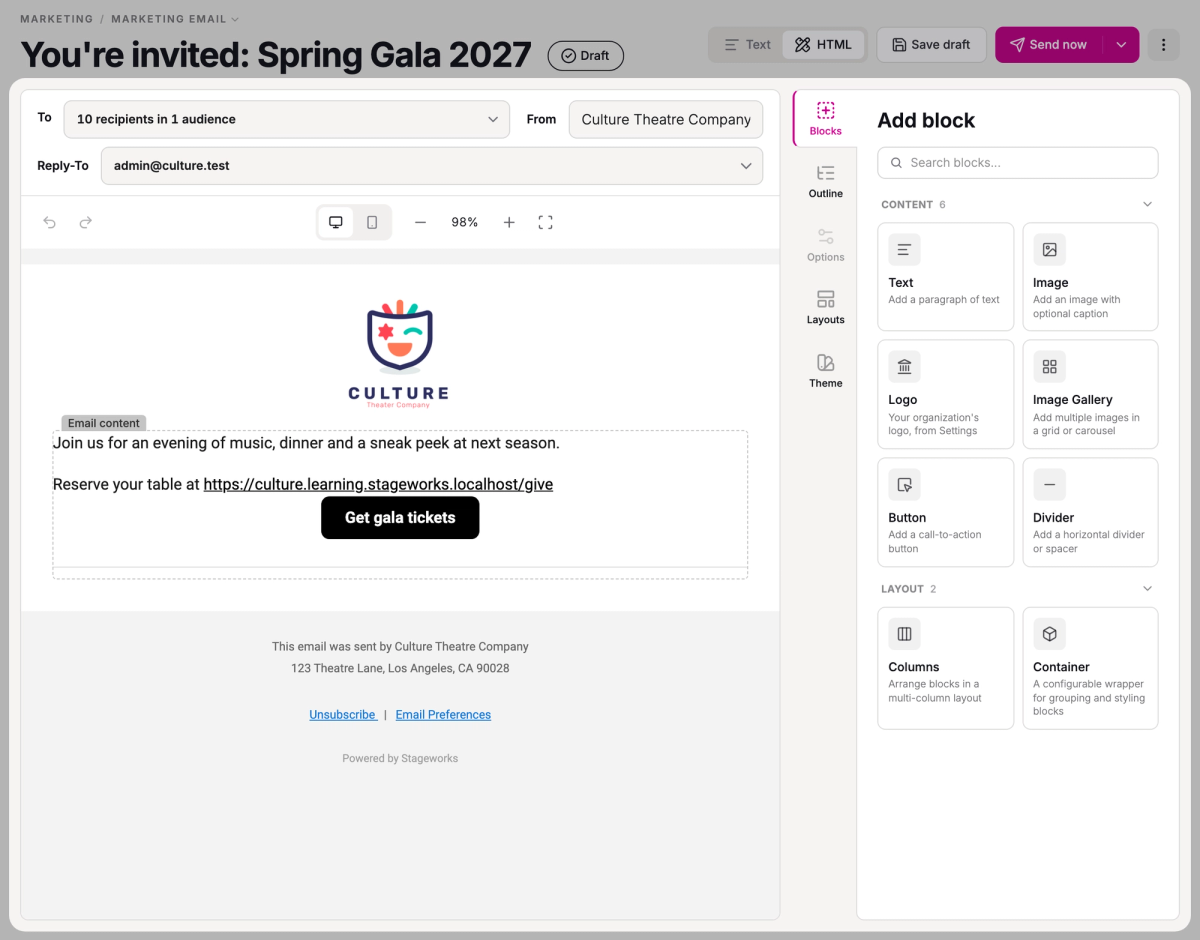
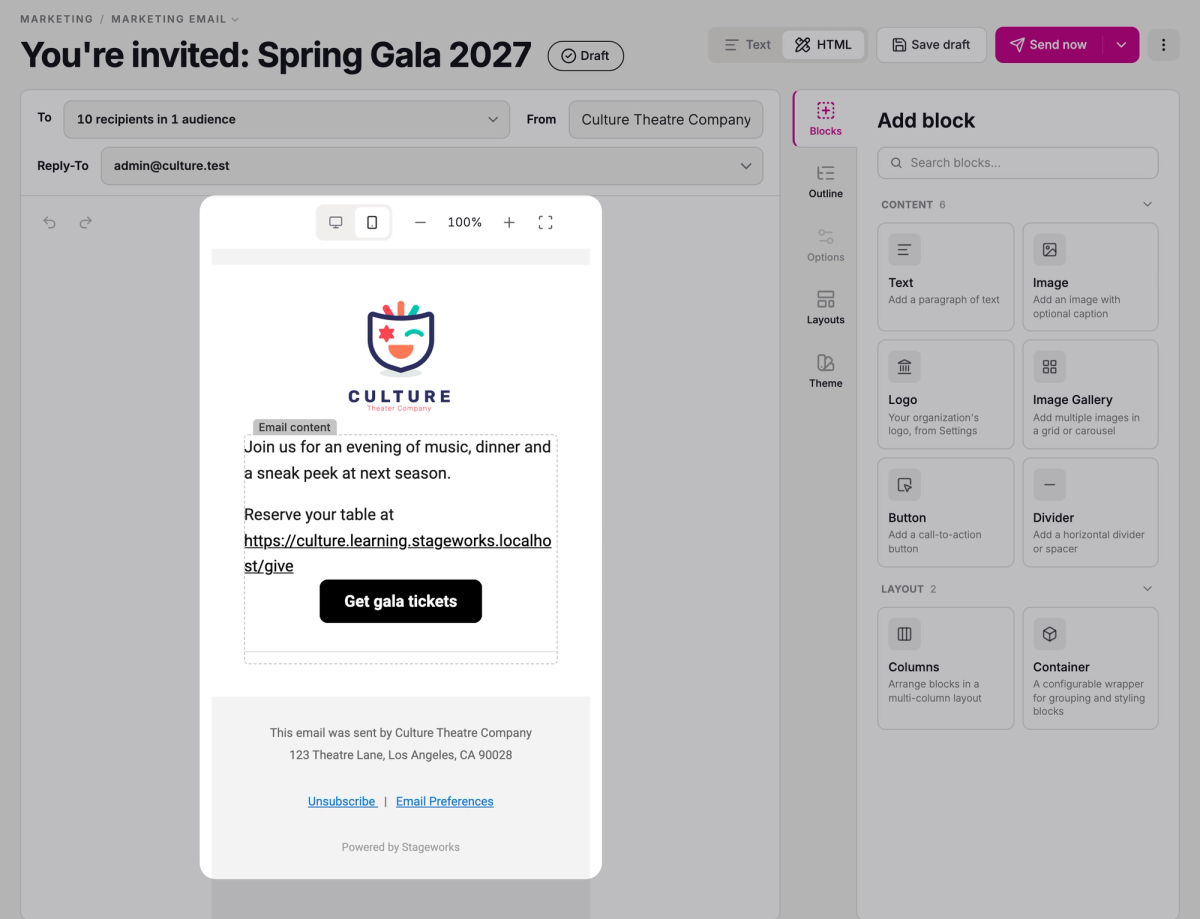
Click HTML. The email opens with your default layout's header and footer, and an empty area for your content.
- Step 3:
Fill in Subject line, To, From, and Reply-To, just as for a Text email.
- Step 4:
On the Blocks tab, click the block you want, then click the spot in your email where it goes.
- Step 5:
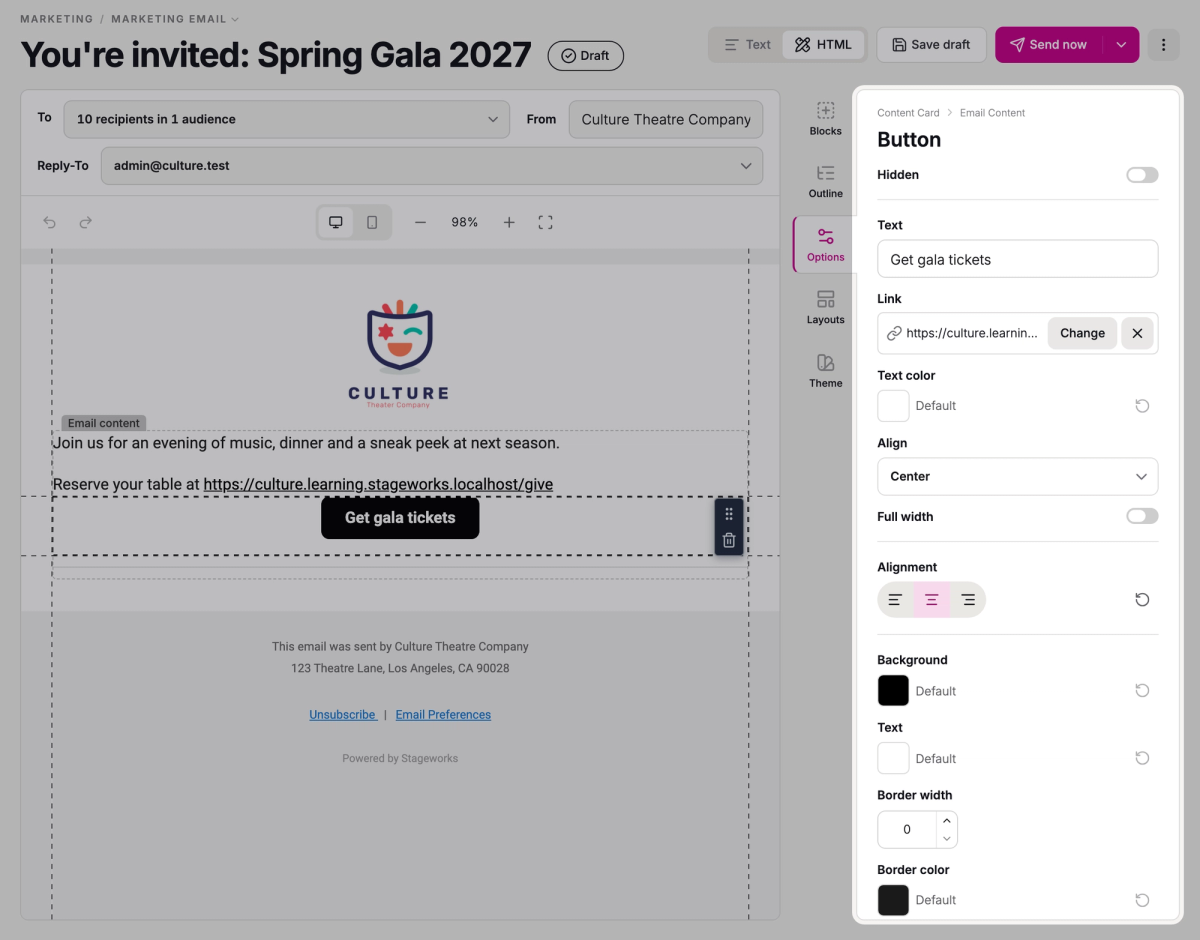
Click a block in your email to open its settings on the Options tab.
- Step 6:
For a Button, type the words it shows in Text.
- Step 7:
Click Add link, choose one of your website's pages or type a web address on the Custom URL tab, and click Apply.
- Step 8:
Click Mobile to see how the email looks on a phone, then Desktop to switch back.
- Step 9:
Click Save draft.
Other blocks add your Logo, an Image Gallery, a Divider, or Columns, which put blocks side by side. To change this email's colors, fonts, and spacing, use the Theme tab. The editor shows your email as it will be sent.
Use layouts
Layouts make every HTML email start out looking like your organization. Changing a layout later doesn't change emails you've already written.
To see all your layouts, click Email layouts on an HTML email's Layouts tab. It opens Email Settings, where New layout makes a new one.
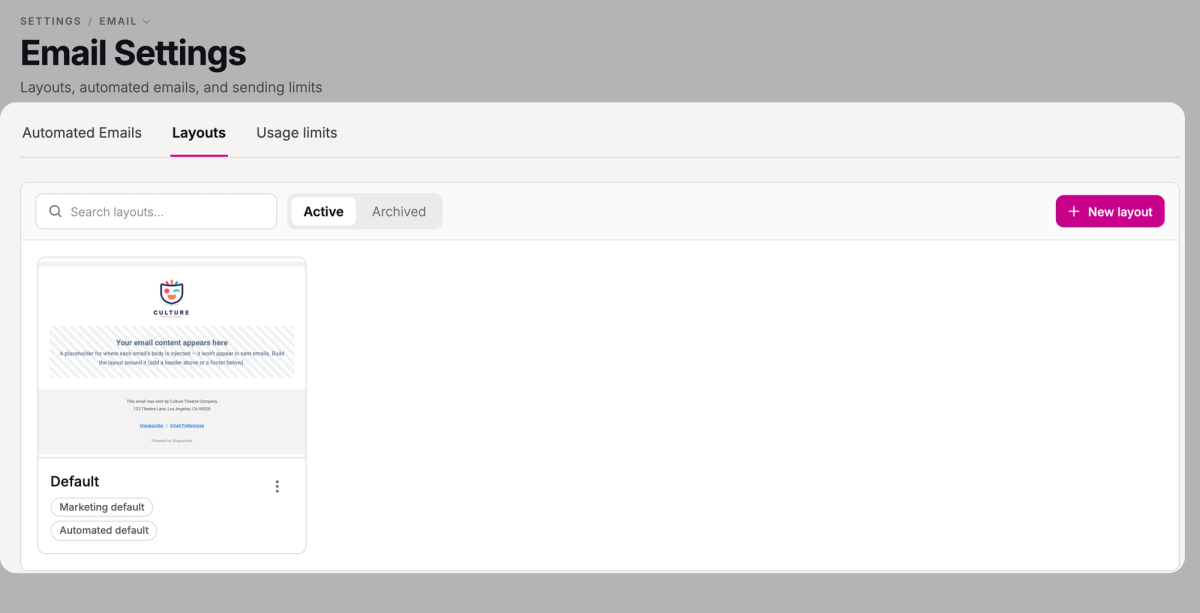
The layout marked Marketing default is the one new HTML emails start from. To use a different one, open the ⋮ menu on its card and choose Set as marketing default.
To change the layout of the email you're writing, pick another one on its Layouts tab. Your content stays, and the header and footer are replaced. Reset to original layout switches back to the layout the email started with.
What's next
When your draft is ready, send it right away or schedule it for later.
SuggestedSend or schedule a marketing emailSend a test to yourself, then send your email now or schedule it.Was this article helpful?
Email marketing in Stageworks
Email your patrons and your mailing lists from the same place you sell tickets, and see the ticket sales and donations each email brings in.
Build your mailing lists
Create mailing lists, add contacts by pasting their email addresses, and keep each list up to date as people come and go.
Import your contacts from another email provider
Bring your mailing list with you when you move to Stageworks, by importing a CSV of your subscribed contacts into one of your lists.
Let patrons sign up for your emails
Choose the list website signups join, add a signup form to any page, and see how patrons manage the emails they get from you.
Choose who gets your email
Send a marketing email to a mailing list, a patron segment, all your patrons, or one person, and see how many people it will reach.
Send or schedule a marketing email
Send yourself a test, then send your marketing email right away or schedule it for later, and pause, cancel or reuse it afterwards.
Track your email results
See how each marketing email did, from opens and clicks to the ticket sales and donations it brought in, and compare all your emails in one report.