
Track your email results
See how each marketing email did, from opens and clicks to the ticket sales and donations it brought in, and compare all your emails in one report.
Once an email goes out, Stageworks shows you how it did: how many people opened it, how many clicks it got, and the ticket sales and donations it brought in. Here's how to open an email's report, what each number means, and where to see all your emails at once. Let's get started!
Open an email's results
- Step 1:
Go to Marketing → Marketing Email.
- Step 2:
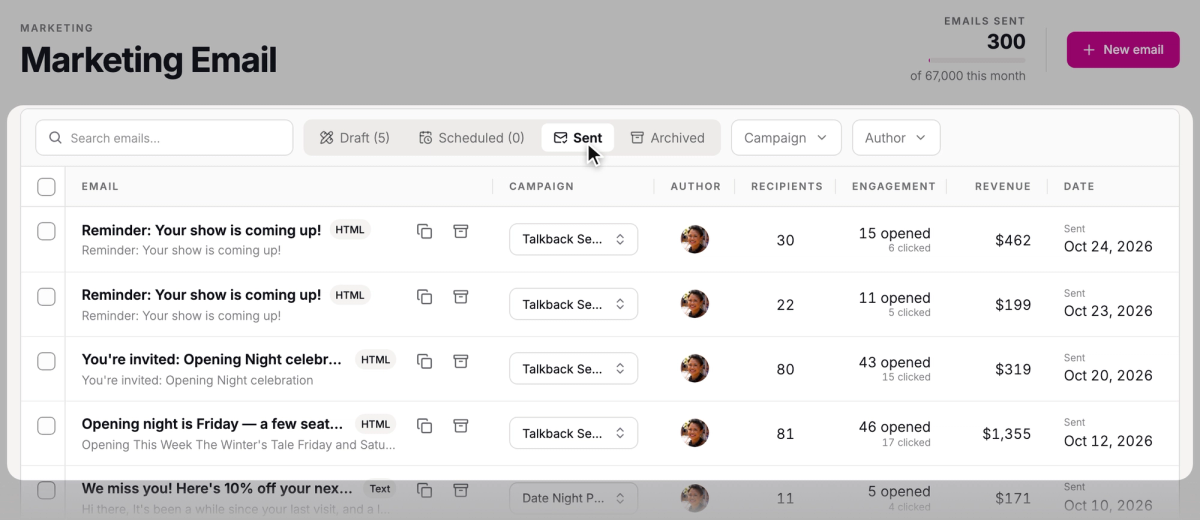
Click the Sent tab.
- Step 3:
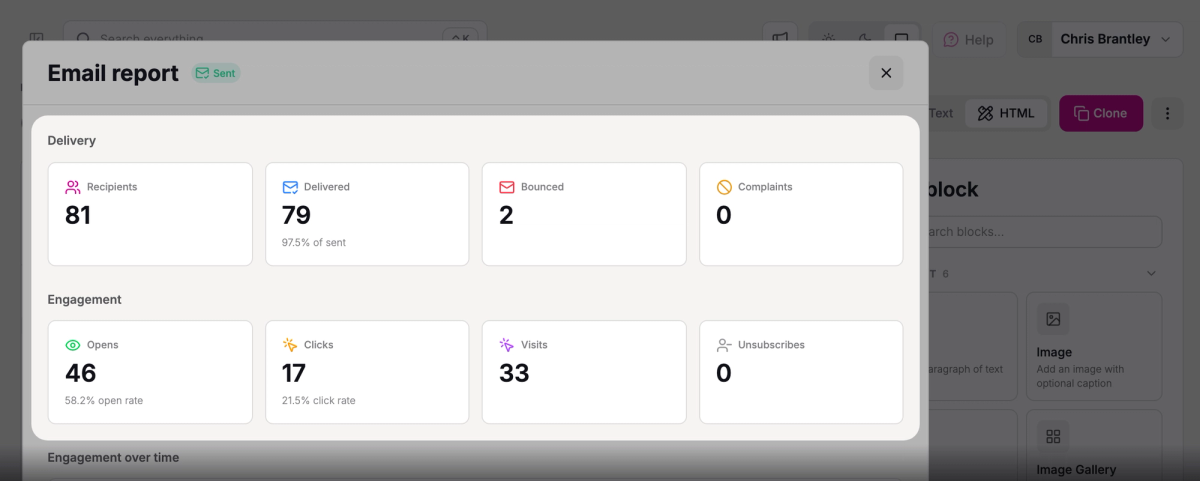
Click the email you want. Its Email report opens.
The Engagement and Revenue columns on the Sent tab give you a quick look before you open anything.
If you close the report, click Report in the email's header to bring it back. Opens and clicks keep coming in after the send, so check back later.
What each number means
The report groups its numbers under Delivery and Engagement:
| Number | What it counts |
|---|---|
| Recipients | The people the email was sent to. |
| Delivered | Emails accepted by the recipient's email service, such as Gmail. The percentage is out of the emails sent. |
| Bounced | Emails that couldn't be delivered. |
| Complaints | People who marked the email as spam. |
| Opens | People who opened it, each counted once. The open rate is out of the emails delivered. |
| Clicks | Every click on a link in the email, so one person clicking twice counts twice. |
| Visits | Times someone came to your Stageworks site from a link in the email. That's your organization's ticketing website on Stageworks, where patrons buy tickets. |
| Unsubscribes | People who used this email to unsubscribe from your marketing email. |
Addresses that bounced permanently, and people who mark your email as spam, won't get your marketing email again.
Engagement over time is a chart of deliveries, opens, and clicks since you sent the email.
Sales and donations from your email
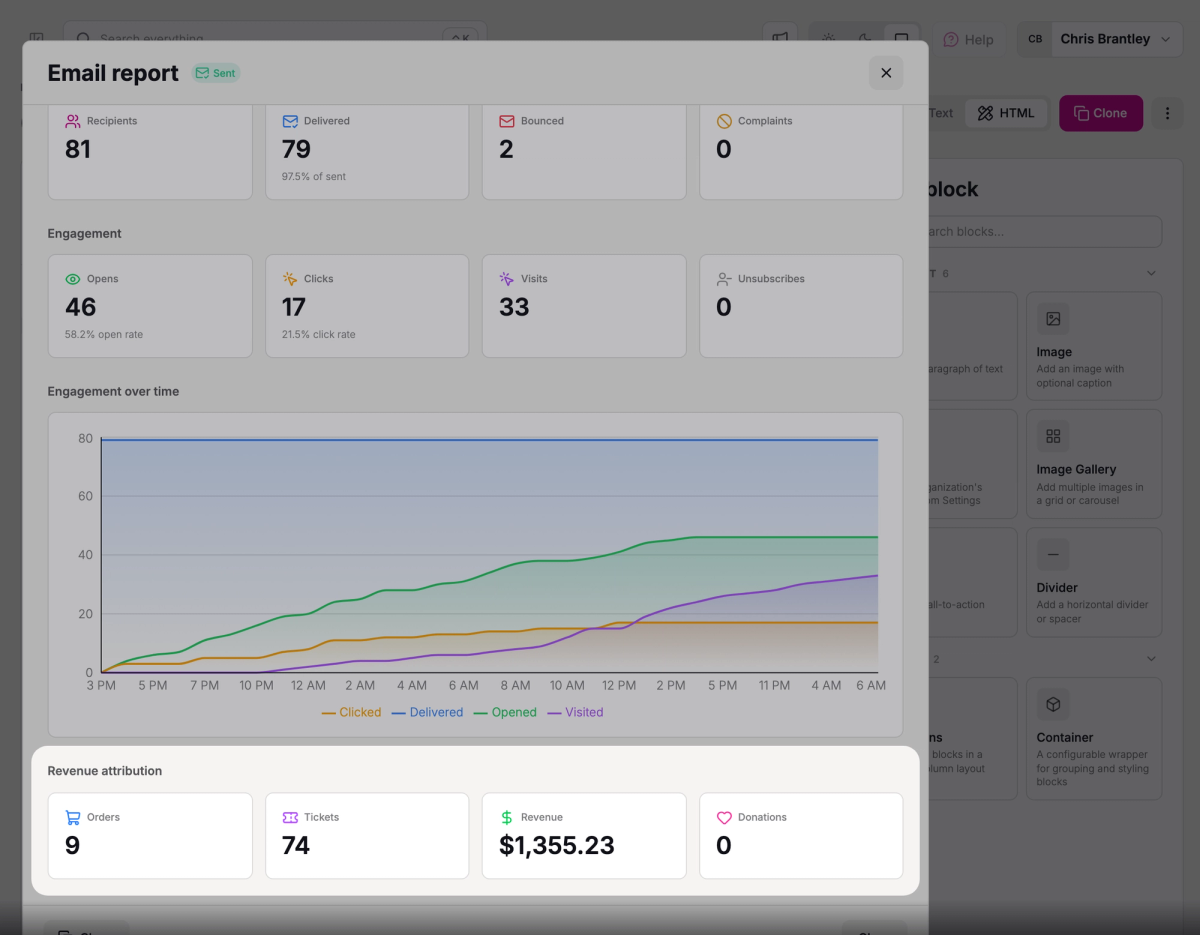
An order or donation is credited to your email when someone clicks a link in it through to your Stageworks site and buys or donates on that visit. Under Revenue attribution, the report shows what that brought in:
- Orders: the orders credited to the email.
- Tickets: the tickets on those orders.
- Revenue: those orders' totals, added up.
- Donations: the donations credited to the email, with the amount raised.
One sale can be credited to more than one email, so revenue added up across emails, like the Marketing Report's Emails row below, can count it more than once.
Which links are tracked
Every web link in your email is tracked: links in your text, buttons, images, and videos. The only exceptions are your Unsubscribe and Email Preferences links, which are never tracked.
Tracking doesn't change where a link goes: readers land on the page you linked.
Test sends and previews aren't tracked, so checking your test email won't add to your numbers.
SuggestedWrite a marketing emailAdd the buttons and links that bring readers to your website.See all your email results
- Step 1:
Go to Reporting → Marketing.
- Step 2:
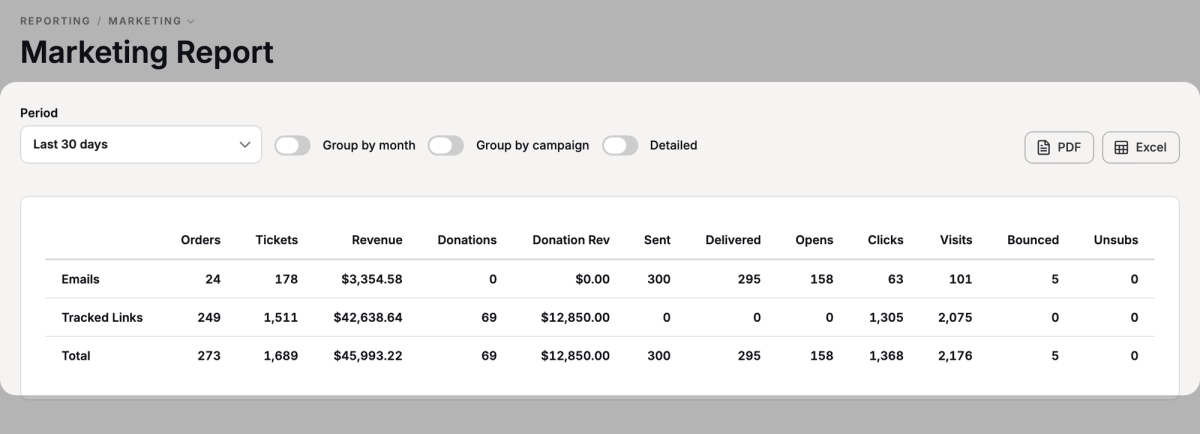
The Marketing Report opens on this month. To see other dates, click the date range and pick another.
The Emails row covers emails sent in the dates you pick, with each one's results so far. Its columns are the numbers you know from an email's report, such as Opens, Clicks, and Revenue, plus Donation Rev, the amount donated. The Tracked Links row is for tracked links, the short links that credit sales to a source, and Total adds both rows together.
Turn on Detailed to list each email under the Emails row. Group by campaign splits the results by the campaign each email is assigned to, and Group by month by month. To share the report, click Excel or PDF.
Was this article helpful?

Email marketing in Stageworks
Email your patrons and your mailing lists from the same place you sell tickets, and see the ticket sales and donations each email brings in.
Build your mailing lists
Create mailing lists, add contacts by pasting their email addresses, and keep each list up to date as people come and go.
Import your contacts from another email provider
Bring your mailing list with you when you move to Stageworks, by importing a CSV of your subscribed contacts into one of your lists.
Let patrons sign up for your emails
Choose the list website signups join, add a signup form to any page, and see how patrons manage the emails they get from you.
Choose who gets your email
Send a marketing email to a mailing list, a patron segment, all your patrons, or one person, and see how many people it will reach.
Write a marketing email
Write a simple Text email or design an HTML email from blocks, and use layouts so every HTML email looks like your organization.
Send or schedule a marketing email
Send yourself a test, then send your marketing email right away or schedule it for later, and pause, cancel or reuse it afterwards.