
Comp tickets
Give someone free tickets three ways: comp tickets for one patron, send VIP invitations, or share a 100% off promo code.
Here's how to give someone free tickets, or "comp" them. You can comp tickets for one patron, invite a guest list to RSVP, or share a promo code that makes tickets free. Let's get started!
Choose how to comp
| Way | Best for | How it works |
|---|---|---|
| Free payment method | One order, right now: a guest at the door, a reviewer, or a cast member's family | You make the order for them |
| VIP invitations | A guest list for dates you choose, with RSVPs you can track | Each guest claims their tickets from a personal link |
| 100% off promo code | A code a sponsor or cast member can pass around, with a cap on uses | Patrons enter it at online checkout |
Comp tickets for one patron
Choosing Free as the payment method brings the tickets and service fees down to $0.
- Step 1:
In the sidebar, click Ticketing, then Orders, and click New order.
- Step 2:
Under Patron, search for the patron and choose them, or add a new one.
- Step 3:
Click Add tickets.
- Step 4:
On the Select event calendar, pick the performance, choose how many of each ticket type, then click Add to order.
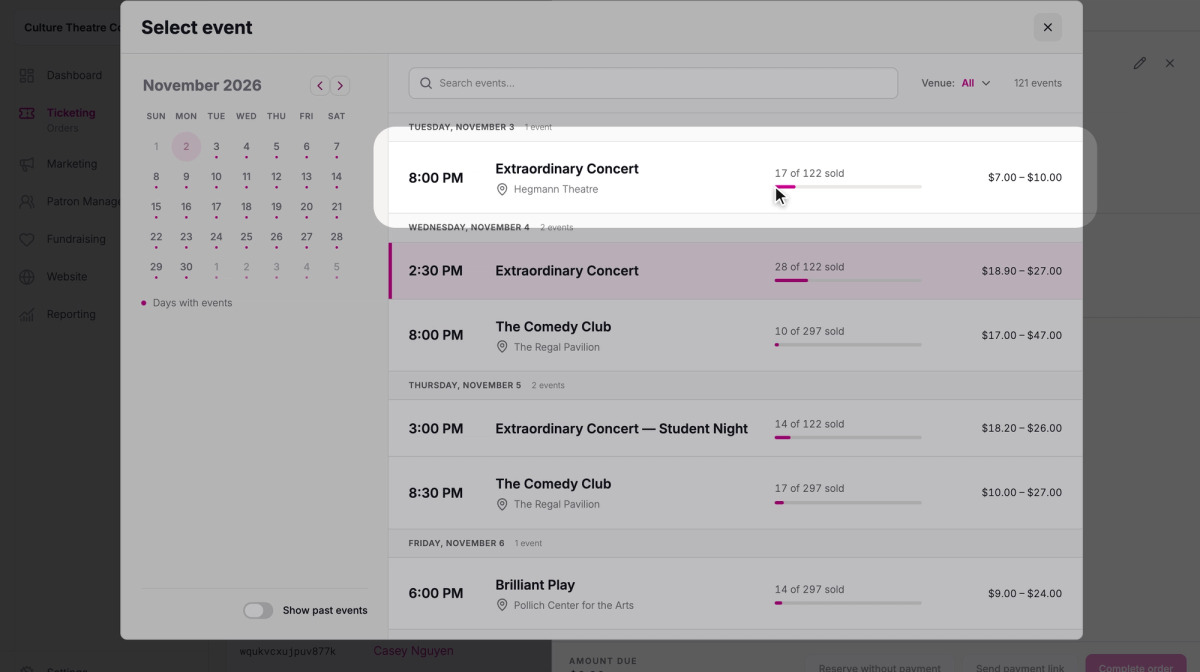
- Step 5:
In the Payment section, click the Free tab. Use Notes (optional) to record who the comp is for, so it shows on the order later.
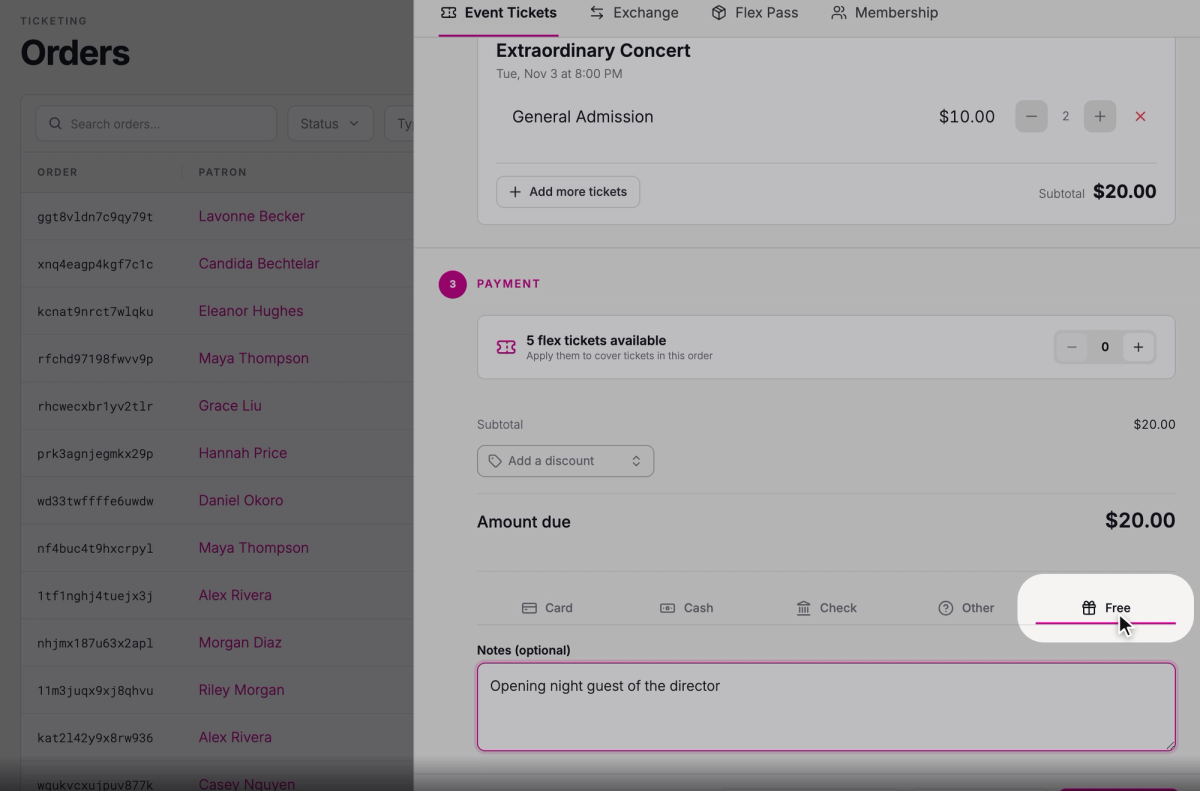
- Step 6:
Click Complete order.
If the patron has an email address, their tickets arrive by email about a minute later.
At the door
Click Ticketing, then Box Office, open the performance, and click Sell tickets. It opens the same New order form, already set to that performance: pick the tickets, choose Free, and click Complete order. Within 3 hours of showtime, Patron is optional, so you can comp a walk-up guest without taking their details. Stageworks then offers to check the guests in right away.
In the Stageworks app on a phone or tablet, open the event and tap Sell tickets, then choose the patron and tickets. On the Payment screen, open Other options, choose Free, and tap Complete Order.
SuggestedSell tickets at the doorHow door sales work in the Box Office, step by step.After you comp
On the order's page, the Payment card shows a Total of $0.00, Method reads Comped, and your note appears below it.

If plans change, open the order and click Refund / Cancel. Nothing was paid, so there's nothing to refund.
Send VIP invitations
VIP invitations suit a guest list, like opening-night guests, donors, or press. Instead of making each order yourself, Stageworks emails or texts each guest a personal link, and they RSVP for the dates you chose, or for any upcoming date if you allow it. You set how many tickets each guest can claim, see who's coming on the show's VIP Invitations tab, and can revoke an invitation so its link stops working. At the door, invited guests are marked VIP in the Box Office.
 SuggestedSend VIP invitationsHow to send VIP invitations, choose the dates, and track RSVPs.
Give out a 100% off promo code
A promo code lets someone else hand out the free tickets, like a sponsor or a cast member. You decide how many times it can be used, and patrons redeem it themselves online.
- Step 1:
In the sidebar, click Marketing, then Promo Codes.
- Step 2:
Click Create promo code.
- Step 3:
Under Basics, type the Code patrons will enter, like CASTCOMP.
- Step 4:
Under Discount, leave Discount type on Percentage off and enter 100 in Discount percentage.
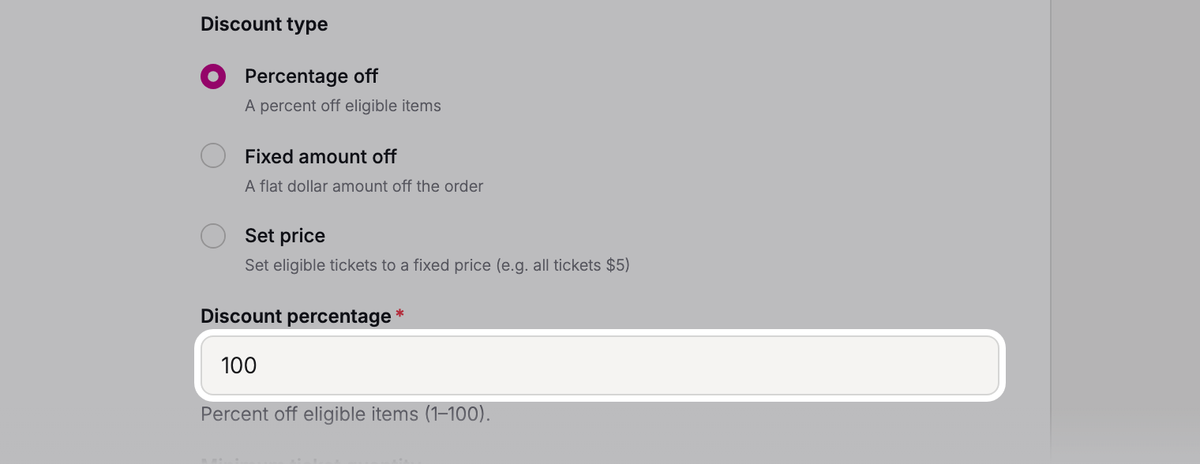
- Step 5:
Set Max total uses for everyone together, and Max uses / customer for each patron. One use makes a whole order free, however many tickets are in it, so also set Max discounted tickets / order.
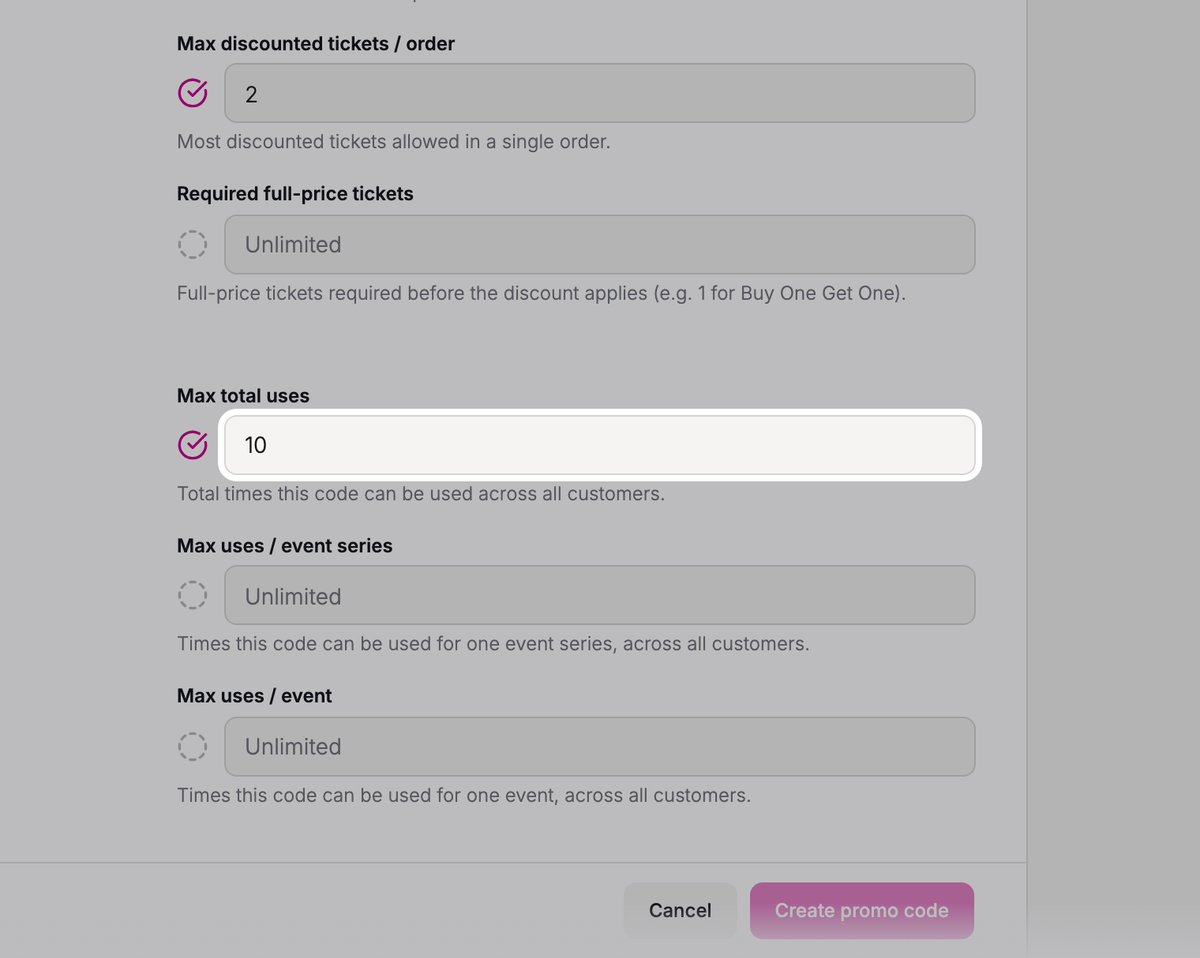
- Step 6:
Click Create promo code at the bottom of the page.
- Step 7:
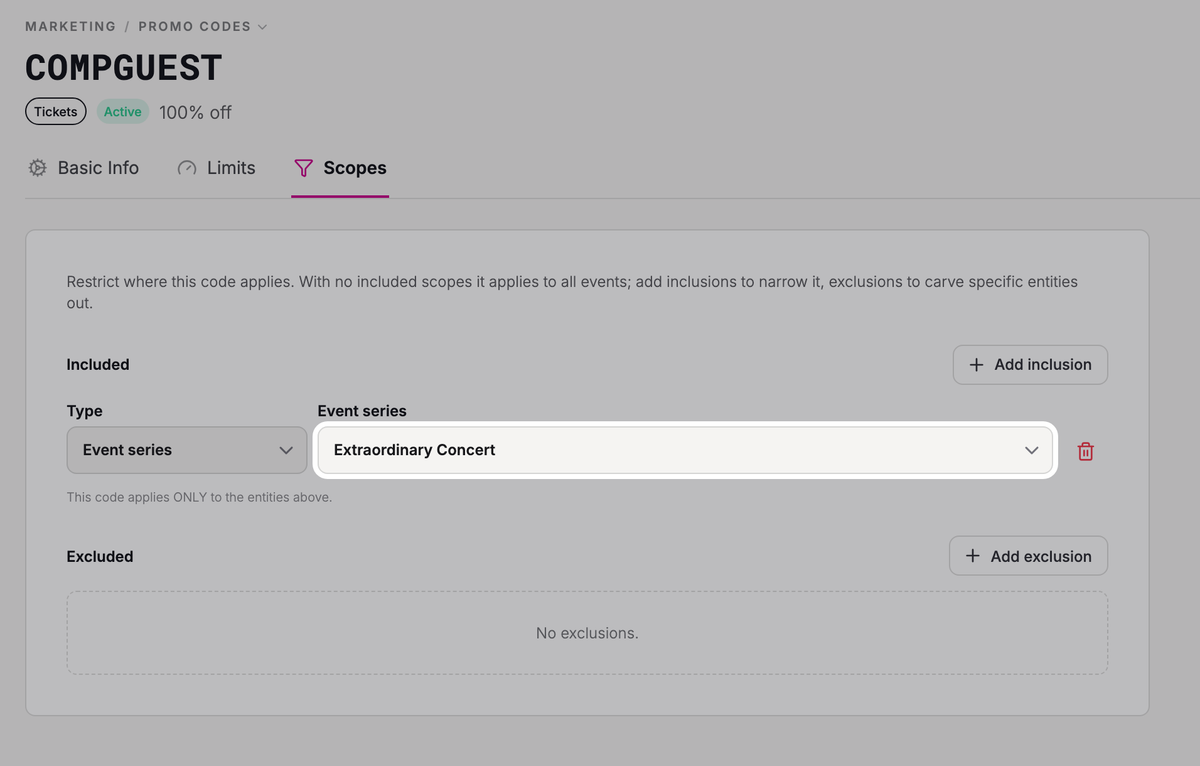
A new code works for every event, so limit it to your show before you share it: back on the Promo Codes list, click the code, then click its Scopes tab.
- Step 8:
Click Add inclusion, leave the type on Event series, and choose your show.
- Step 9:
Click Save scopes.
To use it, patrons click Have a promo code? at online checkout and enter the code. With nothing to pay, there's no card to enter: they just click Complete Order.
 SuggestedPromo Codes & DiscountsMore promo code options, like start and end dates and exclusions.
Troubleshooting
"A patron or mobile number is required — an event in this order starts more than 3 hours from now."
You can leave Patron empty only within 3 hours of showtime. Choose or add a patron, then complete the order.
Was this article helpful?