
Send or schedule a marketing email
Send yourself a test, then send your marketing email right away or schedule it for later, and pause, cancel or reuse it afterwards.
Your email is written and you've chosen who gets it. Here's how to send yourself a test, then send it right away or schedule it for later. You'll also see how to pause or cancel a send, and how to find and reuse your emails afterwards. Let's get started!
Before You Start
Have your email saved as a draft, with the people you're sending to chosen in To. If you're not there yet, start with Write a marketing email and Choose who gets your email.
Send yourself a test
A test shows you the email the way your recipients will see it, in a real inbox, before anyone else gets it.
- Step 1:
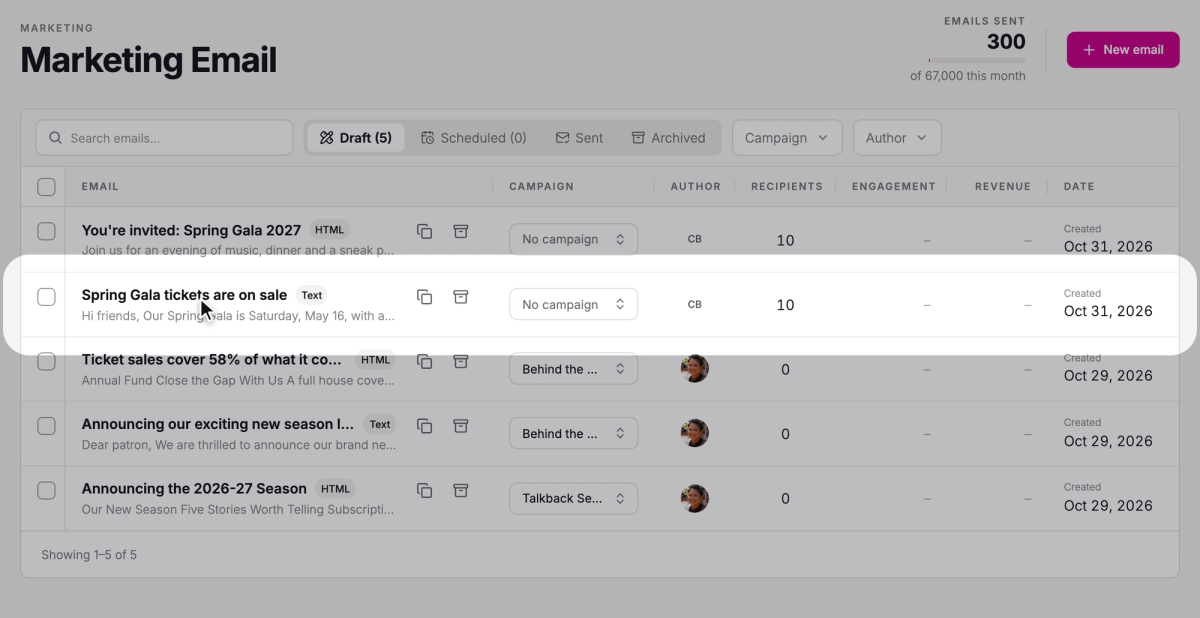
Go to Marketing → Marketing Email and open your draft from the Draft tab.
- Step 2:
Click the arrow beside Send now and choose Send test email.

- Step 3:
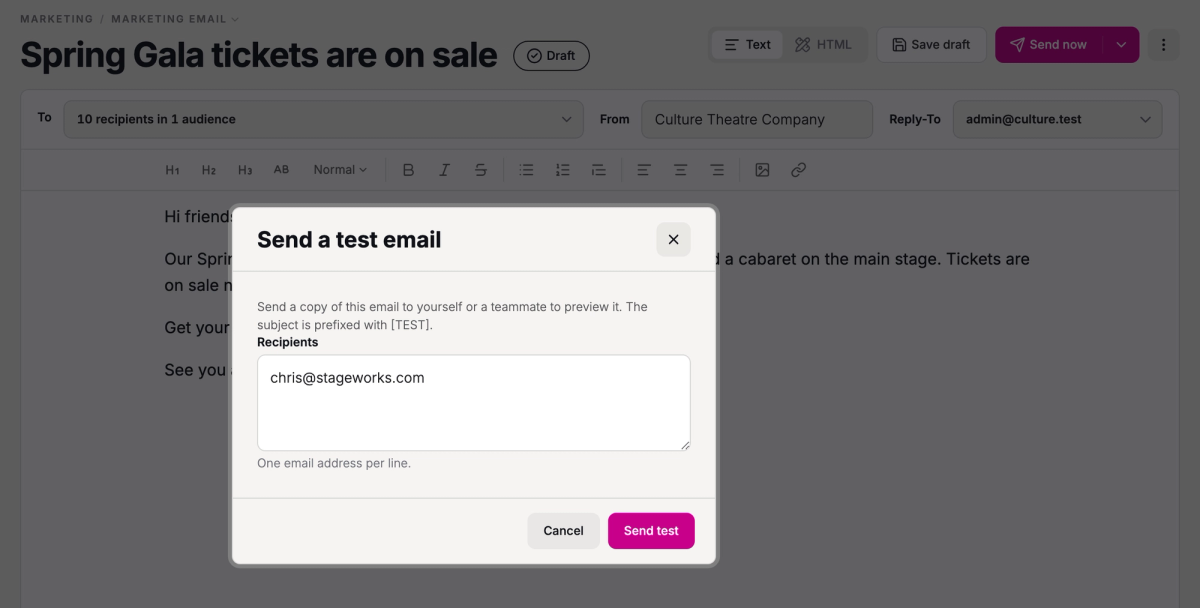
The test goes only to the addresses in Recipients, and yours is already there. To have someone else check it too, add their address on a new line.
- Step 4:
Click Send test.
The test arrives with [TEST] at the start of the subject. Tests aren't tracked, so they don't count toward the email's opens or clicks.
Send it now
When you're happy with the test, you're ready to send. The email needs a subject, at least one recipient, a sender name in From, and some content. If anything's missing, Stageworks tells you what instead of sending.
- Step 1:
Click Send now.
- Step 2:
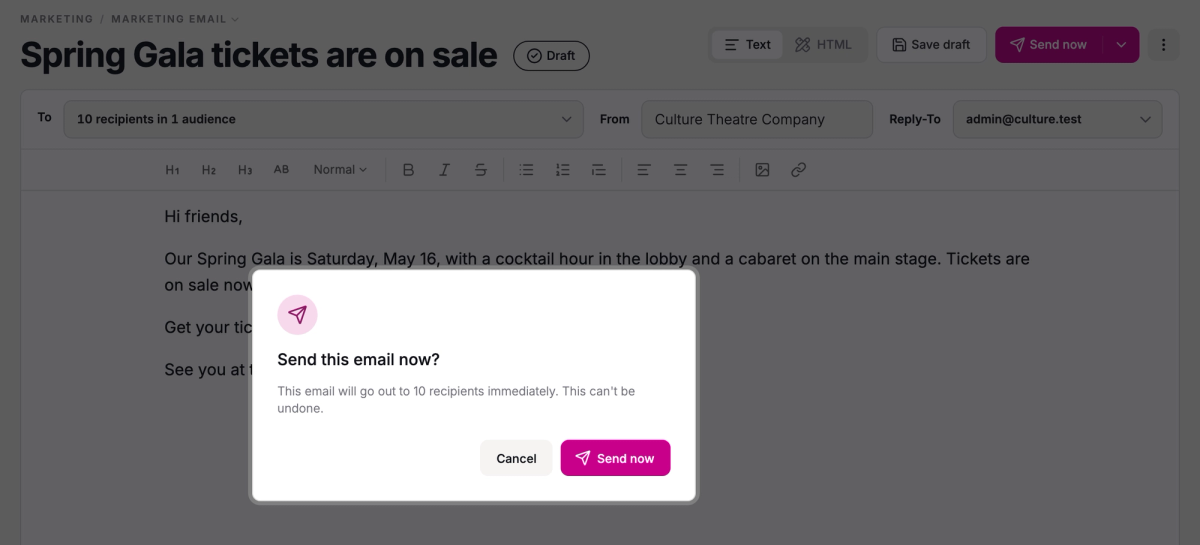
Check the number of recipients in the confirmation. It reads "This email will go out to N recipients immediately. This can't be undone."
- Step 3:
Click Send now to send it.
That number already leaves out people who won't get it, such as anyone who's unsubscribed.
Once it's on its way, the email moves to the Sent tab. Open it there to see its Email report: how many have gone out so far, then the results once it's done. Track your email results explains what they mean.
A sent email can't be edited, but you can clone it to send something similar.
Schedule it for later
- Step 1:
Click the arrow beside Send now and choose Schedule for later….
- Step 2:
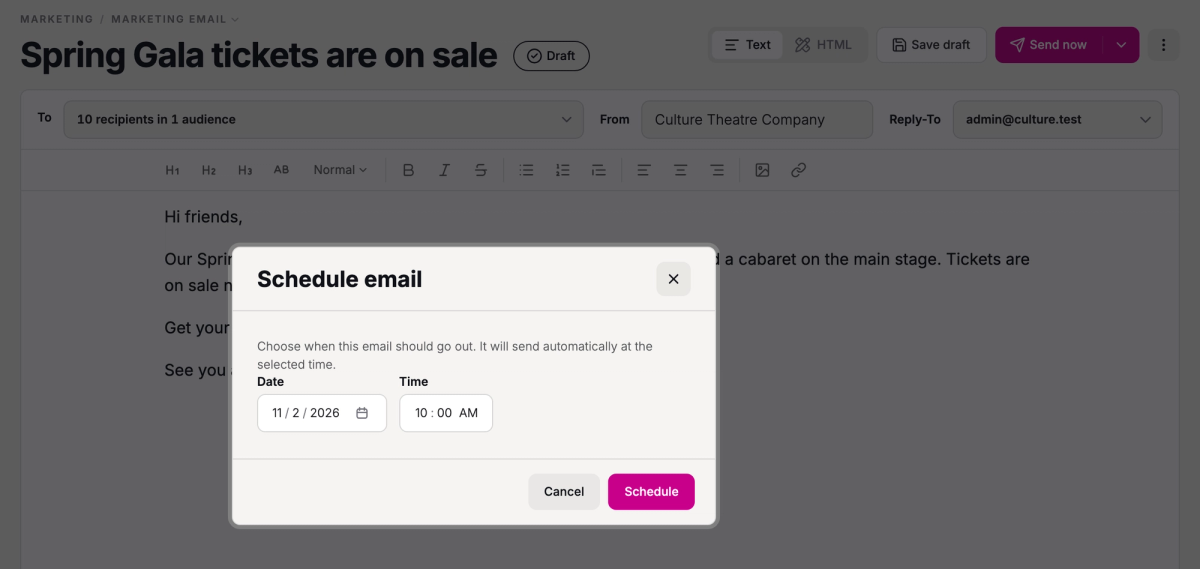
Pick a Date and Time. Times are in your organization's time zone.
- Step 3:
Click Schedule.
The email moves to the Scheduled tab and sends automatically at that time. Who gets it is decided when it sends, so anyone who joins your lists before then gets it too.
Until then, you can open it, make changes and click Save changes. To pick a different time, open it, click the arrow beside Send now and choose Reschedule….
To stop it from going out, open it, click Cancel scheduled send, and choose Return to draft. It goes back to the Draft tab, ready to send or schedule again.

Pause or cancel a send
While an email is queued or sending, you can pause or cancel it from its Email report. To see the report, open the email: it's on the Scheduled tab while it's queued, and on the Sent tab once it's sending.
- Pause stops it going to anyone who hasn't received it yet, until you click Resume.
- Cancel stops the send for good. Anyone who hasn't received it yet won't get it, and it can't be undone.
Find your emails
Marketing Email sorts your emails into tabs:
- Draft: emails you're still working on.
- Scheduled: emails waiting for their send time, including ones about to go out.
- Sent: emails that are going out, paused, or finished sending.
- Archived: emails you've put away.
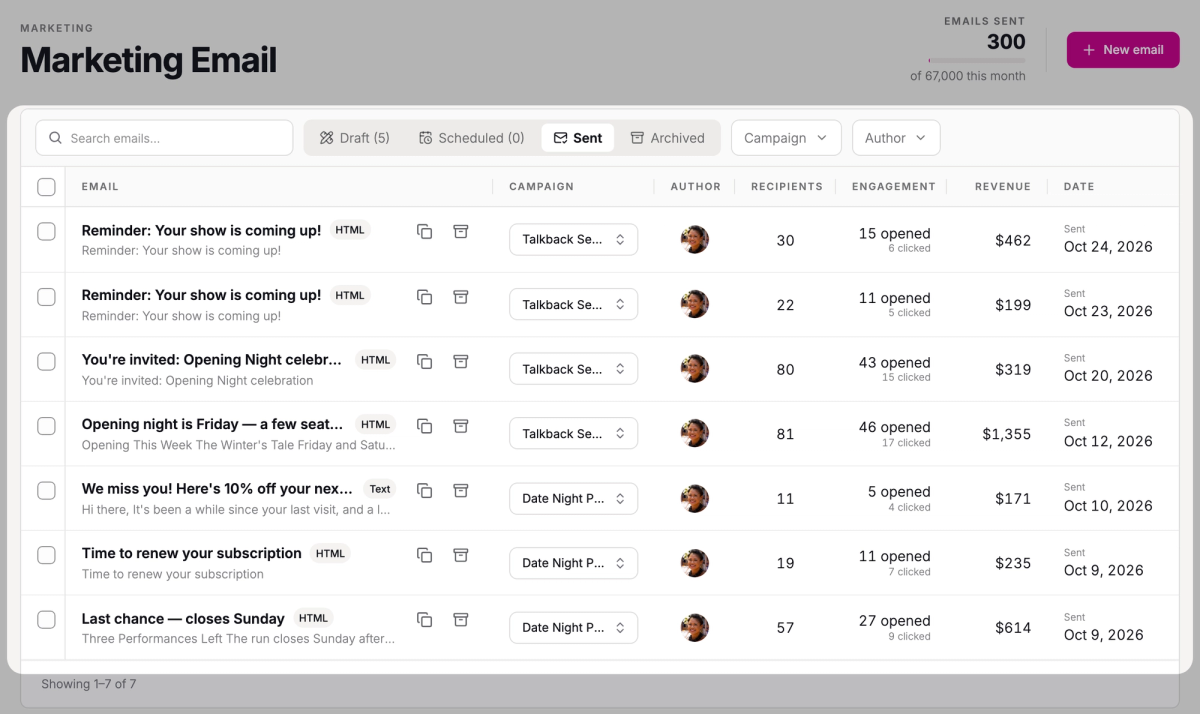
To reuse an email, click Clone on its row, or in its Email report. A copy opens as a new email, and nothing's saved until you save or send it.
To tidy up, click Archive on an email's row. It moves to the Archived tab and nothing is deleted. To bring it back, click Restore there, and it returns to the tab it came from.
Monthly limits
Stageworks checks your monthly email limit when you click Send now, Schedule or Resume, and stops the send if it would go over. The Emails sent meter on the Marketing Email page shows how much of this month's limit you've used.
Troubleshooting
"Not ready to send"
The email is missing a subject, a recipient, a sender name, or content. The message tells you what's missing: fill it in and click Send now again.
"Email limit reached"
Sending to this audience would go over your monthly email limit, and the message shows how many you've used. Send to a smaller audience, or see Marketing Email Limits for how your limit can grow.
Was this article helpful?
Email marketing in Stageworks
Email your patrons and your mailing lists from the same place you sell tickets, and see the ticket sales and donations each email brings in.
Build your mailing lists
Create mailing lists, add contacts by pasting their email addresses, and keep each list up to date as people come and go.
Import your contacts from another email provider
Bring your mailing list with you when you move to Stageworks, by importing a CSV of your subscribed contacts into one of your lists.
Let patrons sign up for your emails
Choose the list website signups join, add a signup form to any page, and see how patrons manage the emails they get from you.
Choose who gets your email
Send a marketing email to a mailing list, a patron segment, all your patrons, or one person, and see how many people it will reach.
Write a marketing email
Write a simple Text email or design an HTML email from blocks, and use layouts so every HTML email looks like your organization.
Track your email results
See how each marketing email did, from opens and clicks to the ticket sales and donations it brought in, and compare all your emails in one report.